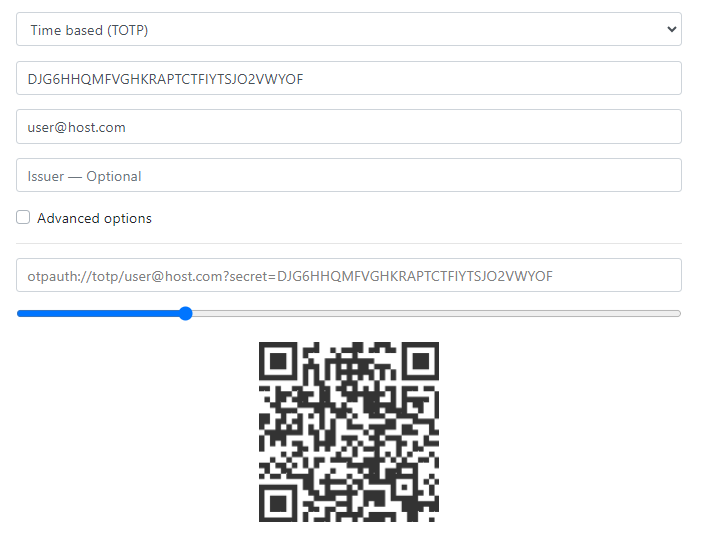
If you have seed data (Base32 or Hex encoded), and want to distribute the data to a user via email (in order to be scanning into an authenticator app on a mobile phone, then one of the best solutions is to email the data in the form of a QR code (which will then be scanned into your authentication app).
Generating a QR code using the Management Console
QR codes may be generated for a specific token using the management console by using the following procedure;
After logging in to the management console navigate to "Directory | Users" and selecting the domain of the user that has the token assigned to them, then click 

Left click on the context menu of user and select the option "Tokens", and you will be presented with a list of all tokens currently assigned to the user;

To obtain a QR code for one of these tokens left click on the context menu of the required token and select "Display QR Code";
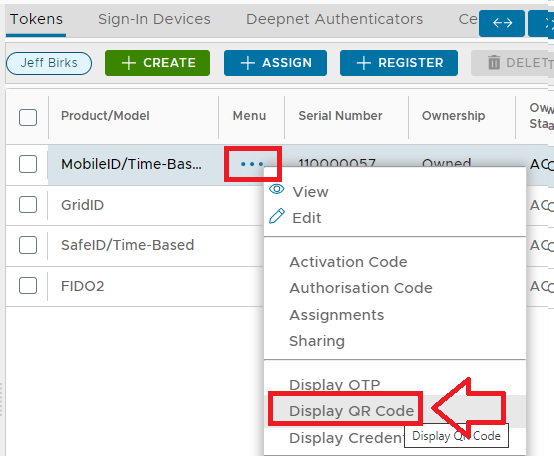
A window will now open titled "QR Code" that will display the QR code for the selected token;

Generating a QR code using the Self-Service Console
A user may obtain a QR code by accessing the Self-Service Console using the following procedure;
Find the MobileID token, click its context menu
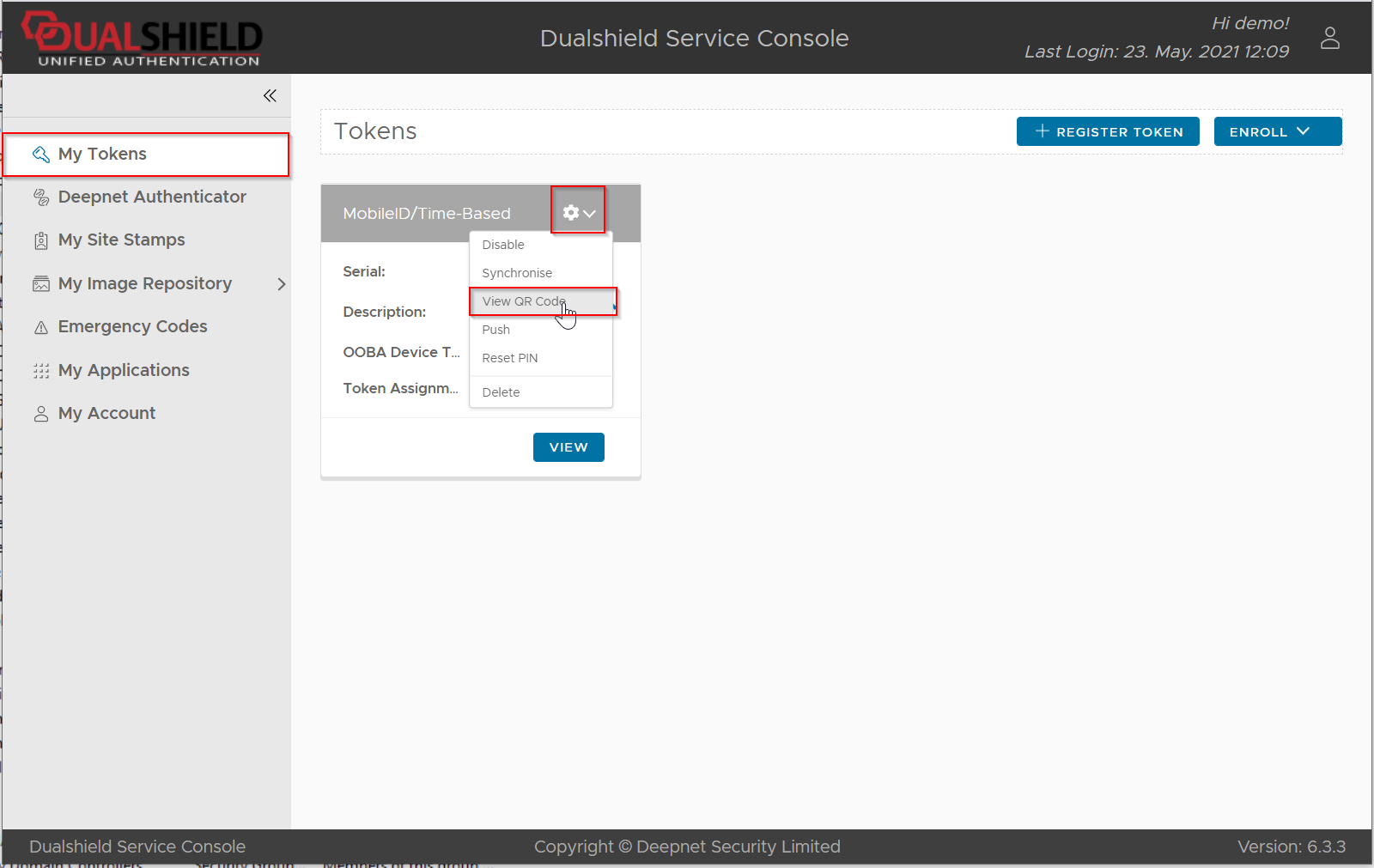
Select "View QR Code" from its context menu
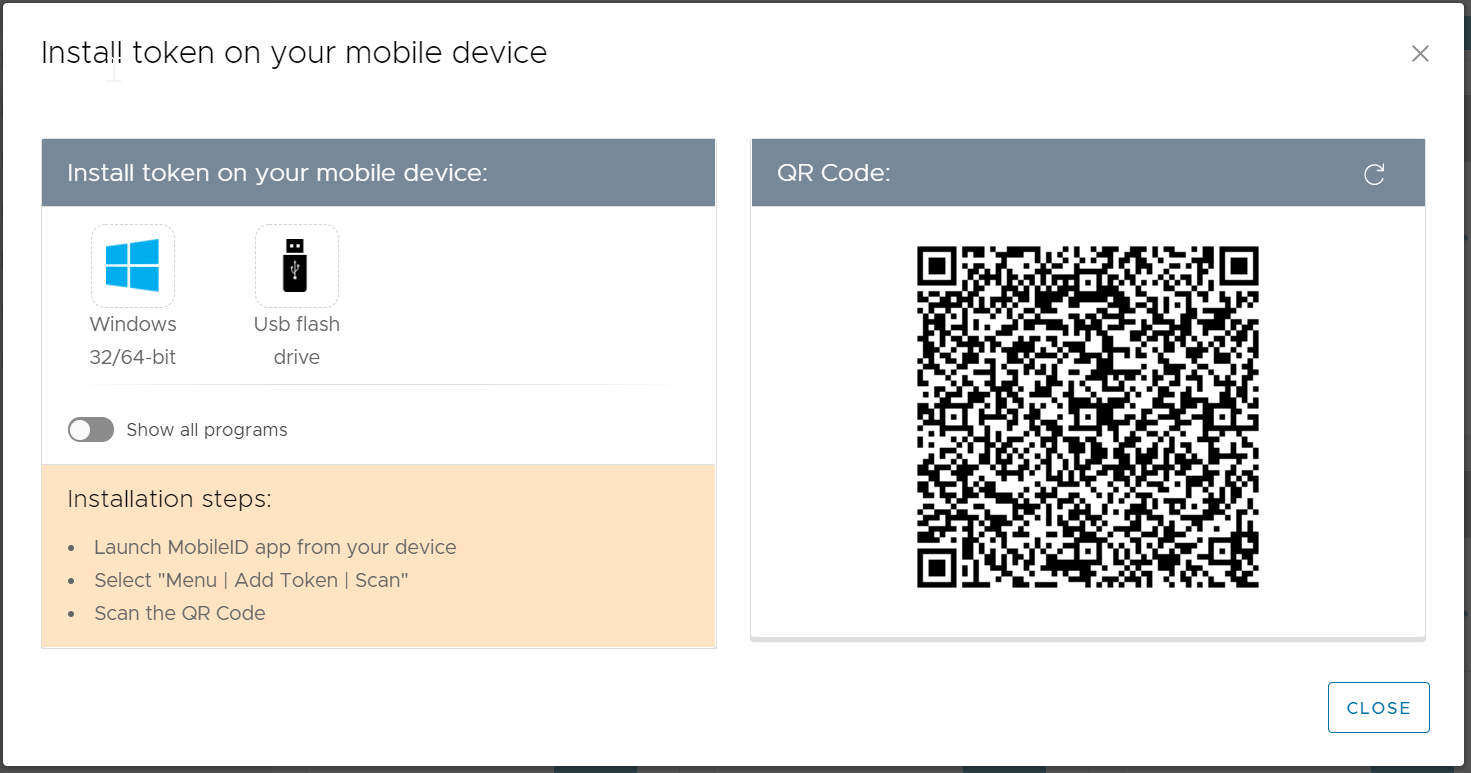
Find the MobileID token, click its context menu
Select "View QR Code" from its context menu
Generating a QR code from seed data using an online form
In order to generate a QR code you will first need to obtain seed data encoded in Base 32 form, but it is possible the seed was provided externally, and is currently hex encoded.
Hex encoded seeds may be converted to Base32 form using the following procedure;
To convert Hexadecimal encoded seed data to Base32 we suggest using the following online conversion tool
In the field "Hex String" copy the seed data you received in hex format then click the 

The base32 version of the seed will be displayed in the "Decoded data (hexadecimal)" field.
Once you have seed data Base32 encoded, you can generate a suitable QR code using the following procedure;
To convert Hexadecimal encoded seed data to Base32 we suggest using the following online conversion tool
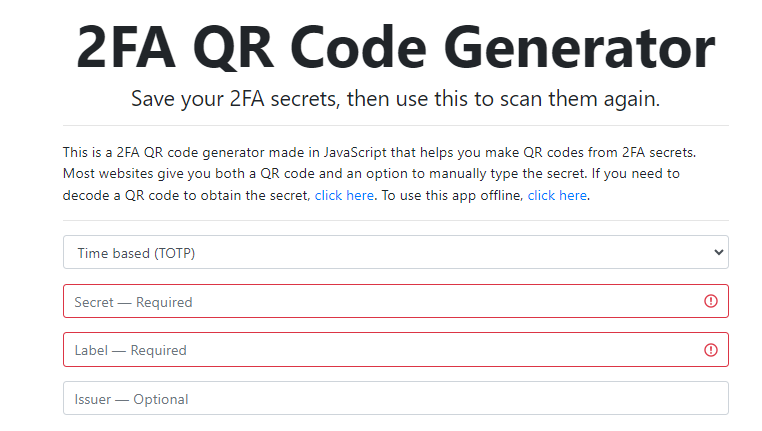
In most cases you will want to generate a QR code for time based TOTP authentication (so leave the first field with the default value)
In the field "Secret – required" copy the Base 32 encoded seed data
In the field "Label – required" copy the details that will be displayed in the app for this OTP (e.g. user@host.com)
The online app will now generate a QR code that can be scanned into any compatible google authenticator style mobile app;