Set up DualShield Connection Server
In order to use the DeepNet Authenticator (DNA) app, you need to set up the DualShield Connection Server (DCS)
Configure Policy Settings
If you allow your users to activate their own devices using the DNA app, then you need to configure the following policies:
DeviceID Policy
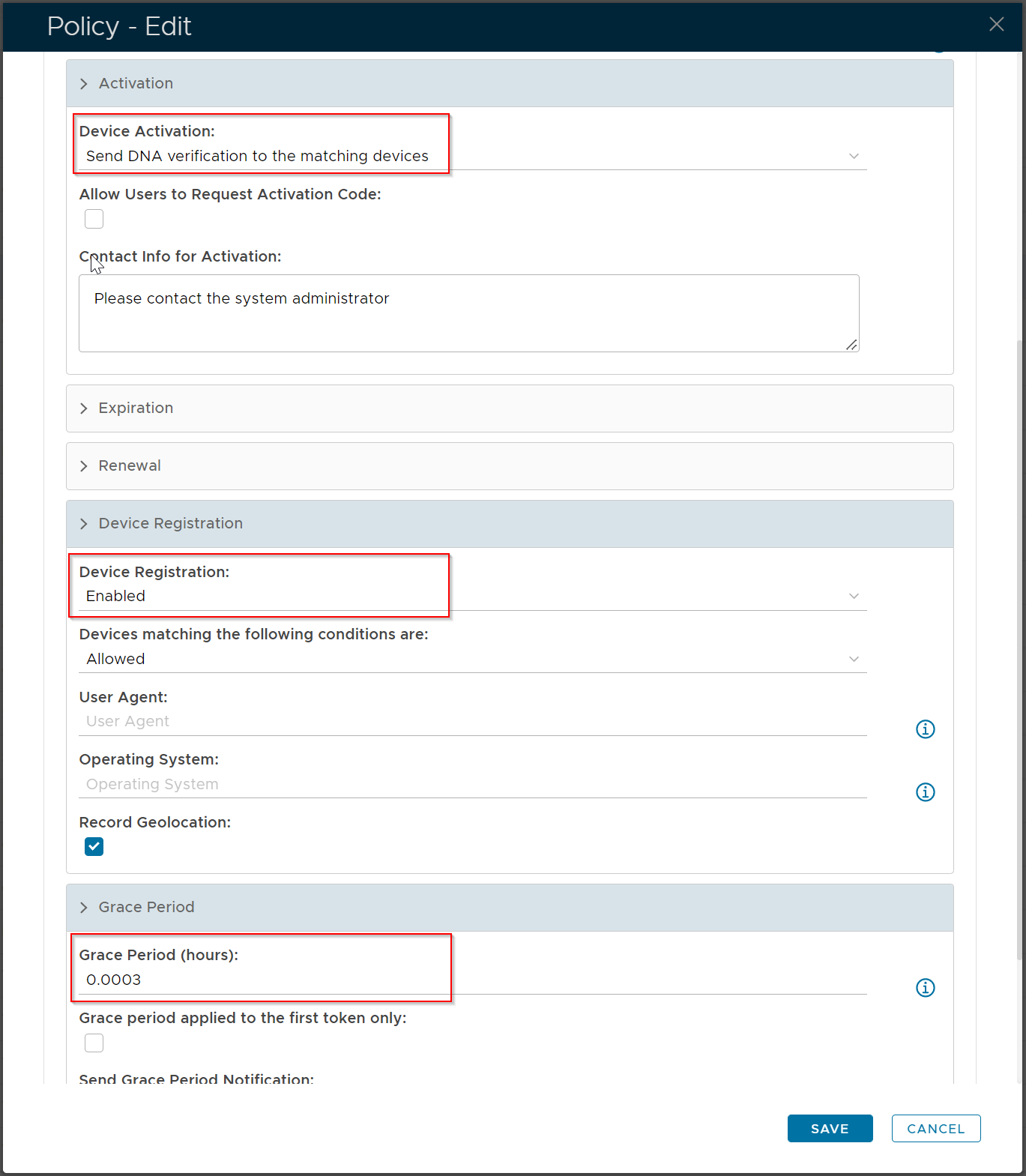
Deepnet Authenticator Policy
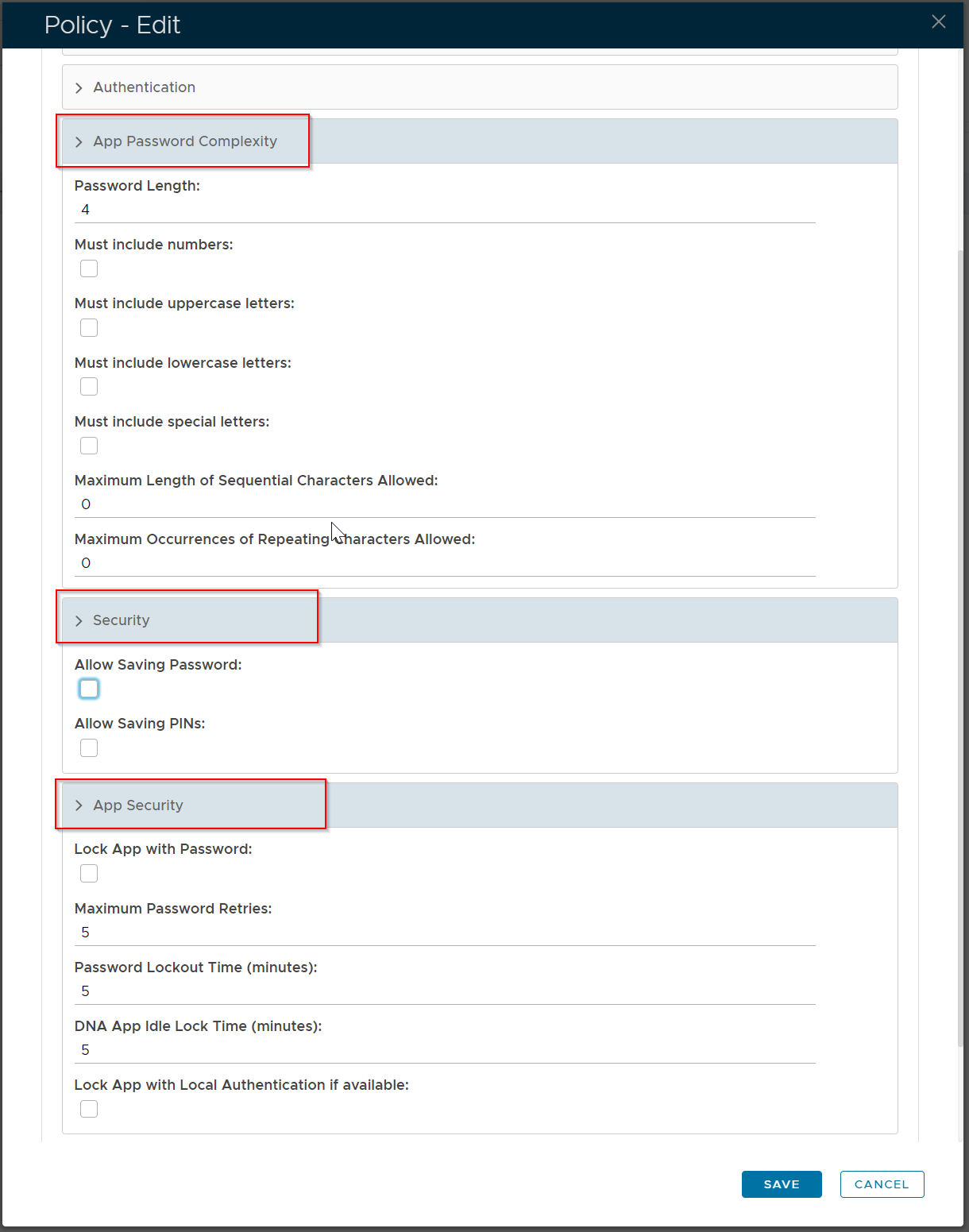
Customize Message Template
To allow users to self-activate their devices using the DeepNet Authenticator (DNA) app, you can customize the message template used by the DNA app.
Device Enrolment
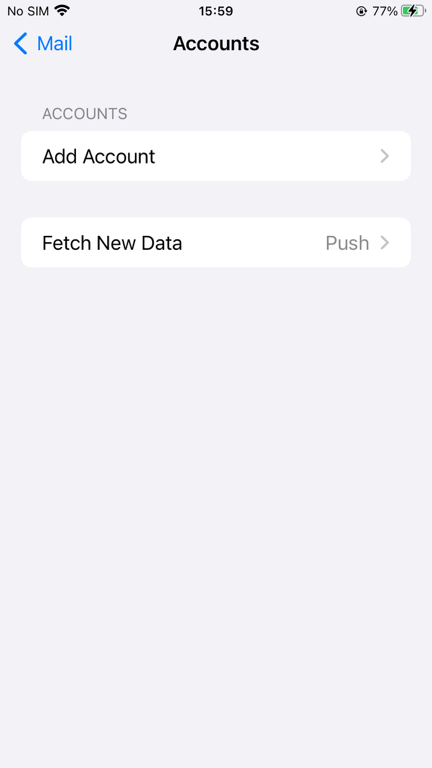
Select "Add Account"
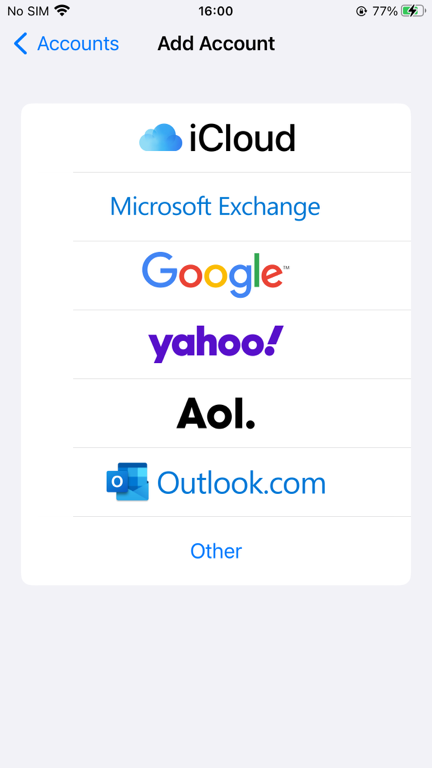
Select "Microsoft Exchange"
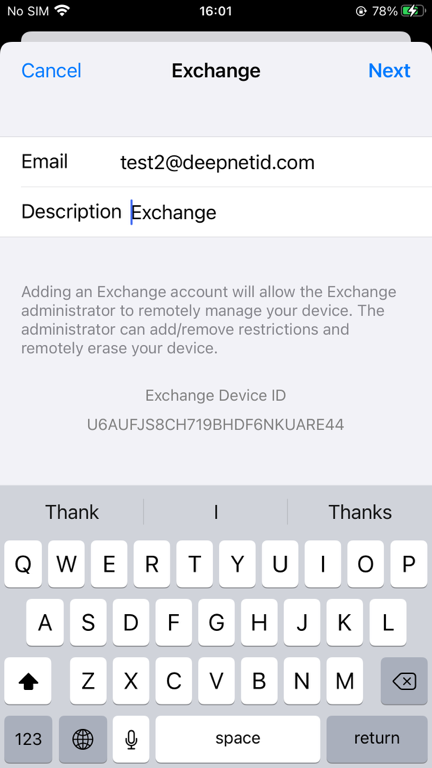
Enter your email address, and description
Click Next
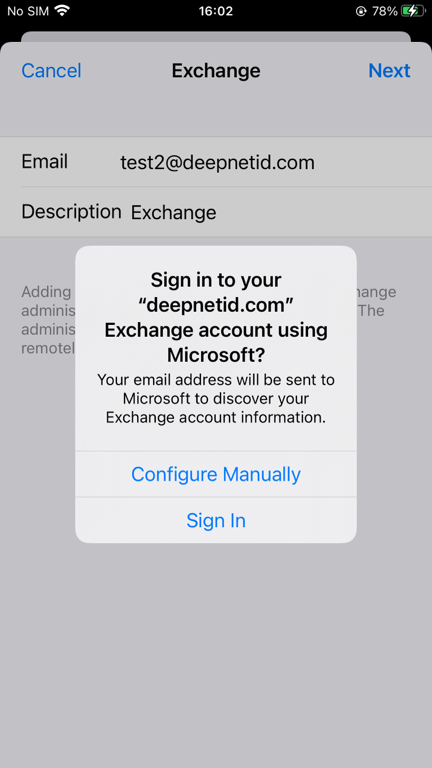
Select "Configure Manually"
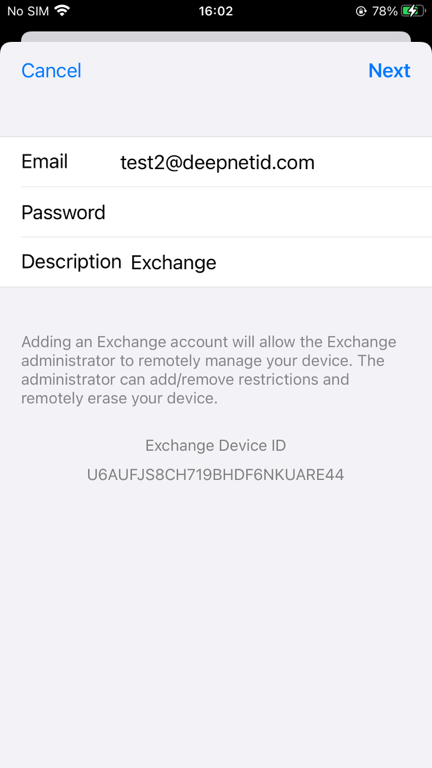
Enter your email password
Click Next
If the Grace Period option is enabled in the DeviceID policy, then the user will experience the following
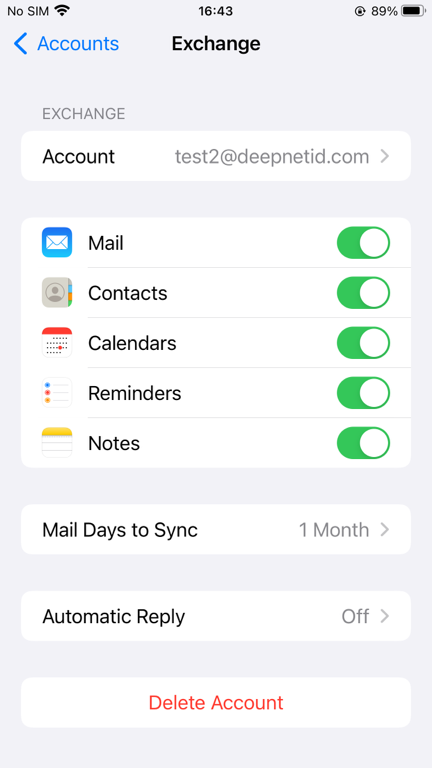
If the Grace Period option is disabled in the DeviceID policy, then the user will experience the following
The "Password Incorrect" window will pop up on the screen.
In the meantime, a push notification message "You have a device activation request" will also arrive
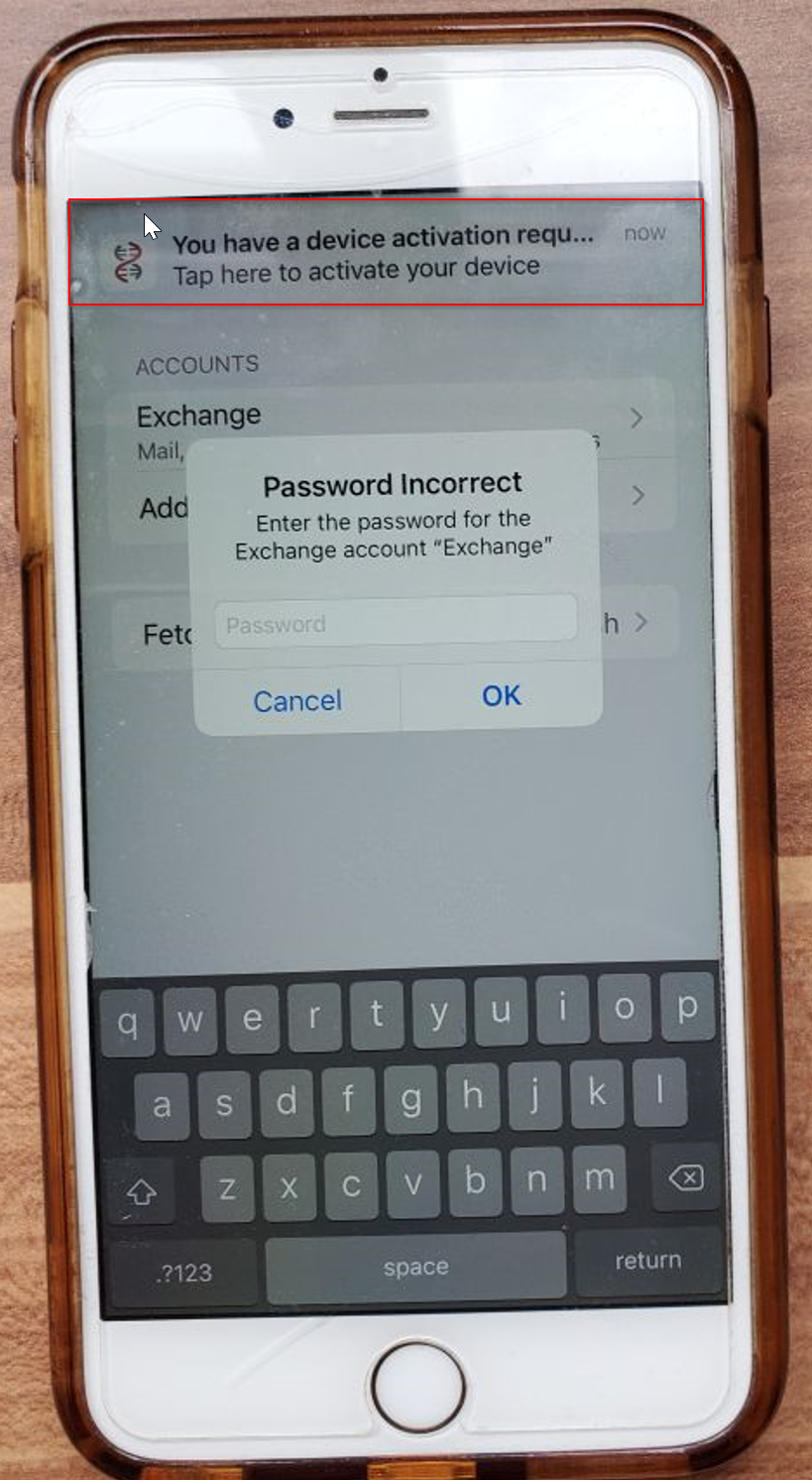
Press the "Cancel" button to close the "Password Incorrect" window
Switch to the Home screen
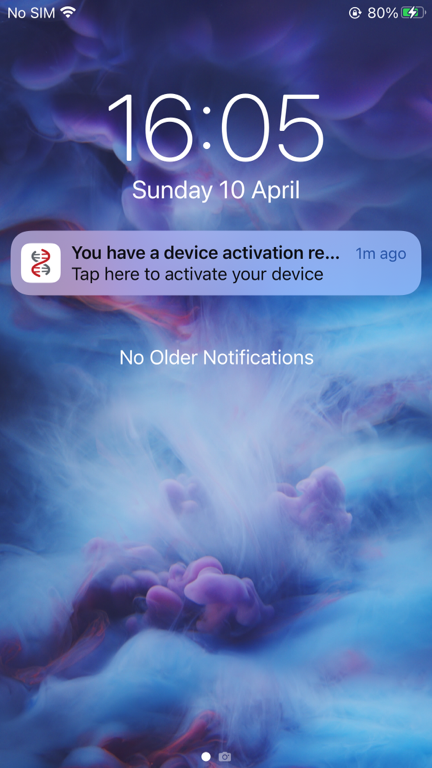
Click the notification message "You have a device activation request"
This will bring up the DeepNet Authenticator app
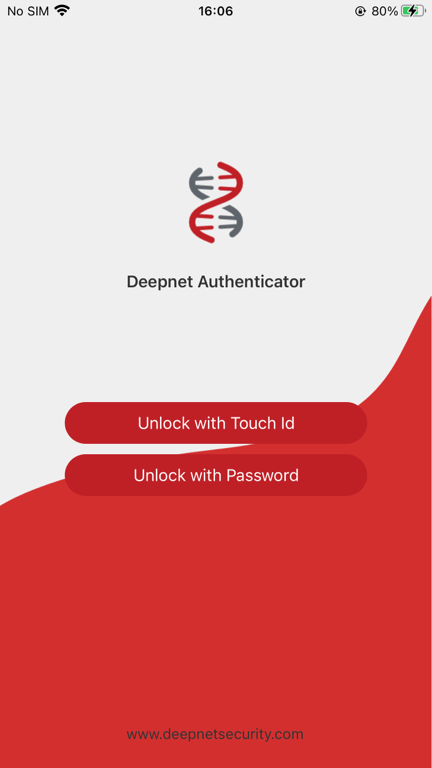
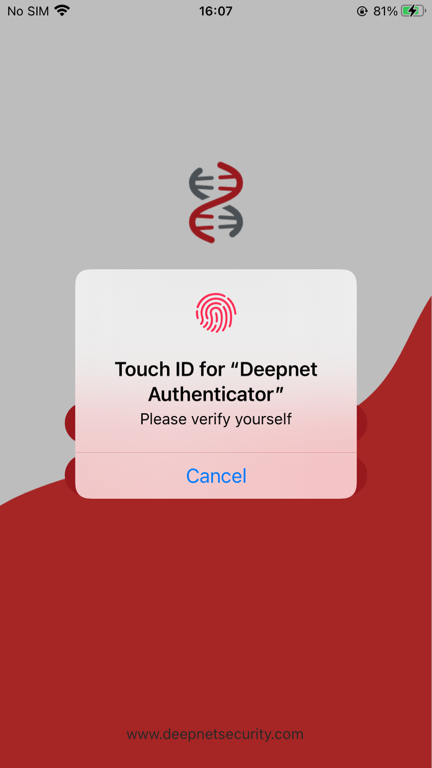
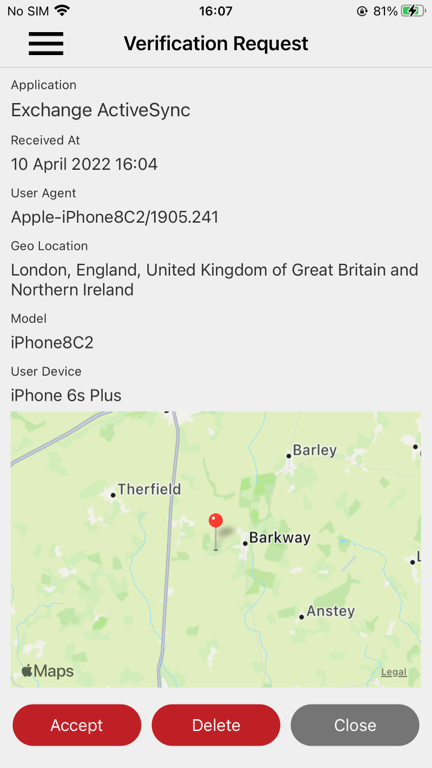
Click Accept
Depending on the logon procedure, the user might or might not be required to authenticate again
| Simple confirmation | Password authentication |
|
|
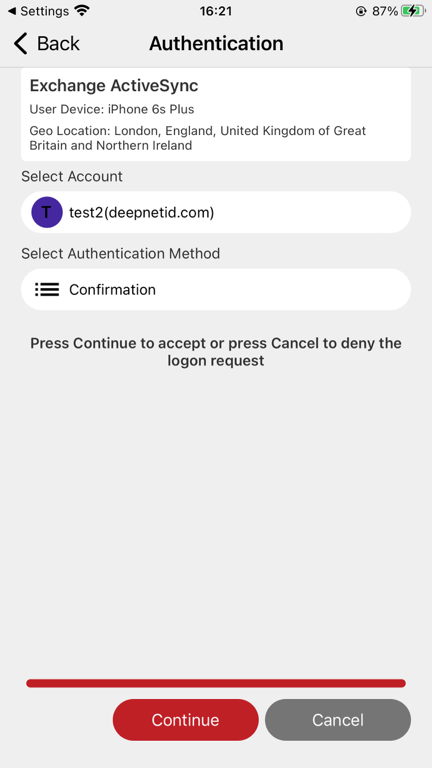
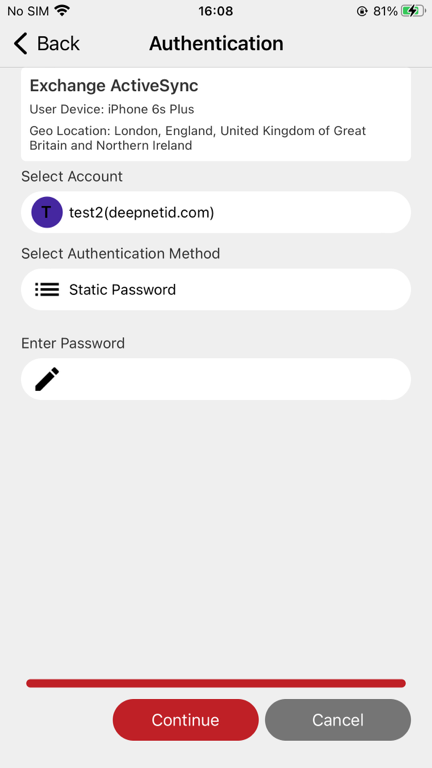
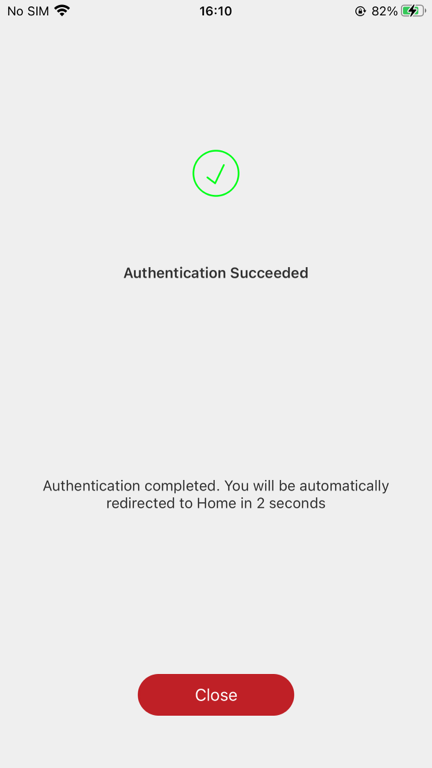
Now, you need to go back to the email account and re-enter your email password
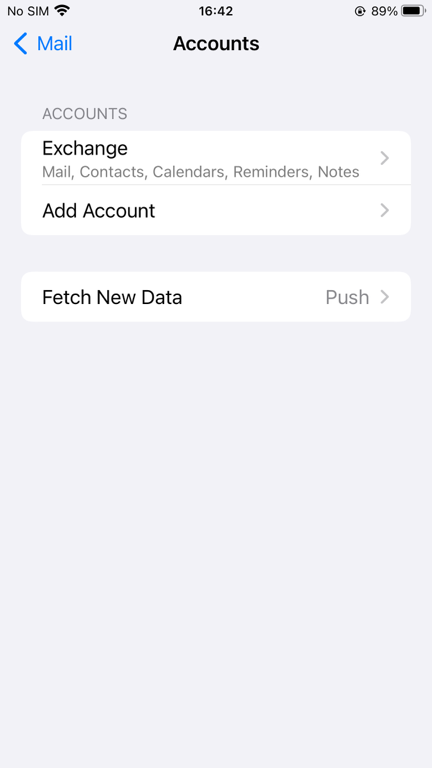
Click "Exchange ..."
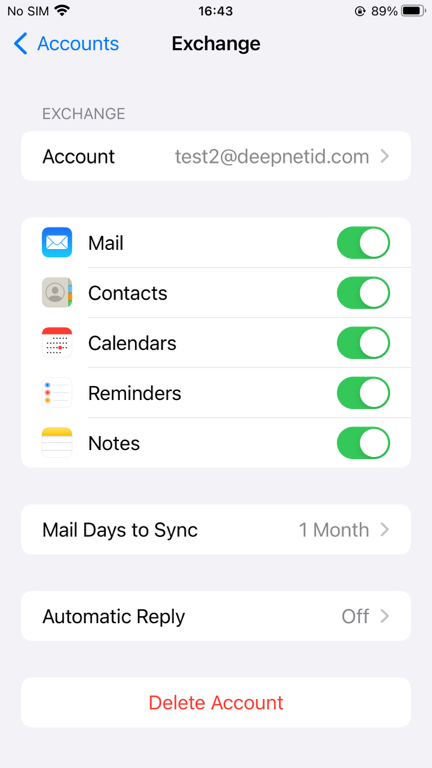
Click your email account, e.g. "test2@deepnetid.com"
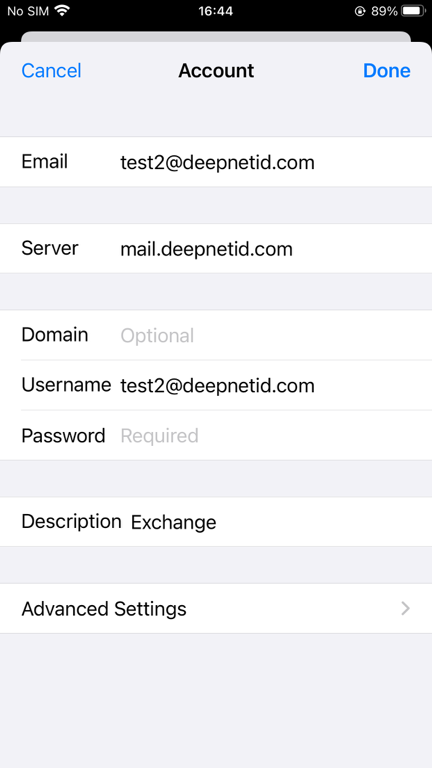
Remove and re-enter the password
then, click "Done"
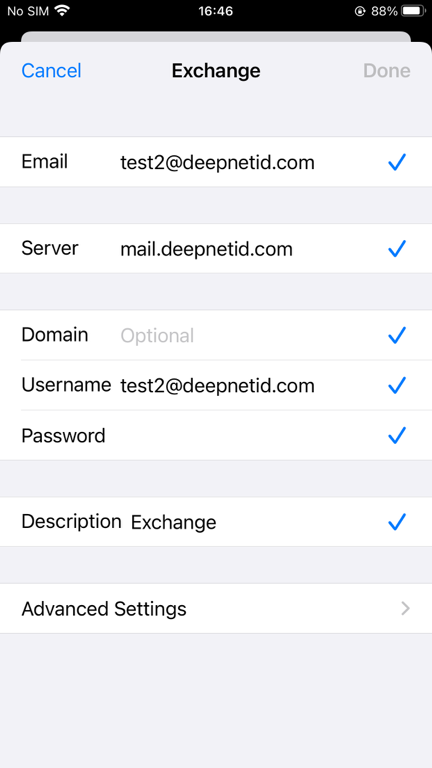
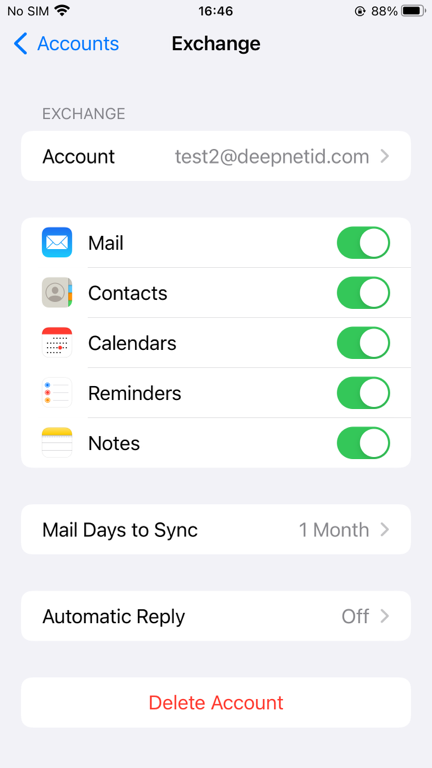
Your email account is now fully activated on this device.