Once you have completed the configuration of MFA settings for Outlook Anywhere application, you are ready to turn on MFA on the application.
Device-Based Outlook Anywhere MFA for Outlook for Windows
Select the "mapi" application node
Select both "Enable Two-Factor Authentication on Current Node" and "Apply Settings to Child Nodes"
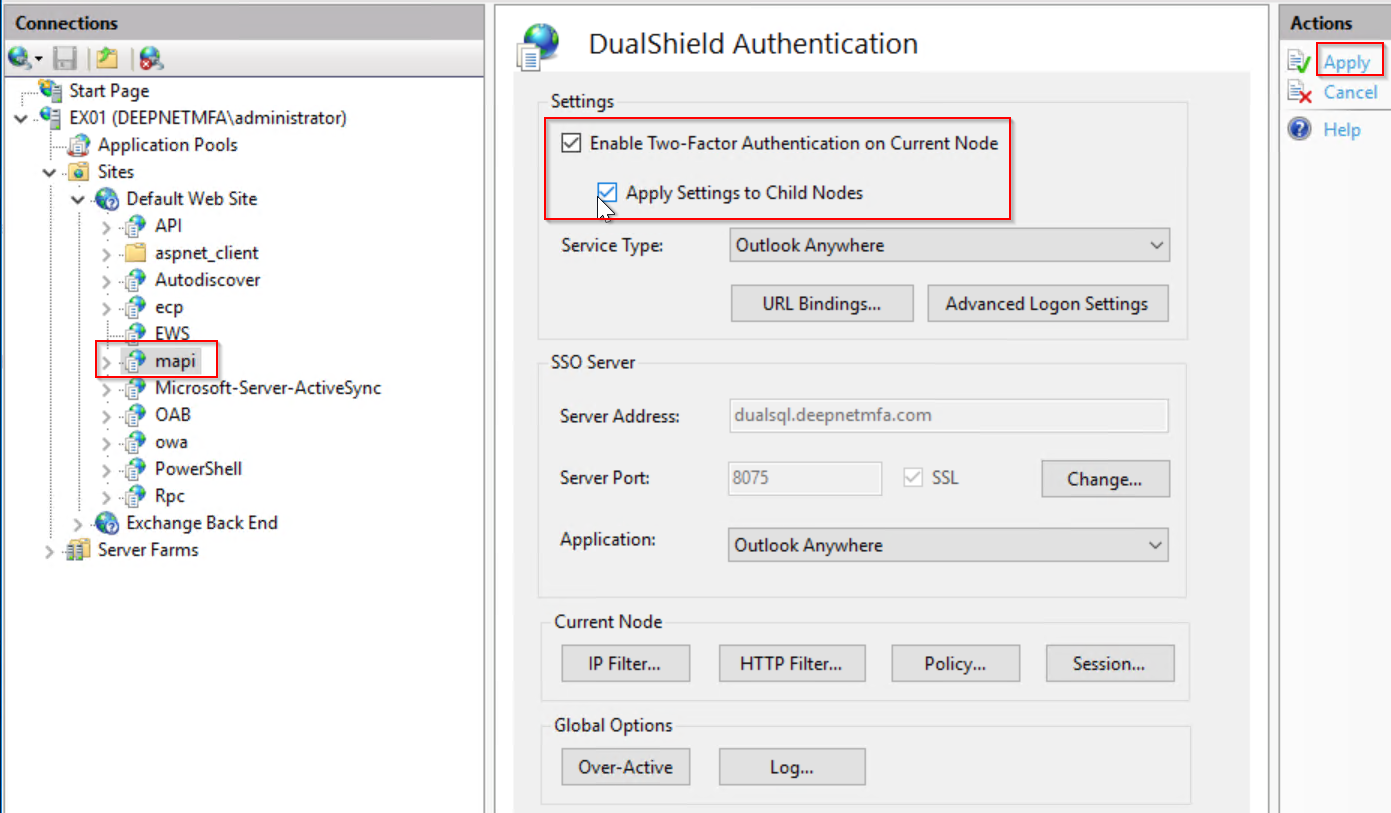
Click "Apply" to apply settings.
Outlook Anywhere is now enabled with MFA.
Device-Based Outlook Anywhere MFA for Outlook for Mac
Select the "EWS" application node
Select both "Enable Two-Factor Authentication on Current Node" and "Apply Settings to Child Nodes"

Click "Apply" to apply settings.
Outlook Anywhere is now enabled with MFA.
Agent-Based Outlook Anywhere MFA for Outlook for Windows
Select the "mapi" application node
Select both "Enable Two-Factor Authentication on Current Node" and "Apply Settings to Child Nodes"
Select the "RPC" application node
Select both "Enable Two-Factor Authentication on Current Node" and "Apply Settings to Child Nodes"
