Register your FIDO2 key in your Vaultwarden account
Before you can use your FIDO2 key as an access method for your Vaultwarden account you will need to register the key with Vaultwarden using the following procedure;
- Sign in to the your Vaultwarden account, then expand the "Settings" dropdown (in the left hand column of the page), then select the option "Security";
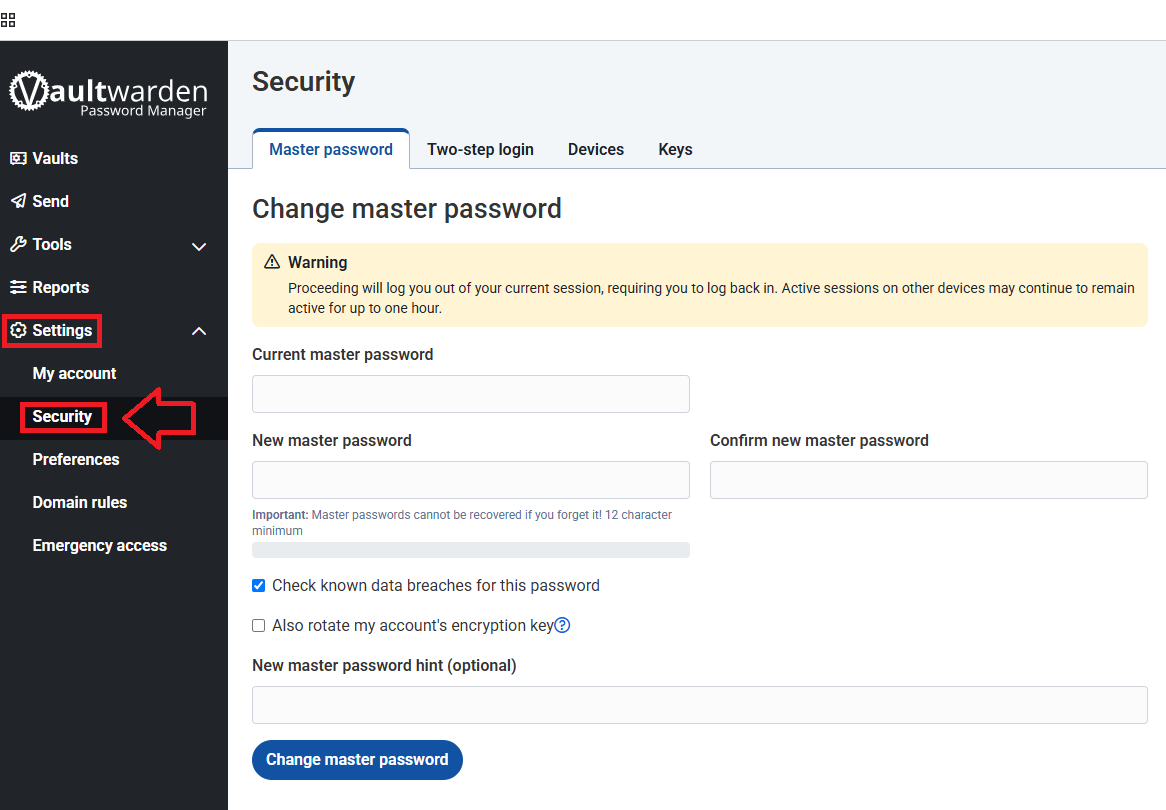
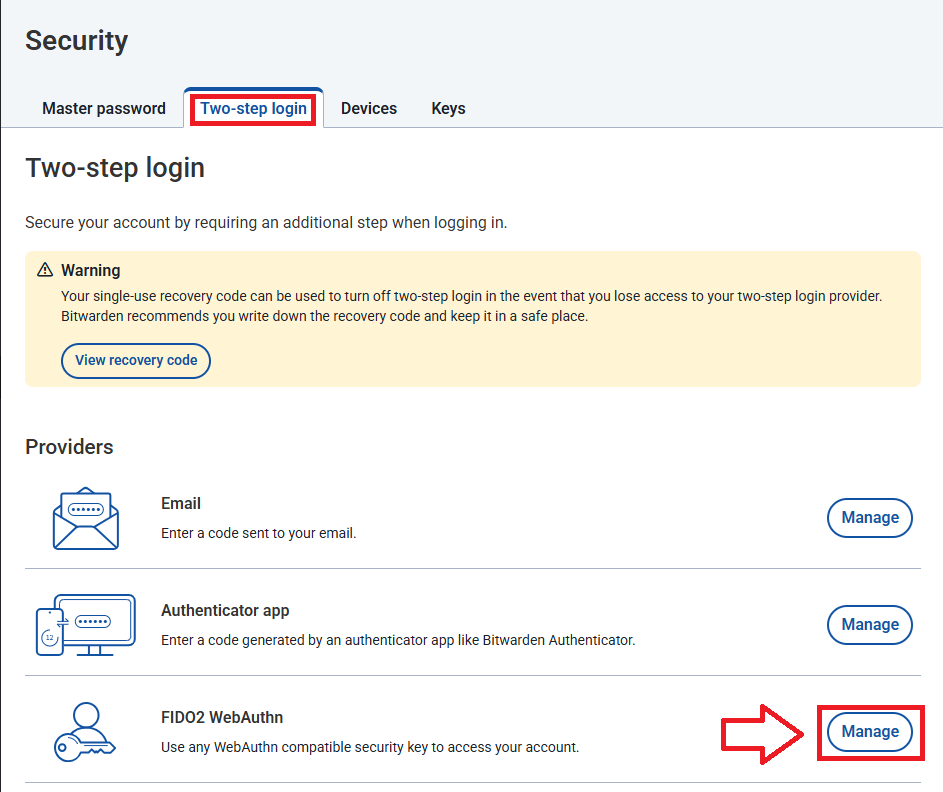
The page will update to list the security settings, select the sub-menu option "Two-step login", then against the provider "Fido Webauthn" click
 ;
;
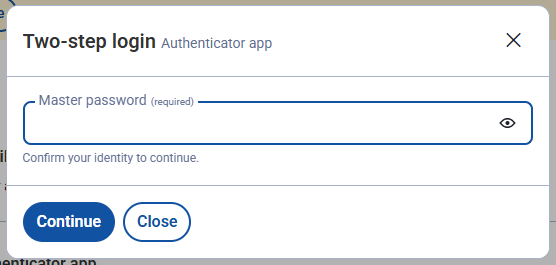
A window will open titled "Two-step login", at the "Master password" prompt enter you password then click

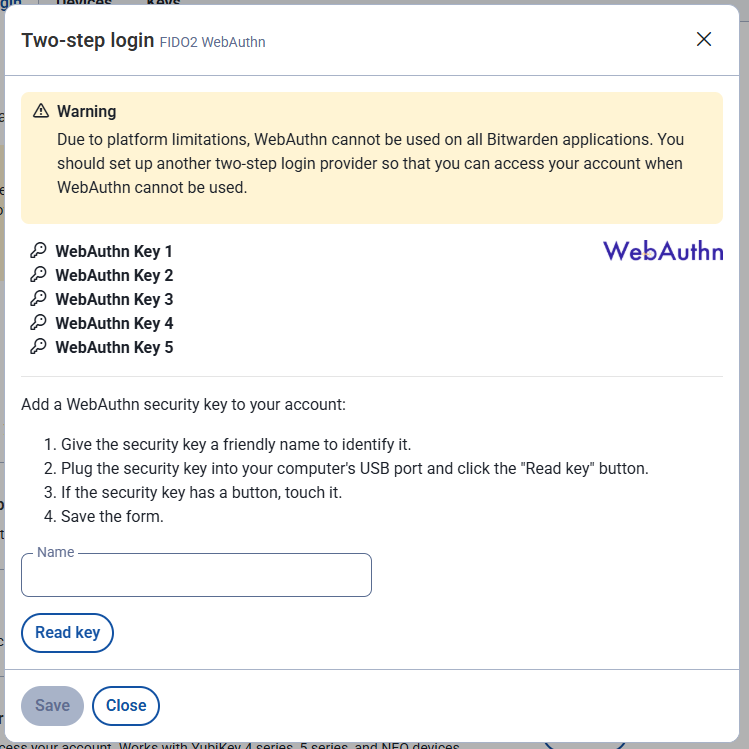
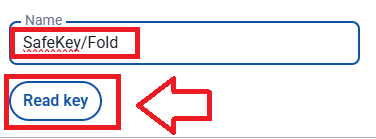
Insert you Fido2 key in an available USB port, then at the prompt "Name", provide a suitable name for your key then click
 ;
;
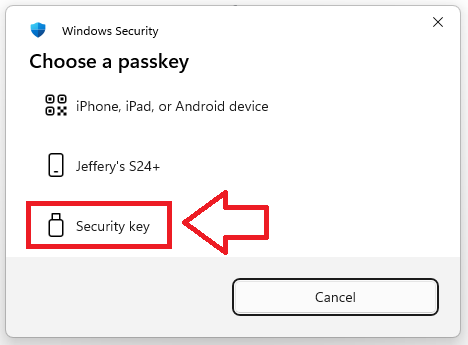
You will now be presented with a list of possible passkeys, select "Security Key";
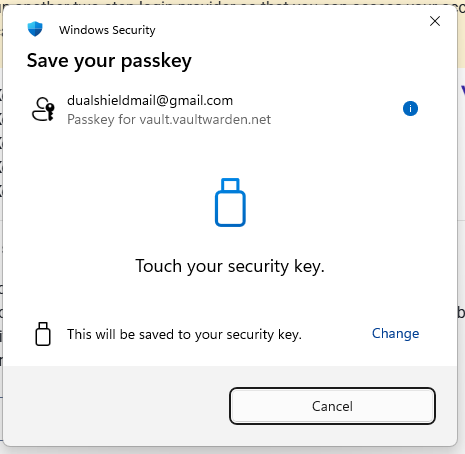
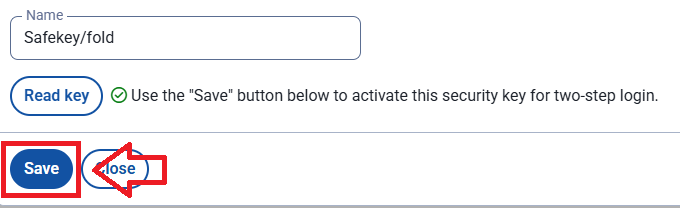
Click
 , and registration and activation of the Fido2 key will be completed and you will be presented with the following confirmation;
Signing in to your Vaultwarden account with a FIDO2 key
Once you have registered you FIDO2 key with Vaultwarden the key will be ready to be used as an authentication method when accessing your Vaultwarden account;
- Sign in to the your Vaultwarden account using you username and password, but prior to logging in to your account you will now be asked to verify your identity with a passkey.
select the option "Security key";
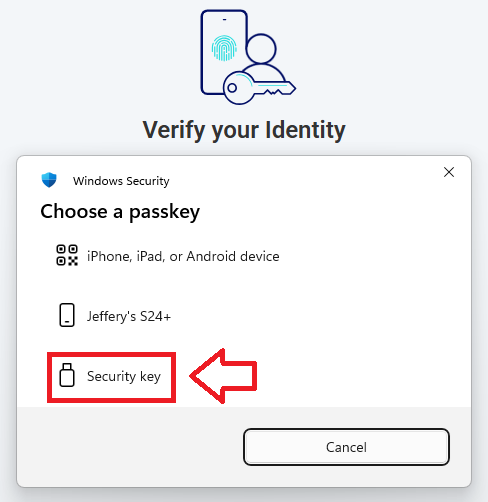
Once Security key is selected click
 , and you will prompted to touch the security key;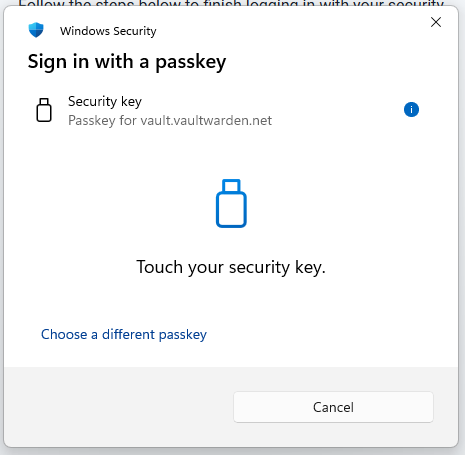
Once you have touched the Fido key (in the allowed time), you will be logged in to your Vaultwarden account.
Related Articles