Create a Service Provider
- Login to the DualShield Administration Console
- Navigate to “SSO | Service Providers”
- Click the “+ CREATE” button in the toolbar
- At the 'SSO Server' drop-down, select "Single Sign-on Server"
- Drop down 'Application' then select the Application name, created previously.
- Enter an appropriate Name for this Service Provider.
- 'Type' should be set as "SAML 2.0"
- Select tickbox "Sign on SAML Assertion"
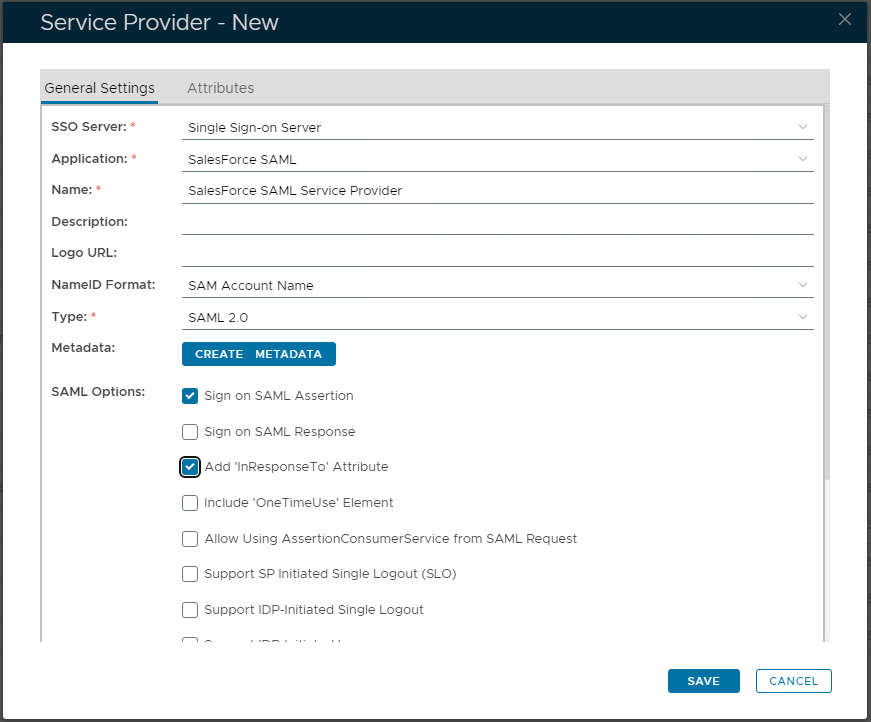
- Click the 'CREATE METADATA' button. Paste the SalesForce MetaData saved earlier, in to the large textbox displayed.
- Then click "SAVE" to apply.
- Select the 2nd tab named "Attributes"
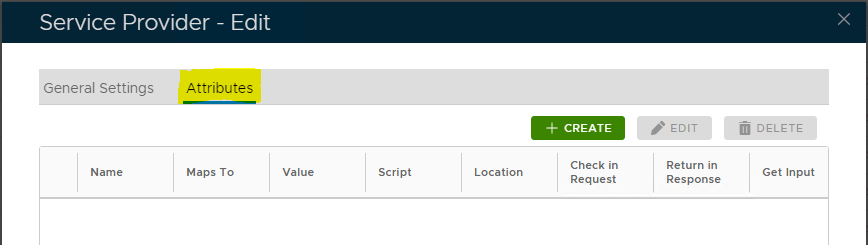
- Click "+ CREATE" button to add a new Attribute
- Set 'Location' as "HTTP Body"
- Enter in the 'Name' field the attribute "loginName"
- 'Format' set from the drop-down as "attrname-format:uri"
- Within 'Value' set as "Maps to an identity attribute", then click the magnifying glass, and locate "Email".
Assuming that your SalesForce loginname is your email address,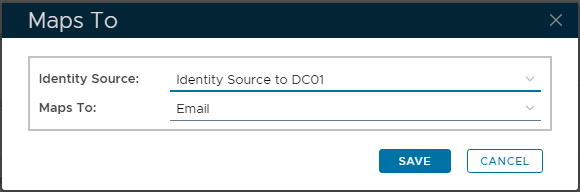
- Then select "SAVE" to confirm.
- Now at the primary Service Provider window, drop-down 'NameID Format' and select "Maps to the following attribute"
- In the next field 'Attribute" you will find the custom attribute created, "loginName". Select it.
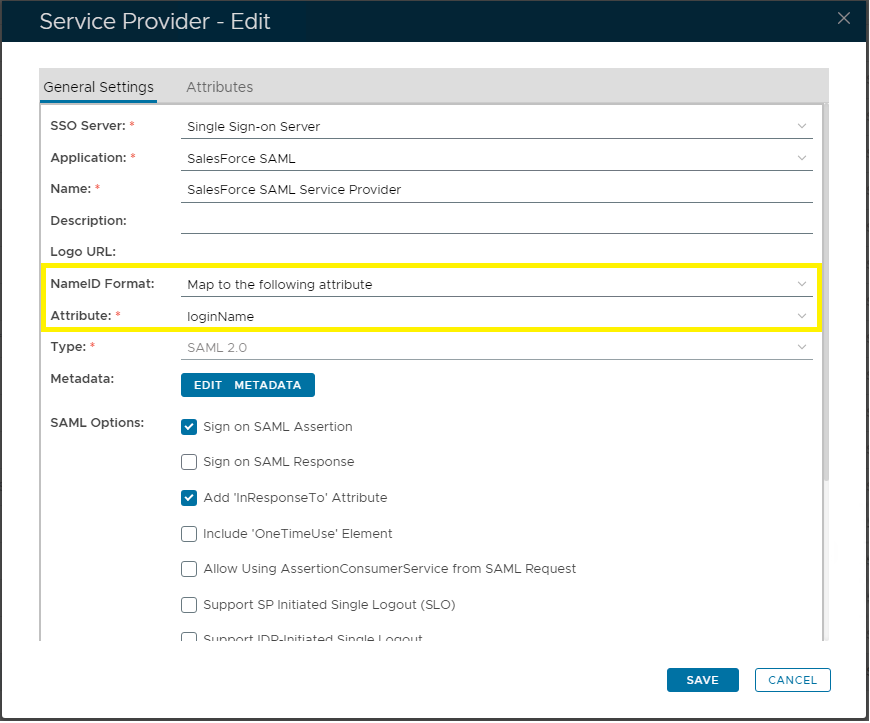
- Finally click "SAVE" to create this Service Provider entry.