Replication is typically set up to replicate data across different geographic locations.

To set up a DualShield HA system with a Microsoft SQL Replication cluster, follow the steps below
Install the Primary DualShield Server
Follow the normal installation process to install the primary DualShield Server. In the database selection step, select Microsoft SQL as the database server
Install DualShield Server
To start the installation, execute "DualShieldSetup64-xxx.yyyy-signed.exe", where xxx is the version number and yyyy is the build number, e.g. "DualShieldSetup64-6.0.0.0228-signed.exe"

DualShield 6 supports multiple languages. However, in the first release, version 6.0.0, language translation has not yet been completed. Please select English for now.


You may install DualShield on a different drive, in a different folder. However, it is recommended to use the default drive and folder as suggested, for the sake of simplicity and transparency in future communications.
| Option 1: All-in-One Server | Option 2: Slim Backend Server |
|---|---|
If you want to install a DualShield server that is to be used as both the backend and frontend, then you need to install all of its components. Select "All Components" |
If you want to install a DualShield server as a pure backend server without the end-user services, then you can keep it slim. Select "Back-end Components" |
At the present time, the documentation for DualShield 6 is not yet complete. Therefore you might want to include the legacy Management Console so that you can refer to the old documentation if necessary. If you do select the legacy management server and/or self-service server, then you must also select the legacy SSO server.
|
At the present time, the documentation for DualShield 6 is not yet complete. Therefore you might want to include the legacy Management Console so that you can refer to the old documentation if necessary. If you do select the legacy management server, then you must also select the legacy SSO server.
|


| Option | Value |
|---|---|
Server FQDN | Enter here the FQDN to be used for this DualShield server. Please choose the FQDN wisely and correctly, as it would be difficult to change after the installation. |
Use SSL to access DualShield | You can install a DualShield without SSL. However, it is highly recommended that you select "Use SSL to access DualShield", particularly if this is going to be used as a production server. |
Create a self-signed certificate | A certificate is to be used for DualShield web consoles and portals. You may use a self-signed certificate, however, it is highly recommended that you should provide a commercial SSL certificate, particularly if this is going to be used as a production server. |

DualShield server is a JAVA application server. It runs in a Java Virtual Machine (JVM).
You can set the maximum memory size (JvmMx) and the minimum memory size (JvmMs) to be used by JVM. If you have a large active user base, then increase both of these values. It is not recommended to reduce them.
Those values can be changed after installation.

Please select "Software Encryption".
| Option 1: Local/Internal Database | Option 2: Remote/External Database |
|---|---|
DualShield uses a standard SQL database as its data store. If you select "Install a copy of MySQL server", then it will install an instance of MySQL server on the local machine.
| If your organisation has a SQL server, then it is recommended that you use your own SQL server, so that your DBA can manage all databases in one server.
|


| Option | Value |
|---|---|
| Server Address | The address of the SQL server. You can enter its IP address or hostname. If it is a local SQL server, then keep it as is "localhost". |
| Server Port | The TCP port number of the SQL server. Keep the default value unless you have reasons to change it to a different value. |
| User Name | This is the account name to be used to access & manage the SQL database. |
| Password | This is the account password to be used to access & manage the SQL database. |
| Database Name | This is the name of the database to be used by DualShield. Keep the default name "DualShield" for simplicity and transparency in future communications. |


Wait for the DualShield server to be fully loaded
To wait for the DualShield server to be fully loaded and monitor the its initialisation progress, launch the Windows Task Manager and check the process called DualShield Server which is often a sub-process of Commons Daemon Service Runner, as shown below:
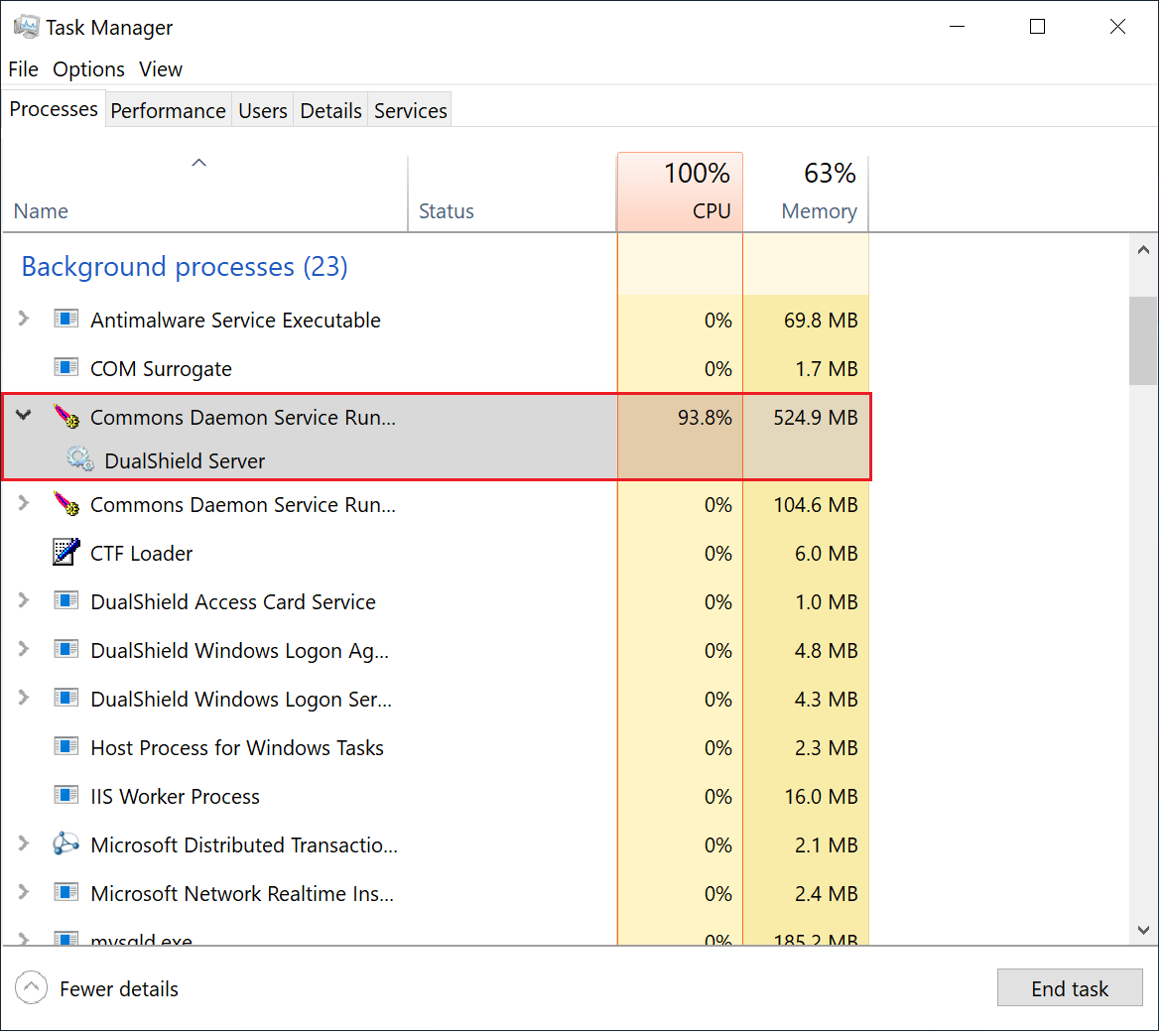
During the initialisation process, the CPU usage of the DualShield Server process will go up and down, and the Memory consumption will continue to increase.
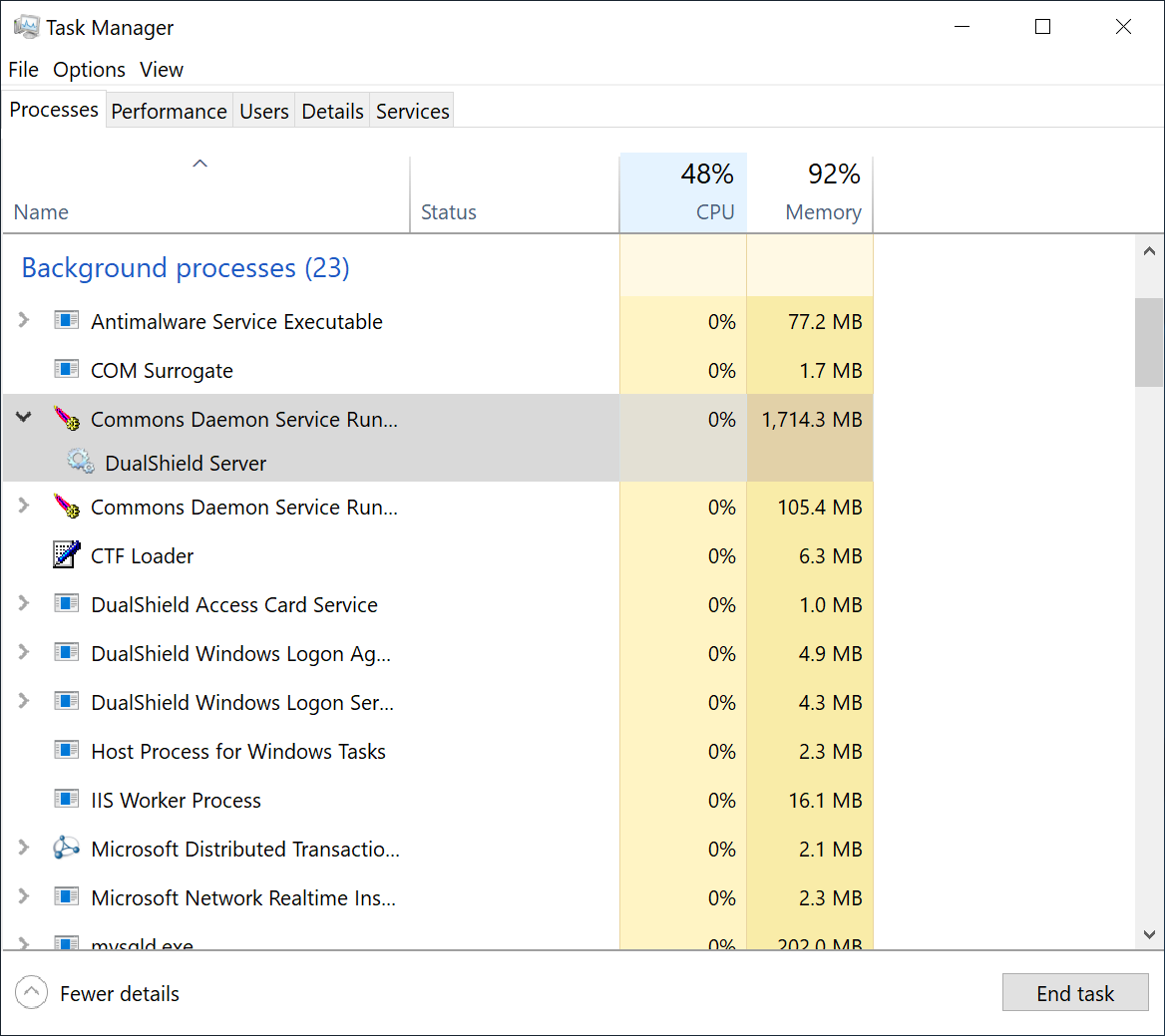
When the CPU usage drops to zero or slightly above zero, and the memory consumption reaches close to 1.8GB for the backend or 550MB for the frontend, that's the indication that DualShield is fully loaded and ready for operation.
Set up a Microsoft SQL Merge Replication Cluster
Install DualShield Server
To start the installation, execute "DualShieldSetup64-xxx.yyyy-signed.exe", where xxx is the version number and yyyy is the build number, e.g. "DualShieldSetup64-6.0.0.0228-signed.exe"
DualShield 6 supports multiple languages. However, in the first release, version 6.0.0, language translation has not yet been completed. Please select English for now.
You may install DualShield on a different drive, in a different folder. However, it is recommended to use the default drive and folder as suggested, for the sake of simplicity and transparency in future communications.
| Option 1: All-in-One Server | Option 2: Slim Backend Server |
|---|---|
If you want to install a DualShield server that is to be used as both the backend and frontend, then you need to install all of its components. Select "All Components" |
If you want to install a DualShield server as a pure backend server without the end-user services, then you can keep it slim. Select "Back-end Components" |
At the present time, the documentation for DualShield 6 is not yet complete. Therefore you might want to include the legacy Management Console so that you can refer to the old documentation if necessary. If you do select the legacy management server and/or self-service server, then you must also select the legacy SSO server.
|
At the present time, the documentation for DualShield 6 is not yet complete. Therefore you might want to include the legacy Management Console so that you can refer to the old documentation if necessary. If you do select the legacy management server, then you must also select the legacy SSO server.
|
| Option | Value |
|---|---|
Server FQDN | Enter here the FQDN to be used for this DualShield server. Please choose the FQDN wisely and correctly, as it would be difficult to change after the installation. |
Use SSL to access DualShield | You can install a DualShield without SSL. However, it is highly recommended that you select "Use SSL to access DualShield", particularly if this is going to be used as a production server. |
Create a self-signed certificate | A certificate is to be used for DualShield web consoles and portals. You may use a self-signed certificate, however, it is highly recommended that you should provide a commercial SSL certificate, particularly if this is going to be used as a production server. |
DualShield server is a JAVA application server. It runs in a Java Virtual Machine (JVM).
You can set the maximum memory size (JvmMx) and the minimum memory size (JvmMs) to be used by JVM. If you have a large active user base, then increase both of these values. It is not recommended to reduce them.
Those values can be changed after installation.
Please select "Software Encryption".
| Option 1: Local/Internal Database | Option 2: Remote/External Database |
|---|---|
DualShield uses a standard SQL database as its data store. If you select "Install a copy of MySQL server", then it will install an instance of MySQL server on the local machine.
| If your organisation has a SQL server, then it is recommended that you use your own SQL server, so that your DBA can manage all databases in one server.
|
| Option | Value |
|---|---|
| Server Address | The address of the SQL server. You can enter its IP address or hostname. If it is a local SQL server, then keep it as is "localhost". |
| Server Port | The TCP port number of the SQL server. Keep the default value unless you have reasons to change it to a different value. |
| User Name | This is the account name to be used to access & manage the SQL database. |
| Password | This is the account password to be used to access & manage the SQL database. |
| Database Name | This is the name of the database to be used by DualShield. Keep the default name "DualShield" for simplicity and transparency in future communications. |
Wait for the DualShield server to be fully loaded
To wait for the DualShield server to be fully loaded and monitor the its initialisation progress, launch the Windows Task Manager and check the process called DualShield Server which is often a sub-process of Commons Daemon Service Runner, as shown below:
During the initialisation process, the CPU usage of the DualShield Server process will go up and down, and the Memory consumption will continue to increase.
When the CPU usage drops to zero or slightly above zero, and the memory consumption reaches close to 1.8GB for the backend or 550MB for the frontend, that's the indication that DualShield is fully loaded and ready for operation.
Install the Secondary DualShield Server
The secondary DualShield server must be a replica of the primary DualShield server. Follow the guide below to clone the primary DualShield server to the secondary server machine.