Set up DualShield Connection Server
Set up Logon Procedure
Logon Procedure defines how users will be authenticated when they attempt to login to the portal. You can define a logon procedure of 1-step, 2-step and 3-step verification, for instance.
In the Admin Console, select "Logon Procedures"
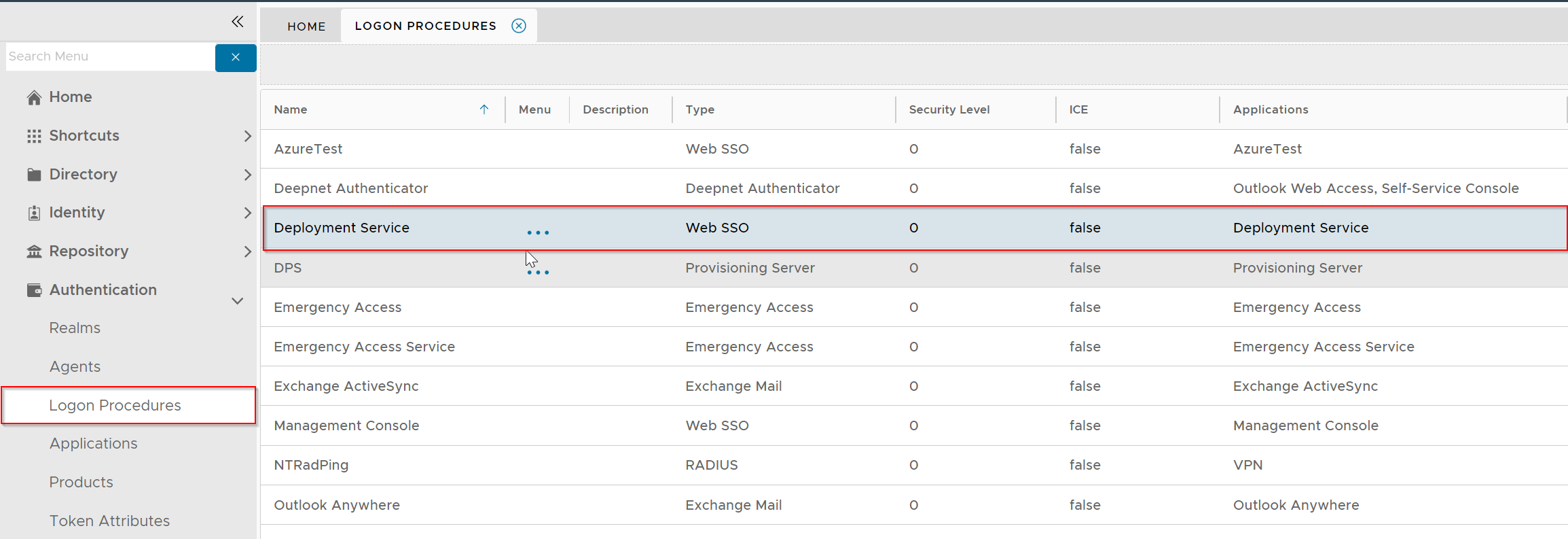
There is a pre-defined logon procedure named "Deployment Service".
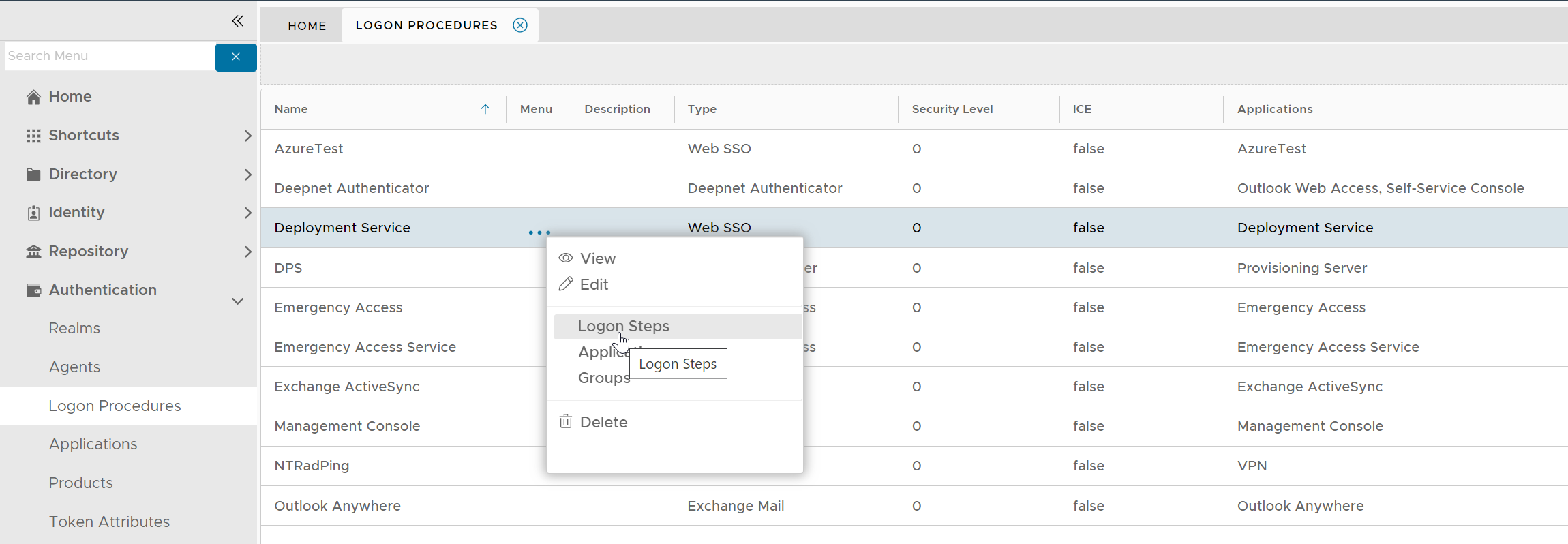
To change its logon steps, click its context menu, select "Logon Steps"
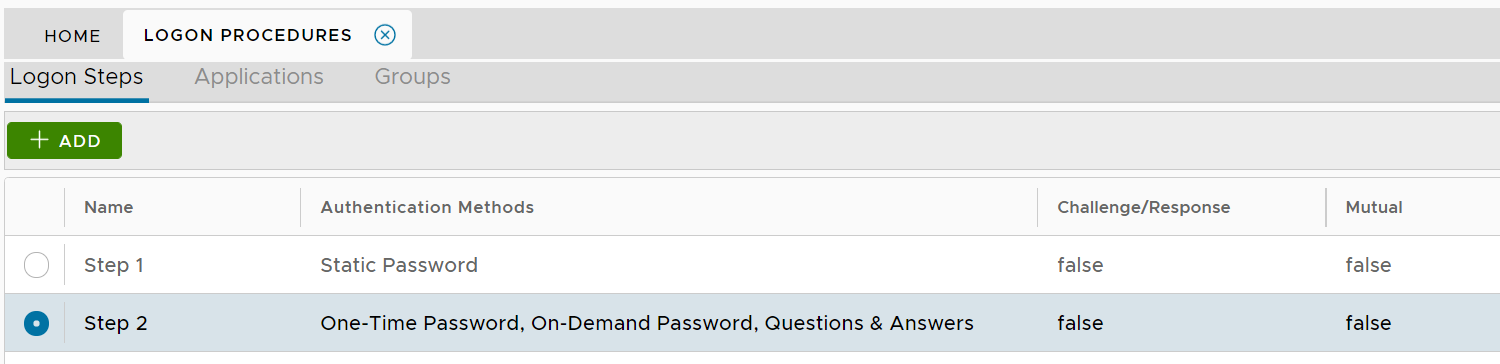
You can define the logon steps according to your own requirements
Set up Application
In the Admin Console, select "Applications"
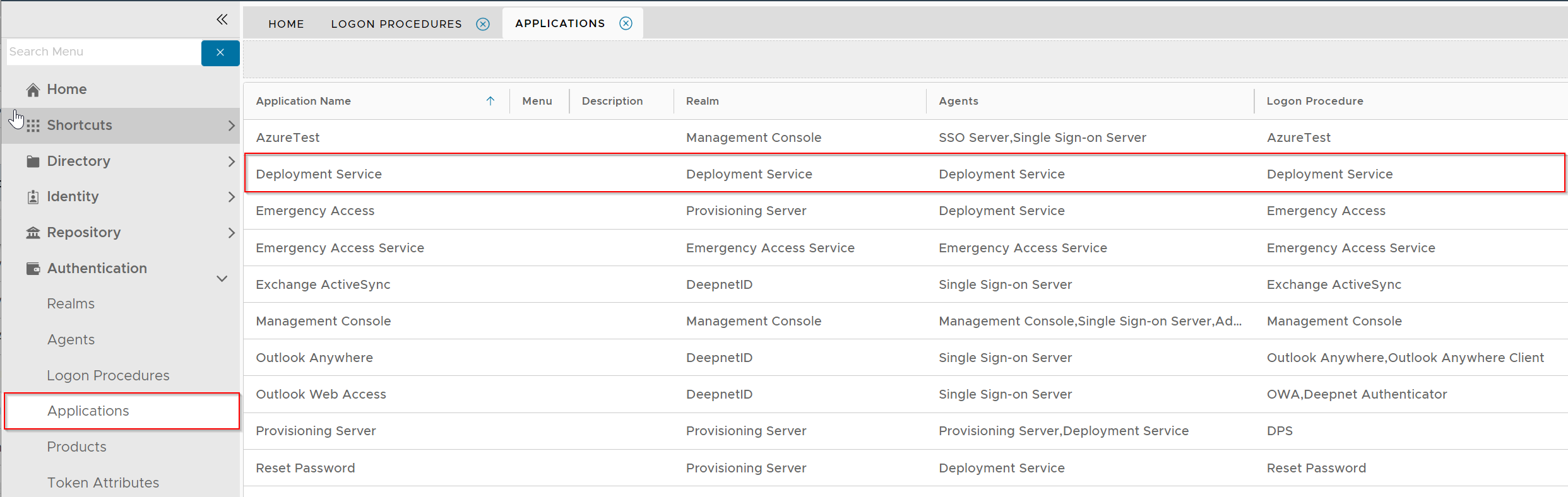
There is a pre-defined application named "Deployment Service"
Normally, you do not have to make changes to the default setup.
Set up Realm
Realm is a group of user domains. It defines who is allowed to access the application that's associated with the realm.
In the Admin Console, select "Realm"
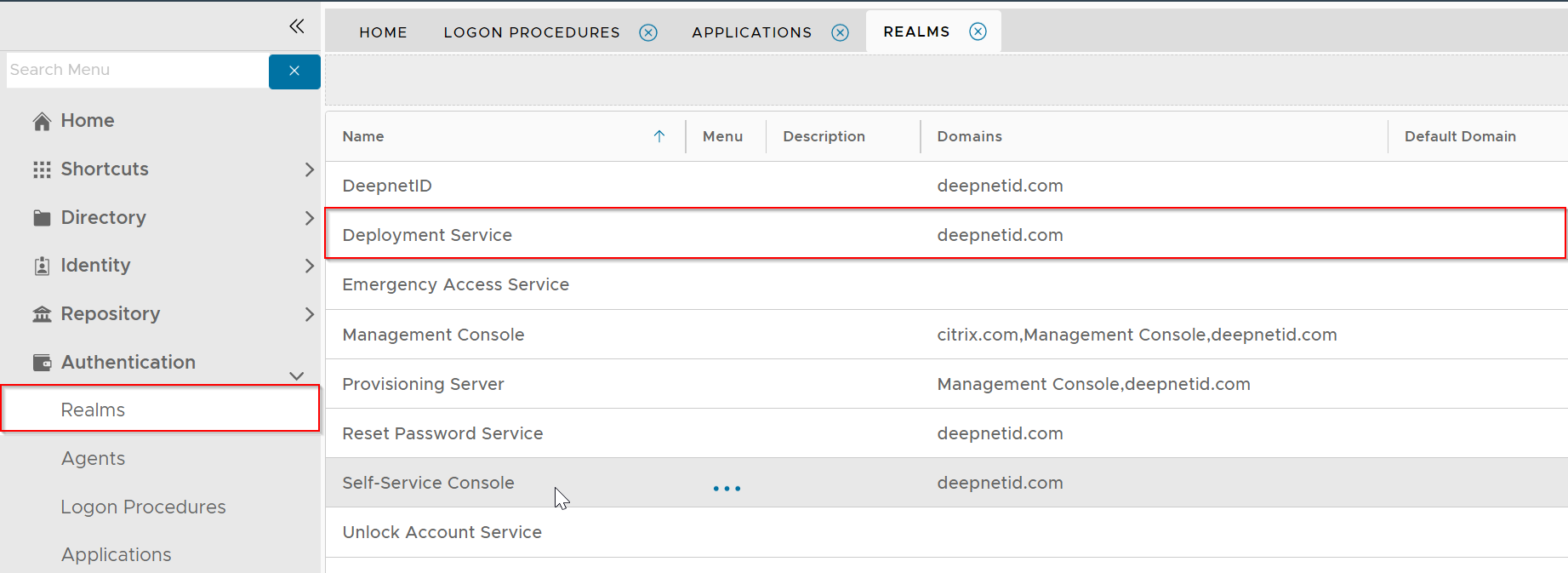
There is a pre-define realm named "Deployment Service"
You must change the domains that are to be included in this realm, e.g. deepnetid.com
Configure Policy Settings
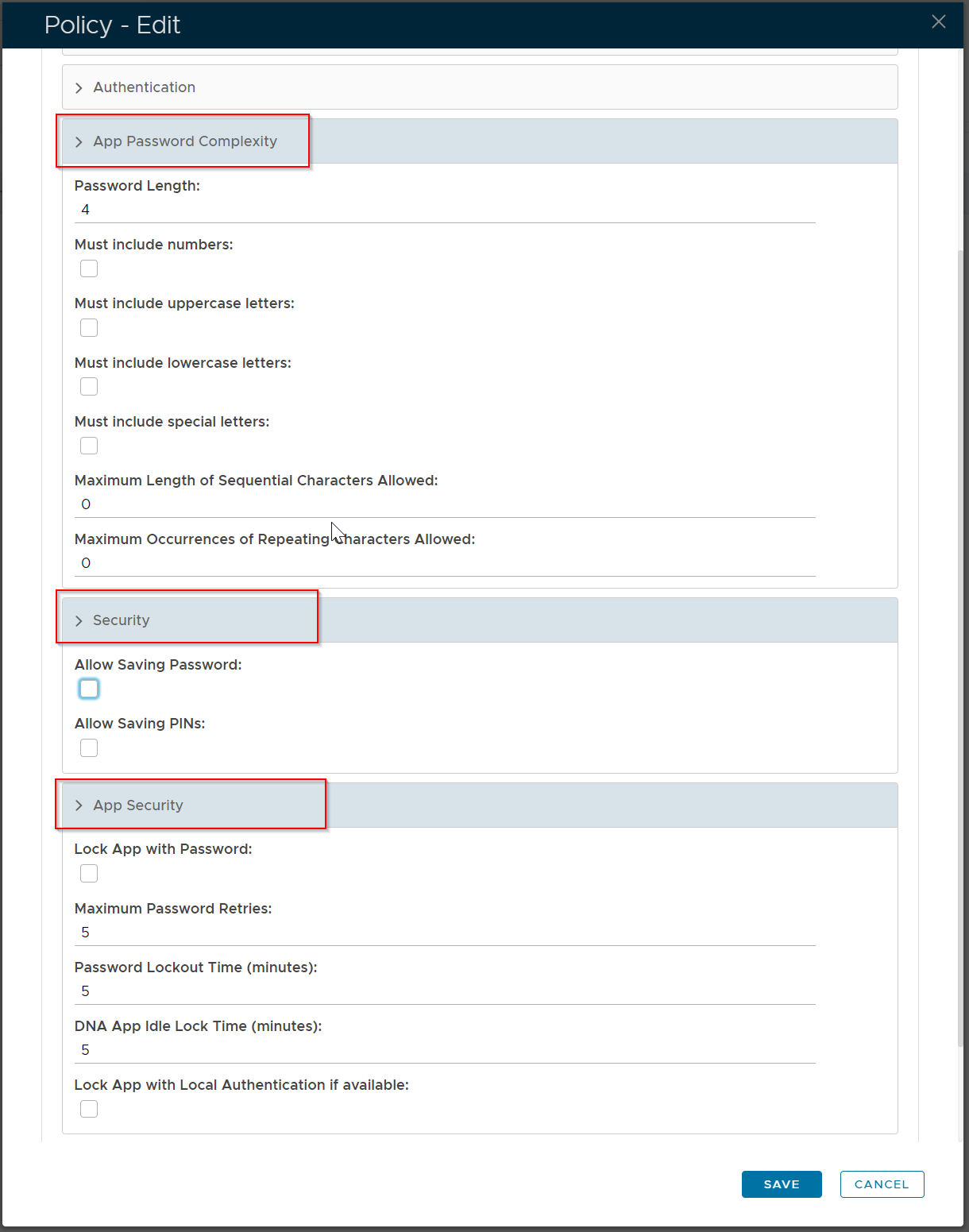
If you allow your users to activate their own devices using the DNA app, then you need to configure the following policies:
DeviceID Policy
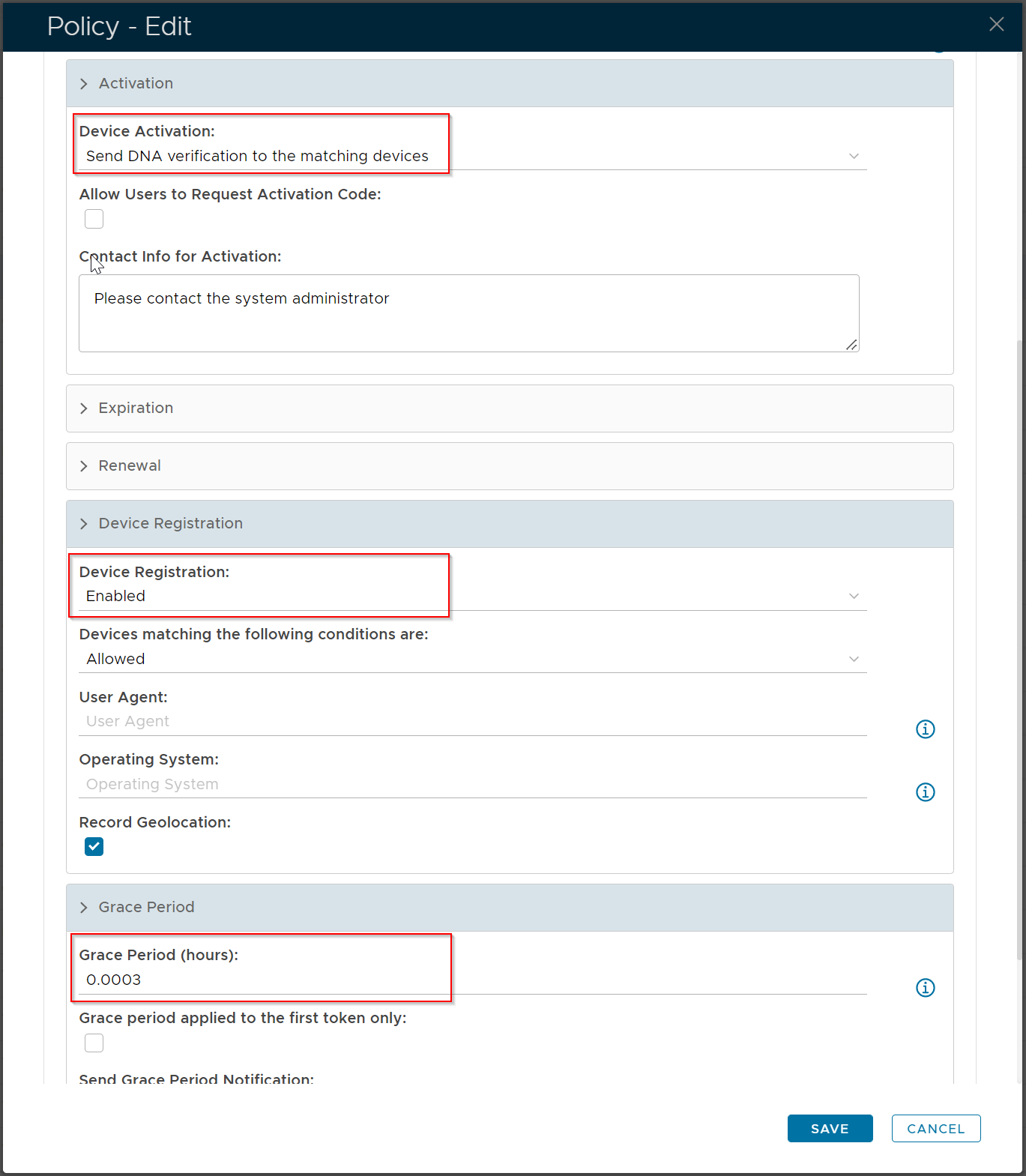
Deepnet Authenticator Policy
Customize Message Template
To allow users to self-activate their devices, you need to customize the message template for device activation
