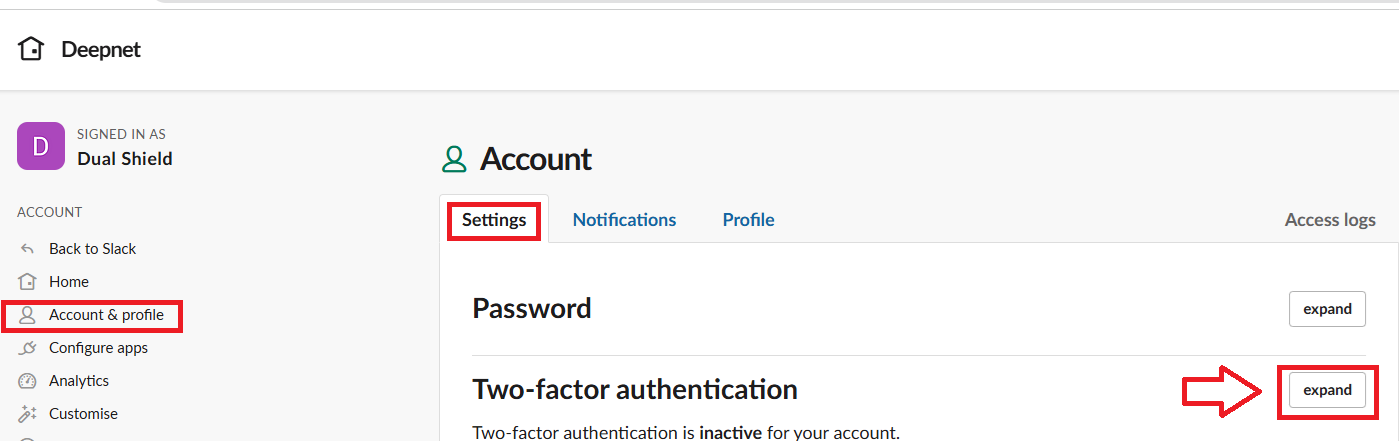
Sign in to the you slack workspace,, then visit the account page at my.slack.com/account/settings.
Select "Account & Profile", then from the "Settings" tab, against the "Two-factor authentication" prompt, click on the  button;
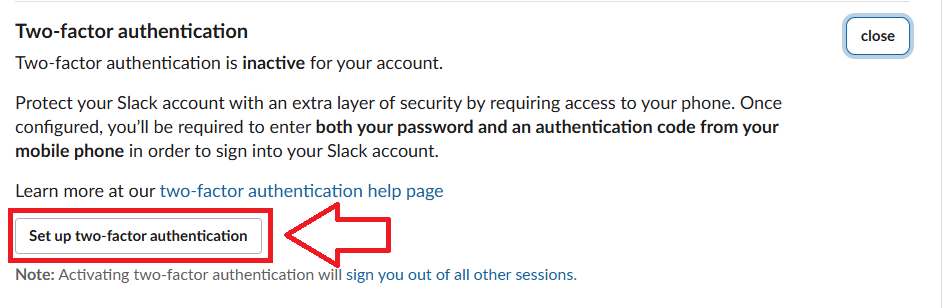
Next click on the  button;
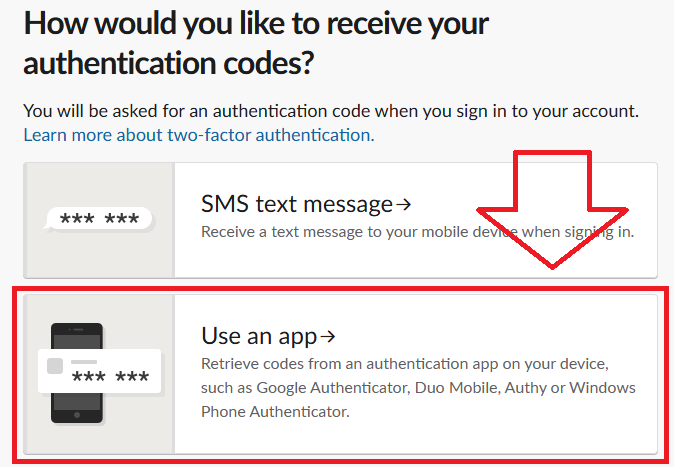
A new window will now open requesting the authentication method type to be used, select "Use an app";
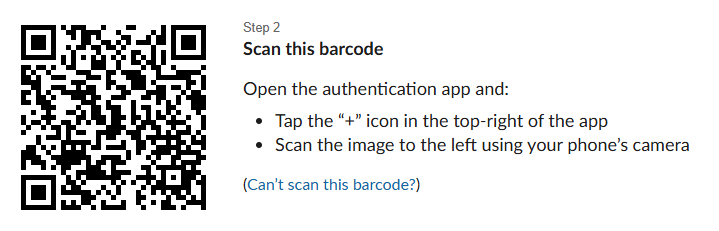
Amongst the things displayed you will find a QR code has been provided;
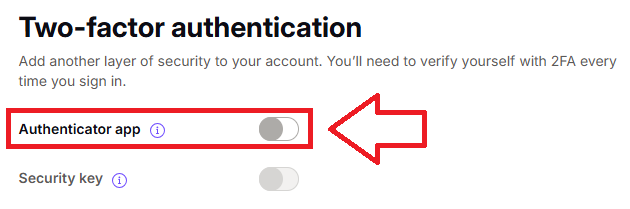
Then scroll down to the section "Two-factor authentication", and at the prompt "Authentication app", enable this feature by clicking on the slider (indicated below);
A window will now open requesting your password;
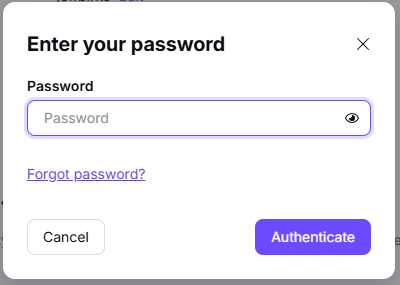
Supply your proton mail password, then click  .
.
A new window titled "Set up two-factor authentication" will now open;
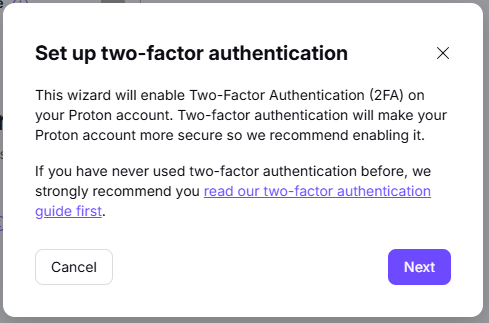
Click  , and you will be presented with a QR code;
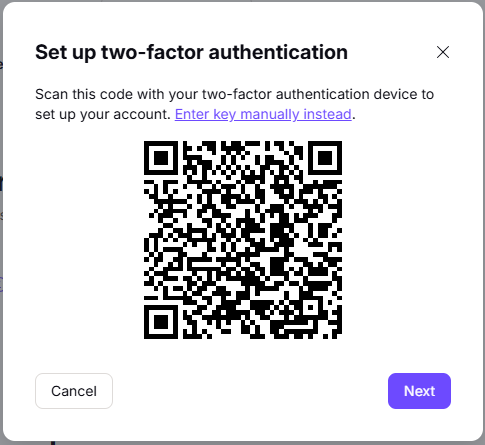
You can use the QR code to program our programmable tokens using the instructions found in the following procedure;
- To program a SafeID/Diamond or SafeID/Pro token with a QR code, launch the SafeID/Diamond programming tool.
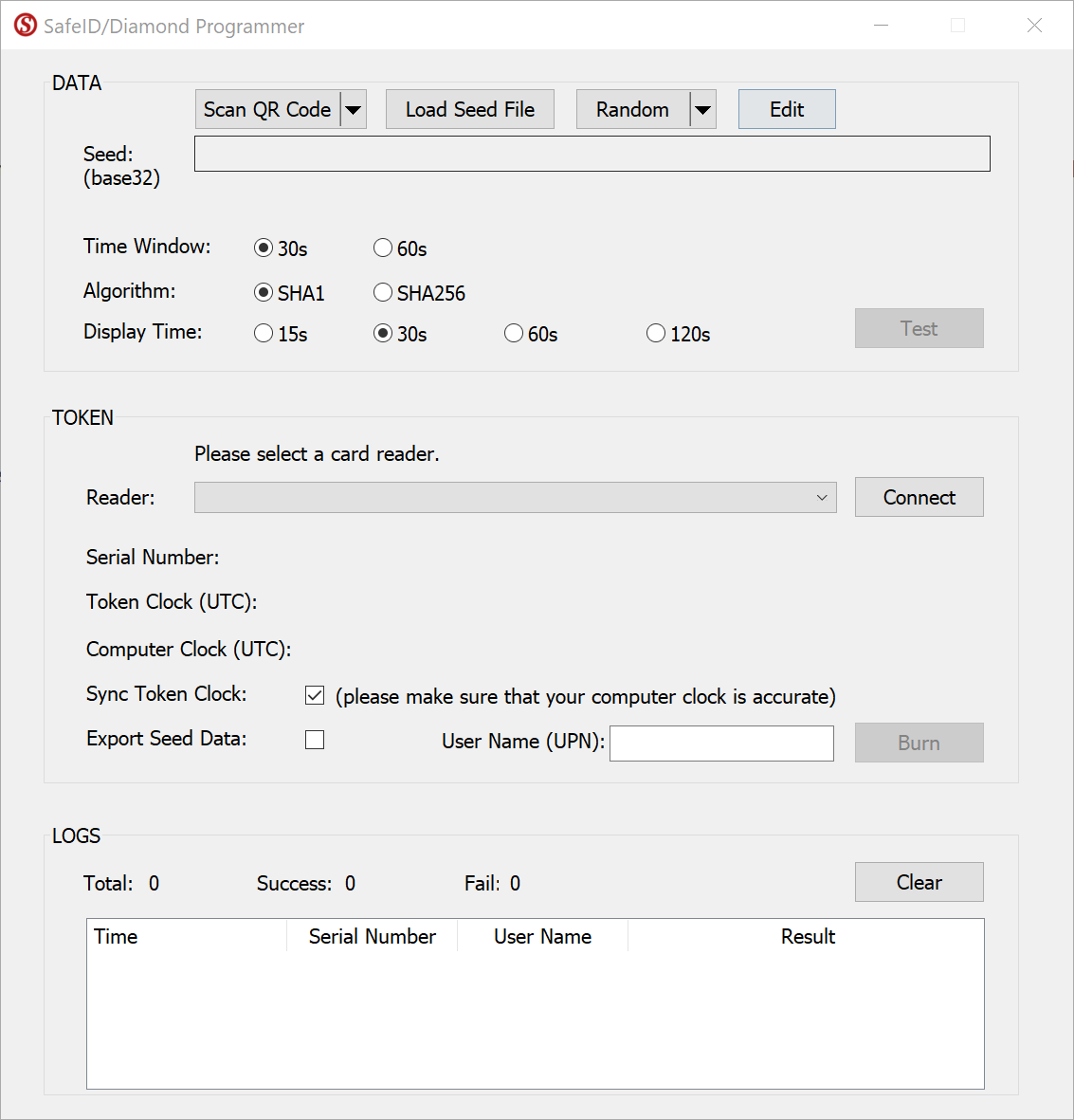
Click the Scan QR Code button
Before you scan the QR code please ensure that the clock on your computer is displaying the correct date and time.
You can scan the screen for a QR code, or load from a file.
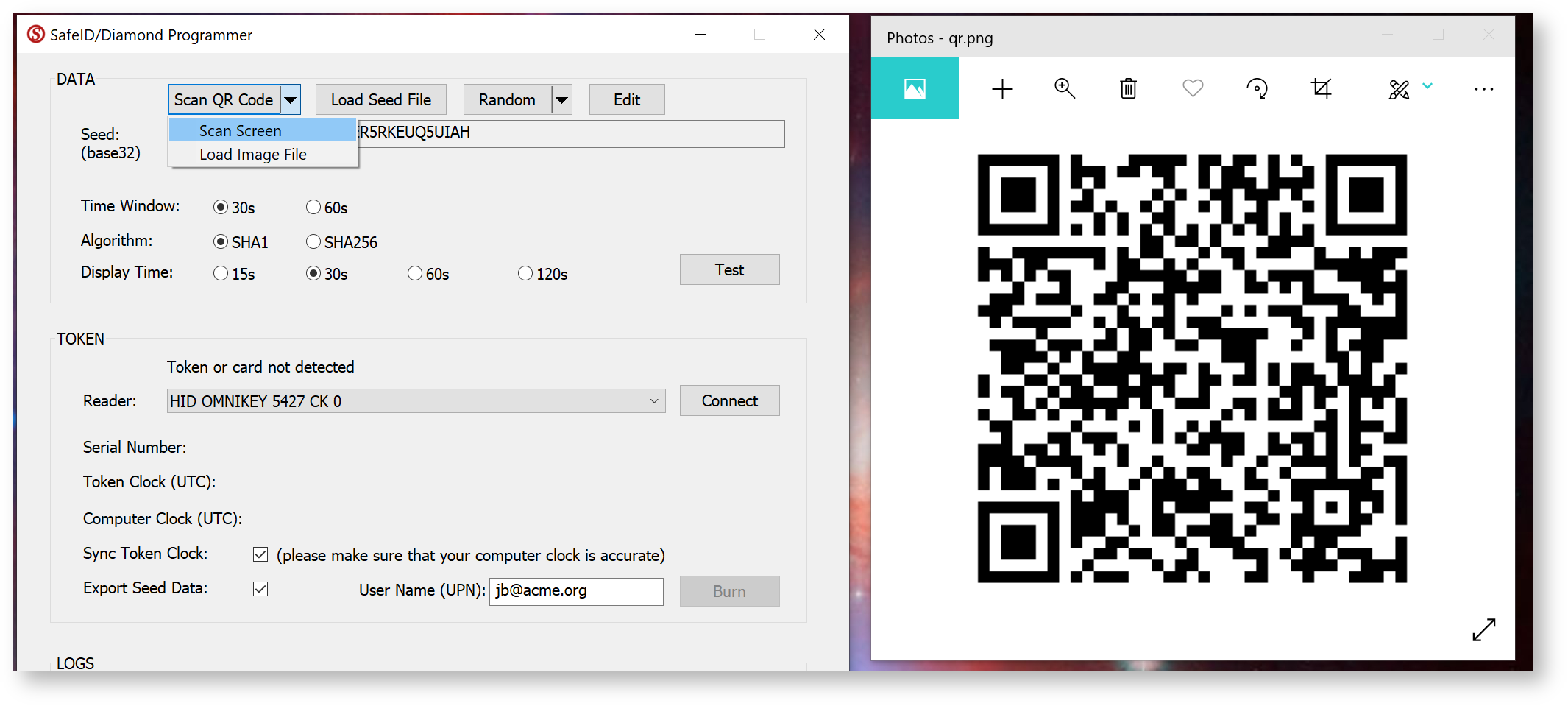
If you are scanning the barcode on the screen please ensure that the QR code is not obscured by other windows, and if you have more than one monitor please ensure that both the app and the QR code are displayed on the main display (display 1).
If you still have difficulty in scanning the QR code double check you only have the one instance of the app running, and that it is the latest version of the app. In most cases when there are issues with scanning of the QR code the most likely cause is the QR code contains the wrong data and may need to be regenerated. To test the QR code you could check that the code works correctly with the authenticator app it is intended for (e.g microsoft authenticator), and if this fails then you know that the QR code will need to be regenerated.
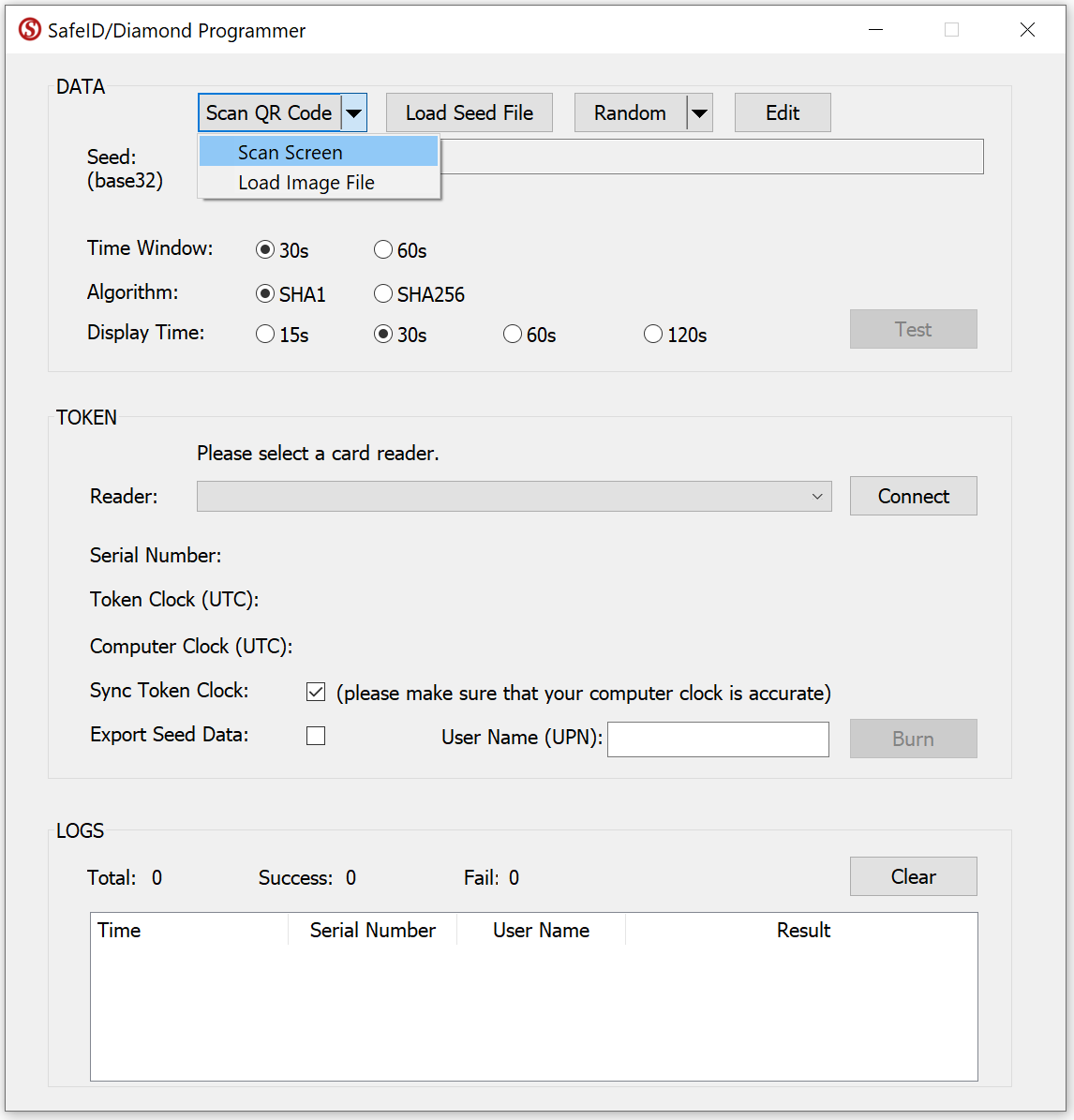
Select Scan Screen.
If succeeded, the Seed box should be filled with the token's seed data.
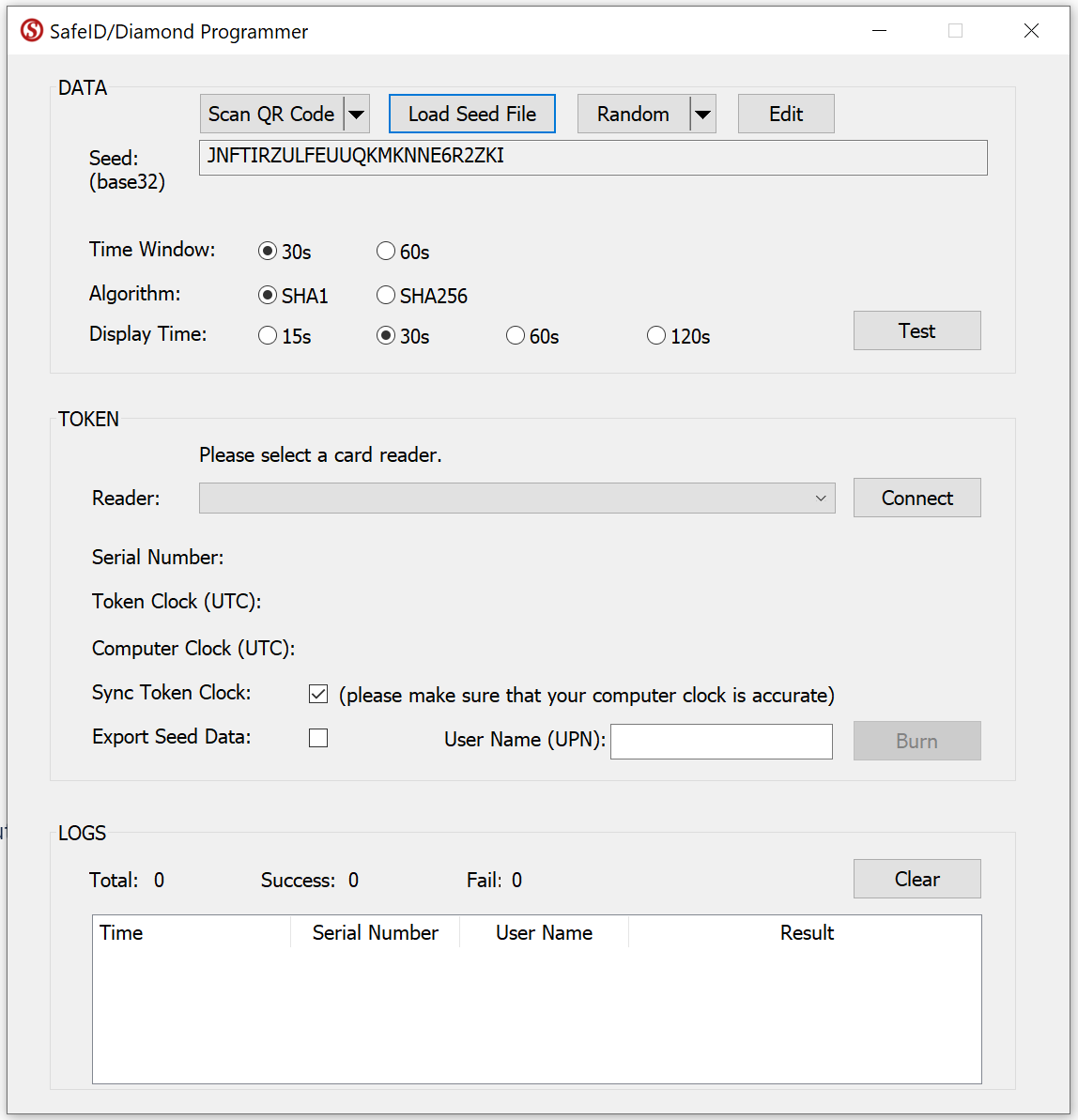
Now, select your smart card reader from the Reader drop-down list, e.g. "HID OMNIKEY 5427 CK"
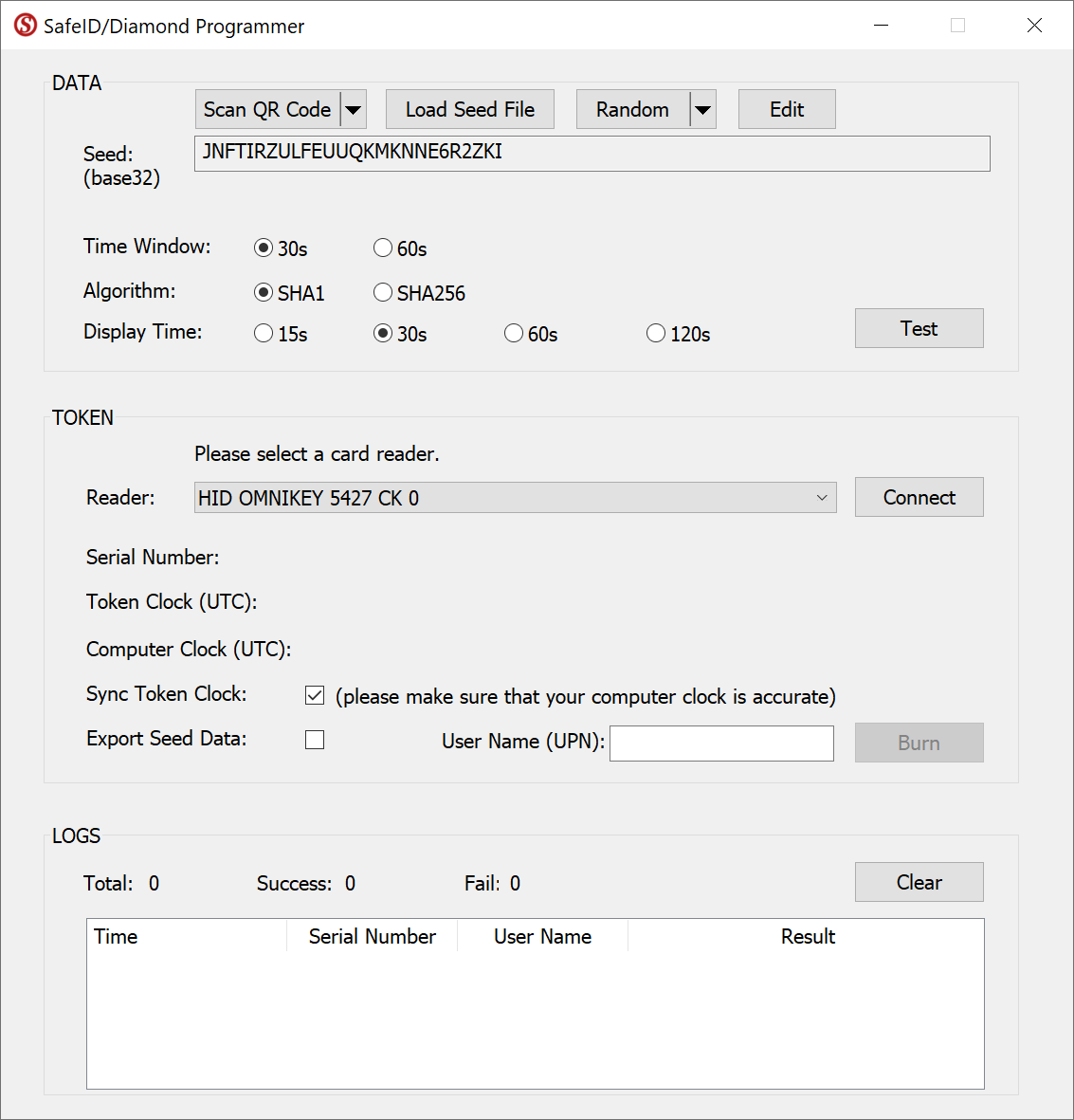
Press the Connect button

Now, switch on a SafeID token and place it on the reader.
The tool will read out the token's serial number and time, and display them:
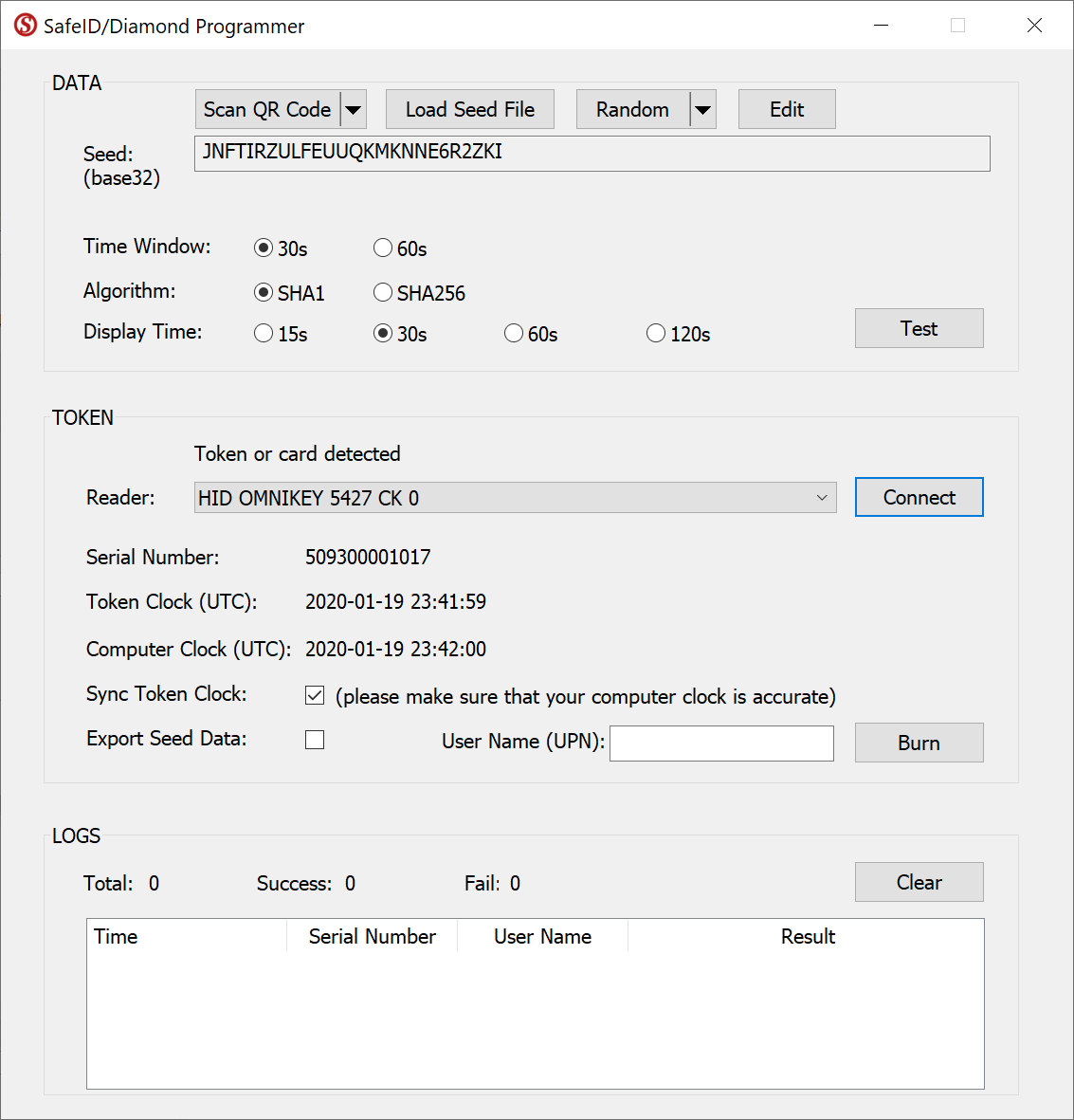
If you want to correct the clock on the token, then leave the "Sync Token Clock" checked, but first ensure the time on your pc is set correctly.
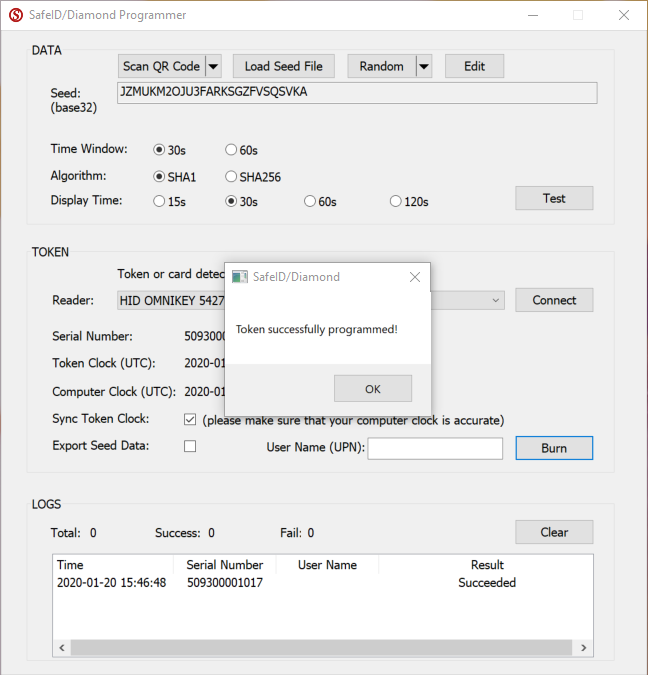
Switch off the token and switch it on again to generate a new code (the token may only use the new seed after being reset)
Related Articles
Once you have programmed your token you will need to verify it with Slack.
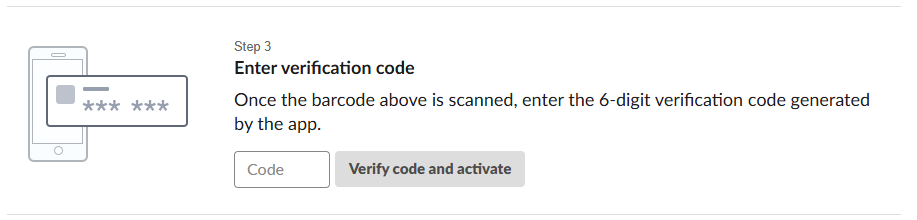
Scroll down to step 3, then enter an OTP code from your newly programmed token, then click on  ;
;
You will then be asked to supply a backup phone number, enter the number then click  , then verify the code they send to your phone.
You will then be provided with a list of backup codes (make a note of these codes as they can be used later).
You are now ready to use your programmable token as an OTP source when you next log in to your slack account.