Log into the DualShield Admin Console and go to Administrator>Policies. In the policies page select Computer Logon Client from the Categories drop-down list, and then edit the relevant Computer Logon Client Policy.
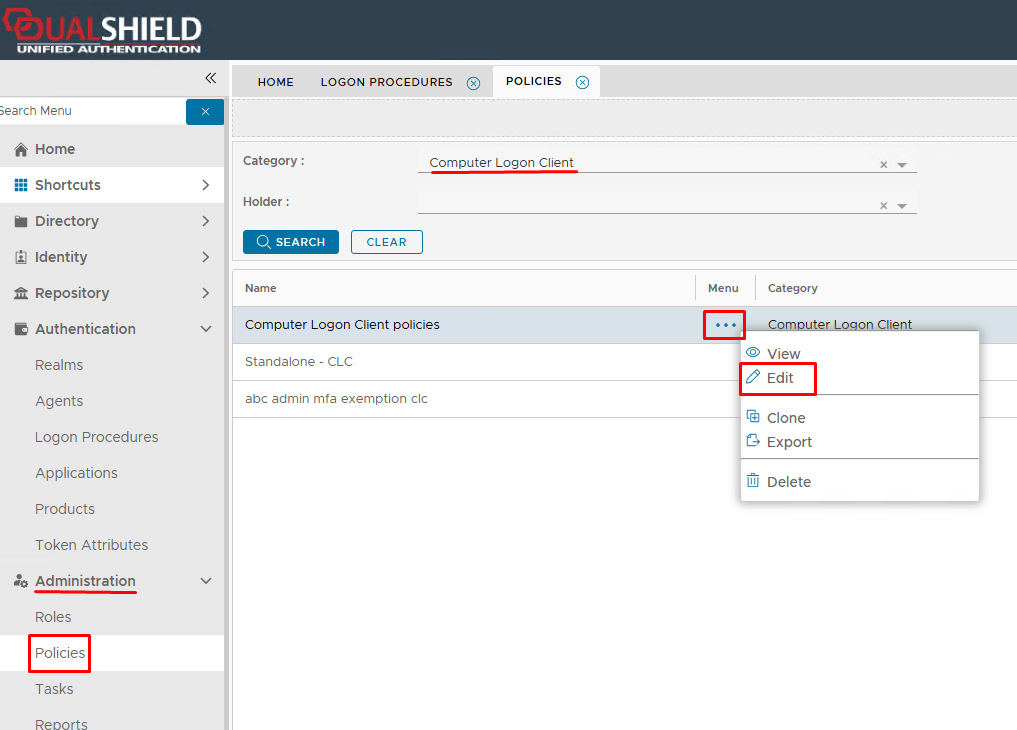
Expand the UAC (User Access Control) tab on the Policy Edit screen.
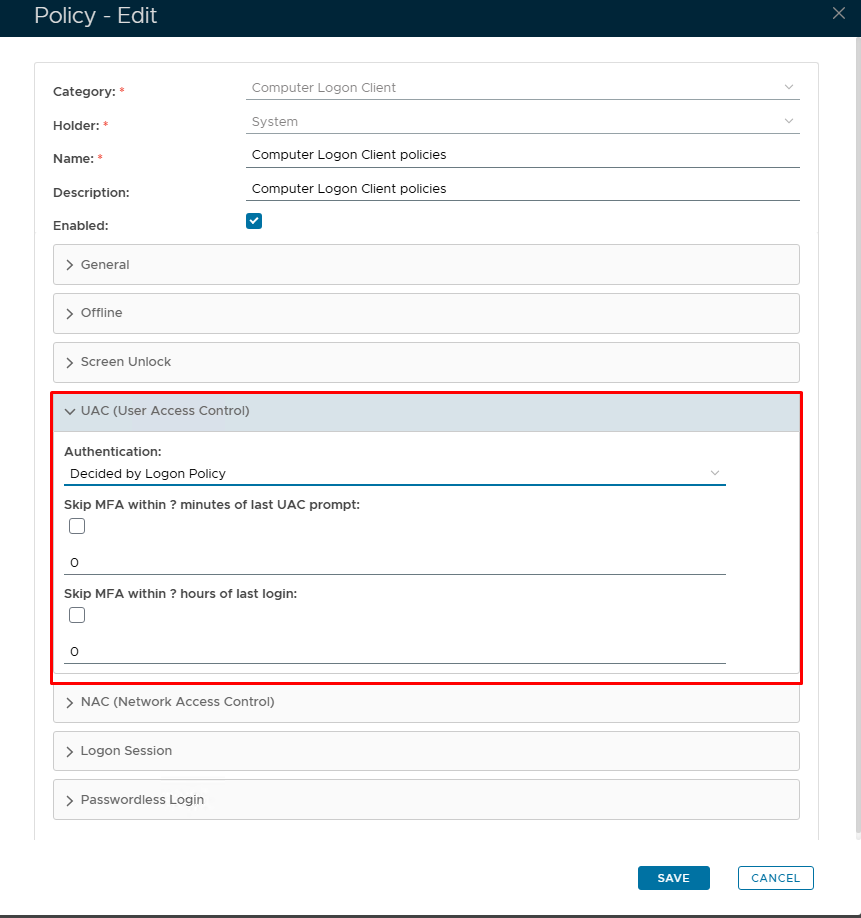
Click on the Authentication drop down list

Here is a breakdown on what these options do:
| Option | Details |
|---|---|
| Decided by Logon Policy | The Authentication setting in the Logon policy determines if MFA is required or not. See Logon Policy - Authentication |
| Multi-Factor Authentication | The second factor will be enforced. The DualShield Computer Logon Client UI will pop up, prompting for the second factor, after the admin account credentials have been provided. |
| AD Password Authentication Only | The second factor will not be enforced. The DualShield Computer Logon Client UI will not pop up after the admin account credentials have been provided. |
| 2nd-Factor Authentication Only (Use Cached Password) | This Option will not work for this policy. Instead, refer to Passwordless Authentication in Computer Logon |