For extra security, you can force the device to have a limited lifetime. This is particularly useful if you have contractors who require temporary access to emails.
There are two parts to this:
- Token Lifetime
- Expiry Notifice
- Token Notification Service
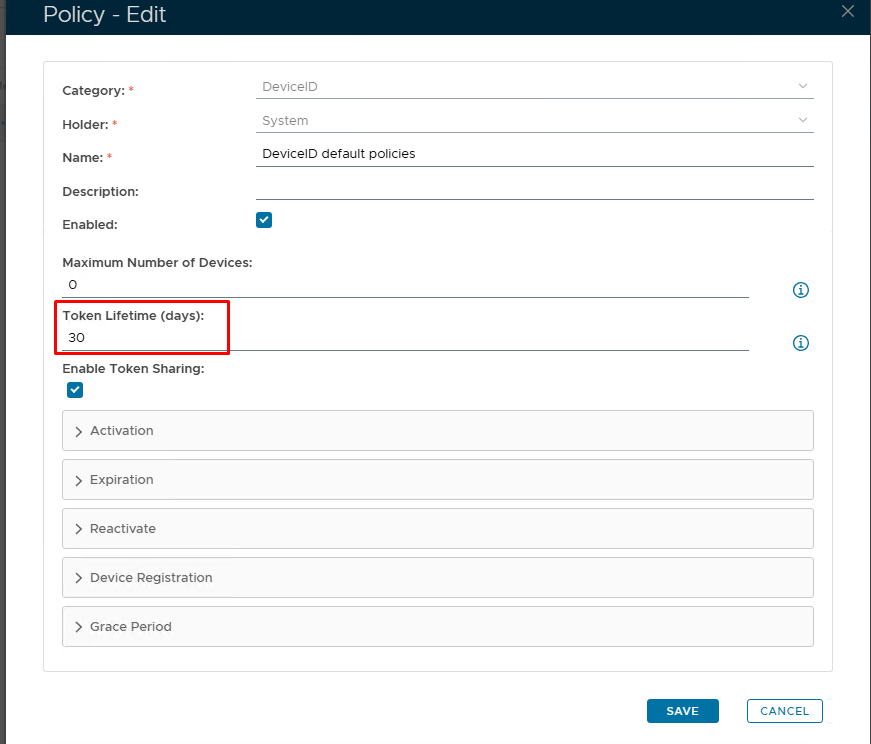
Token Lifetime
| Section |
|---|
|
| Column |
|---|
| 
|
| Column |
|---|
| Option | Value | Explanation |
|---|
| Token Lifetime (Days) | Set number of days you wish the token to be live for | The "Token Lifetime" option specifies the default lifespan in days of any newly created token. When a token has reached its lifespan, it is expired. (Please note: '0' = No expiration) |
|
|
Expiration Notice
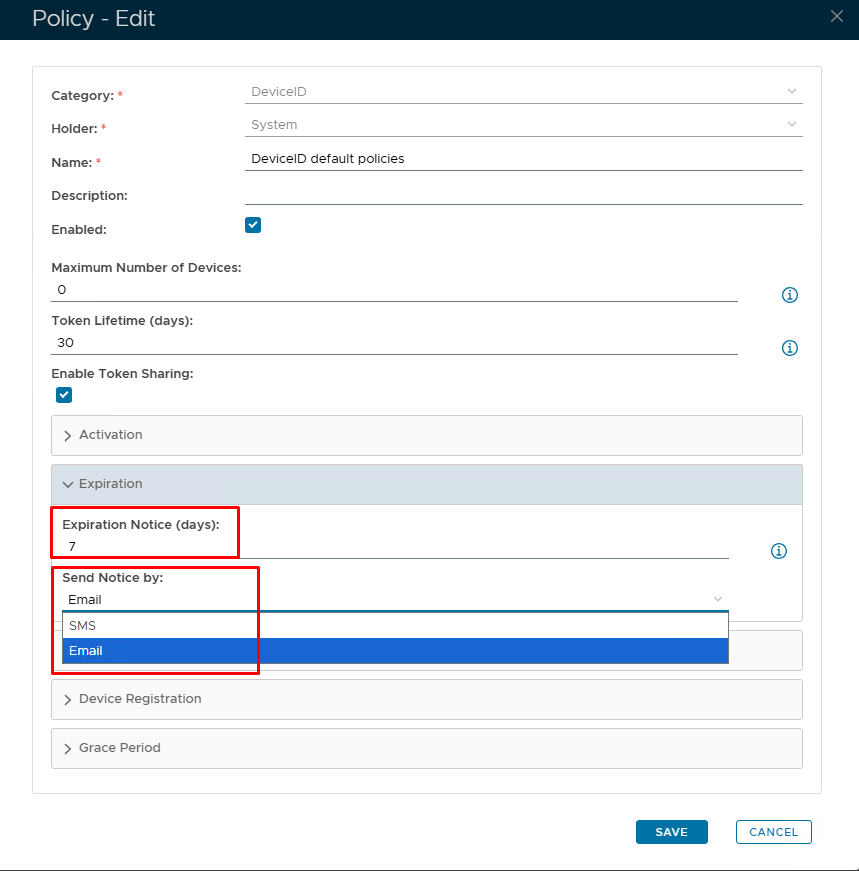
By default, token expiration is triggered reactively. The DualShield server will only check a device's expiration when the device is trying to access the Exchange server and the device has passed its lifespan time.
| Section |
|---|
|
| Column |
|---|
| 
|
| Column |
|---|
| Option | Value | Explanation |
|---|
| Expiration Notice (Days) | Set number of days before token is due to expire | If you want the expiry notification to be sent out proactively, then you need to set this option ('0' = Disabled) | | Send Notice by | SMS/Email | Set the method in which the expry notice will be delivered. |
|
|
Set up Token Notification Service
If you have enabled the token expiry notice option in the DeviceID policy, then you must also set up the task called "Token Notification Service"
| Expand |
|---|
| title | Set up Token Notification Service |
|---|
|
| Include Page |
|---|
| Set up Token Expiry Notification Service |
|---|
| Set up Token Expiry Notification Service |
|---|
|
|