Windows OS
Open Windows Command Prompt, navigate to the subfolder "tomcat\bin" in the DualShield installation directory, e.g. c:\program files\deepnet dualshield\tomcat\bin
...
A new window will open titled "DualShield Server Properties", select the "Java" tab.
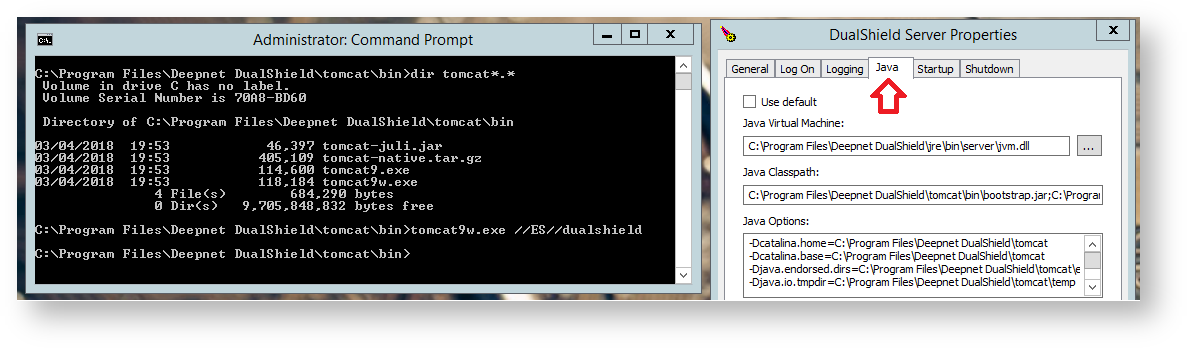

Memory allocation can be adjusted here.
For Guidance please use the following table...
32-Bit | 64-Bit | ||
| Total Physical RAM | 4GB | 8GB | |
| Maximum memory pool | JvmMx (MB) | 1536 | 3072 |
| Initial memory pool | JvmMs (MB) | 1536 | 3072 |
| Total RAM for JVM | 2GB | 4GB |
The DualShield Server service will need to be restarted if any changes are madeChanges should be made in the "Java Options" section.
Linux OS
If you have installed DualShield on Linux version installed, you should will need to edit the file "/usr/lib/systemd/system/dualshield.service" to achieve the same effect as in Windows
...
| Code Block |
|---|
sudo su - systemctl stop dualshield nano /usr/lib/systemd/system/dualshield.service |
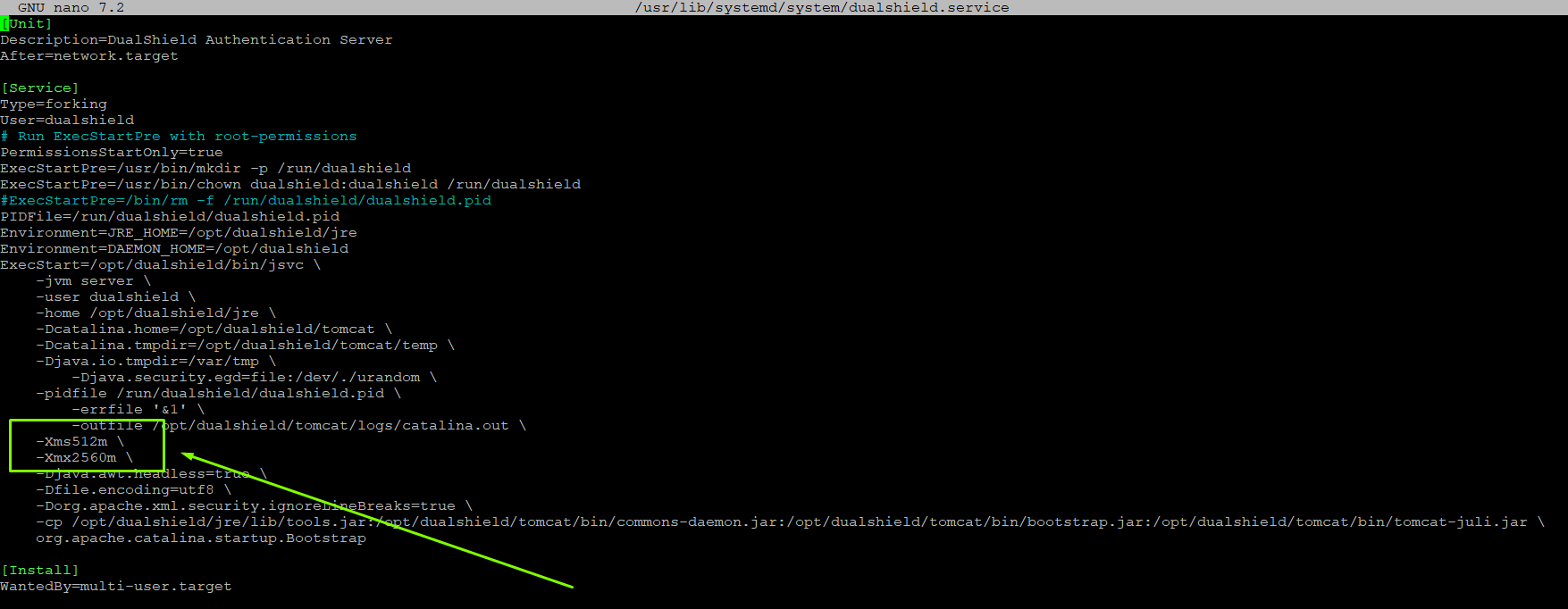 You must restart the DualShield service after any modification.
| Code Block |
|---|
systemctl start dualshield |