Windows OS
Open Windows Command Prompt, navigate to the subfolder "tomcat\bin" in the DualShield installation directory, e.g. c:\program files\deepnet dualshield\tomcat\bin
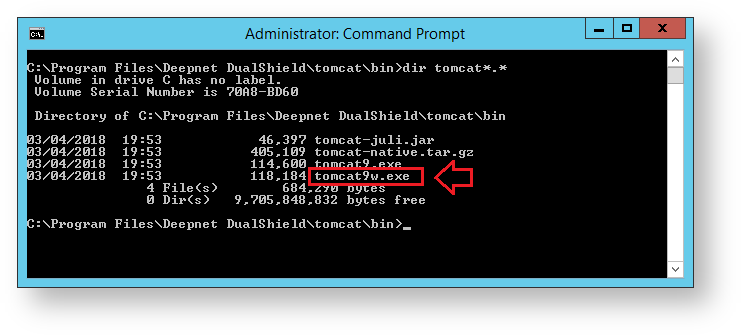
run the command "tomcat9w.exe //ES//dualshield " (replacing tomcat9w with the version found in your directory),
A new window will open titled "DualShield Server Properties", select the "Java" tab.

Memory allocation can be adjusted here.
For Guidance please use the following table...
32-Bit | 64-Bit | ||
| Total Physical RAM | 4GB | 8GB | |
| Maximum memory pool | JvmMx (MB) | 1536 | 3072 |
| Initial memory pool | JvmMs (MB) | 1536 | 3072 |
| Total RAM for JVM | 2GB | 4GB |
The DualShield Server service will need to be restarted if any changes are made.
Linux OS
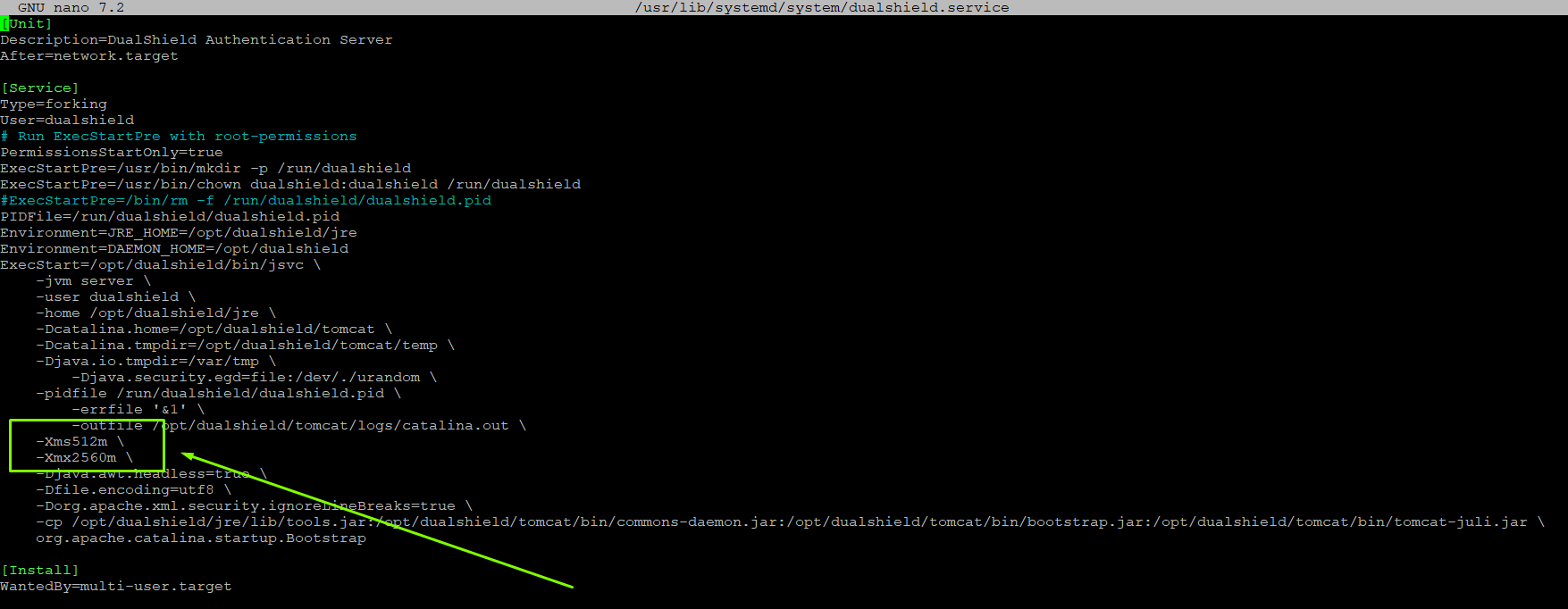
If you have installed DualShield on Linux, you will need to edit the file "/usr/lib/systemd/system/dualshield.service" to achieve the same effect as in Windows
sudo su -
systemctl stop dualshield
nano /usr/lib/systemd/system/dualshield.service
systemctl start dualshield