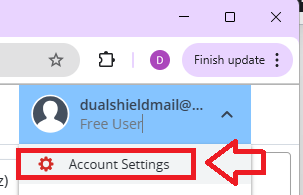
Log in to your LastPass user account, then from your account dropdown select "Account Settings";
To add a FIDO2 key as an authentication method we need to select the option "Passwordless Options";
.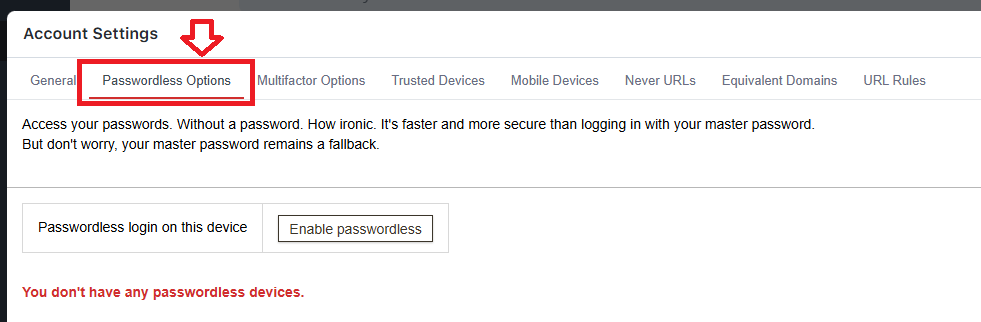
By default this option is disabled, so we need to enable it by clicking on  , and you will be presented with two passwordless options;
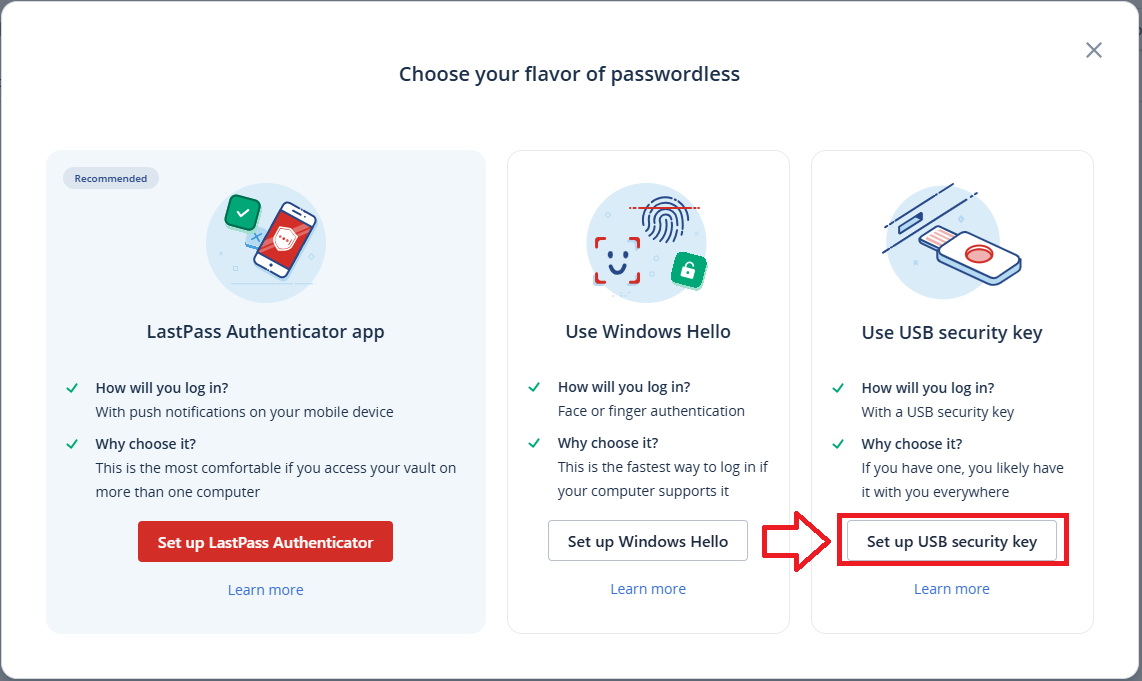
Select the option "Set up USB security key", and you will be prompted for you master password;
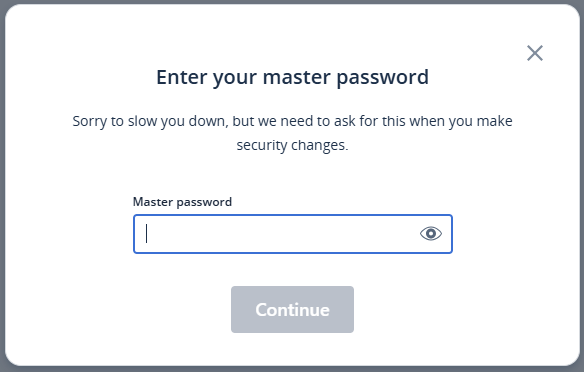
Enter you password, and click on the "Continue" button.
You will now be prompted for a phone number (which will be used as a backup method);
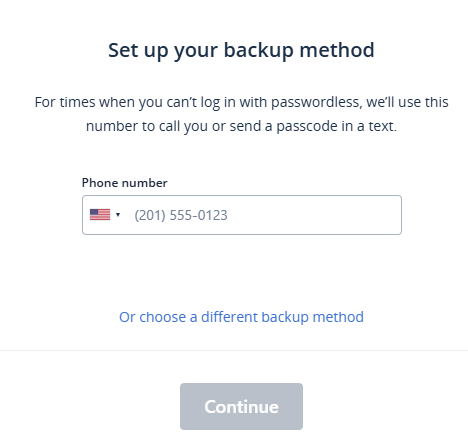
Supply your contact number and click "Continue" (or select a different backup method).
A code will be sent to the number supplied, copy this code onto the next screen then click "Continue";
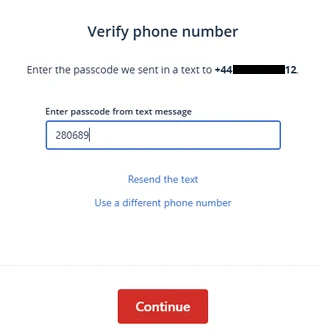
You will now be asked to register your USB security key;
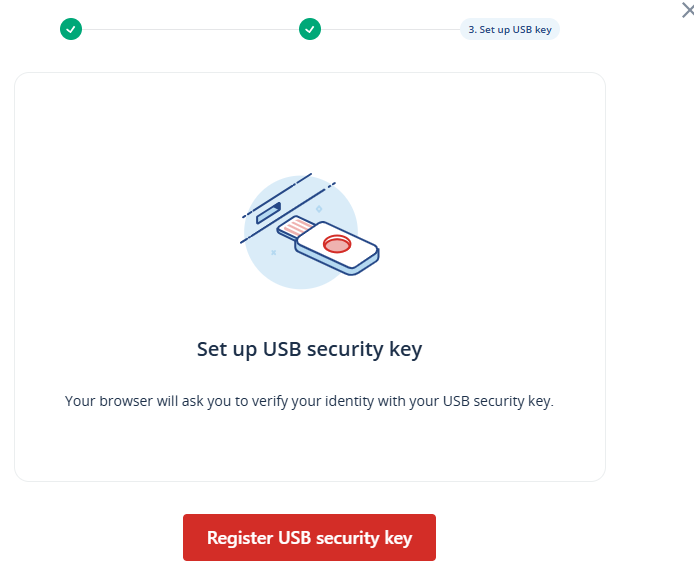
Insert you key into a spare USB port then click  ;
;
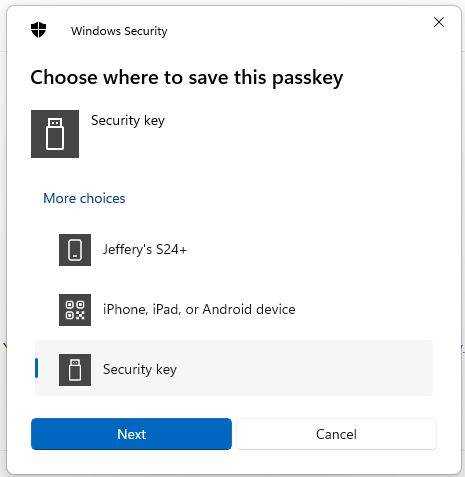
When asked where to save this passkey, select the option "Security Key", then click  ;
;
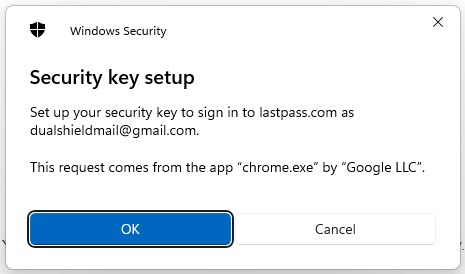
You are now notified that access to google will be prepared with your Fido2 security key - click  to proceed to the next step;
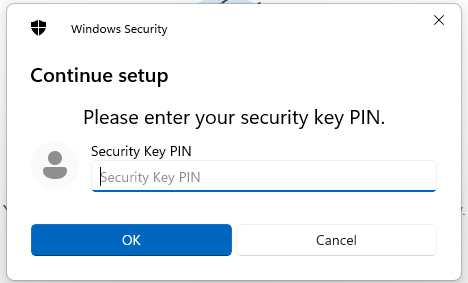
At this point you will be asked to provide the PIN code that protects your Fido2 key;
You will now be asked to touch the Fido2 key (in the case of a Fido key with a fingerprint reader you will need to swipe your finger on the key);
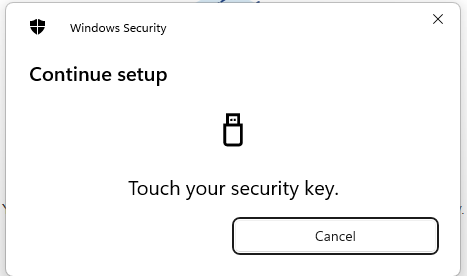
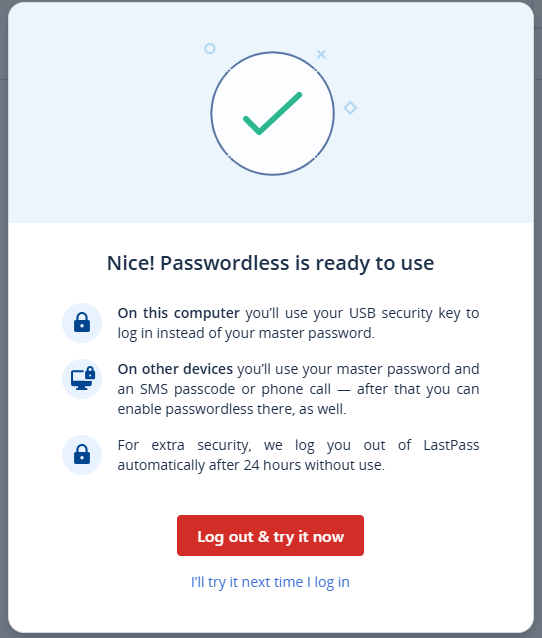
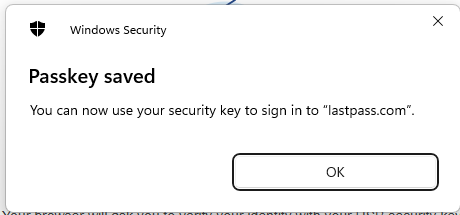
Provided you press the button on the Fido2 key in the allowed time, the passkey details will be stored on your Fido2 key, and you will be presented with the following confirmation;
Provided you press the button on the Fido2 key in the allowed time, the passkey details will be stored on your Fido2 key, and you will be presented with the following confirmation;