Register your FIDO2 key in your LastPass console
Before you can use your FIDO2 key as an access method for your Lastpass console you will need to register the key with LastPass using the following procedure;
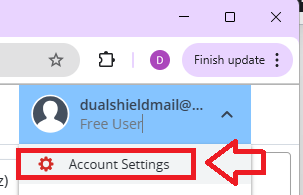
- Log in to your LastPass user account, then from your account dropdown select "Account Settings";
To add a FIDO2 key as an authentication method we need to select the option "Passwordless Options";
.
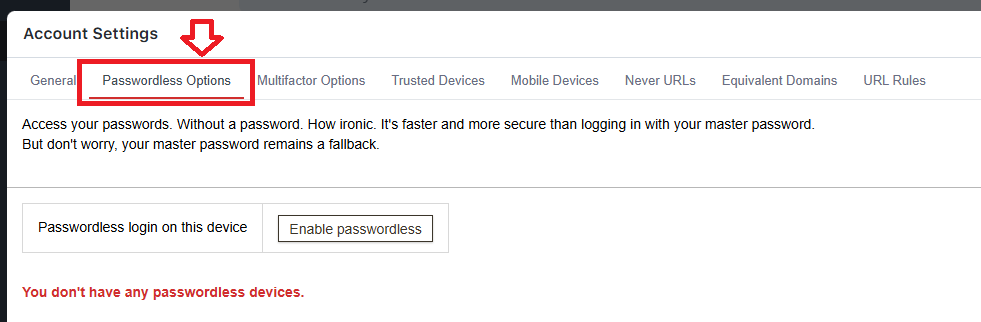
By default this option is disabled, so we need to enable it by clicking on
 , and you will be presented with two passwordless options;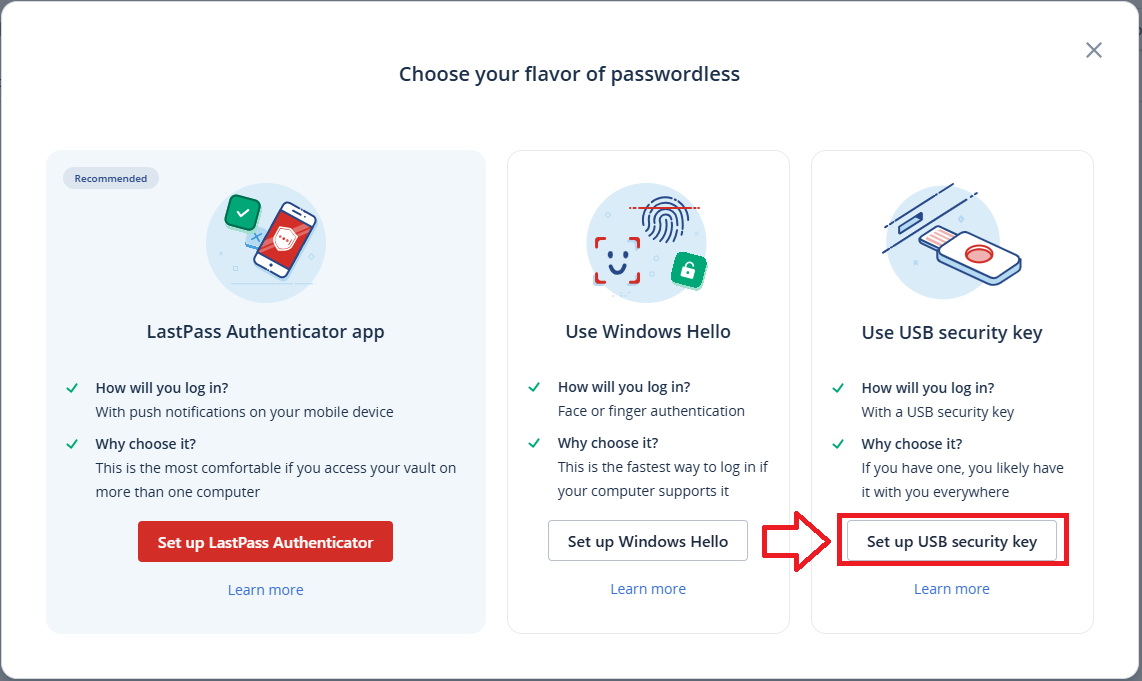
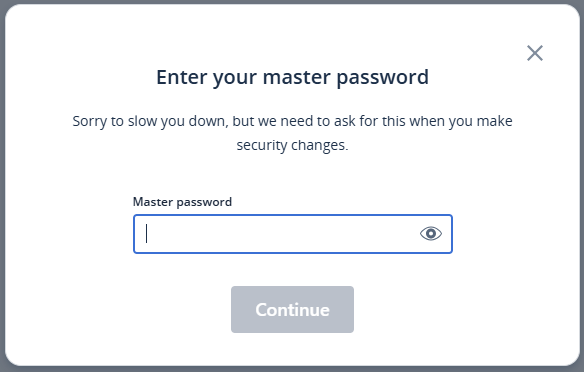
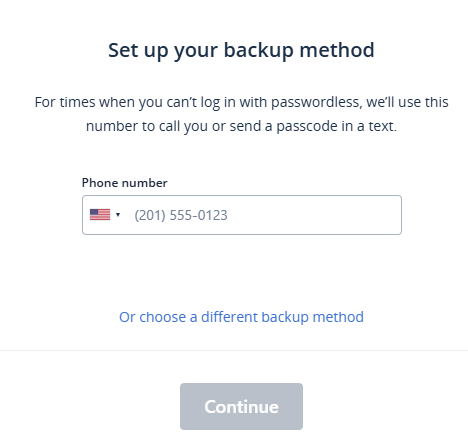
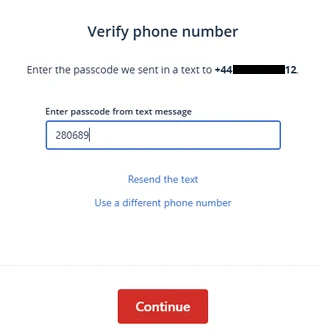
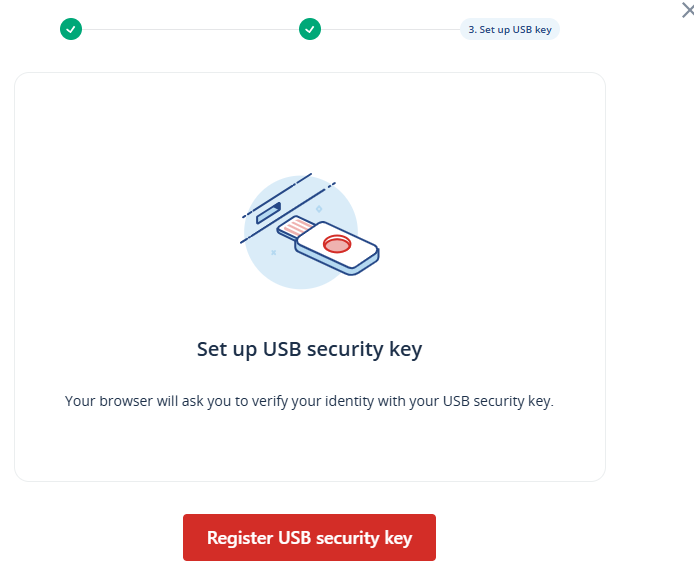
Insert you key into a spare USB port then click
 ;
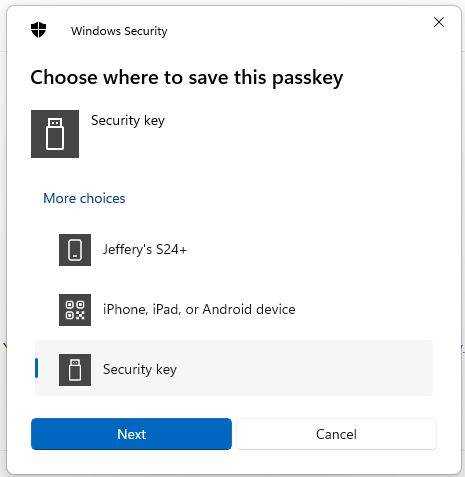
;When asked where to save this passkey, select the option "Security Key", then click
 ;
;
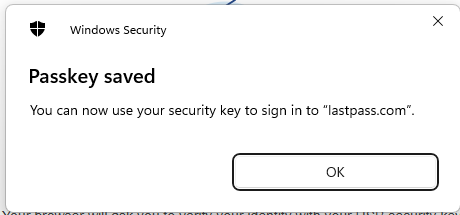
You are now notified that access to google will be prepared with your Fido2 security key - click
 to proceed to the next step;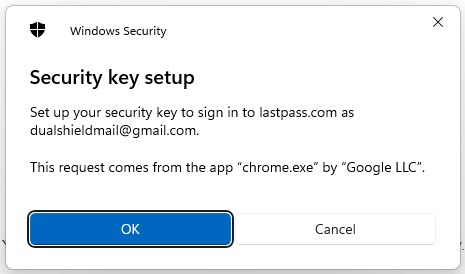
At this point you will be asked to provide the PIN code that protects your Fido2 key;
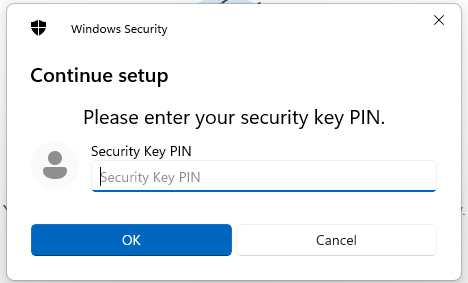
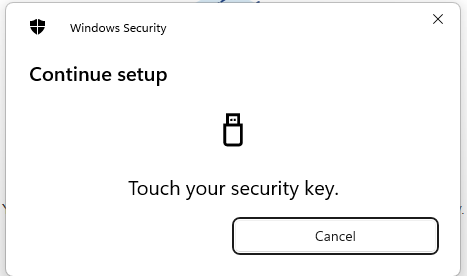
Signing in to your LastPass console with a FIDO2 key
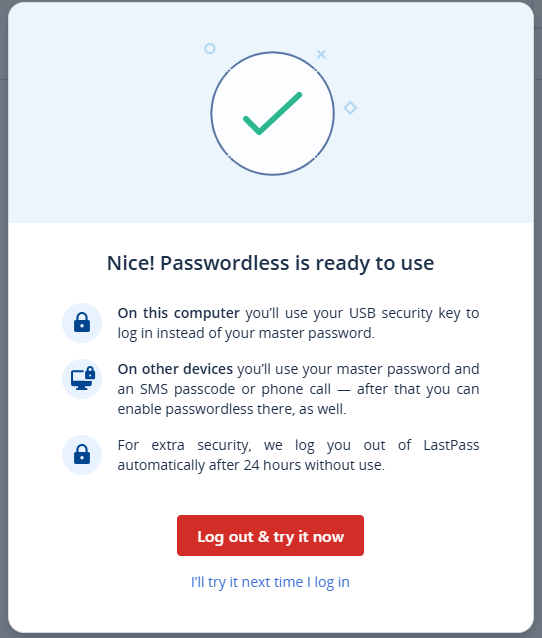
Once you have registered you FIDO2 key with Lastpass the key will be ready to be used as an authentication method when accessing your Lastpass console;
- Log in to your LastPass user account, and after supplying your username you will be offered the option for passwordless login;
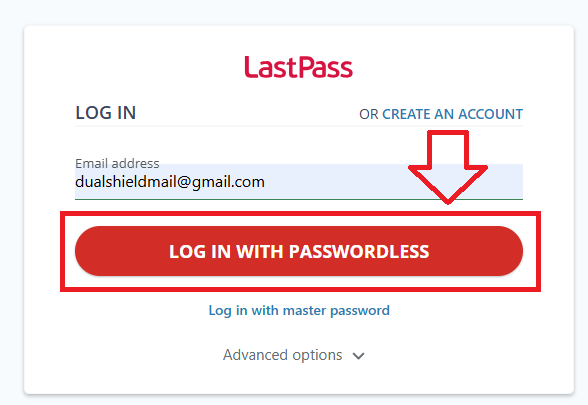
Click on
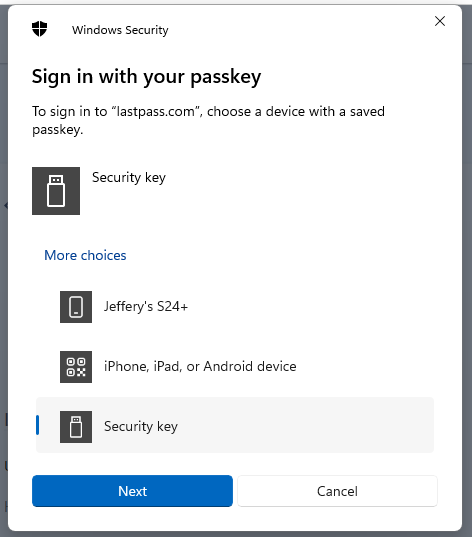
 , and when asked to sign in with your passkey select the option "Security Key", then click
  ;
;
At this point you will be asked to provide the PIN code that protects your Fido2 key;
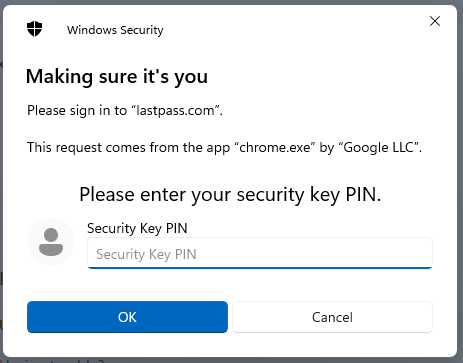
You will now be asked to touch the Fido2 key (in the case of a Fido key with a fingerprint reader you will need to swipe your finger on the key);
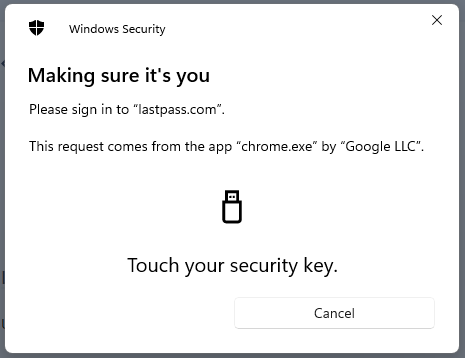
After touching the button you will be logged in to your LastPass account.
Related Articles