Discord is a popular messaging and voice chat application primarily used for online gaming communities, but also for general social communication and collaboration. It allows users to connect with friends, join servers with specific interests, and engage in text, voice, and video chat.
Register your FIDO2 key in your Discord account
Before you can use your FIDO2 key as an access method for your Discord account you will need to register the key with Discord using the following procedure;
- Log in to your Discord Account, then click on the user settings icon (found in the bottom left of the logon screen - see example below) ;
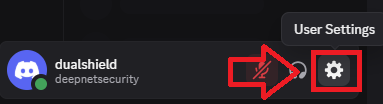
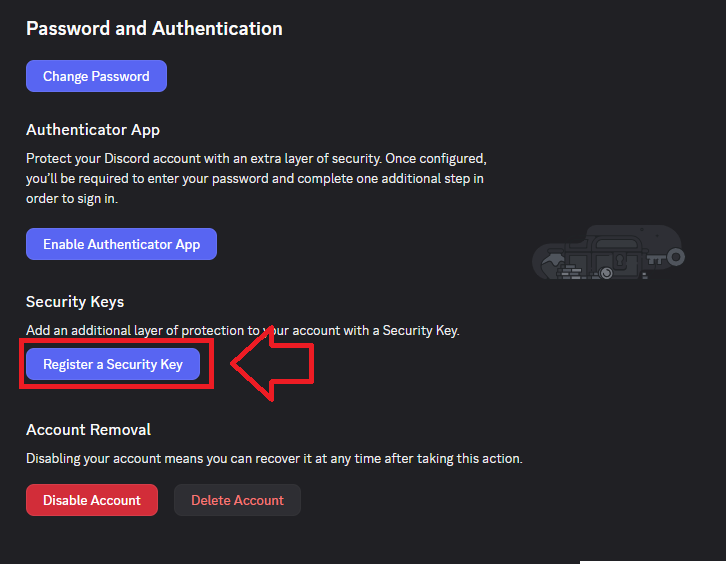
Select "My Account" from the left hand column menu, then scroll down to the section "Security Keys", click on the button
 ;
;
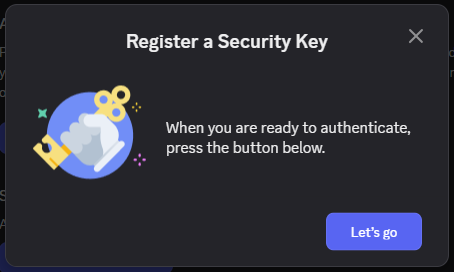
You will now be asked to register your Fido2 key, click
 ;
;
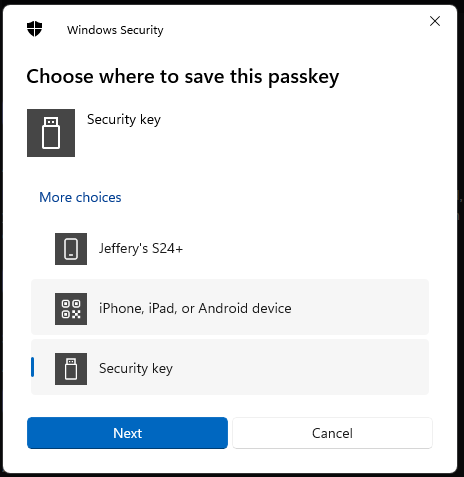
You will then be asked to select where to save the passkey, select "Security key", then click
 ;
;
You are now notified that access to Discord will be prepared with your Fido2 security key - click
 to proceed to the next step;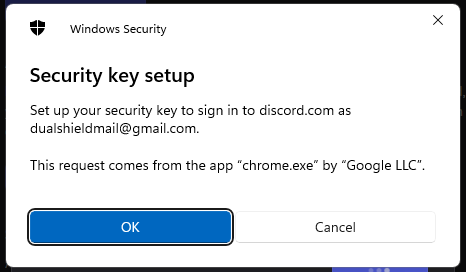
You will be asked to touch the button on your key (if your model has a fingerprint reader you may be asked to provide a finger swipe instead);
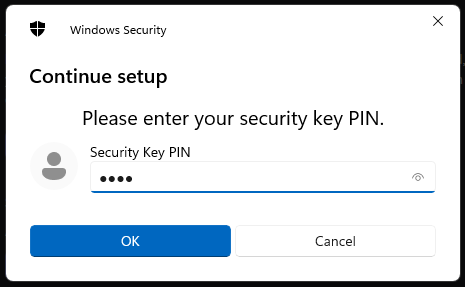
Next you will asked to touch the key;
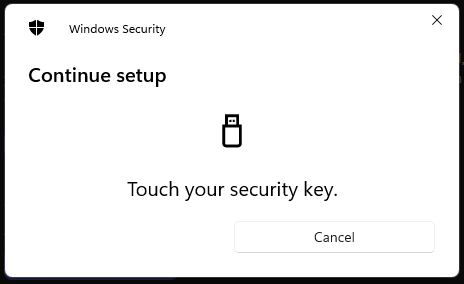
Provided you press the button on the Fido2 key in the allowed time, the passkey details will be stored on your Fido2 key, and you will be presented with the following confirmation;
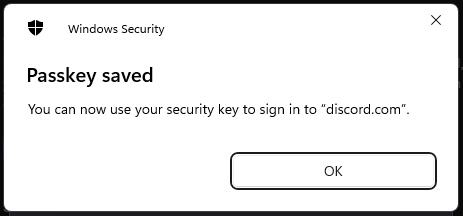
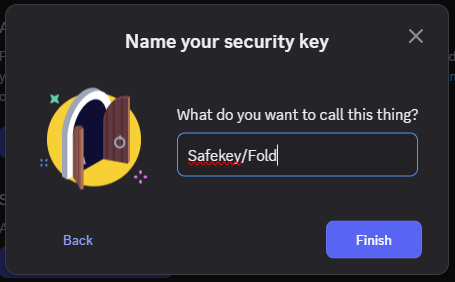
Having registered the key you will be asked to name the device, provide a suitable name then click
 ;
;
You will then be notified that the security key is activated (and it can now be used when logging on to your account).
At this stage you are strongly advised to download the backup codes (as a form of emergency access should Discord have difficulty using your key, or if you key is lost);
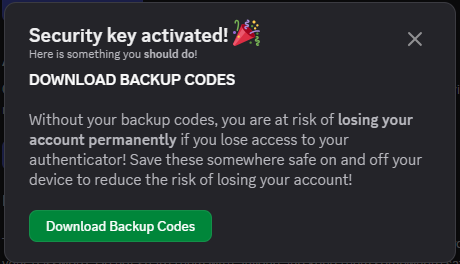
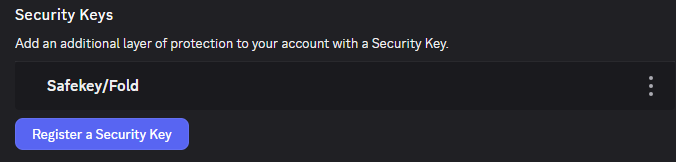
Finally you can confirm the key have been added to your list of Security Keys (or add additional keys);
Signing in to an Discord account with a FIDO2 key
Once you have registered you FIDO2 key with Discord the key will be ready to be used as an authentication method when accessing your account;
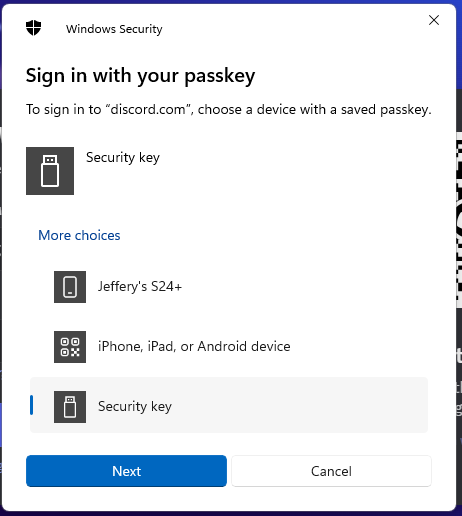
- Log in to your Discord Account, then after you have supplied your username and password details you will be asked to sign in with your passkey.
Select the option "Security Key", then click
 ;
;
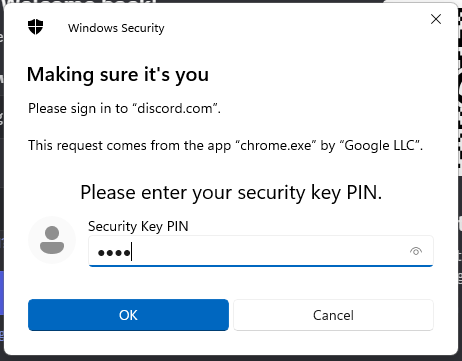
You will now be prompted to enter the PIN code for your Fido2 key.
At the prompt "Security Key PIN", enter the PIN code, then click
 .
. (in the case of a Fido key with a fingerprint reader you will need to swipe your finger on the key);
Next you will asked to touch the key;

Once the key has been touched you will be logged in to your Discord account.
Related Articles