When you purchase TOTP hardware tokens, they will arrive with seed data pre-programmed in to the token.
Before tokens are used with MFA services (such as Microsoft Entra), you will need to obtain the seed data (procedure below);
Once requested, the seed data will be sent to you in the form of a CSV file.
Open the file, then search for the Secret Key that matches the serial number of the token you are testing (Azure example below);

Testing OTP codes using an online TOTP generator
The seed data may be used to confirm the validity of the codes presented by the hardware tokens by using an online TOTP generator.
The Deepnet Security online TOTP code generator can be accessed at the URL below.
https://www.deepnetsecurity.com/tools/totp-generator/
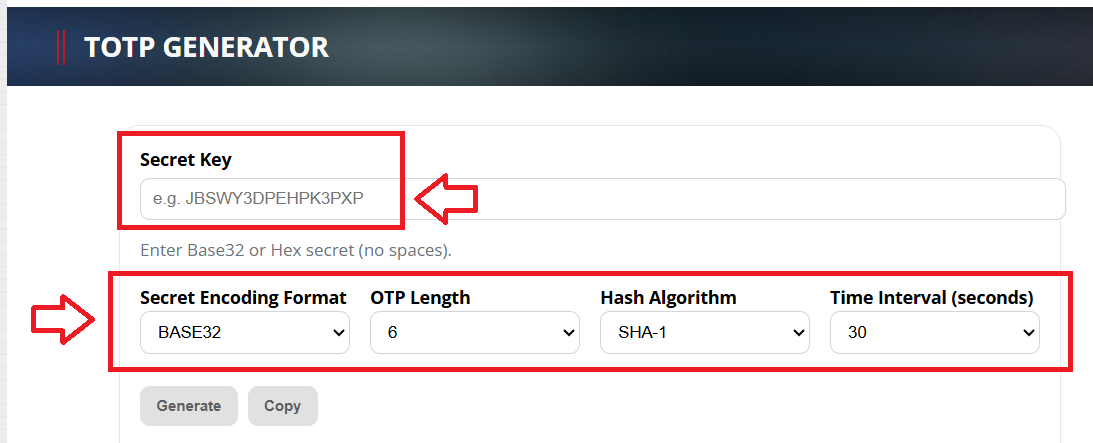
- At "Secret Key", fill in the secret key (seed) data that matches the serial number of the token you are testing
- At "Secret Encoding Format", select the format that matches the format in your CSV file (for azure this will be Base32)
- At "OTP Length", select "6 digits"
- At "Hash Algorithm", select "SHA-1"
- At "Time Interval", select either "30 seconds" or "60 seconds" (This depends upon use. Commonly, it is 30 seconds).
When you have supplied all the details above, click  , and OTP codes will now start to be generated using the supplied seed data;
