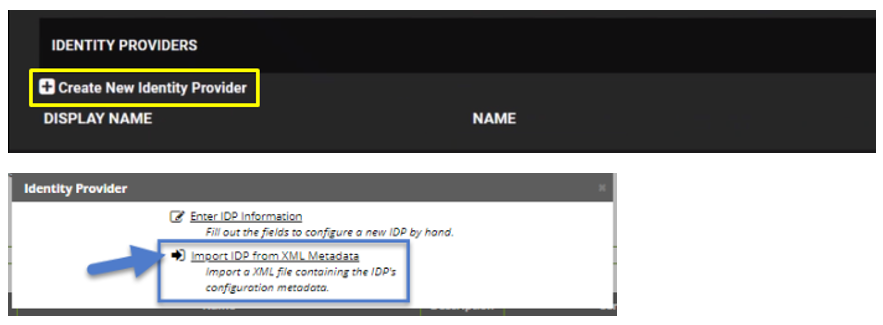
Configure SAML Role Permission
Navigate to Groups & Settings > All Settings > System > Enterprise Integration > Directory Services.
Under Advance Enable 'Use SAML for Authentication

Click the Assign Roles link of the newly created role. The View Role Assignment page appears
Click the Role dropdown list to select the role you just created.
Click the Edit button.

On the Role Assignment page move the desired users to the Assigned list using the same method as before
Click the Save Changes button.
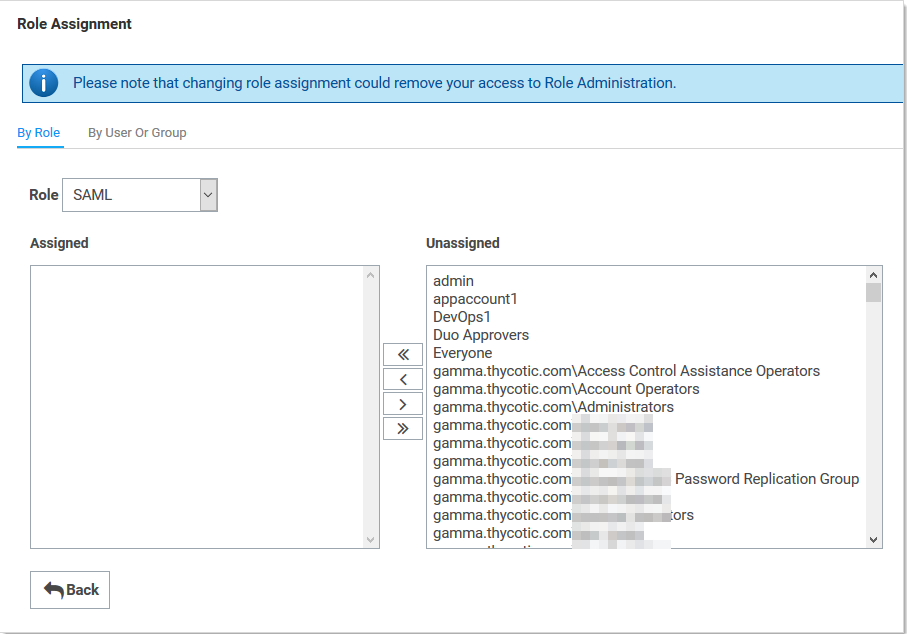
Configure SAML SSO:
Navigate to Admin > Configuration.
Click the SAML tab
Click the Edit button in the SAML General Settings section.
Click to select the SAML Enabled check box.
Click the Save button.
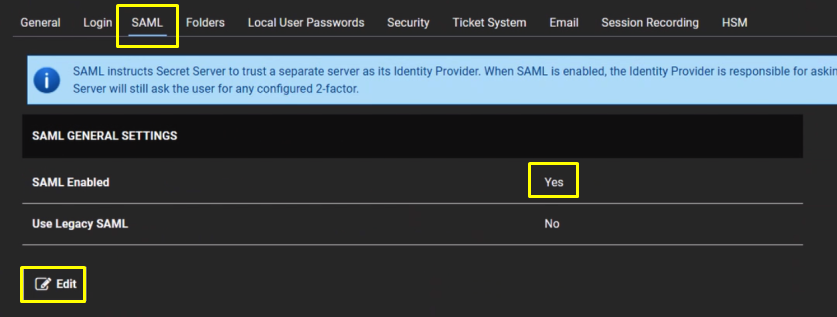
Click the Edit button in the SAML Service Providers section.
Type a name for your service provider, in the Name text box.
Click the Select Certificate link. The Upload Certificate popup appears:
Click the Upload Certificate button to upload your commercial SSL certificate (Usually in pfx format)
Type Password
Click OK.
Click on Download Service Provider Metadata.
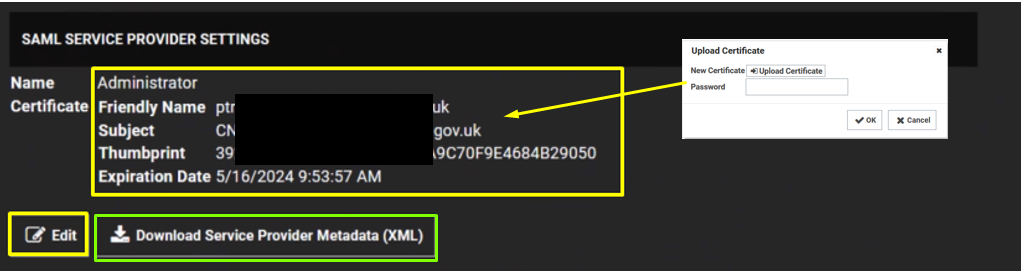
Under Identity Providers click on Create New Service Provider
Click Import IDP from XML Metadata and select the IdP metadata.xml file you saved previously. (refer to Obtain the IDP Metadata File section)