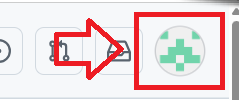
Log in to your Github account, click on the icon in the top right of your logon page;
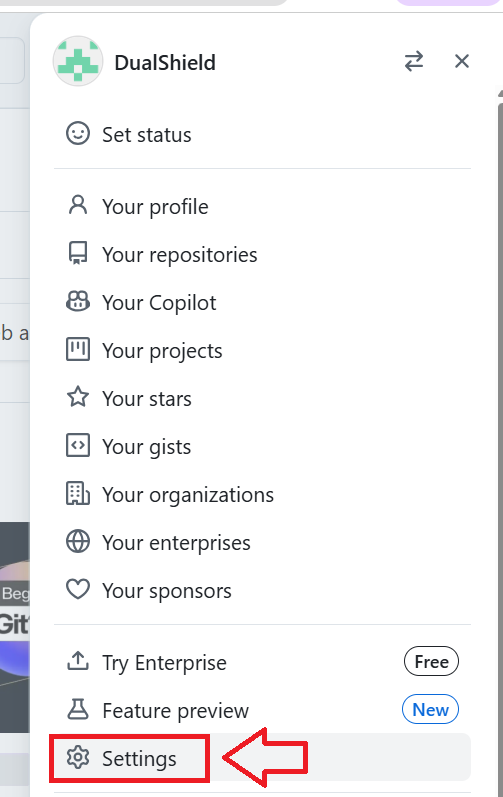
A dropdown list will then be presented, select the option "Settings";
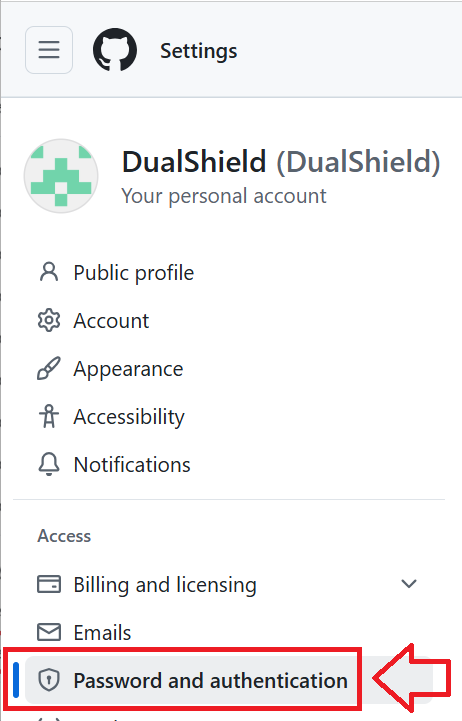
In the left hand column you will be presented with a list of setting options, select "Password and authentication";
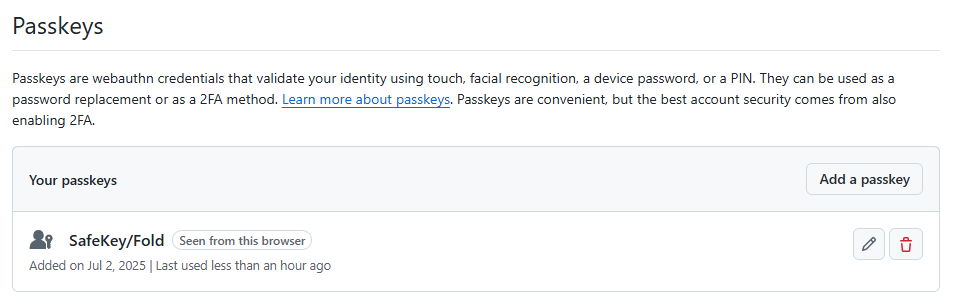
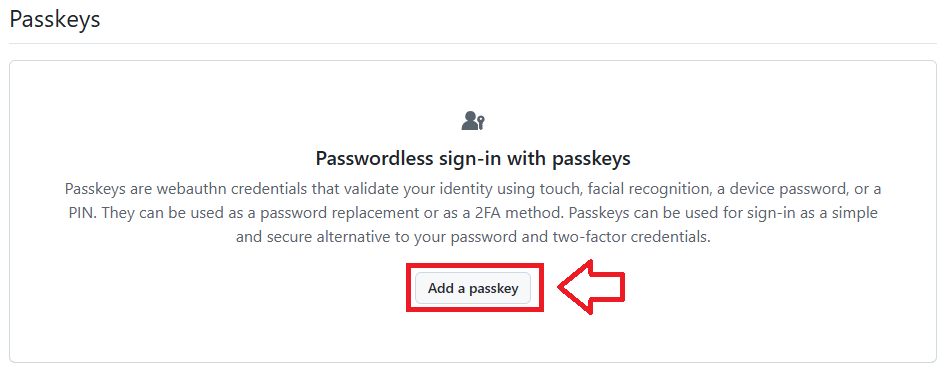
Scroll down to the section "Passkeys",. then click on the option "Add a passkey";
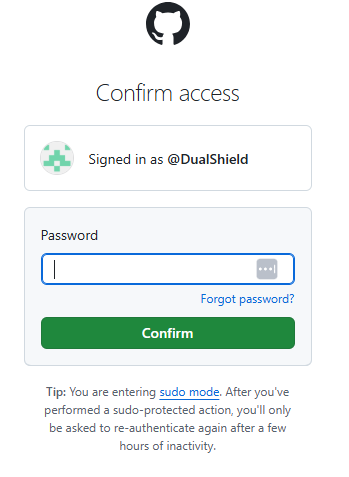
You will now be asked to confirm you identity by re-supplying your password.
At the prompt "Password", type in your account password then click  ;
;
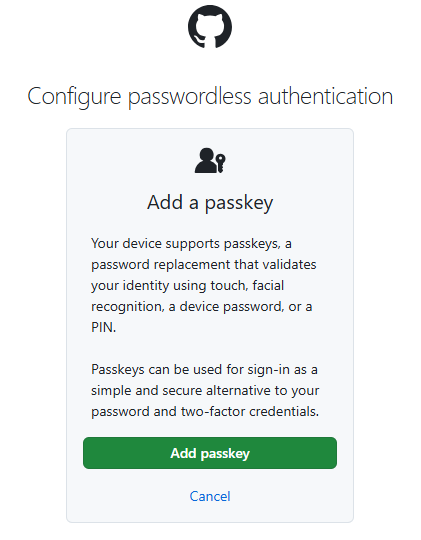
After entering your password you will be asked to add a passkey, insert your FIdo2 key into an available USB port then click 
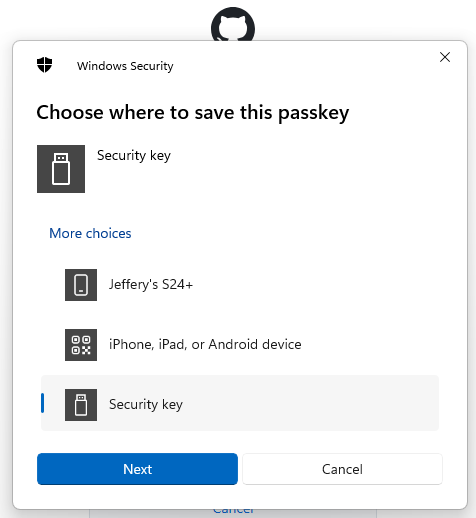
You will now be prompted to specify the device that is to be added as a passkey.
Select the option "Security key", then click  ;
;
You are now notified that access to google will be prepared with your Fido2 security key - click  to proceed to the next step;
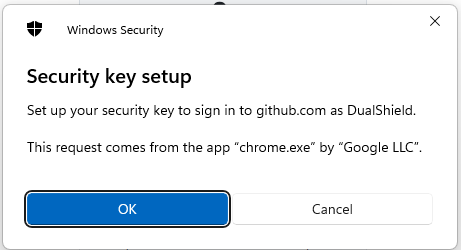
You will be asked to touch the button on your key (if your model has a fingerprint reader you may be asked to provide a finger swipe instead);
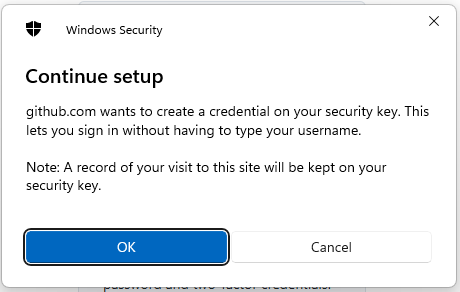
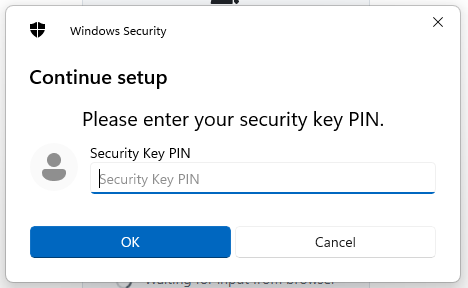
You will now be prompted to enter the PIN code for your Fido2 key.
At the prompt "Security Key PIN", enter the PIN code, then click  .
.
(in the case of a Fido key with a fingerprint reader you will need to swipe your finger on the key);
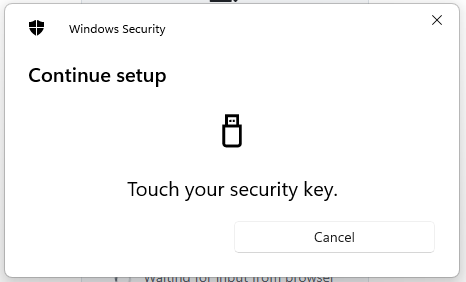
You are now prompted to touch the key (to prove you are present and giving permission for the key to be used).
Touch the necessary area on your Fido key;
Once you have touched the Fido2 Key will be added as a passkey authentication method to your GitHub account.
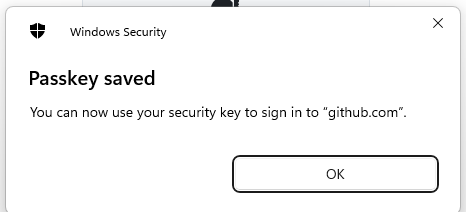
Click "OK", and you will be asked to provide a name for your passkey;
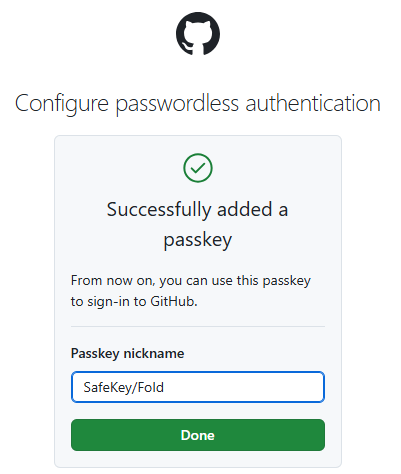
Provide a suitable name then click  , and you will be shown a list of emergency recovery keys that may be used if required (we suggest you make a note of these in the event of a lost Fido key).
The Fido2 key is now ready to be used when you next log in to Github.