GitHub is a web-based platform that uses Git for version control and collaboration on software development projects. It allows developers to store, manage, and share code, track changes, and collaborate on projects simultaneously. Think of it as a social network for developers where they can showcase their work, collaborate on projects, and contribute to open-source initiatives.
Once you have registered your FIDO2 key with GitHub, the key will be ready to be used as an authentication method when accessing your account;
Register your FIDO2 key in your GitHub account
Before you can use your FIDO2 key as an access method for your GitHub account you will need to register the key with GitHub using the following procedure;
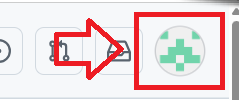
- Log in to your Github account, click on the icon in the top right of your logon page;
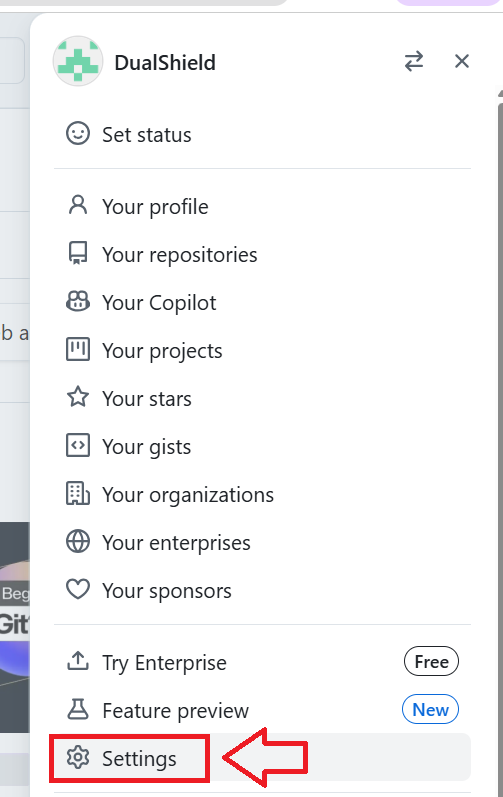
A dropdown list will then be presented, select the option "Settings";
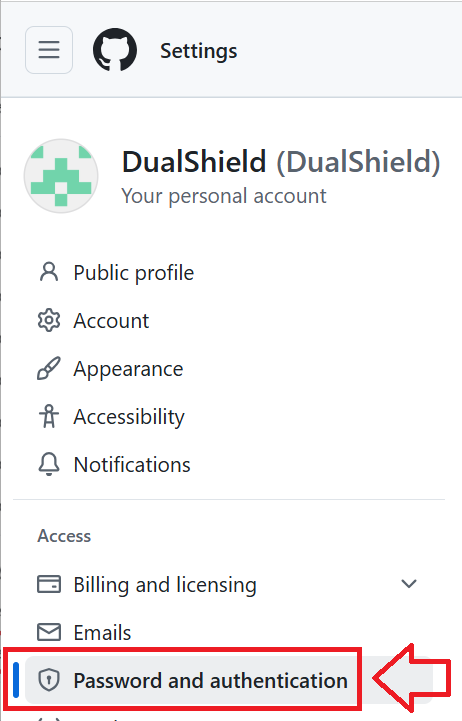
In the left hand column you will be presented with a list of setting options, select "Password and authentication";
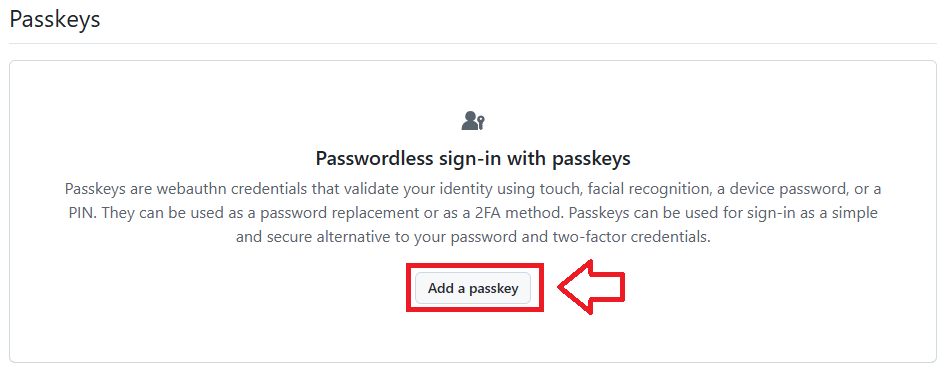
Scroll down to the section "Passkeys",. then click on the option "Add a passkey";
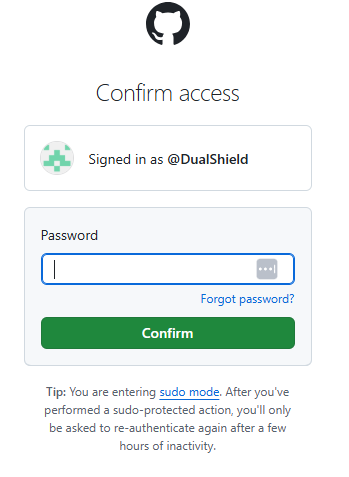
You will now be asked to confirm you identity by re-supplying your password.
At the prompt "Password", type in your account password then click
 ;
;
After entering your password you will be asked to add a passkey, insert your FIdo2 key into an available USB port then click

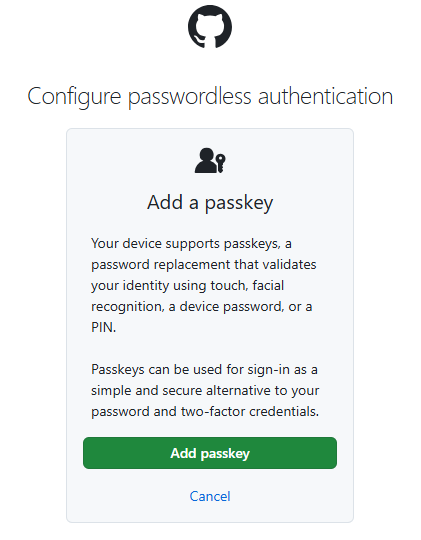
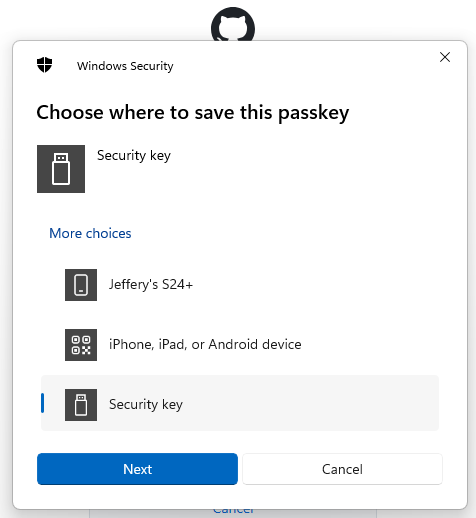
You will now be prompted to specify the device that is to be added as a passkey.
Select the option "Security key", then click
 ;
;
You are now notified that access to google will be prepared with your Fido2 security key - click
 to proceed to the next step;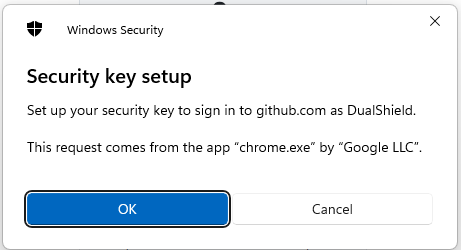
You will be asked to touch the button on your key (if your model has a fingerprint reader you may be asked to provide a finger swipe instead);
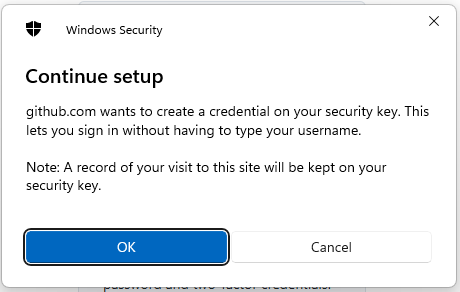
You will now be prompted to enter the PIN code for your Fido2 key.
At the prompt "Security Key PIN", enter the PIN code, then click
 .
. (in the case of a Fido key with a fingerprint reader you will need to swipe your finger on the key);
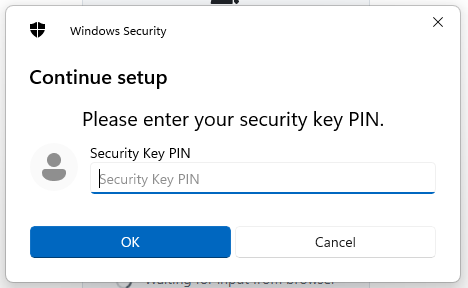
You are now prompted to touch the key (to prove you are present and giving permission for the key to be used).
Touch the necessary area on your Fido key;
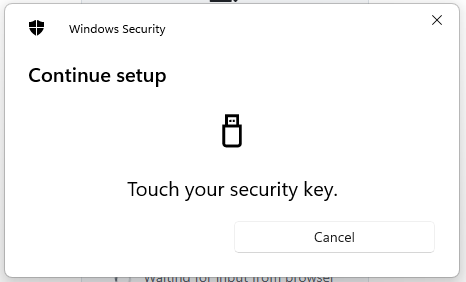
Once you have touched the Fido2 Key will be added as a passkey authentication method to your GitHub account.
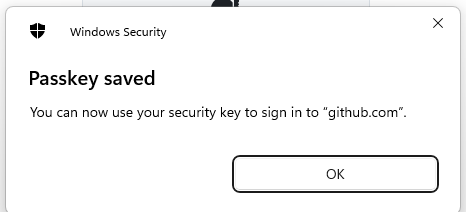
Click "OK", and you will be asked to provide a name for your passkey;
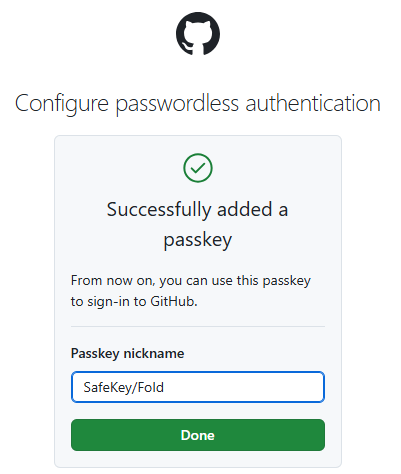
Provide a suitable name then click
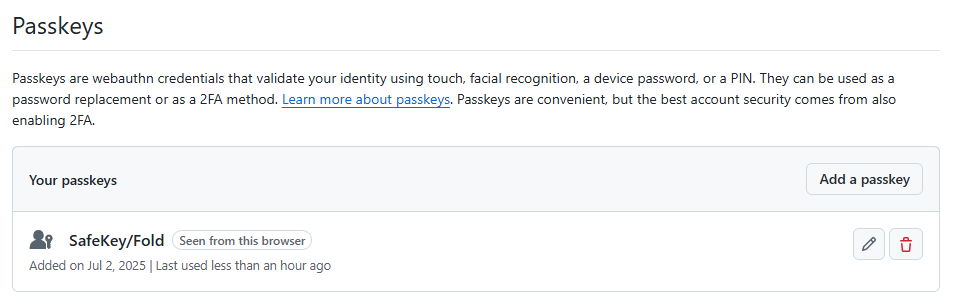
 , and you will be shown a list of emergency recovery keys that may be used if required (we suggest you make a note of these in the event of a lost Fido key).
The Fido2 key is now ready to be used when you next log in to Github.
Signing in to an GitHub account with a FIDO2 key
Once you have registered you FIDO2 key with GitHub the key will be ready to be used as an authentication method when accessing your account;
- Log in to your Github account, when you seed the logon screen you will now be able to use the option "Continue with passkey";
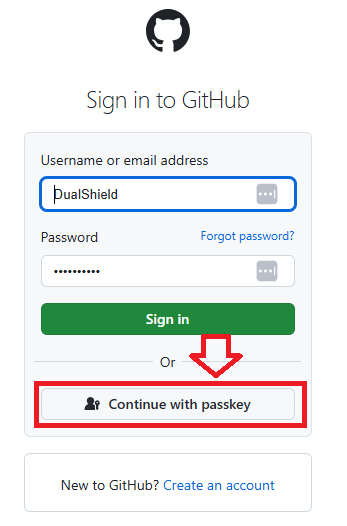
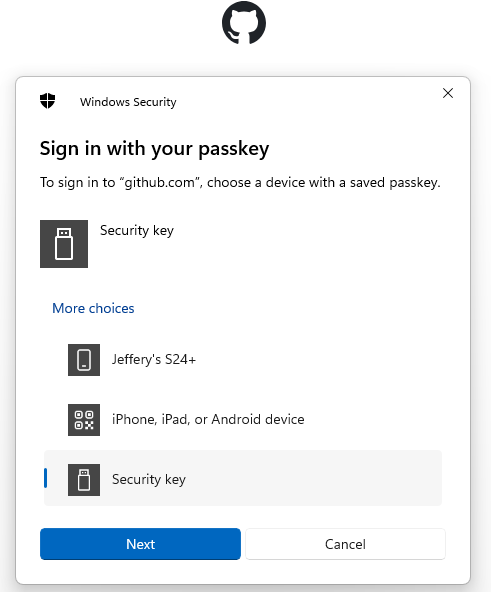
Click on this option, and you will be asked to sign in with your passkey.
Select the option "Security key", then click
 ;
;
You will now be prompted to enter the PIN code for your Fido2 key.
At the prompt "Security Key PIN", enter the PIN code, then click
 .
. (in the case of a Fido key with a fingerprint reader you will need to swipe your finger on the key);
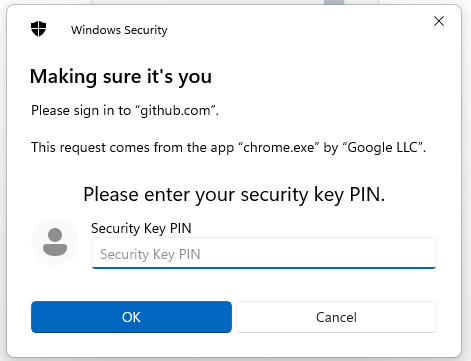
You are now prompted to touch the key (to prove you are present and giving permission for the key to be used).
Touch the necessary area on your Fido key;
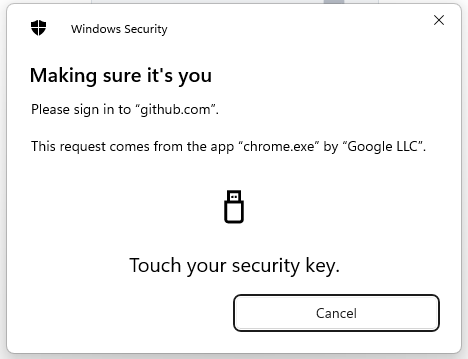
Once you have touched the Fido2 Key you will be logged in to your GitHub account.
Related Articles