Log in to your Crowdin Account, then click on you account icon, then click on "Settings" (see example below);

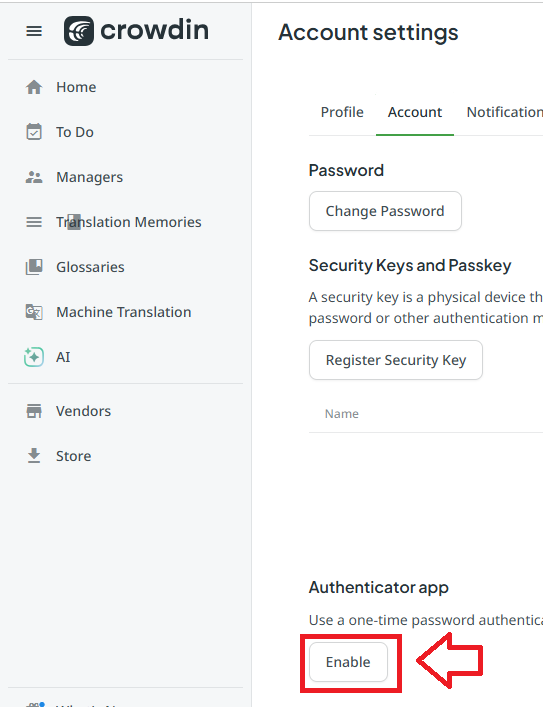
In the "Account Settings" section, scroll down to "Authenticator app", then click  ;
;
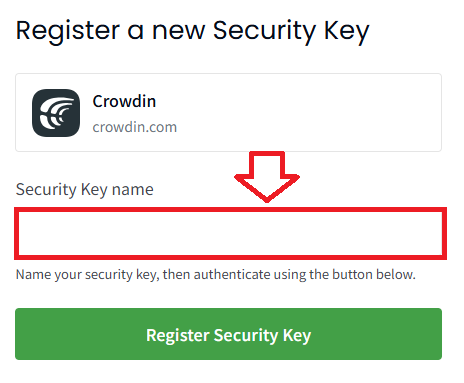
At the prompt "Security Key Name:" provide a name that relates to the Fido2 key you will be using, insert you FIdo2 key into an available USB port, then click  ;
;
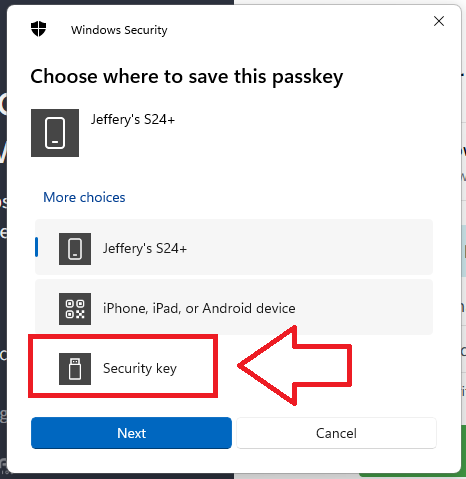
You will now be presented with a number of Fido2 authentication options for your passkey, insert your Fido2 key into a USB port, select the optoin "Security key" then click  ;
;
After selecting the security key option you will be notified that the security key is being set up, click  ;
;
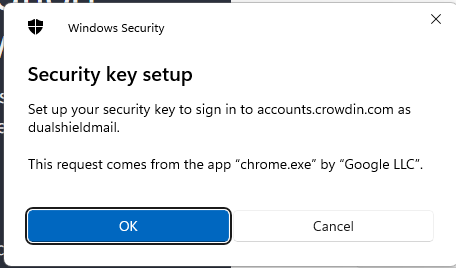
You will then be asked to confirm your intention, click ;
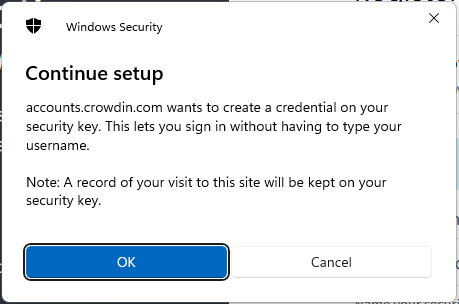
Now you will be asked permission for crowdin to create a passkey that can be used to authenticate user access, click  ;
;
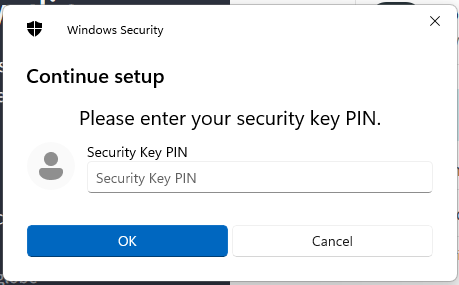
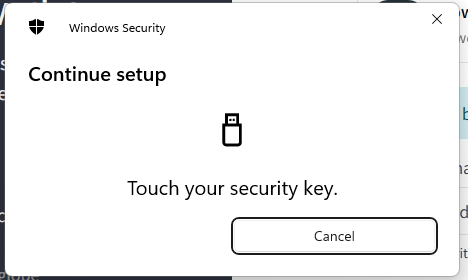
You are then asked to touch the security key - press the button on the Fido2 key;
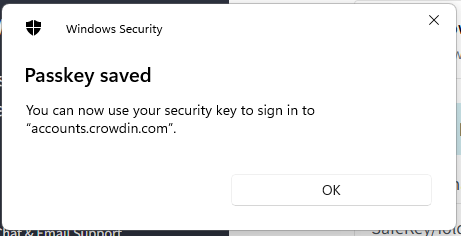
Finally you are notified that the passkey has been saved;
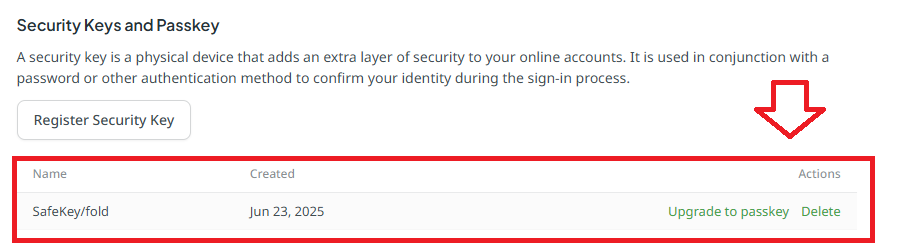
The details of your newly created passkey will be shown;