Introduction
When users are deleted from an external LDAP identity sources, the user deletion may result in licenses being allocated to users that cannot be accessed in the management console.
The purpose of this task is to remove users that have been removed in this manner (which in turn frees up any licenses consumed by any users found and cleared).
The task can be found by navigating to "Administration | Tasks", then scrolling down to the task "Clear deleted LDAP users";

Task Parameters
This task does not use any task parameters.
Editing and Scheduling the Task
Viewing and Editing Tasks
The task can be edited by left clicking on the context menu of the task and selecting "Edit";

A new window will now open titled "Task - Edit";

Scheduling the Task
Select the "Enable Schedule" checkbox to ensure the task schedule is activated, then use the pencil icon (" ") to specify the time and frequency settings for automated task execution.

- Tasks can be scheduled for automatic execution by selecting the "Schedule Enable" option then clicking on the
 icon;
icon;
When the
is pressed a window will open titled "Schedule" that can be used to specify the when the report is scheduled to run; 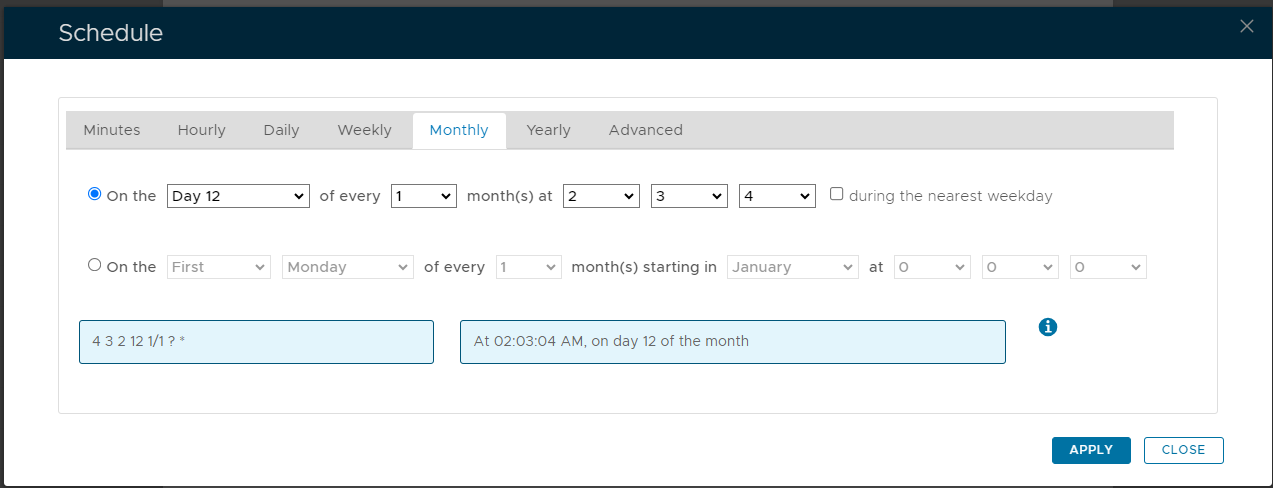
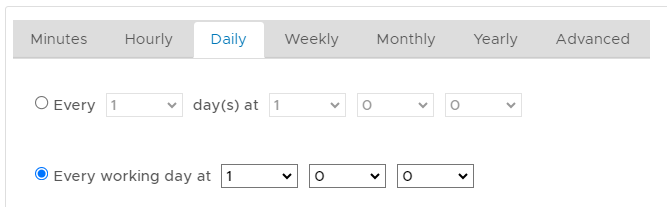
As an example, we can schedule the report to run at 1am every weekday using the following settings;
After clicking on
 the schedule details will be converted into text form and added against the report parameter "Schedule";
In addition to scheduling when the task is to be run you may need to Edit the task parameters and ensure that all required parameters have been supplied (some tasks have parameters with no default value and until a value is supplied the task will fail if run manually or automatically scheduled).
Related Articles
Manual Task Execution
The task can be run manually from the management console by left click on the context menu of the task, then selecting "Run";

A new window will open titled "Run Task" will then open (the window will be populated with the default task property values);

To execute the task click the  button.
Example
When a user that is consuming a license has been deleted from the external directory, their details will show in the report "User use licenses", but their details in the report columns "Login Name", "First Name" and "Last Name" will be blank, and listed at the top of the report.

As can be seen from this report the user is still consuming a license and it is the purpose of this task to free the license up.
Now we run the task "Clear LDAP Users" then rerun the "Users use licenses" report we will discover that the entry with blank details is no longer present (and the associated license is no longer consumed);
