Download SP Metadata from SPTEST
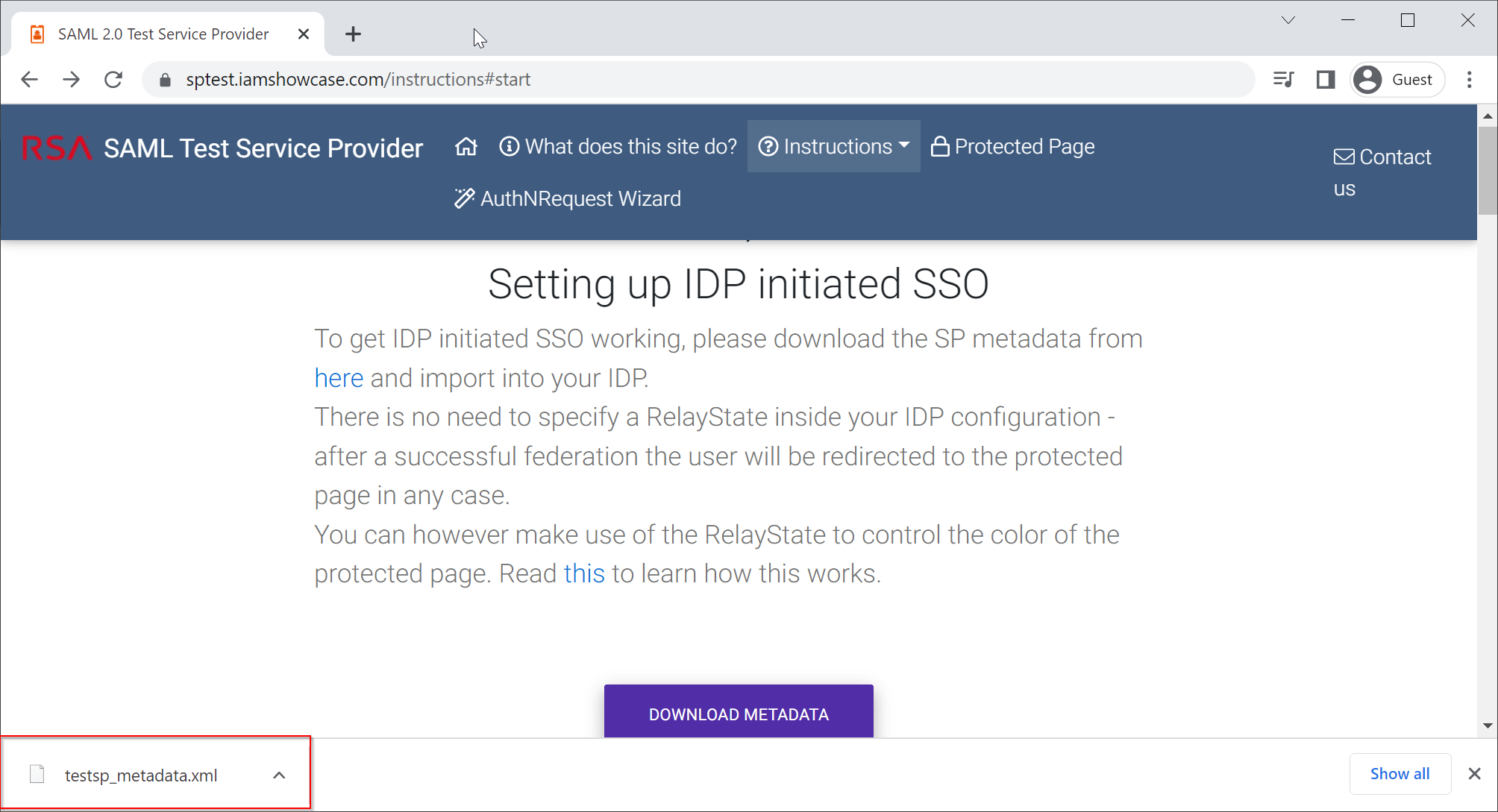
Visit https://sptest.iamshowcase.com/instructions#start

Right click "DOWNLOAD METADATA" and select "Save link as"
A file called "testsp_metadata.xml" will be downloaded and saved in your local drive
Create SP in DualShield
In your DualShield Admin Console, navigate to "SSO | Service Providers"
Click the "Create" button, and fill in the form as below:
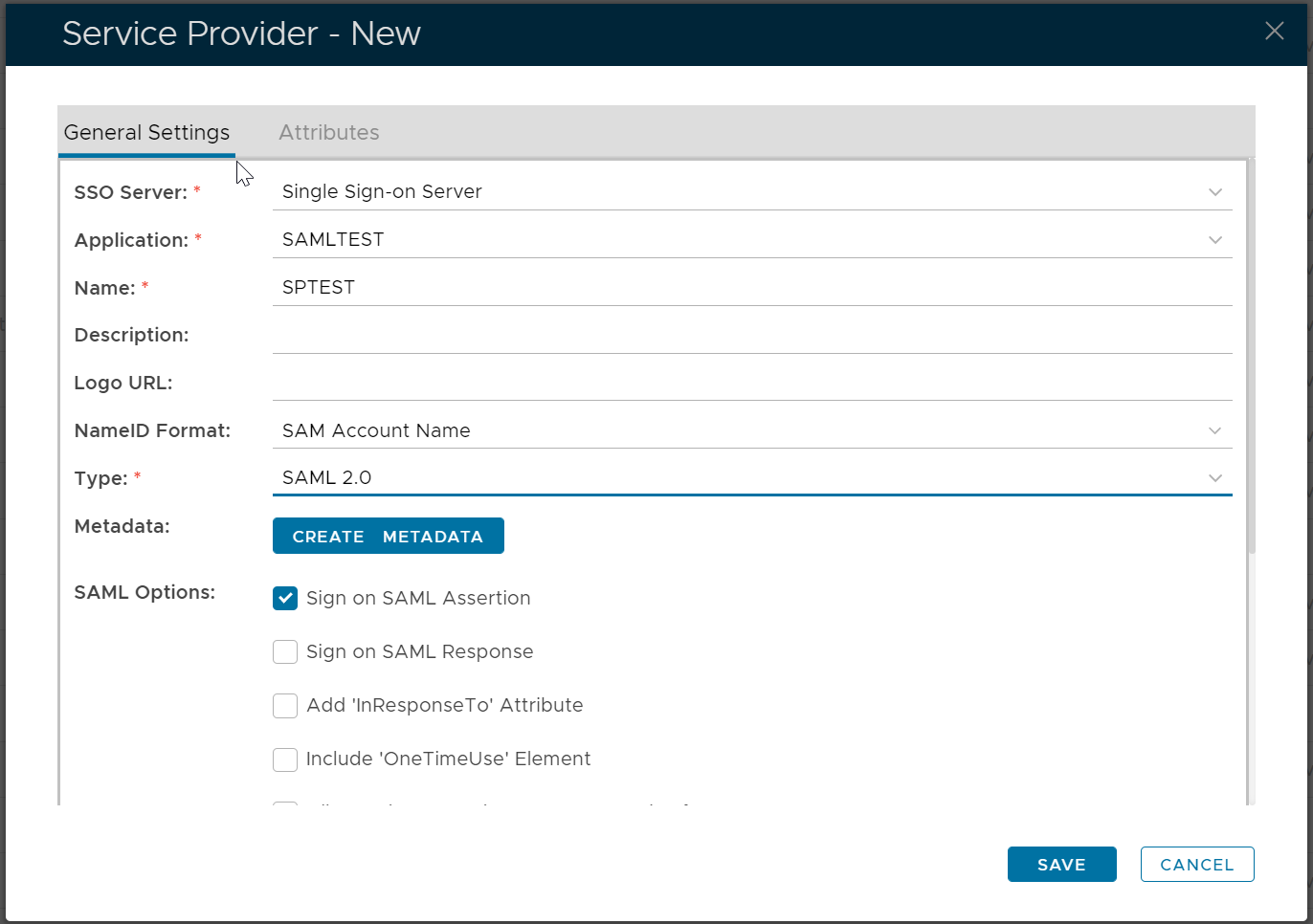
Click the "Create Metadata" button
Open the file "testsp_metadata.xml" in a text editor, copy its context and paste it into the Metadata box below:
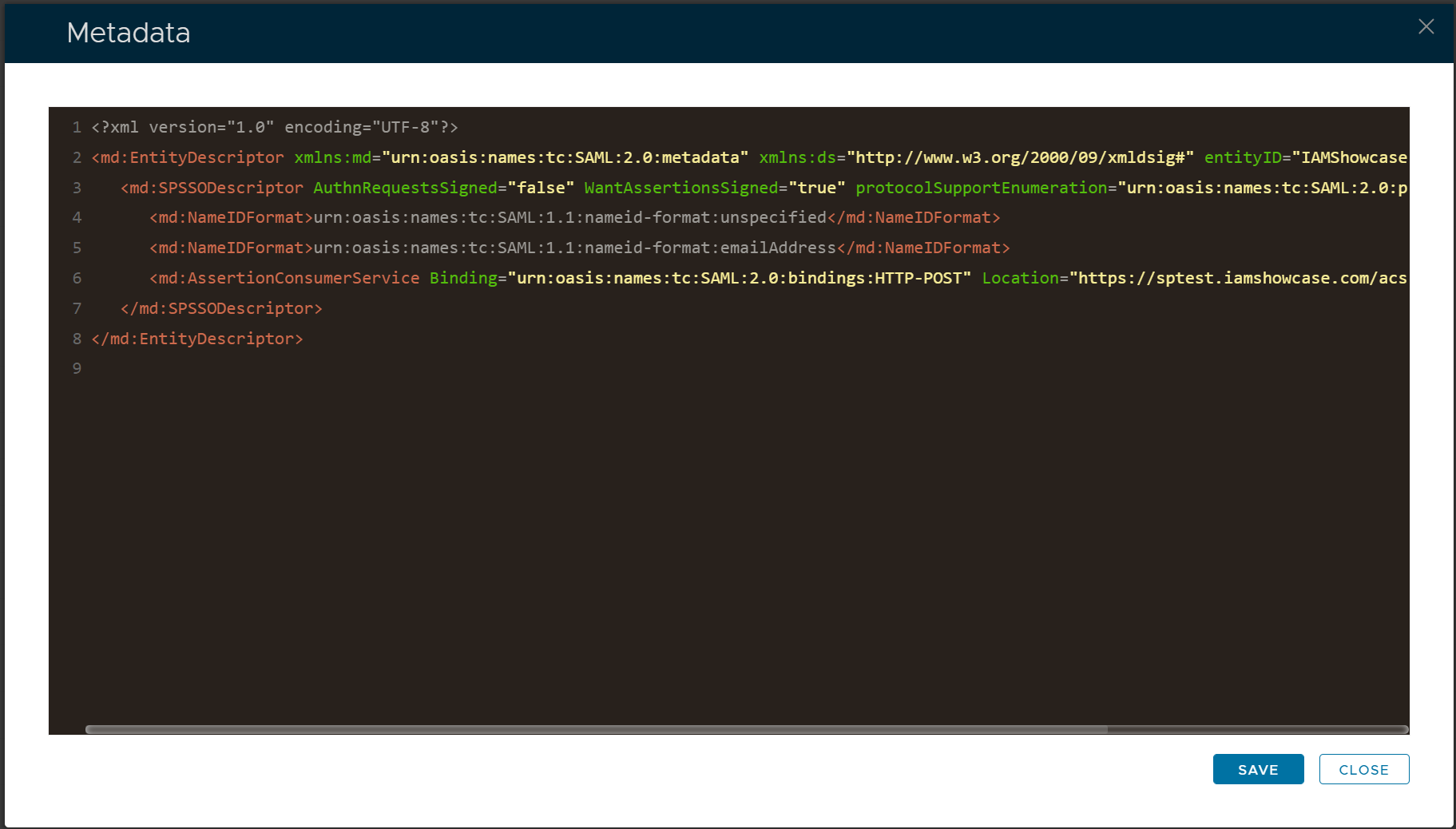
Click Save
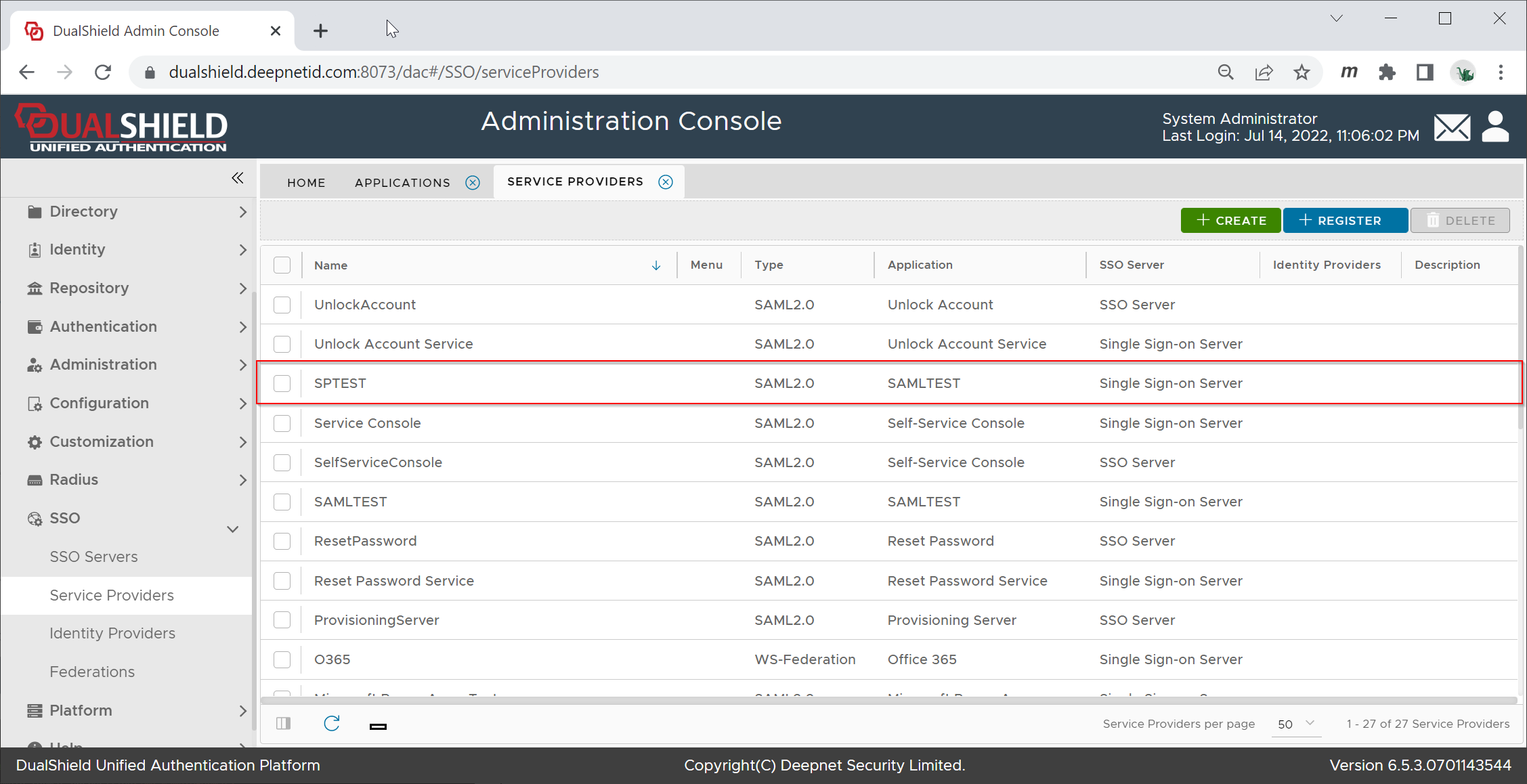
Download IdP Metadata from DualShield
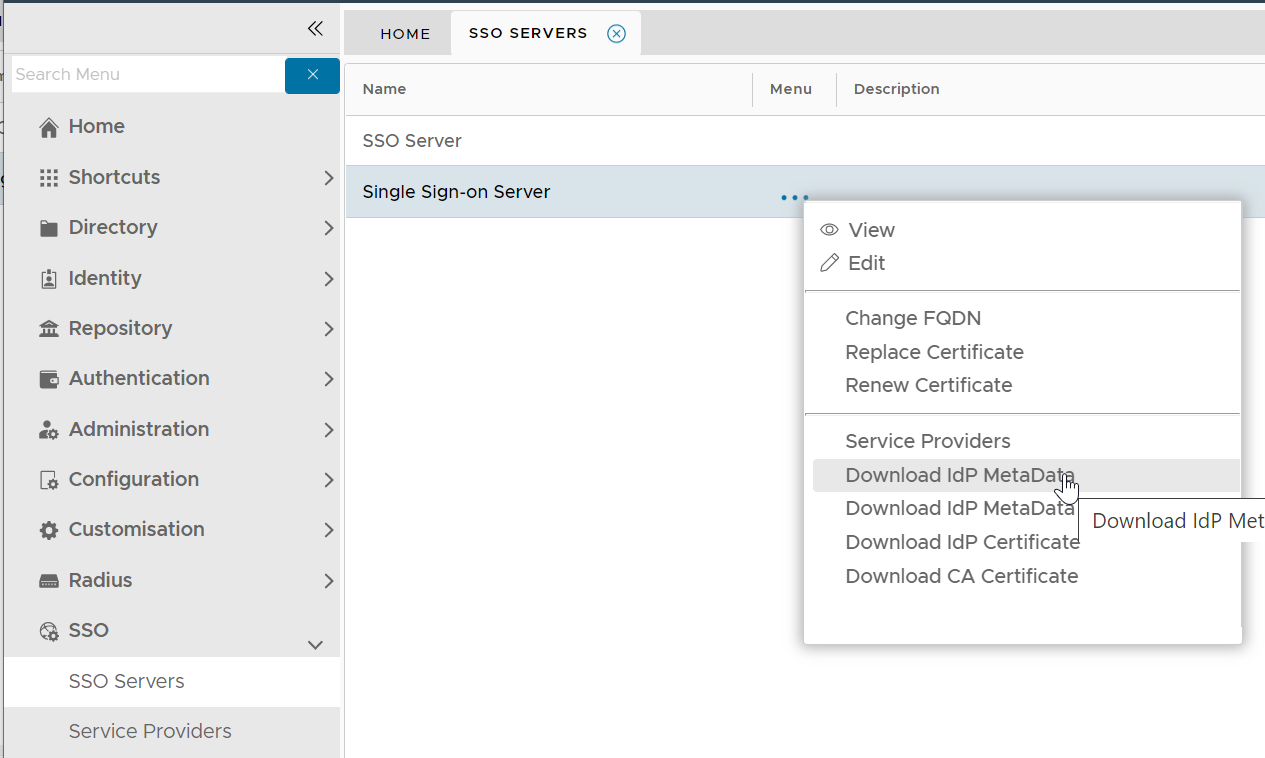
Select "Download IdP MetaData" from its context menu. It will be saved in the local drive as "SSO Server.xml"

Upload IdP Metadata to SPTEST
Visit https://sptest.iamshowcase.com/instructions#start again
Scroll down to "Upload your metadata file"
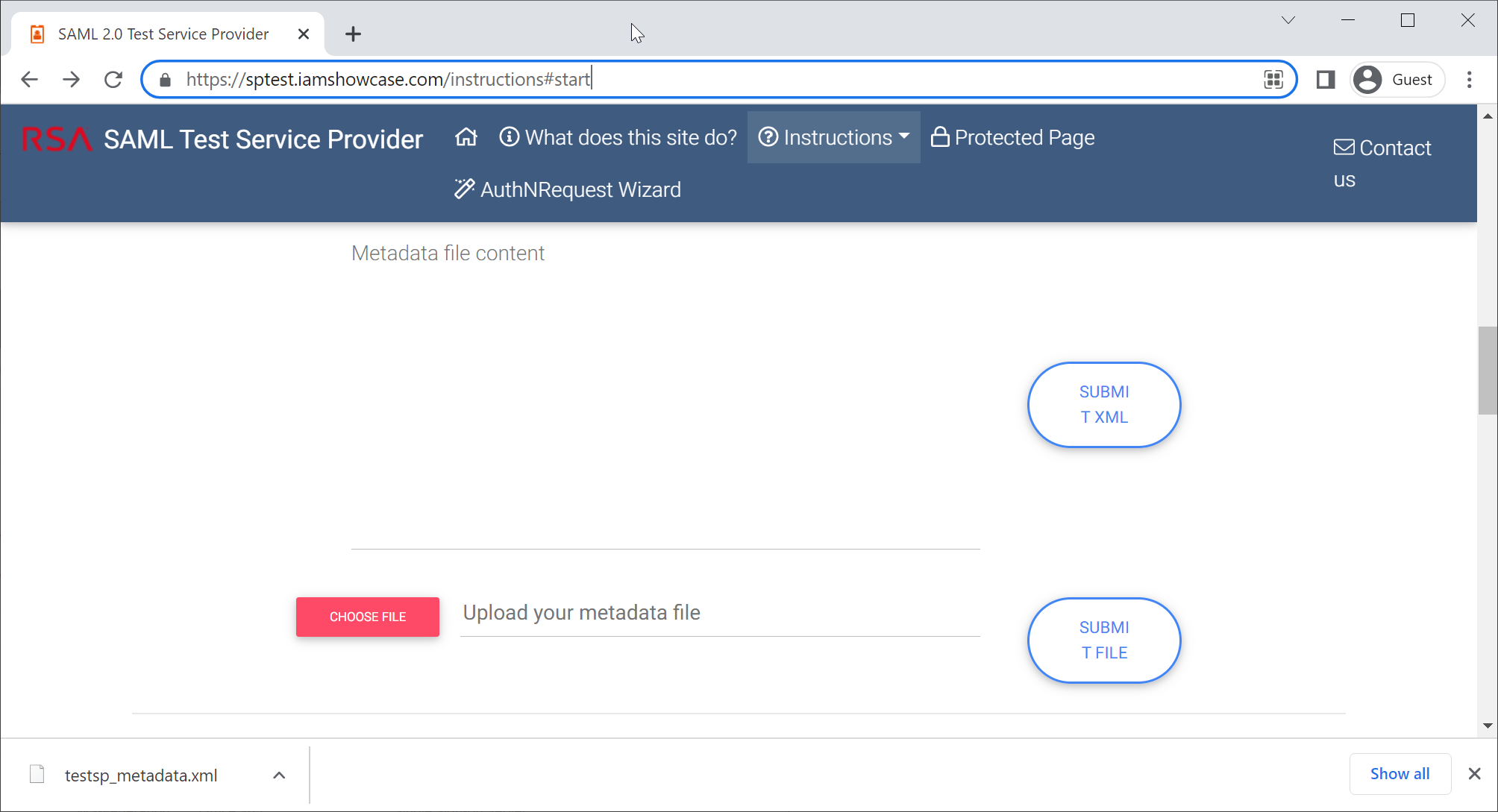
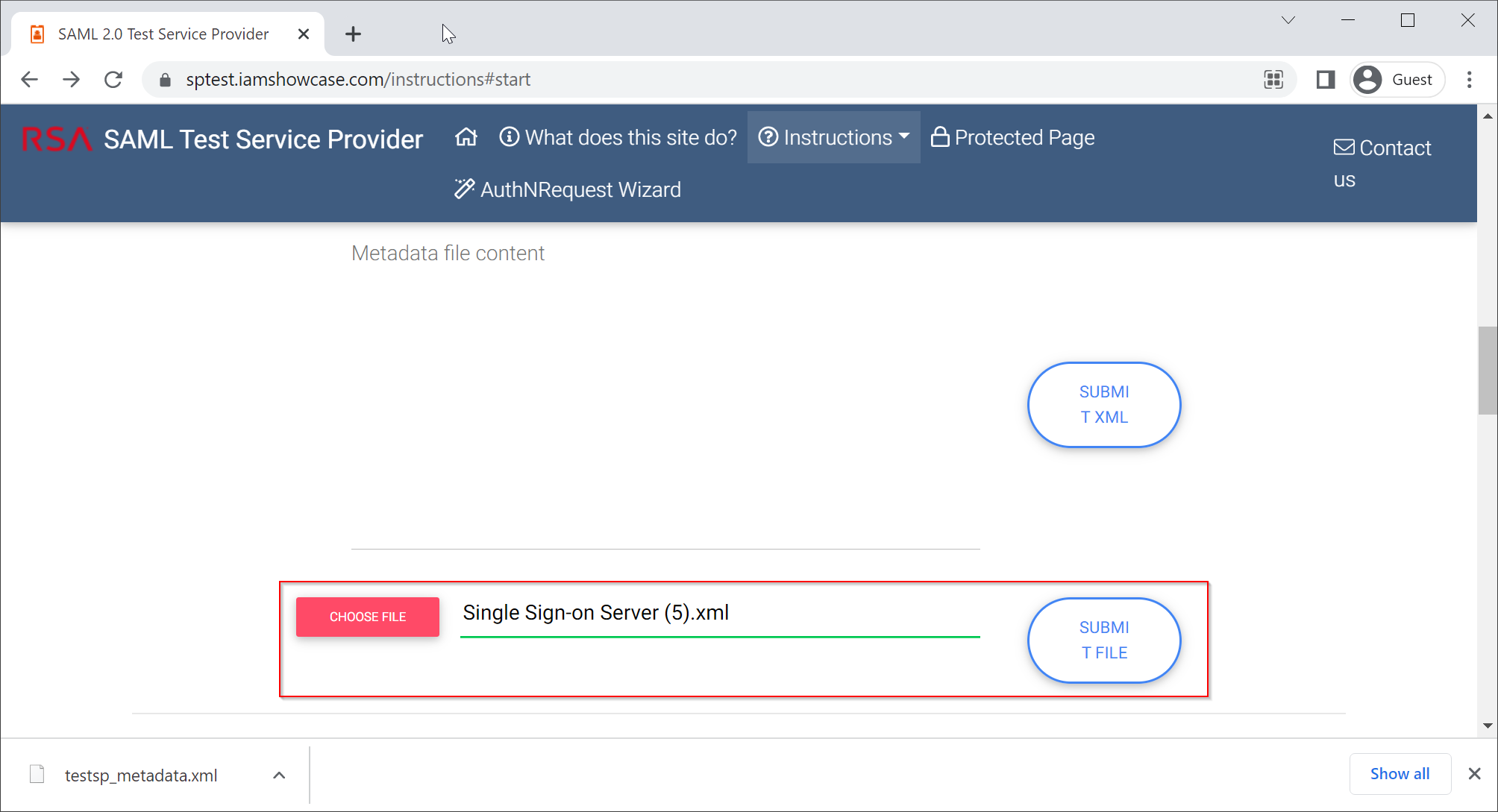
Choose the IdP Metadata file, click "Submit File"

Click "COPY URL to CLIPBOARD"
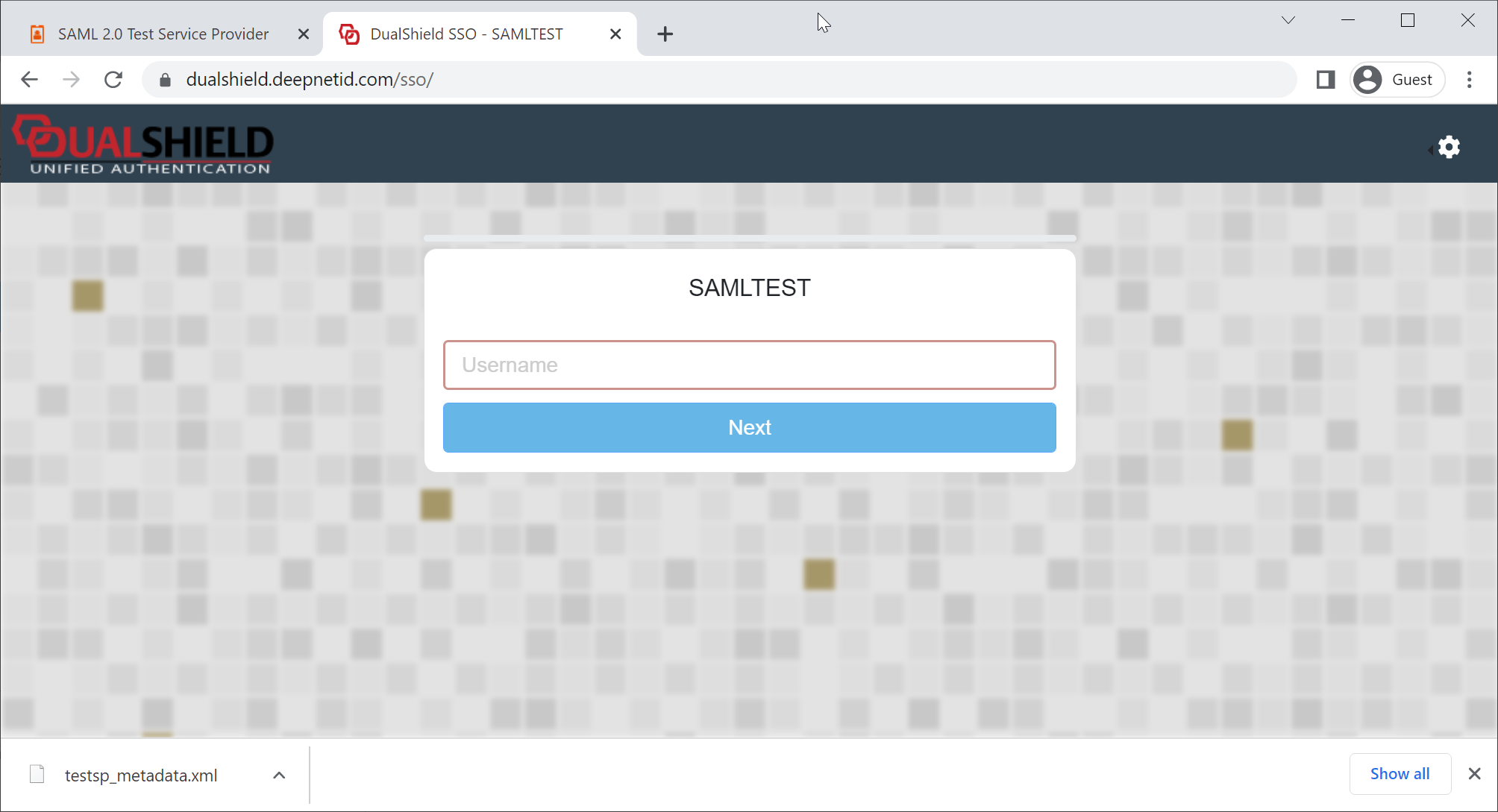
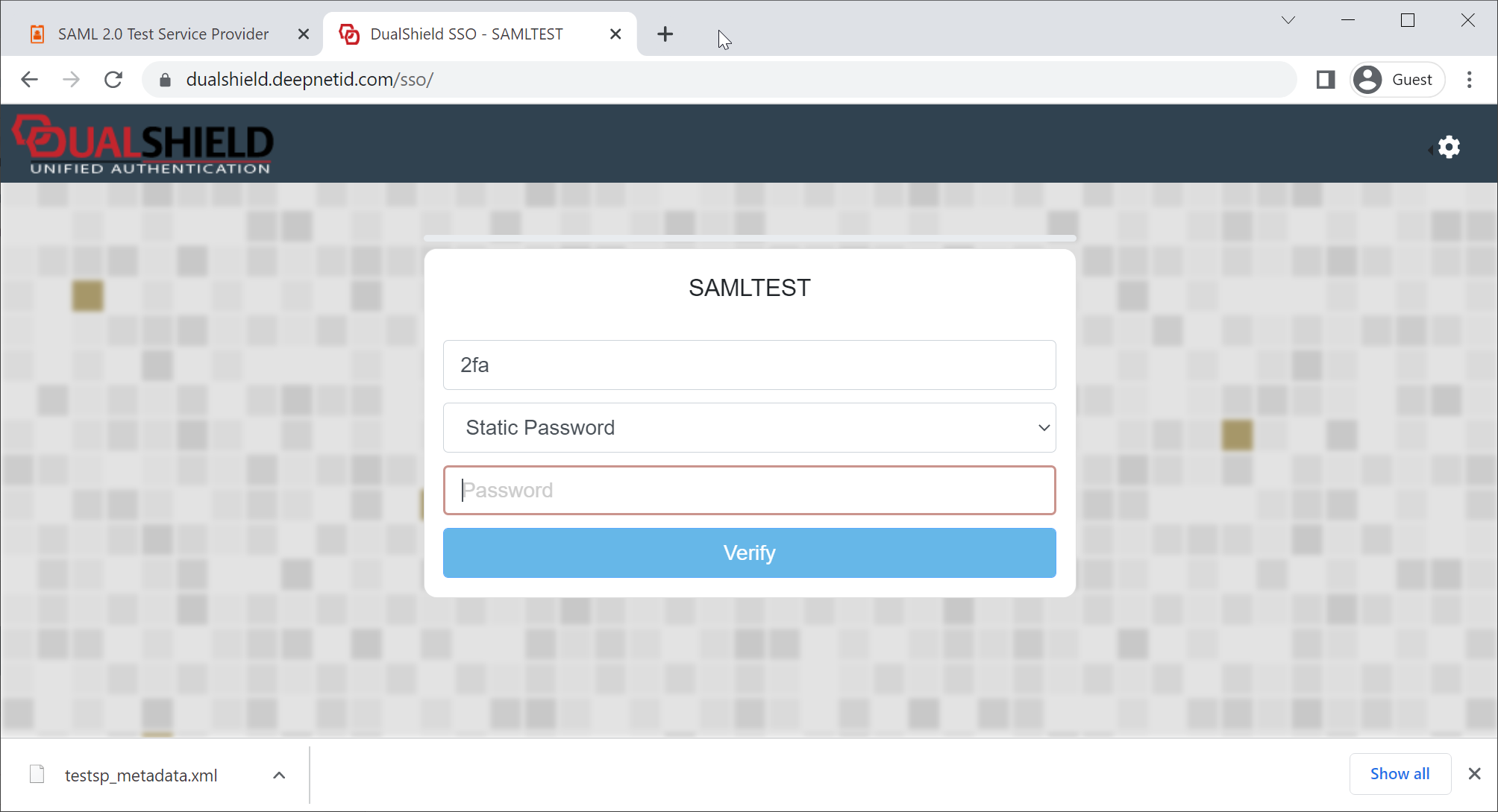
TEST SAML
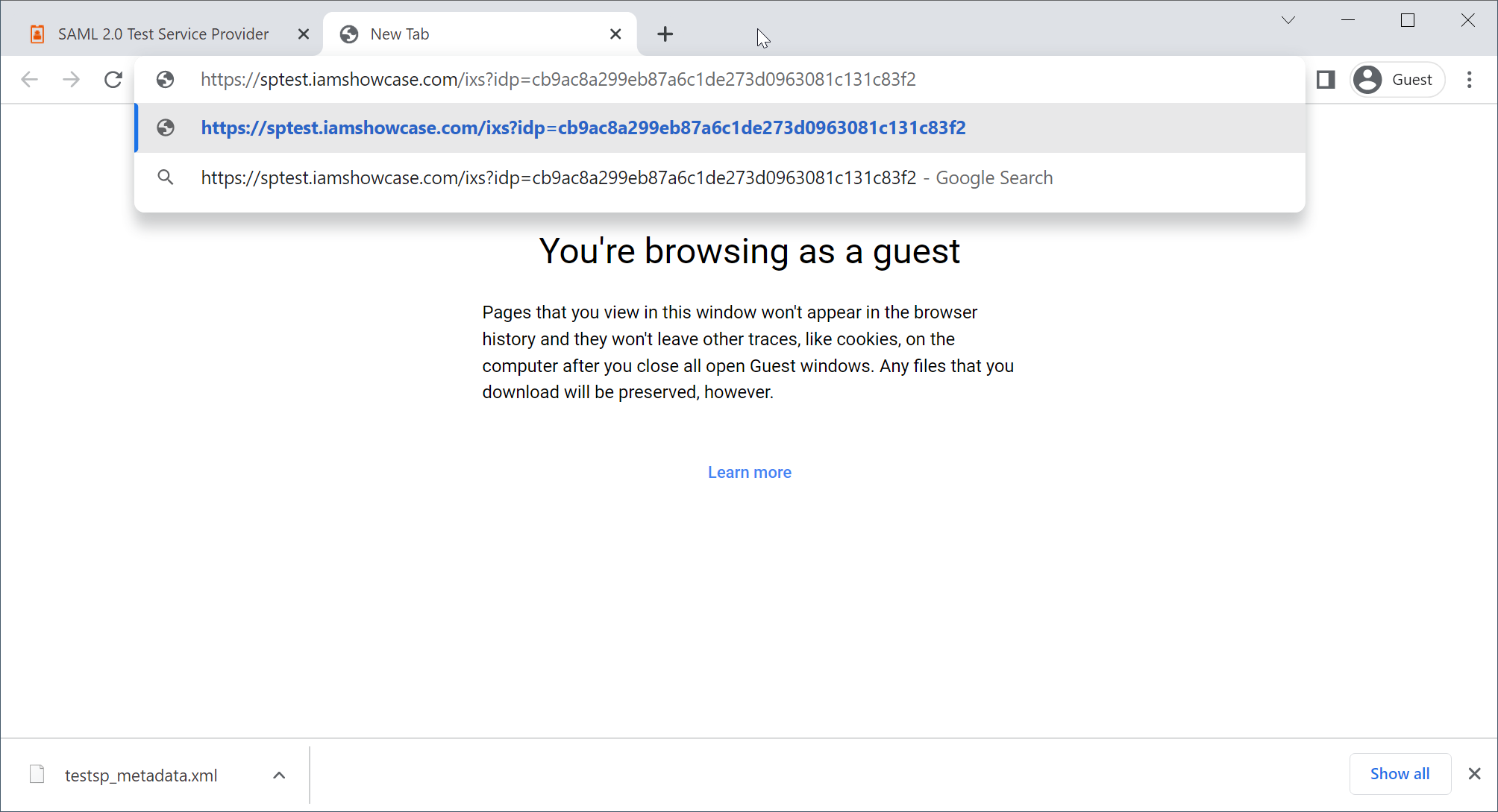
Open a new browser tab, paste the URL copied from SPTEST