Token Secret File
To use the SafeID Help Desk application to generate TOTP codes, you must first import the tokens. SafeID Help Desk is compatible with the token secret CSV file format used by Entra ID.
The token secret file must include a header row with the following columns:
- serial number
- secret key
- time interval
- manufacturer
- model
- as the example below shows.
Below is an example
|
The "secret key" must be encoded by BASE32 or HEX
Optionally, but recommended, the secret file should include a column named "upn" which represents the username of the token.
|
For more details, check the references below:
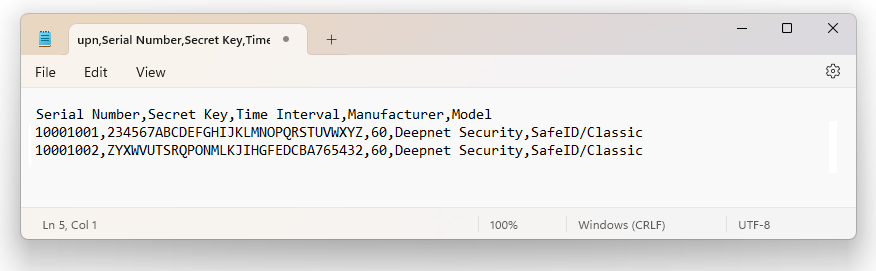
Deepnet SafeID or MobileID tokens are supplied with a token file in the CSV format. The token file includes serial number, secret key, time interval, manufacturer, and model as the example below shows.
Token Secret File
|
*Please note that the above token secret file is only an example. If you have not received the seed file of your tokens then click here to make a request, or contacting your reseller or Deepnet Security.
To assign tokens to users, you need to add User Principal Names (UPN) to the token file. Follow the steps below.
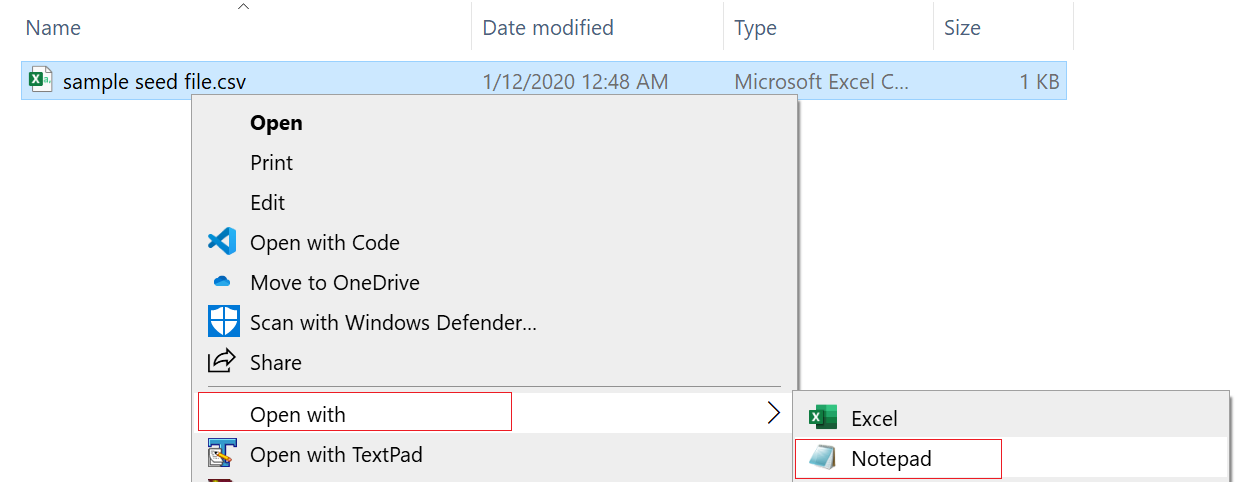
1 - Open the token file in a text editor, such as Notepad (Please do NOT edit the token CSV file using Excel).
Below is an example:.
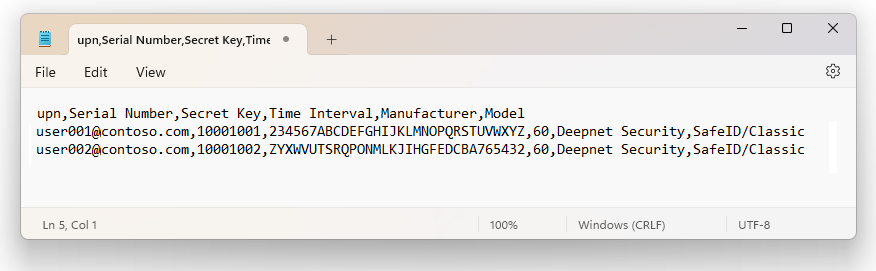
2 - Add 'upn' to the header row, so that the header reads:
upn,serial number,secret key,timeinterval,manufacturer,model
3 - Add a UPN in every row, e.g.
user001@contoso.com,1234567,234567ABCDEFGHIJKLMNOPQRSTUVWXYZ,60,Deepnet Security,SafeID/Classic

The revised content looks like below:
Save the file.