Duo Security is a cloud-based security company providing identity and access management solutions, known for its multi-factor authentication (MFA) and device trust capabilities, and access to your Duo account can be protected with a SafeKey Fido key.
Once you have registered your FIDO2 key with Duo, the key will be ready to be used as an authentication method when accessing your account;
Register your FIDO2 key in your Duo account
Before you can use your FIDO2 key as an access method for your Duo account you will need to register the key with Duo using the following procedure;
- Sign in to the your Duo account, left click on your user icon, then select the option "Edit Profile";
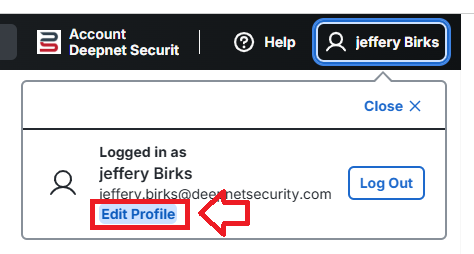
You will be presented with your user account details, scroll down to the end of these details, then click on the button
 ;
;
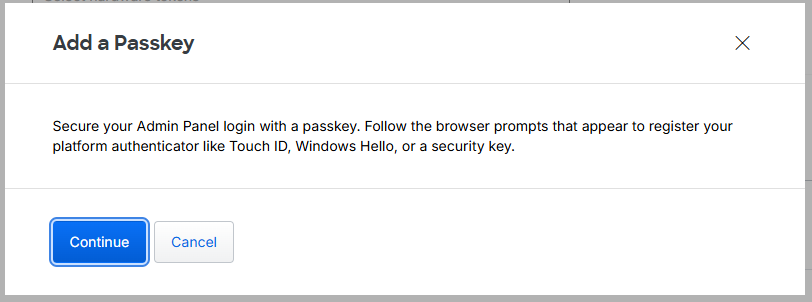
A window titled "Add a Passkey" will now open, click
 ;
;
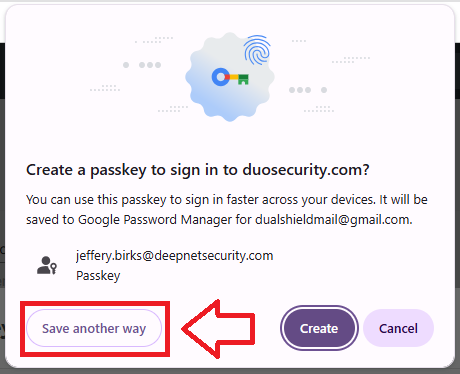
You will now be asked how the passkey will be created, click "Save another way";
Next select "Windows hello or external security key";
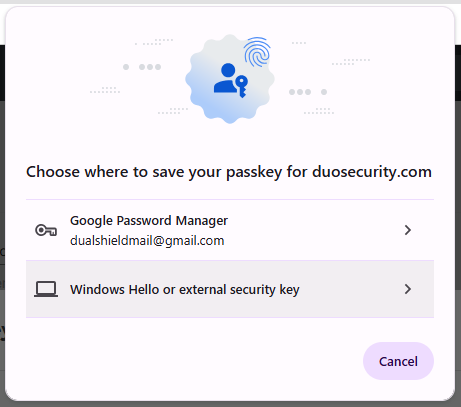
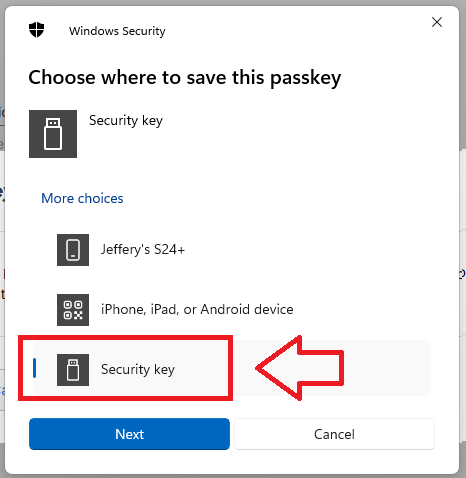
When asked where to save this passkey, select the option "Security Key", then click
 ;
;
You are now notified that access to google will be prepared with your Fido2 security key - click
 to proceed to the next step;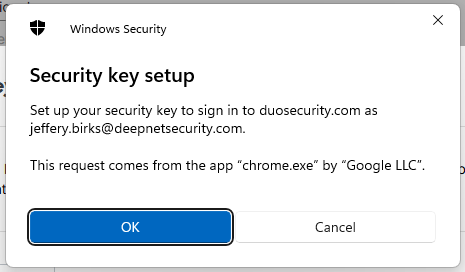
Next you are asked for permission for the site to access your Fido2 key, insert the key into an available USB port then click
 ;
;
You will now be asked to touch the button on your key (if your model has a fingerprint reader you may be asked to provide a finger swipe instead);
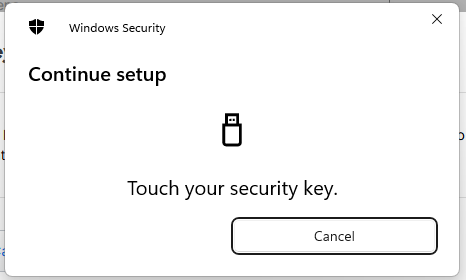
Provided you press the button on the Fido2 key in the allowed time, the passkey details will be stored on your Fido2 key, and you will be presented with the following confirmation;
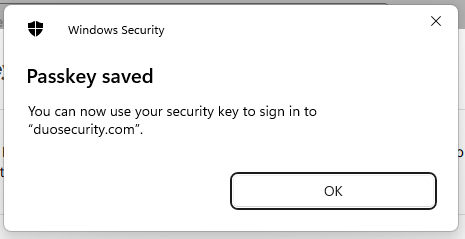
Click "OK", and the FIIDO2 key will be registered with Duo, and you will be shown confirmation that the passkey has been added;
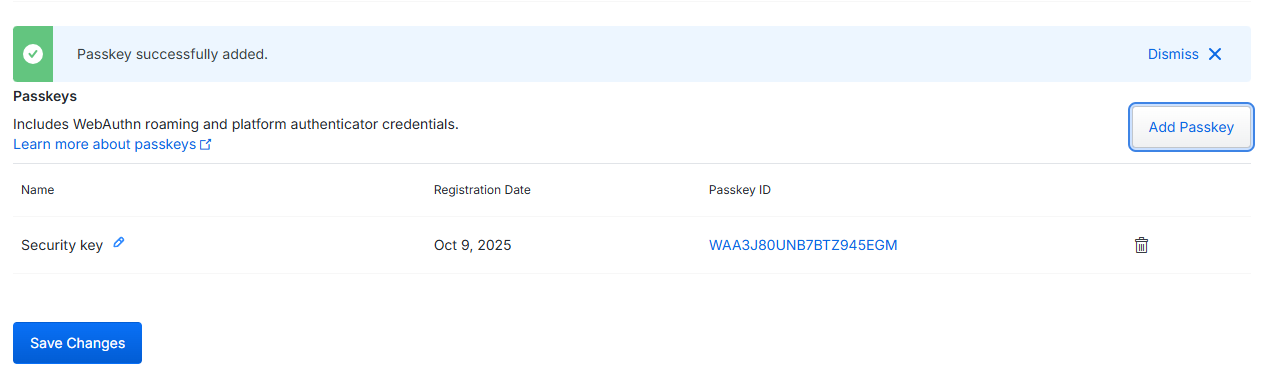
Click
 , and you Fido key will be ready to be used when you next log in to Duo.
Signing in to your Duo account with a FIDO2 key
Once you have registered you FIDO2 key with Duo the key will be ready to be used as an authentication method when accessing your account;
- When you next sign in to the your Duo account you will supply your username and password, but will then be presented with a prompt to insert you Fido key into a USB port;
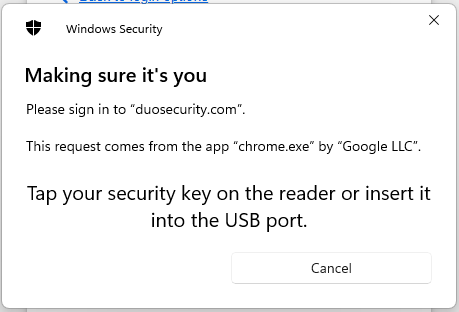
Insert you key into a suitable port and the screen will now prompt you to touch the key;
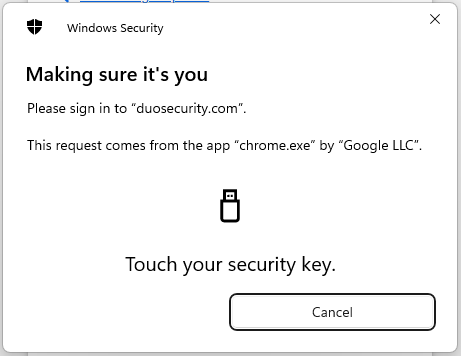
After touching the button on your Fido key you will be logged in to your Duo account.
Related Articles