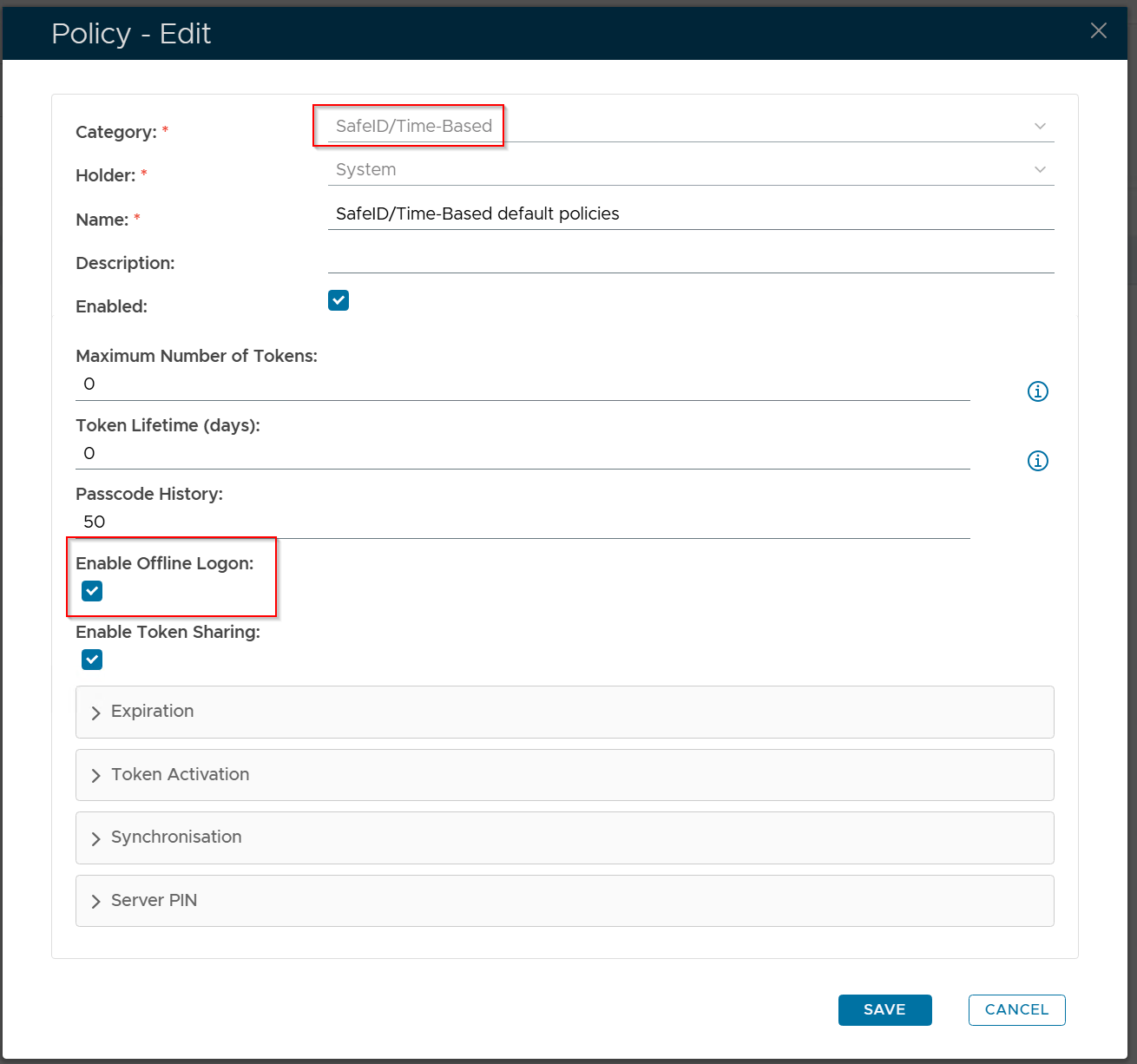
To download offline tokens from the DualShield MFA server, follow the steps below:
Configure the Computer MFA Logon Agent
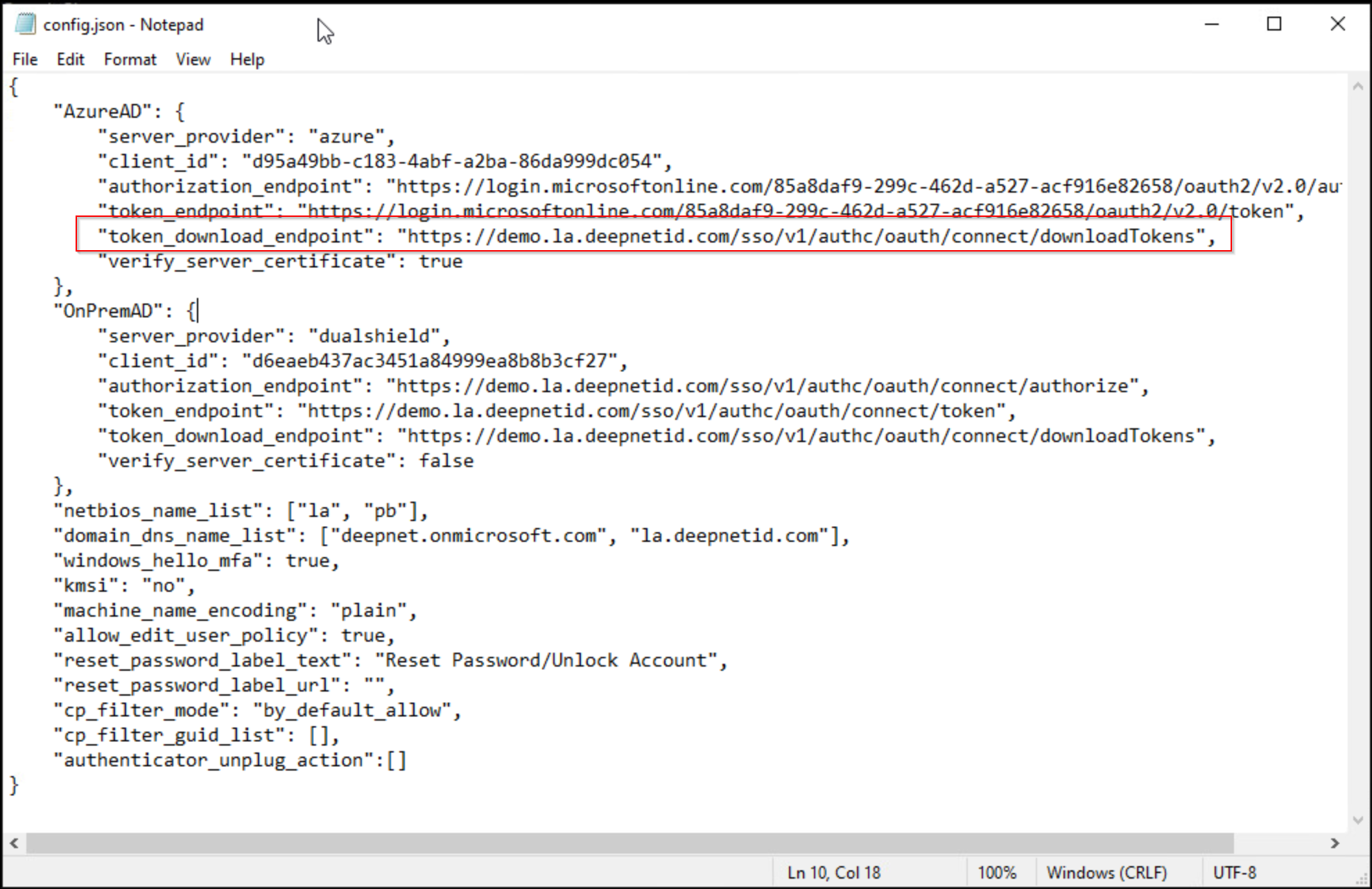
In the "config.json" file that is to be distributed with the Computer MFA Logon Agent to the users' PCs, add the value below to the "token_download_endpoint" key:
"token_download_endpoint": "https://your-dualshield-fqdn/sso/v1/authc/oauth/connect/downloadTokens"
You must replace "your-dualshield-fqdn" with the actual FQDN of your DualShield MFA server, e.g. "demo.la.deepnetid.com"
Below is an example:
Configure the DualShield MFA Server
In your DualShield MFA server, you need to configure the following policies:
- Computer Logon Client Policy
- Token Policy
Computer Logon Client Policy
Edit the Computer Logon Client policy and enable the option "Download Offline Tokens automatically"
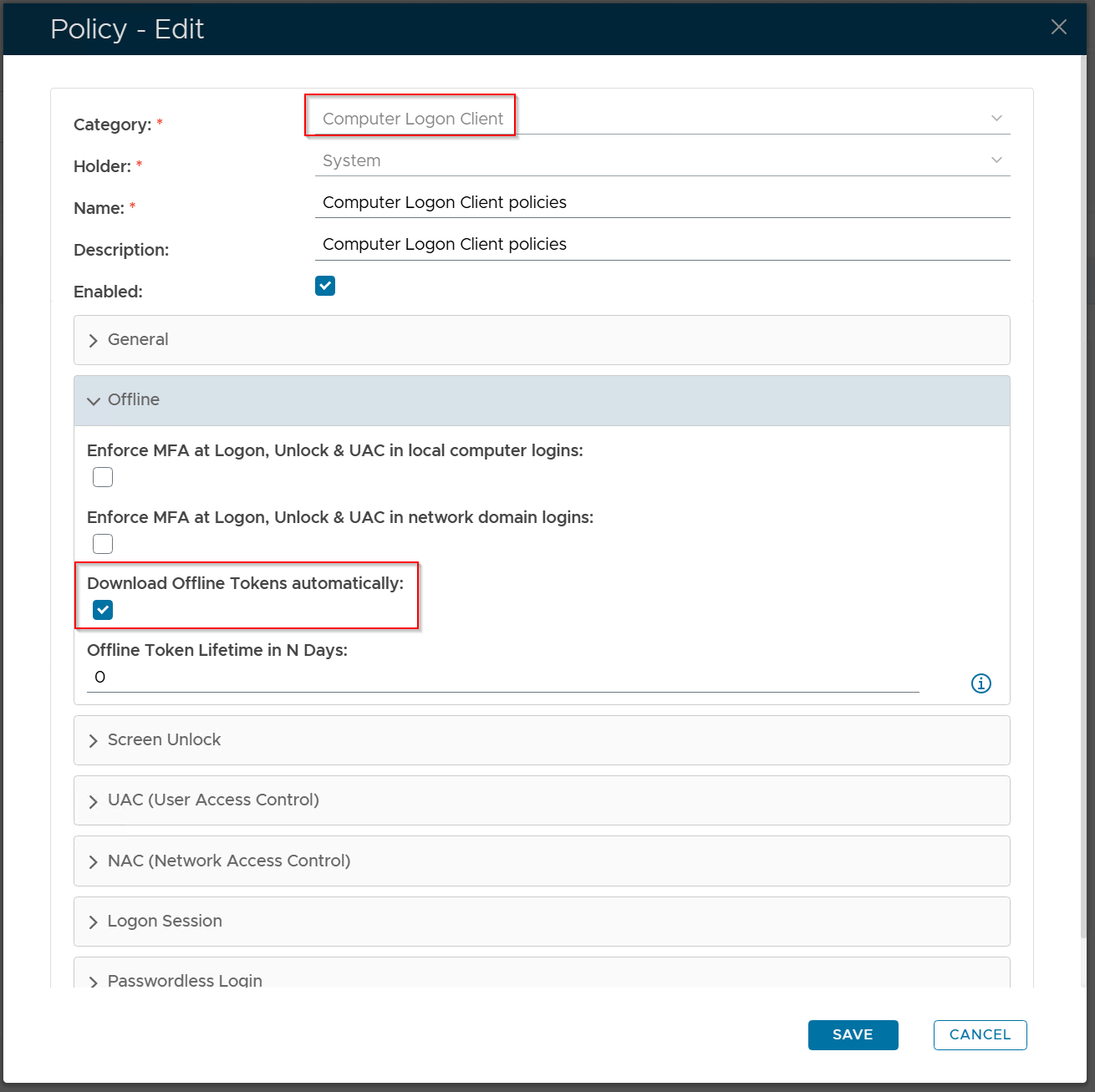
Optionally, you can also set the lifetime of offline tokens by editing the option "Offline Token Lifetime in N Days"
Token Policy
Currently, only OTP tokens can be downloaded automatically and used for offline logins.
Depending on the types of OTP tokens used by your users, edit the token policy, e.g. SafeID/Time-Based, and enable the option "Enable Offline Logon"