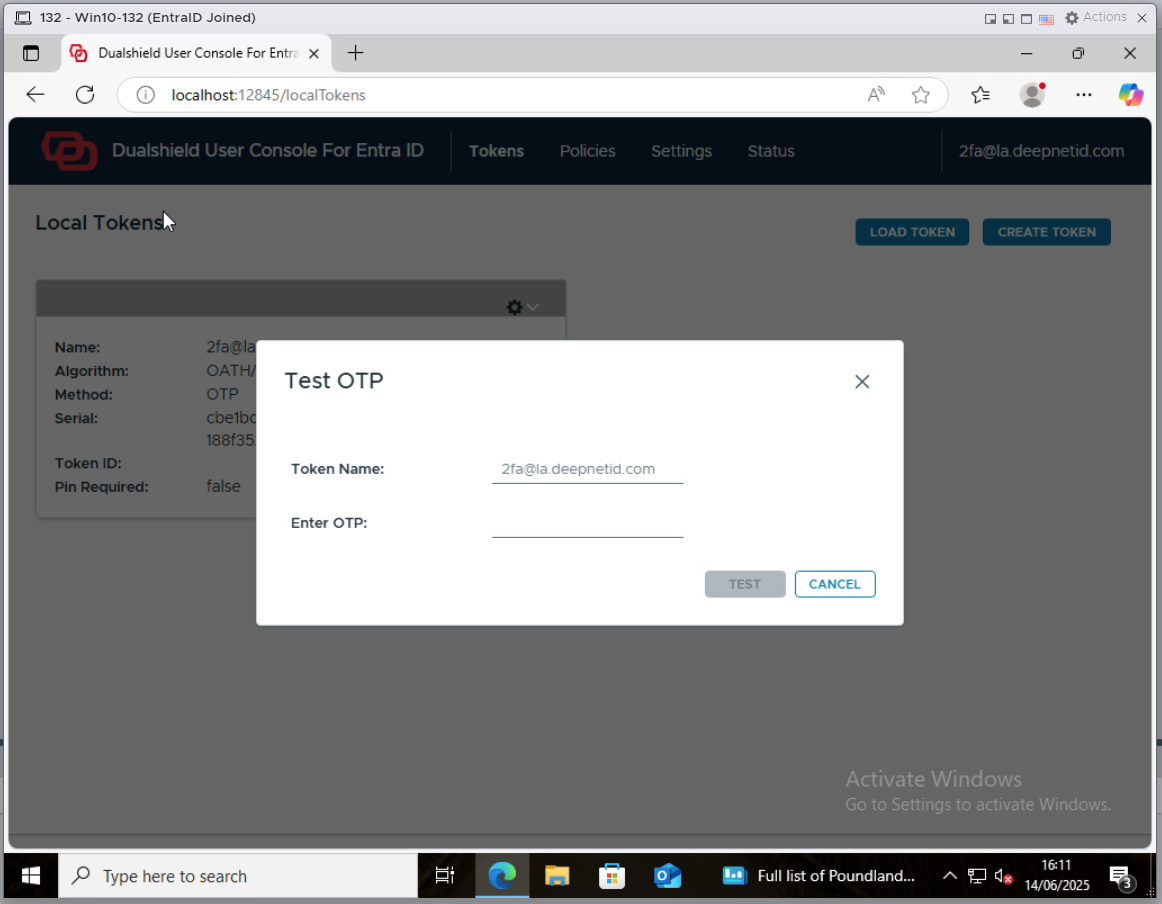
There are two ways to set up tokens for offline MFA: download tokens automatically or create tokens manually.
Download Offline Token Automatically
Create Offline Tokens Manually
First, log in to the PC while the PC is online, using the user's domain account
Launch a web browser, and navigate to the user console at http://localhost:12845/localTokens
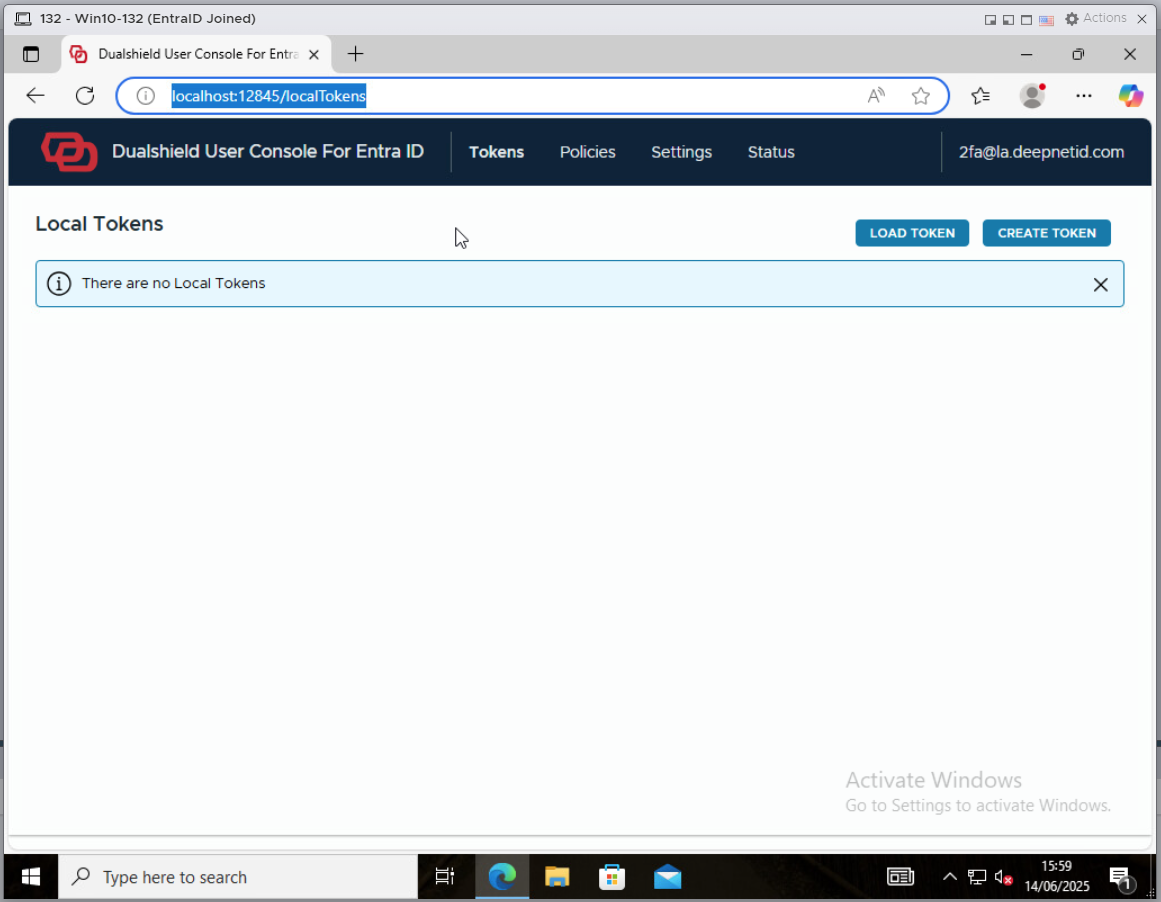
Click the "CREATE TOKEN" button
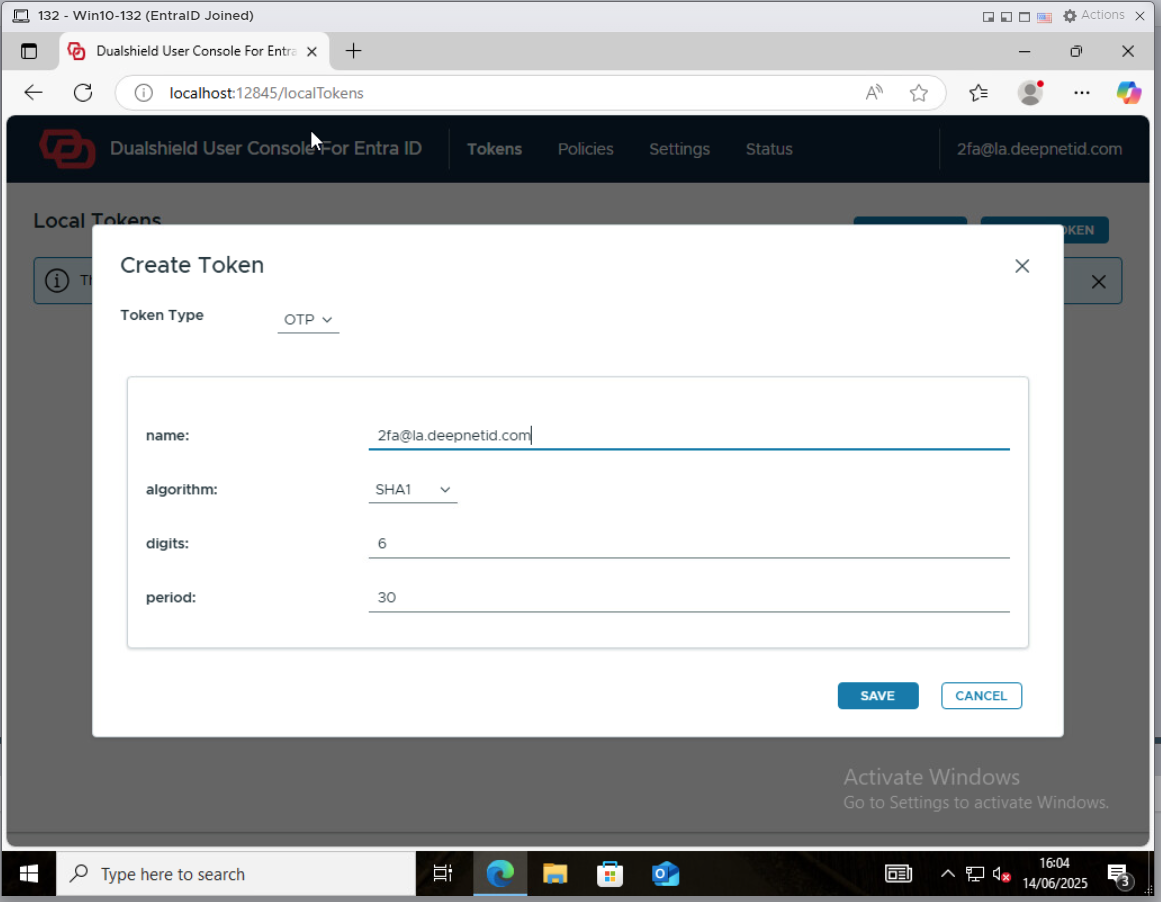
Enter a name for your token, such as your user name
Click the "SAVE" button to save the token
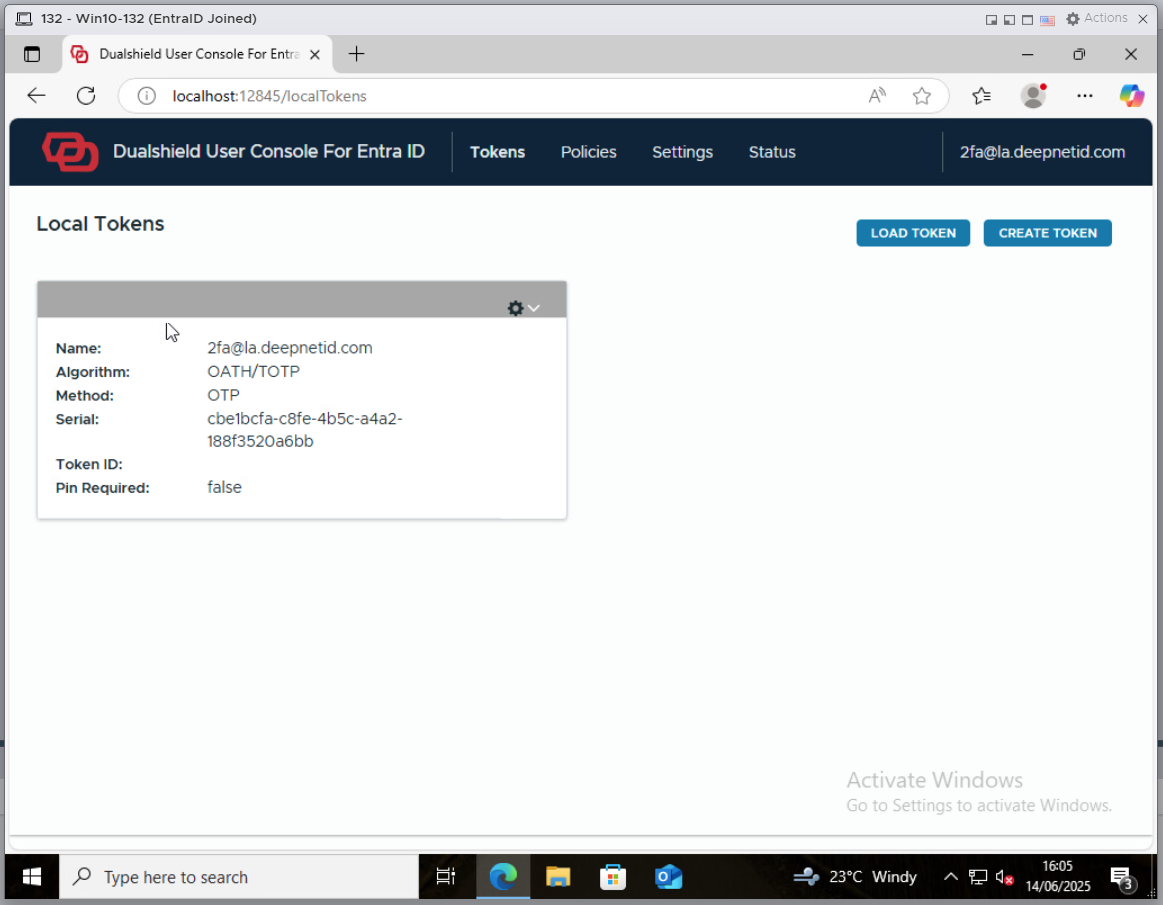
Now, you need to install the token on to your mobile phone
Click the context menu icon  of the newly created token, and select "QR Code" from the menu
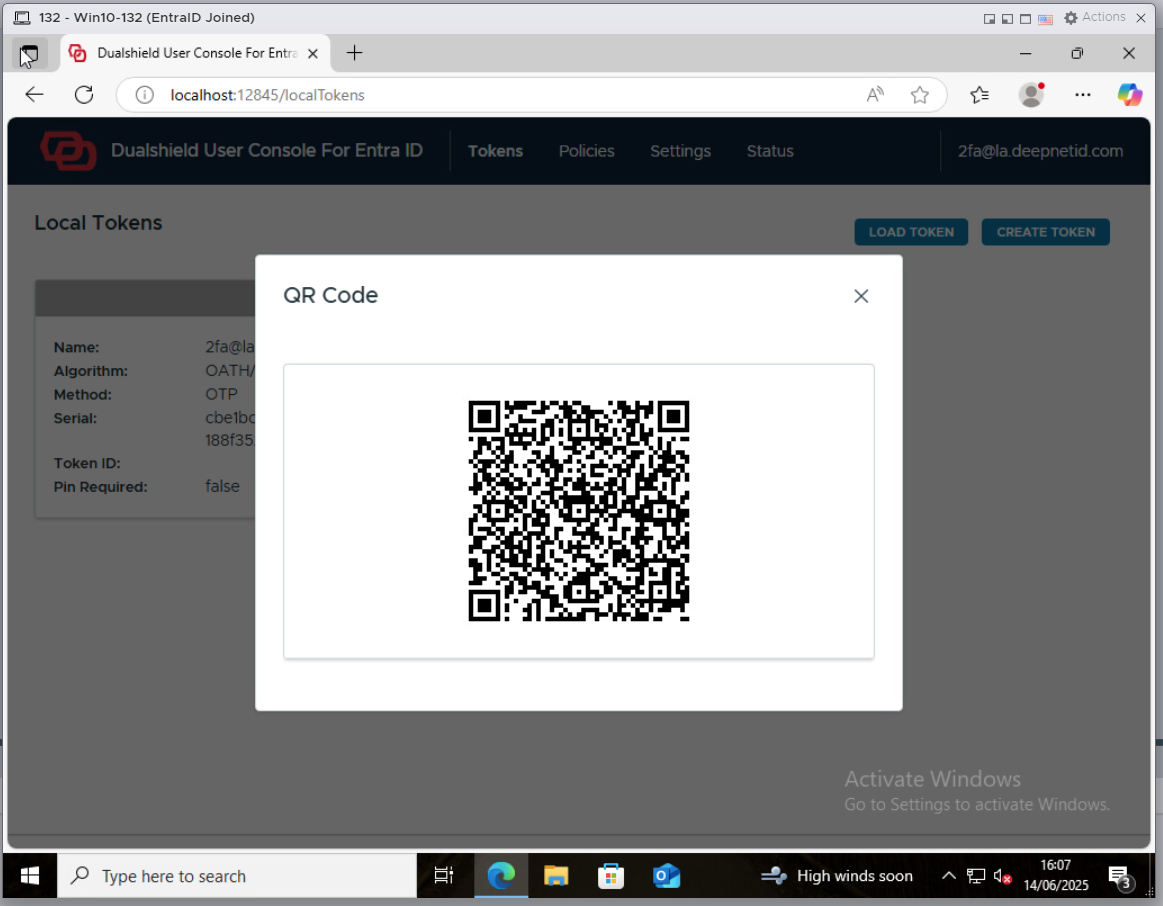
You can use your TOTP authenticator app, such as Microsoft Authenticator or SafeID Authenticator, to scan the QR code.
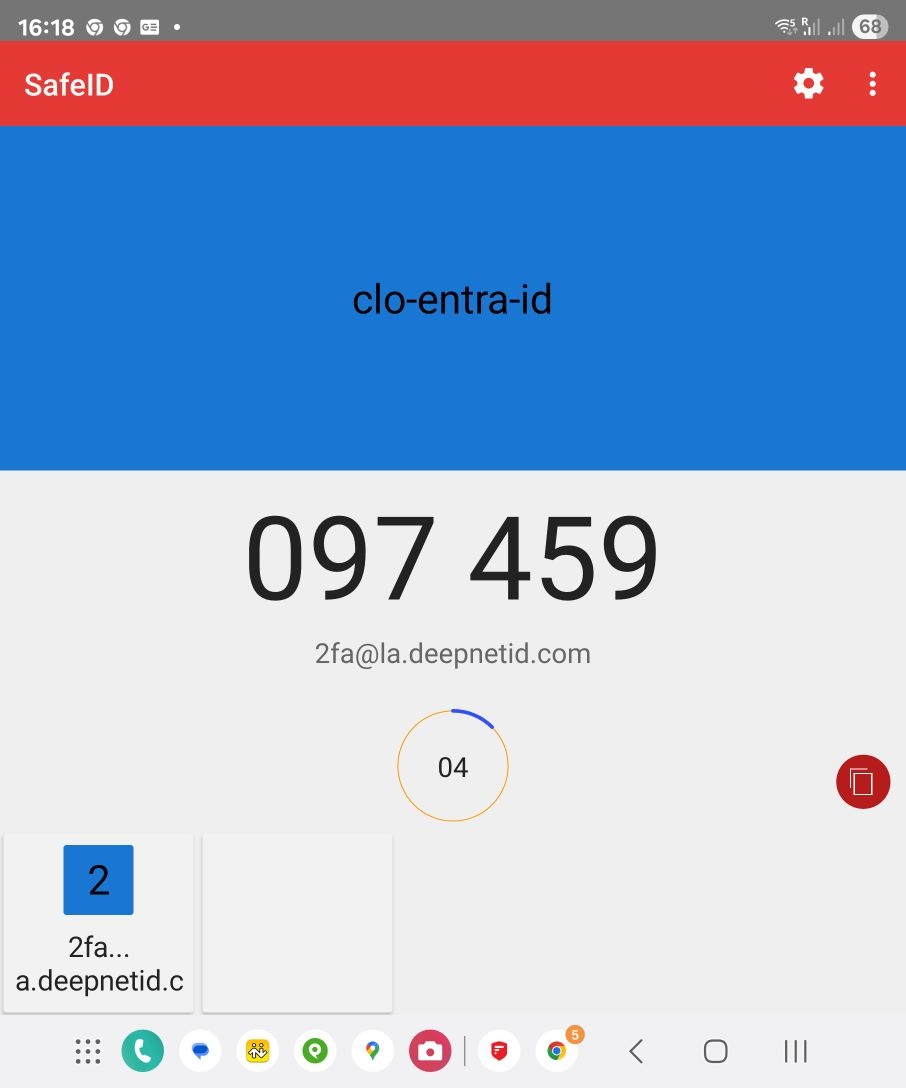
After the token has been installed on to your phone, you should test it.
Click the context menu of the token again, and select "Test"