Before an application can be created, a logon procedure must be created first.
Click the "CREATE" button on the toolbar
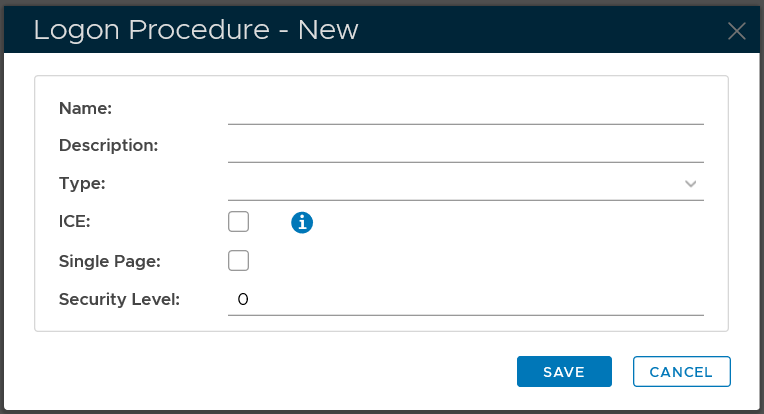
In the "Name" field, enter a name for this new logon procedure, e.g. "Office 365"
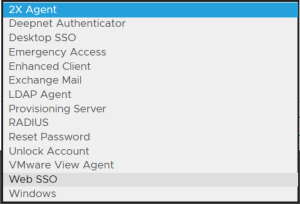
In the "Type" field, select the type of the logon procedure from the drop list, e.g. "Web SSO"
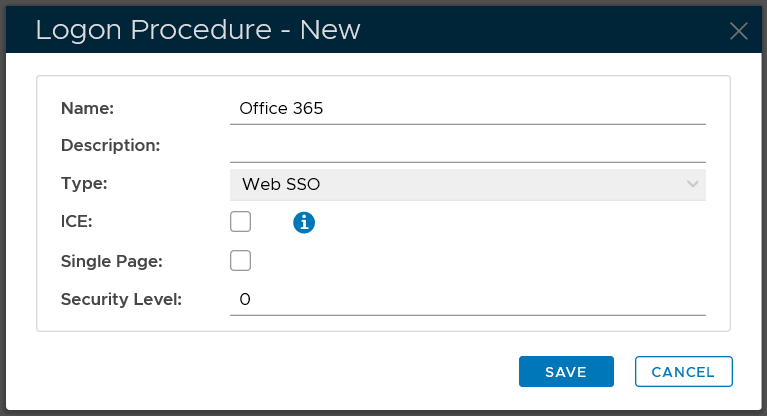
Click the "SAVE" button to save it.
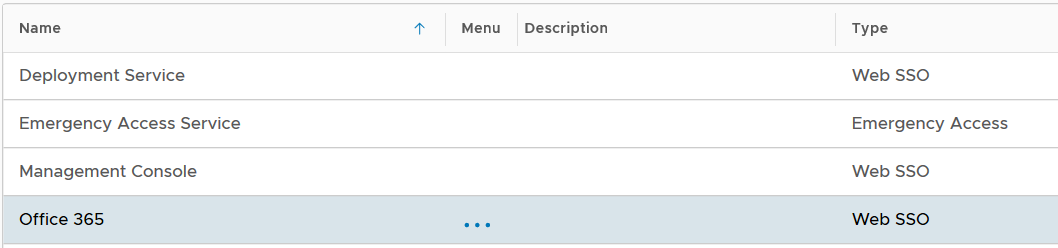
Now that a new logon procedure is created, you want to add logon steps.
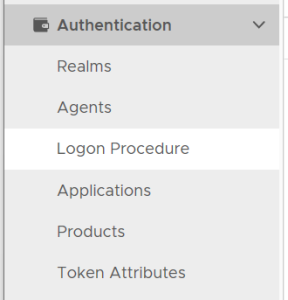
Navigate to Authentication | Logon Procedures
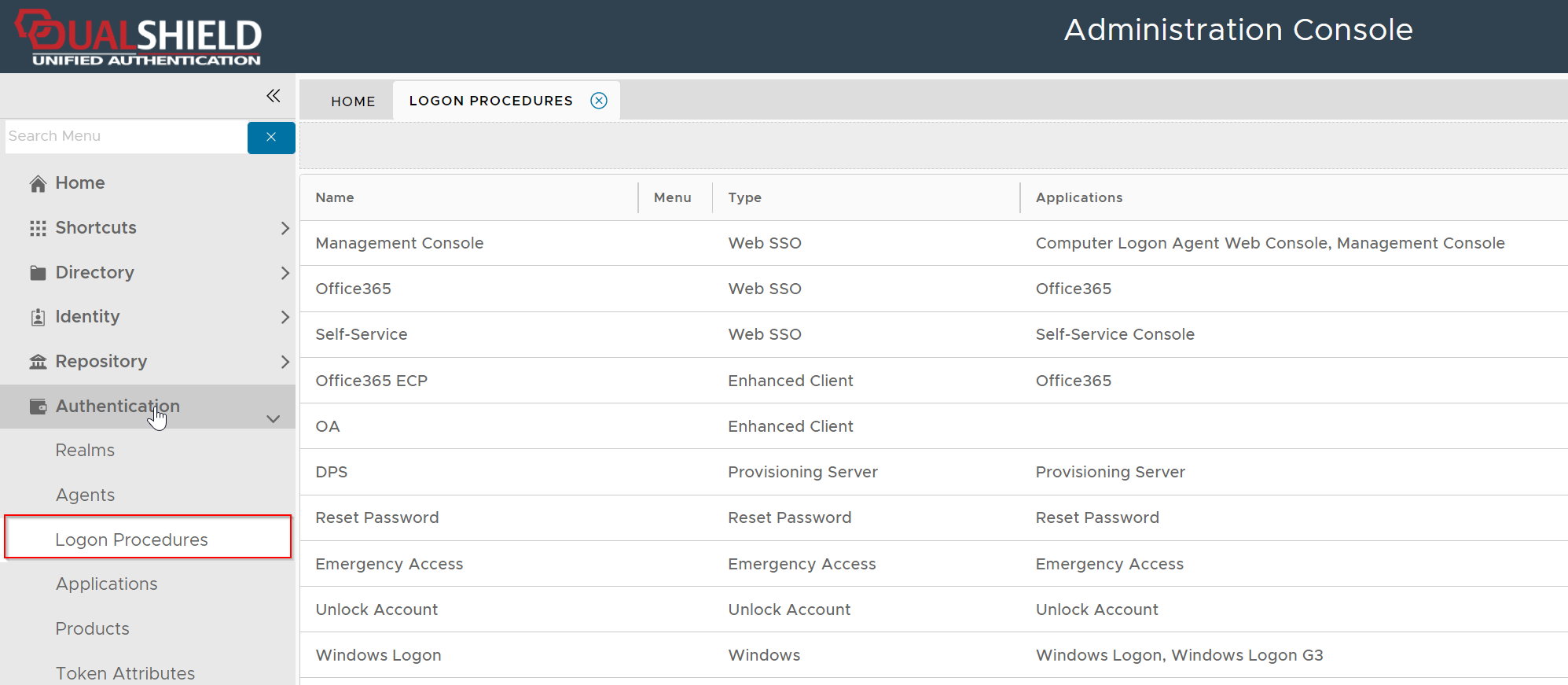
Click the context menu icon "..." of the application to be edited, e.g. "Office 365"
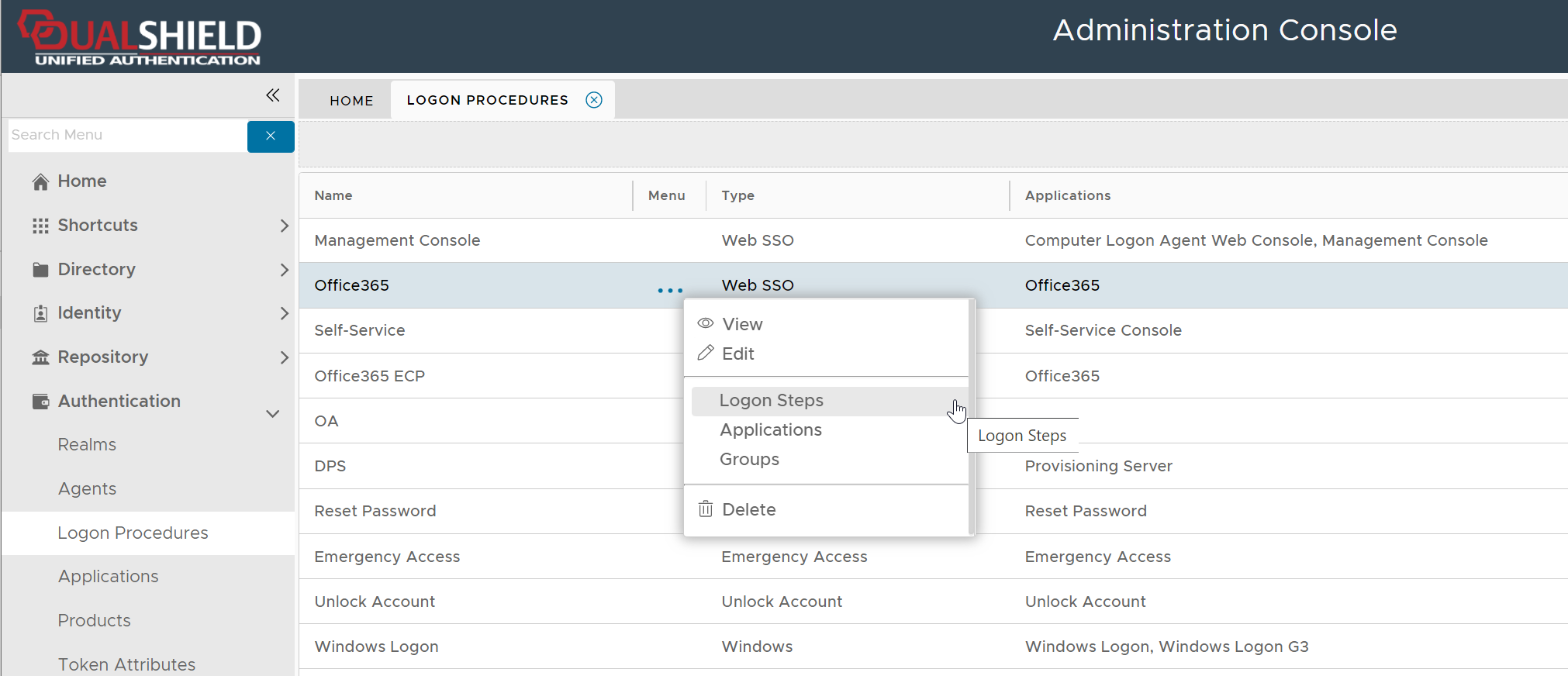
select "Logon Steps" to bring up the logon steps editor

To add a logon step, click the "ADD" button
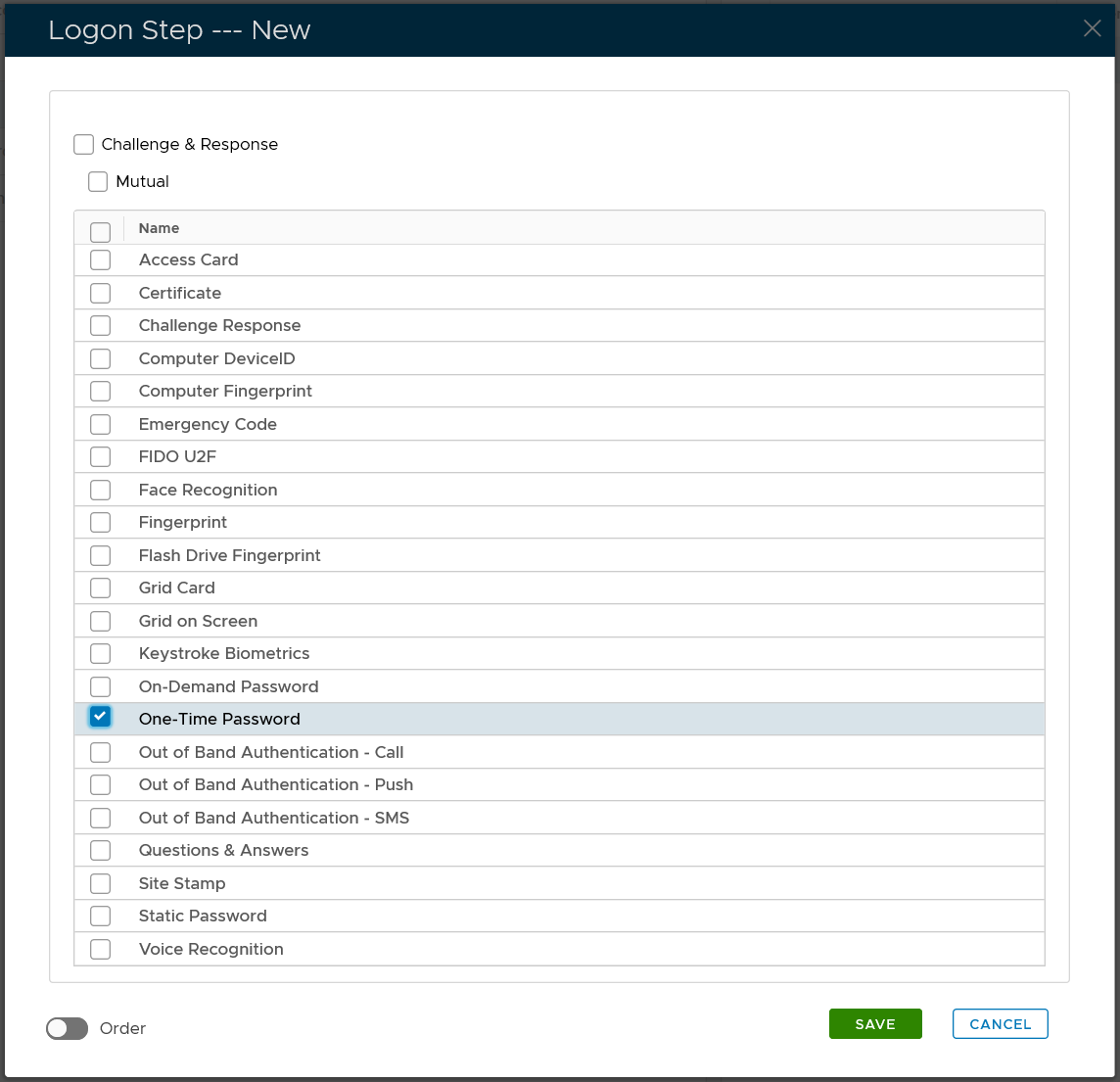
Select the one or multiple authentication methods that you want to add to this step, e.g. "One-Time Password"
Click the "SAVE" button to save it

You can change the order of the steps by clicking the "UP" and "DOWN" buttons.
If you are implementing the device-based Outlook Anywhere MFA, then
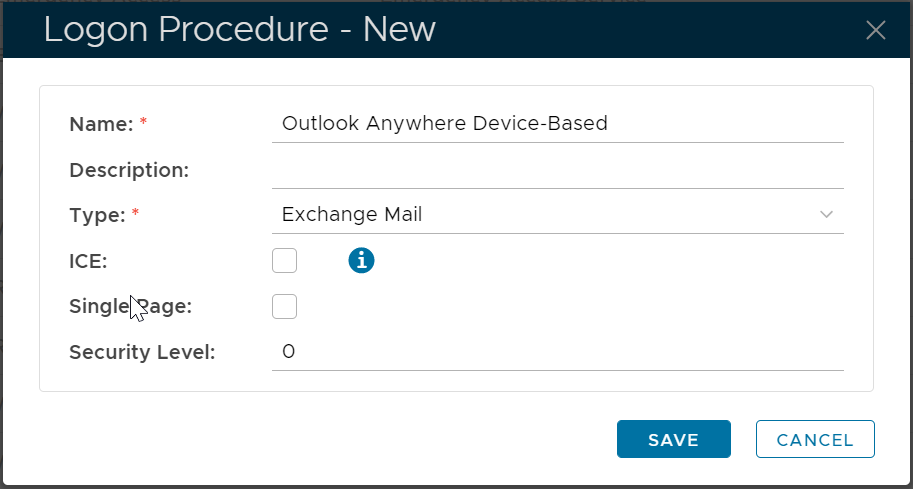
Once a logon procedure has been created, you need to add logon steps into the newly created logon procedure.
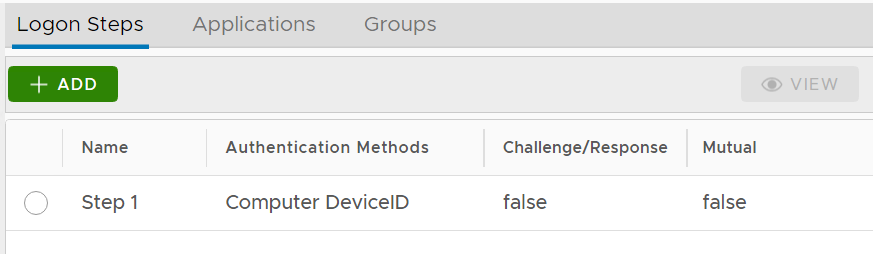
For Outlook Anywhere Device-Based Authentication, you only need to add one logon step and within the logon step you can only add "Computer DeviceID" as the authentication method.
If you are implementing the agent-based Outlook Anywhere MFA, then
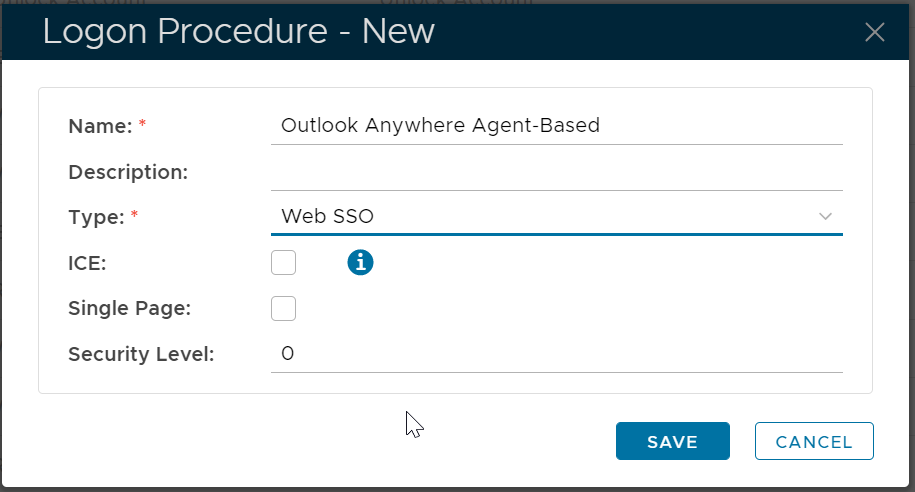
Once a logon procedure has been created, you need to add logon steps into the newly created logon procedure.
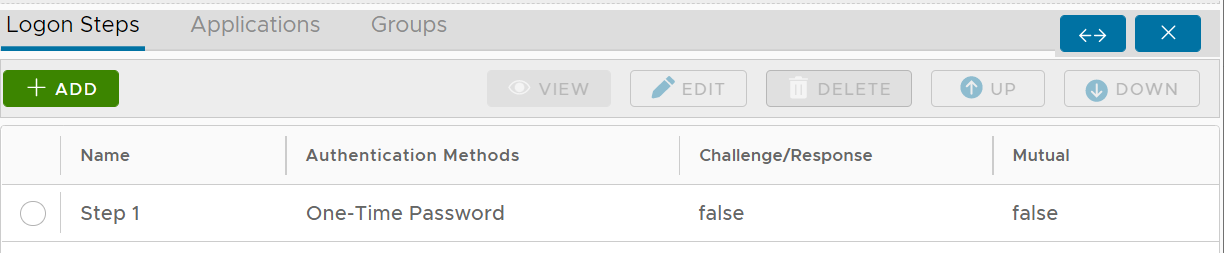
For Outlook Anywhere Device-Based Authentication, you can add multiple logon steps if you wish. Typically, you would only need to add one logon step. Within the logon step, you can add any authentication method such as One-Time Password
If you are implementing both the agent-based and device-based Outlook Anywhere MFA, then you must create both the logon procedures as above.