Ensuring MFA is enabled on your Salesforce account
After April 2024 it is expected that MFA will be enabled by default on all user accounts, however if your user account does not currently require MFA authentication then MFA may be enabled using the following procedure;
Log in to your Salesforce account, then under your user icon click on the settings link (example below); 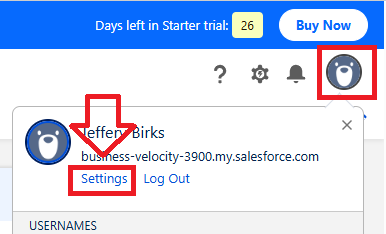
In the left hand column, in the section "My Personal information", click on the link "Advanced User Details", and scroll down to the setting "App Registration, One-Time Password Authenticator", and click on the "Connect" link;
You will then be prompted to verify you account. 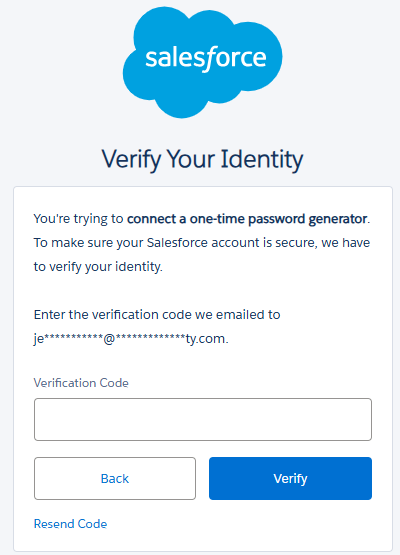
Copy and paste the verification code sent to your email account, then click  ; ; 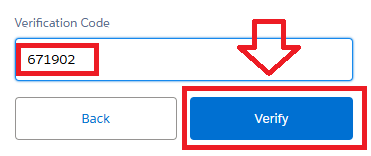
A QR code will now be displayed; 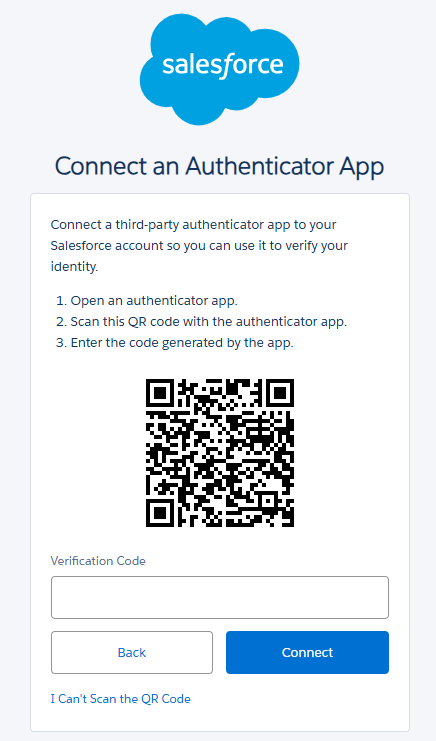
|
Burning Programmable tokens using a QR code
After enabling MFA on the Salesforce account you will be presented with a QR code (example below);
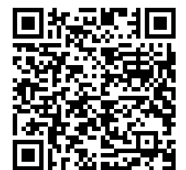
(this QR code is just an example and should not be used to burn onto your token)
You can use the QR code generated for your account to prepare your programmable token; for logging on to Salesforce;
Logging in to Salesforce when asked to connect to Saleforce Authenticator
After a user logs in to Salesforce (with MFA enabled), it is possible the user will initially be asked to connect to Salesforce Authenticator;
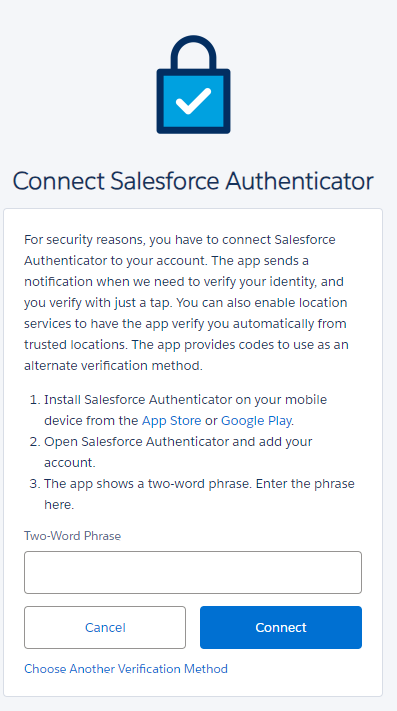
If you have been presented with this request then use the following procedure to change verification method to connect by an authentication app;
Scroll down to the end of the form then click on the option "Choose Another Verification Method"; 
You will then be presented with the available MFA authentication options, select "Use verification codes from any authentication app (such as Google Authenticator or Authy"); 
Once this option has been selected, and after clicking on "Continue", you will presented with the form headed "Verify your Identity", and a QR code will be shown (example below); 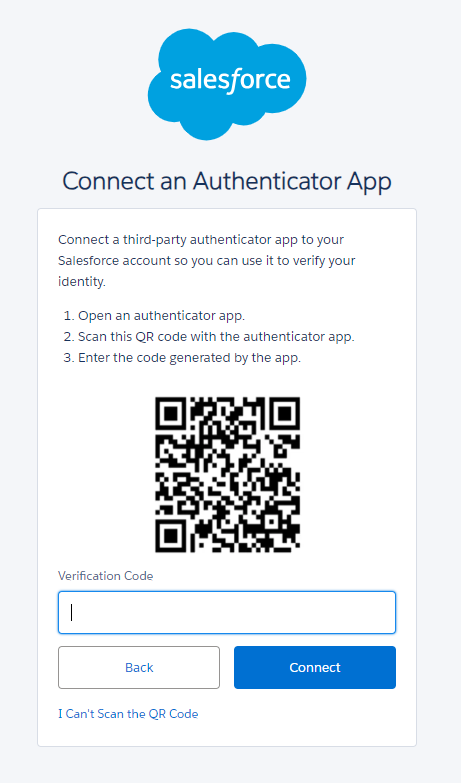
|
Once you have this QR code you can used the procedure (described earlier) to burn the QR code onto the programmable token.
User experience when logging in to Salesforce using programmable tokens
When you log in to your Salesforce account you will be asked to verify your identity.
The following screenshots show the screens that you should expect to see when authenticating using the programmable token;

Turn on your programmable token and copy the 6 digit code displayed on the token into the field "Verification Code"; 
You will now be granted access to the your salesforce account. |
Related Articles