If you are using a self-signed SSL certificate for your DualShield SSO, then you need to import the DualShield SSO's CA certificate into the local computer certificate store as a root trusted CA on your ADFS server.
First, you need to add the Certificates Snap-In into the MMC
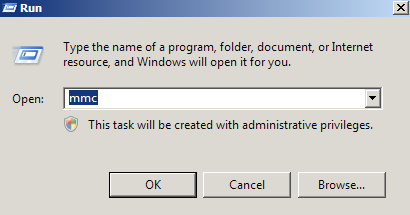
Open the MMC (Start > Run > MMC)
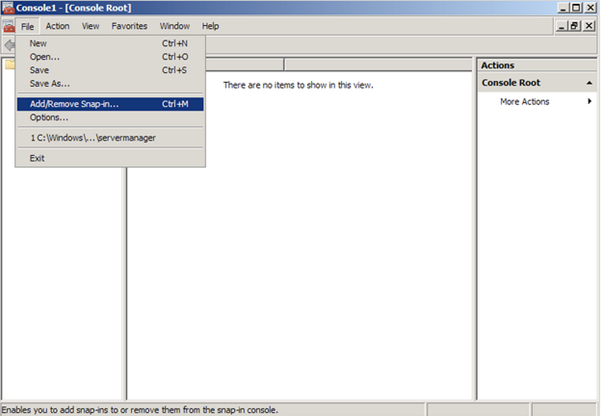
Go to File > Add/Remove Snap In
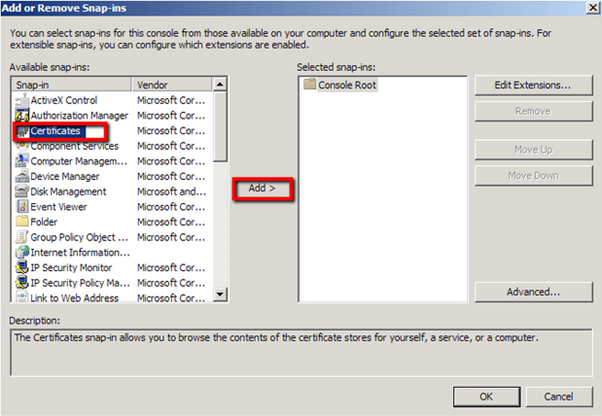
Click on Certificates and click on Add >
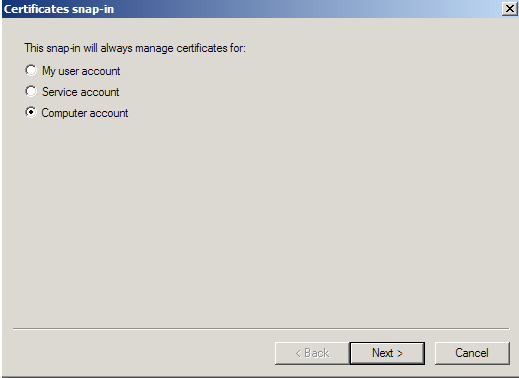
Select Computer account
Select Local Computer, the click Finish
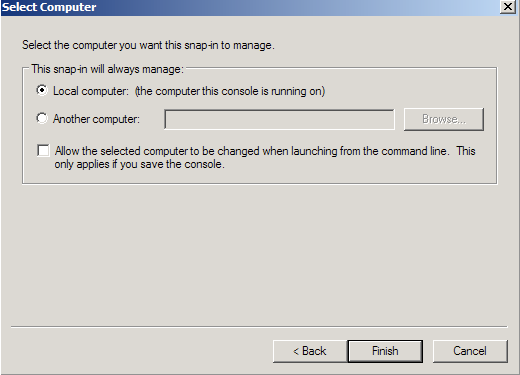
Click OK to exit the Snap-In window.
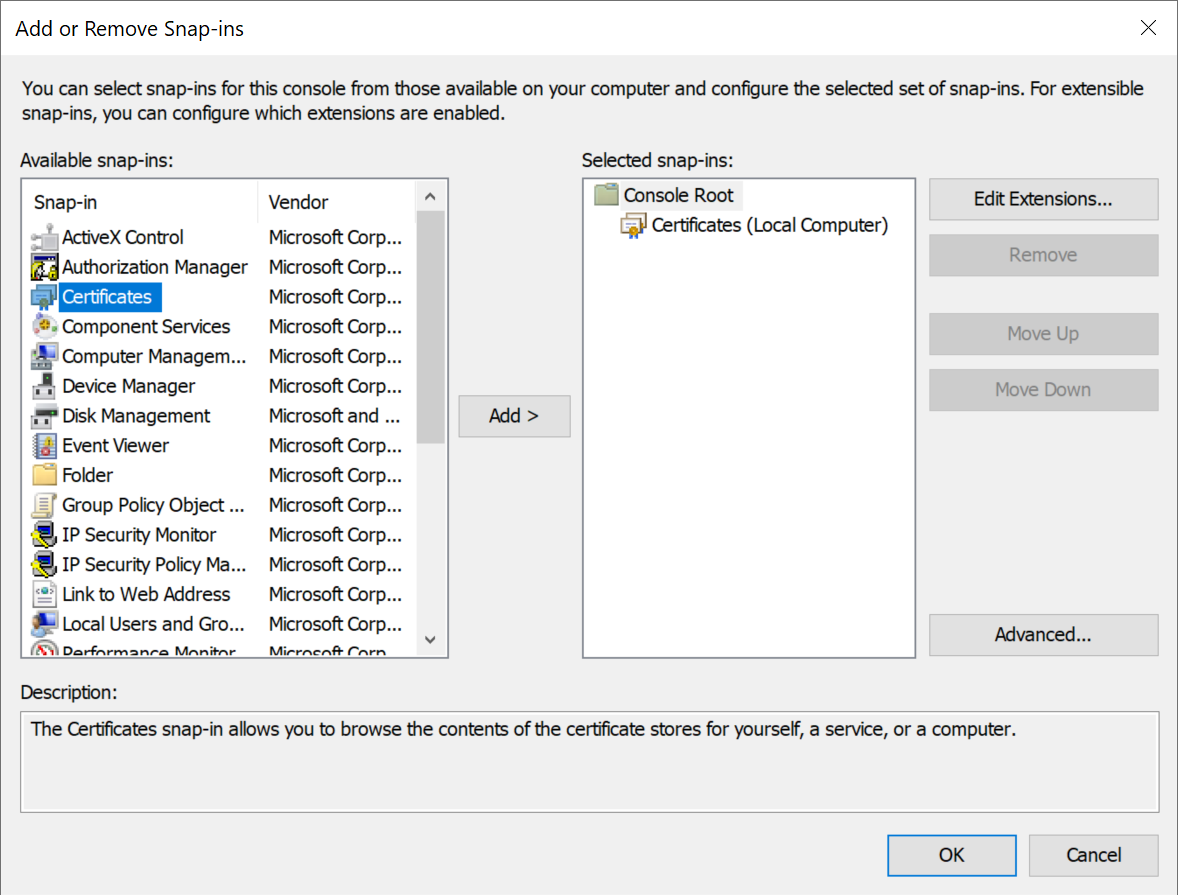
Then, you can import the CA certificate into the Root Certificate Stores.
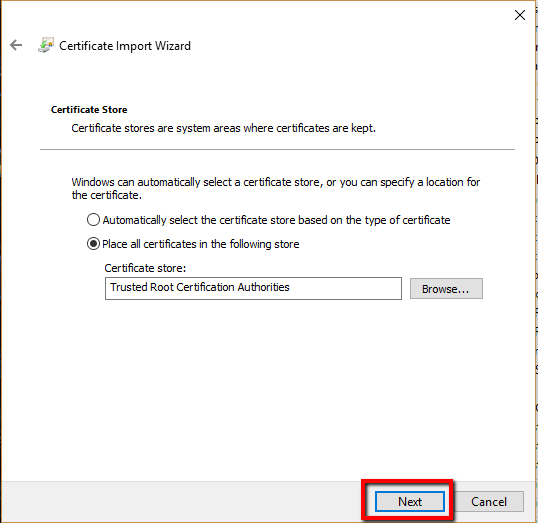
There are two Root Certificate Stores in Windows systems, Trusted Root Certification Authorities and Third Party Root Certificate Authorities. Usually, you would import a CA certificate into the Trusted Root Certification Authorities.
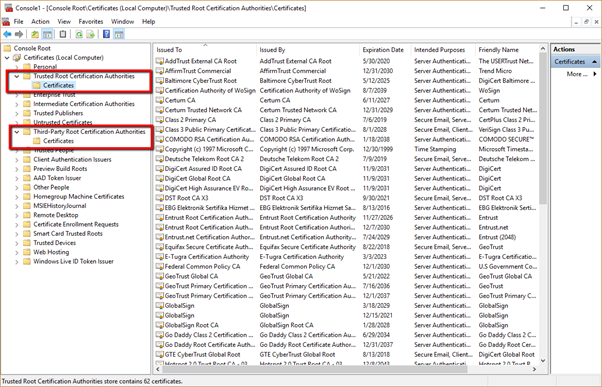
Expand Trust Root Certification Authorities
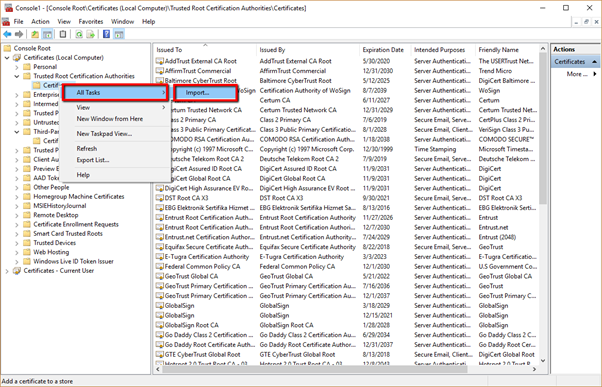
Right Click Certificates.
Select All Tasks > Import
In the Certificate Import Wizard click Next
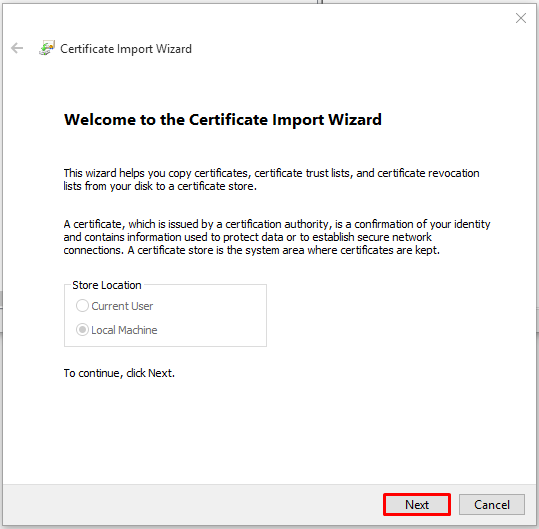
Click Browse
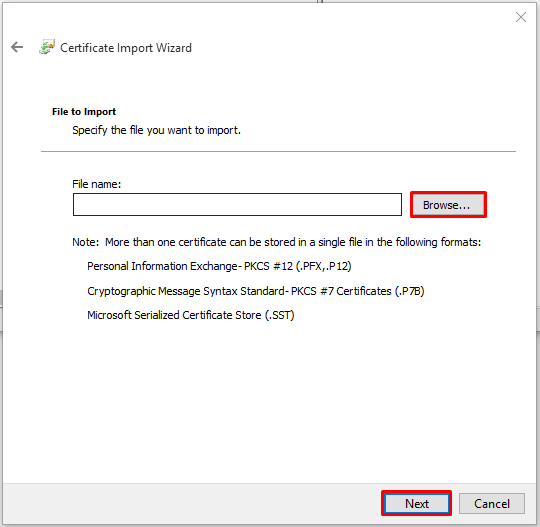
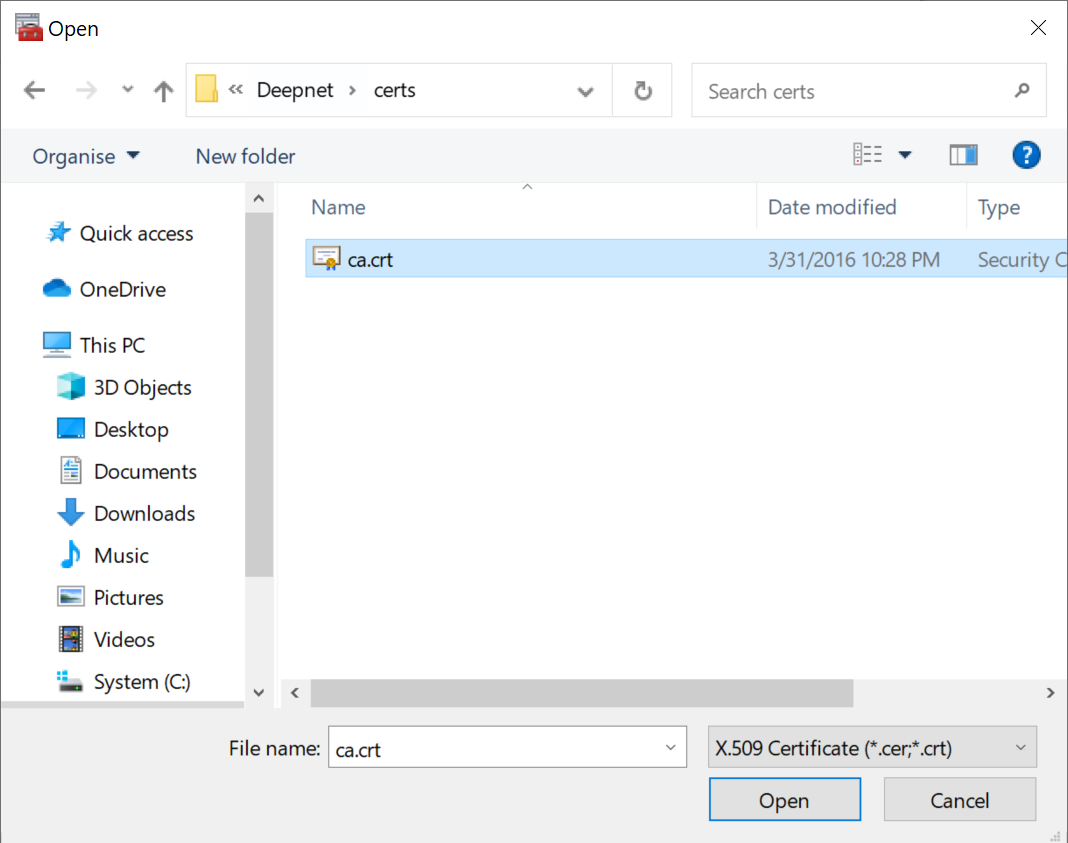
Select the CA certificate file to be imported
Click Open
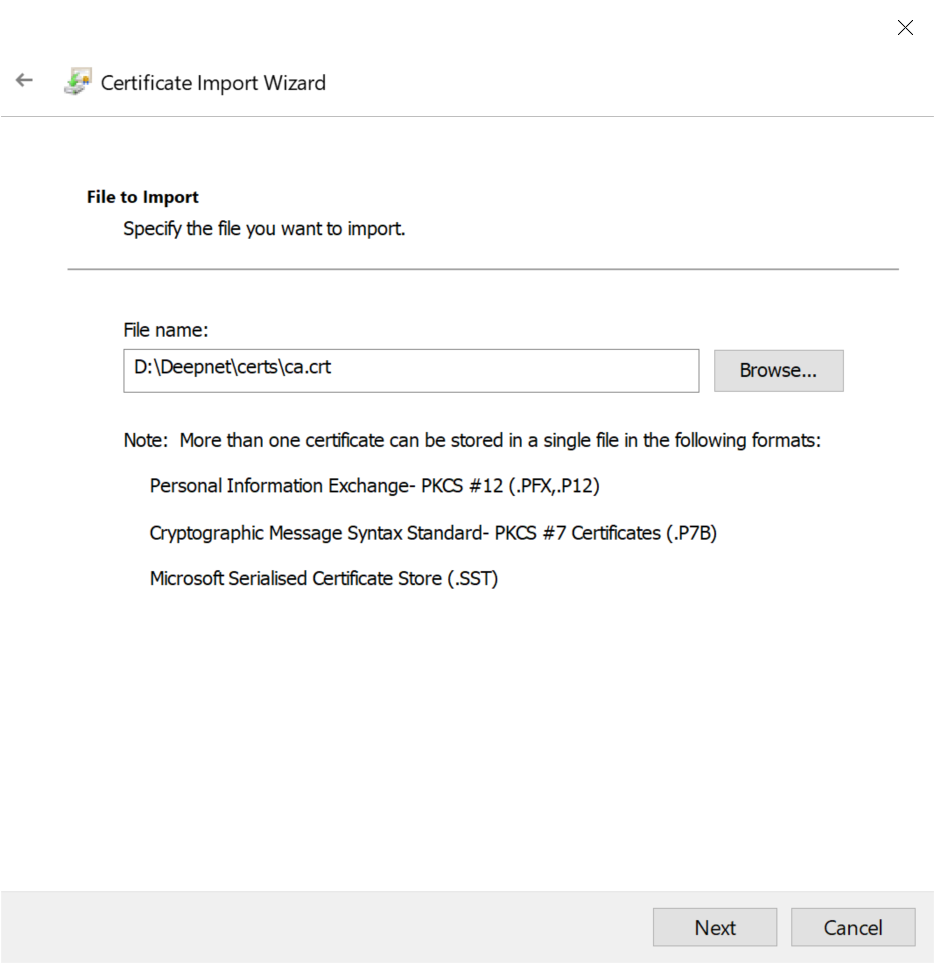
Click Next
Click Next
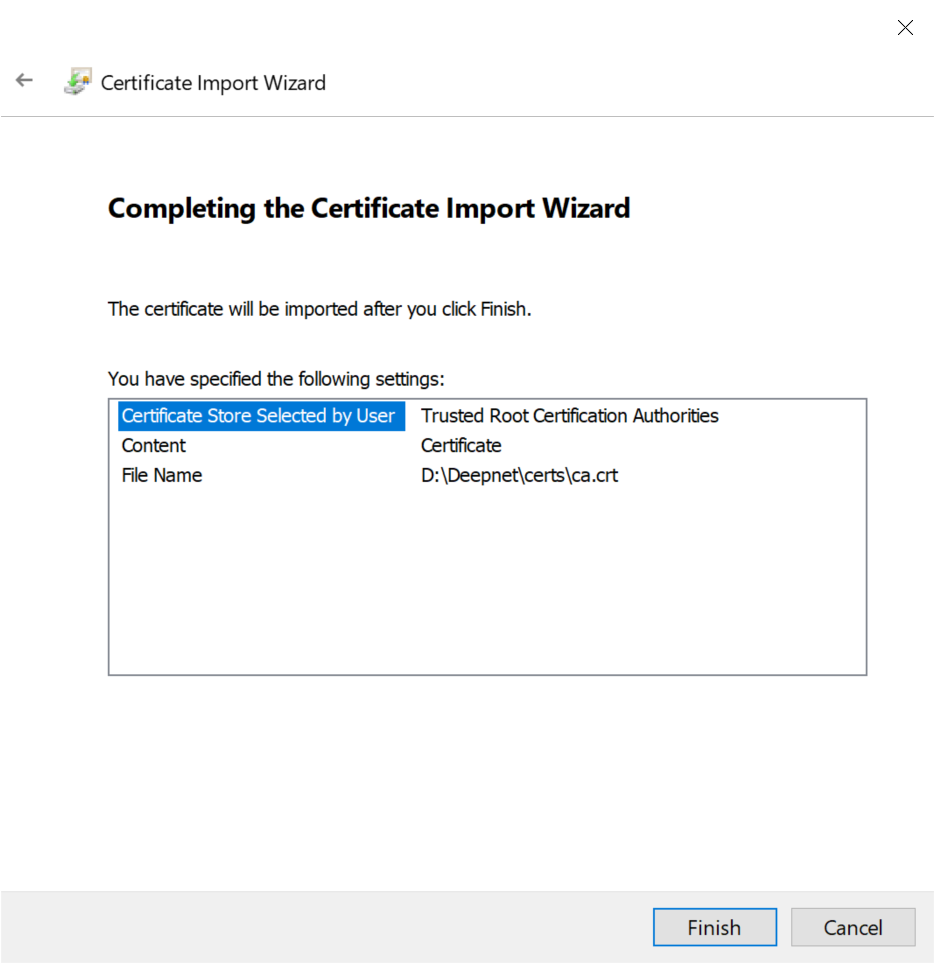
Click Finish
Furthermore, you need to disable the revocation check on the self-signed claim provider certificate.
On the ADFS server, execute the following commands in the Windows Powershell console:
Add-PSSnapin Microsoft.Adfs.Powershell
Set-ADFSClaimsProviderTrust -TargetName "Claims_Provider_Name" -SigningCertificateRevocationCheck None
Similarly, if you are using a self-signed certificate for your relying party application, then you have to import the self-signed CA certificate into the local computer certificate store as a root trusted CA on your ADFS server. Then, execute the following commands on the Windows Powershell console to disable the revocation check on the self-signed relying party certificate :
Add-PSSnapin Microsoft.Adfs.Powershell
Set-ADFSRelyingPartyTrust  -targetname "Relying_Party_Name" -EncryptionCertificateRevocationCheck None