In the main menu select Radius>Radius Servers

Click on the  corresponding to the RADIUS Server and select EAP Options

Add Logon Steps
Specify the following values in the EAP Options
| Options | Value |
|---|---|
| Enabled | Make sure this is checked! |
| Default EAP Type: | Tunnel Based(PEAP) |
| Server Certificate | Select the SSL Certificate you imported in the previous section, from the drop-down |
| Inner EAP Type | GTC |
| Challenge String | Password: |
| Max Session: | 4096 |
| Max Time To Live(seconds): | 1200 |
| Max Time To Idle: | 60 |

In the Logon Steps Dialogue box, click the  button.
Tick the desired authentication method, e.g. Static Password
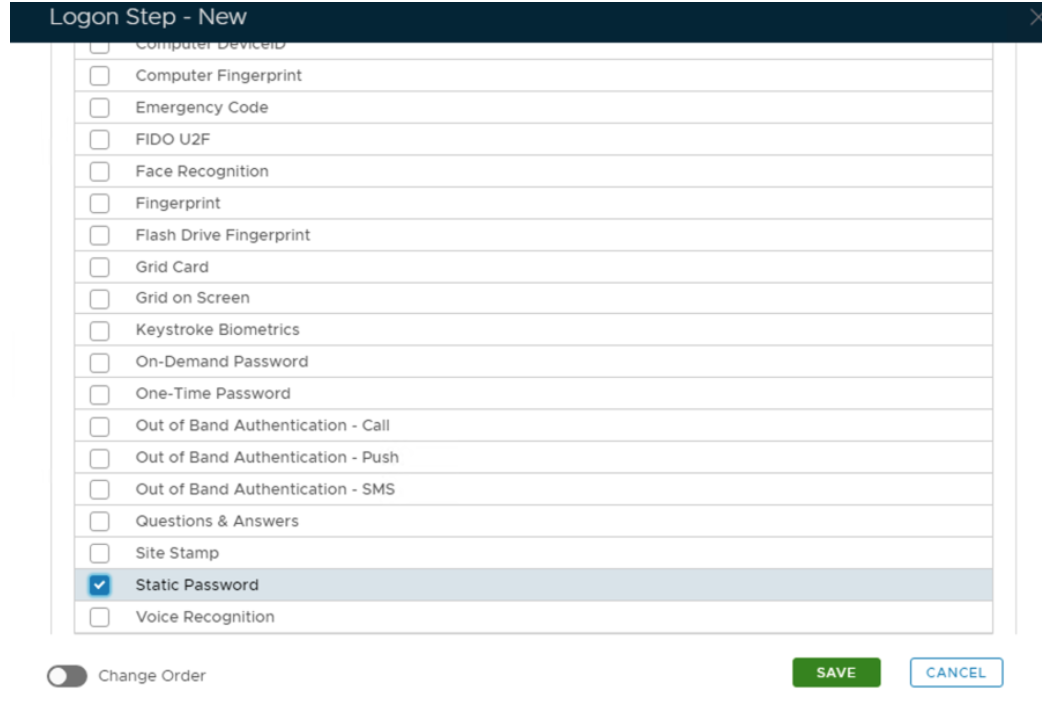
Click Save.
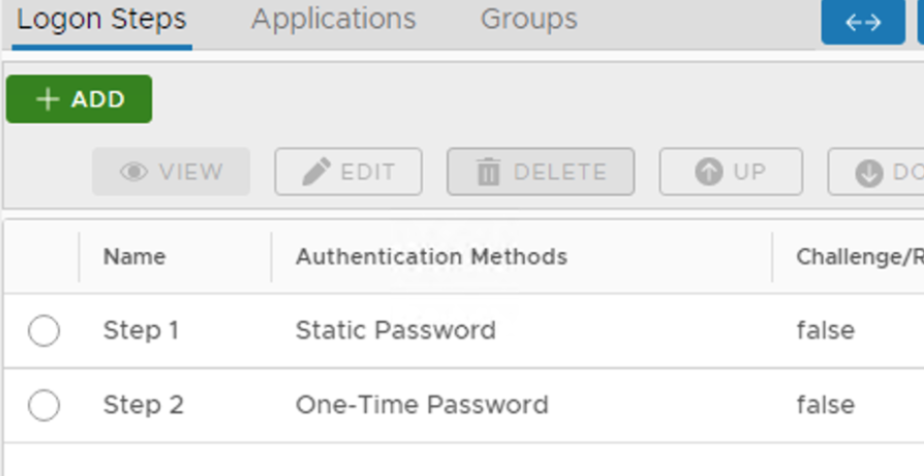
Repeat to add extra steps.
I have added two steps; Static Password and One-Time Password
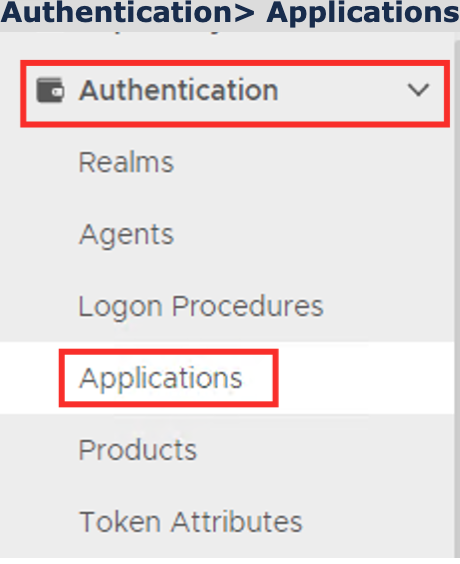
Create an Application:
Authentication> Applications
Click on  on the top right.
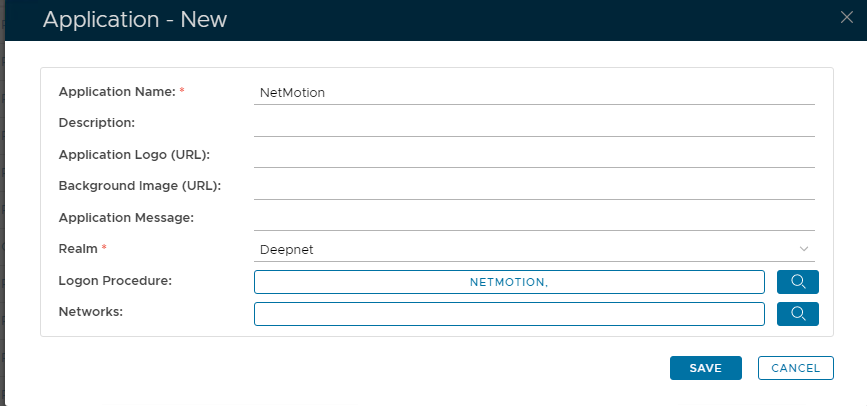
In the new Application window, please enter the following information:
| Option | Value |
|---|---|
| Name: | Enter a friendly name |
| Realm: | Select your Realm |
| Logon Procedure: | Select the Logon Procedure you had created in the previous step |
Click: Save
Bind the Application to a RADIUS Server Agent