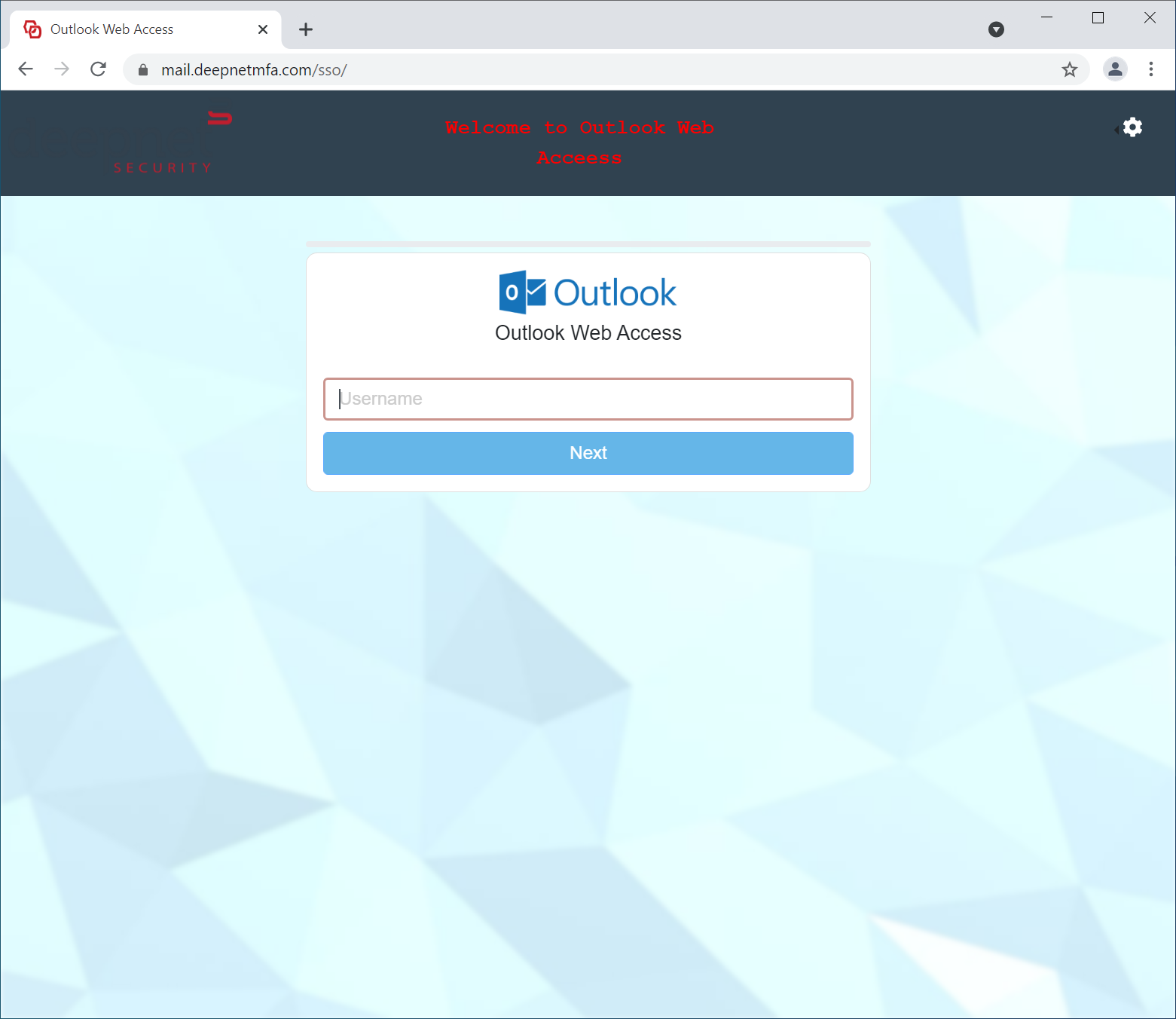
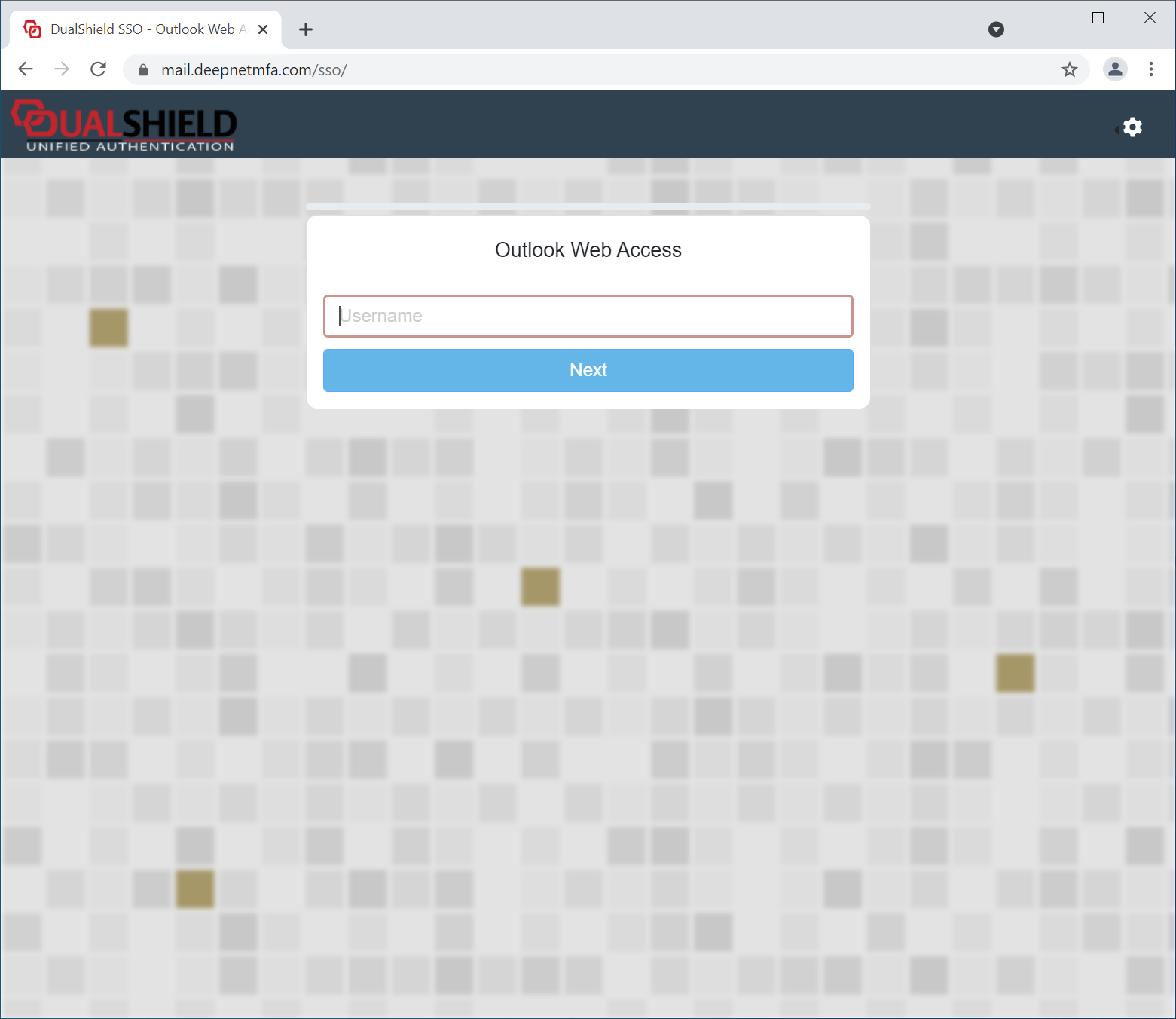
In the DualShield platform, all web consoles and portals, including the Admin Console and Self-Service Portals, use the SSO server for user authentication. The SSO user interface can be customised with your own branding images and text.
The UI customisation is done on the application level. Every application can have its own look and feel.
Application Name & Logo
The first step in UI customisation is to set the application's name and logo.
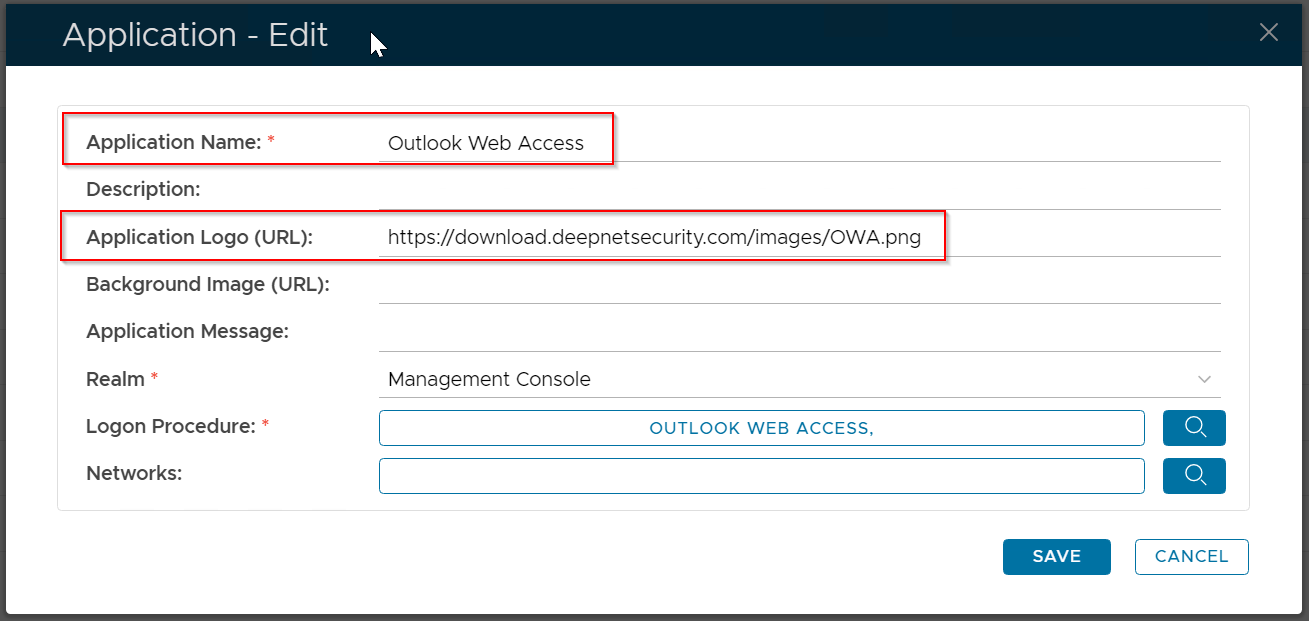
You can also provide a description and message for the application, if you wish.
User Interface
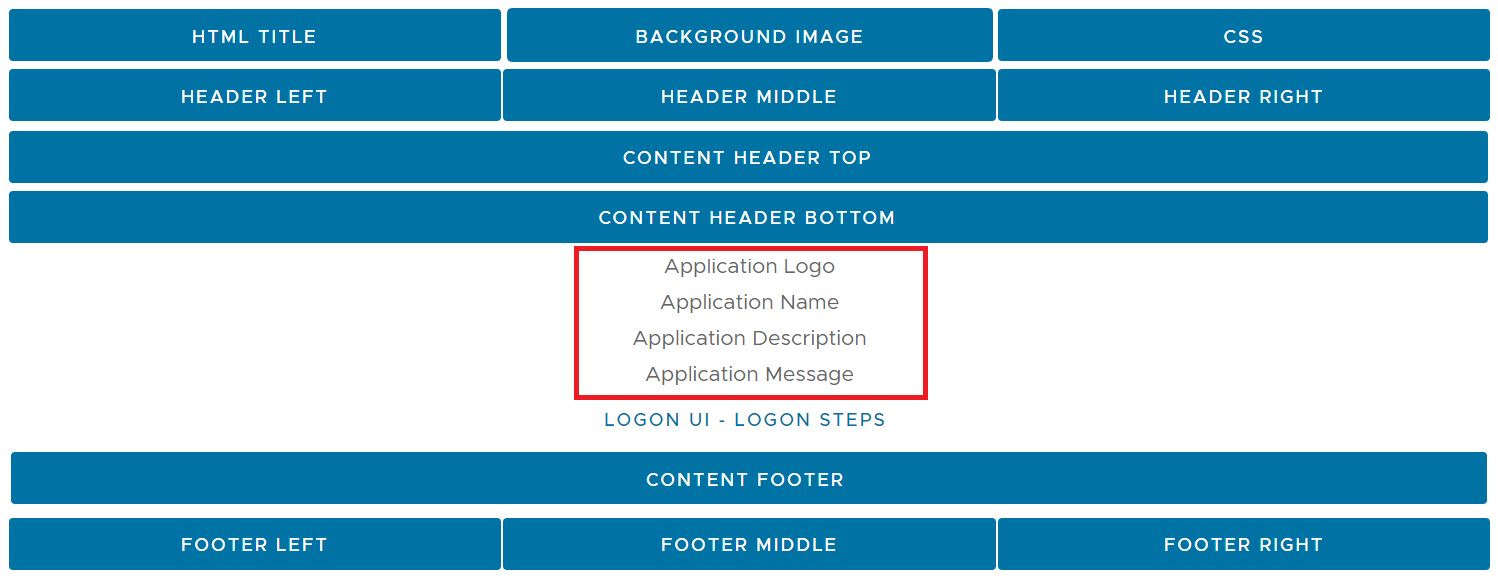
To customise the rest of the UI, navigate to "Customisation | User Interface"
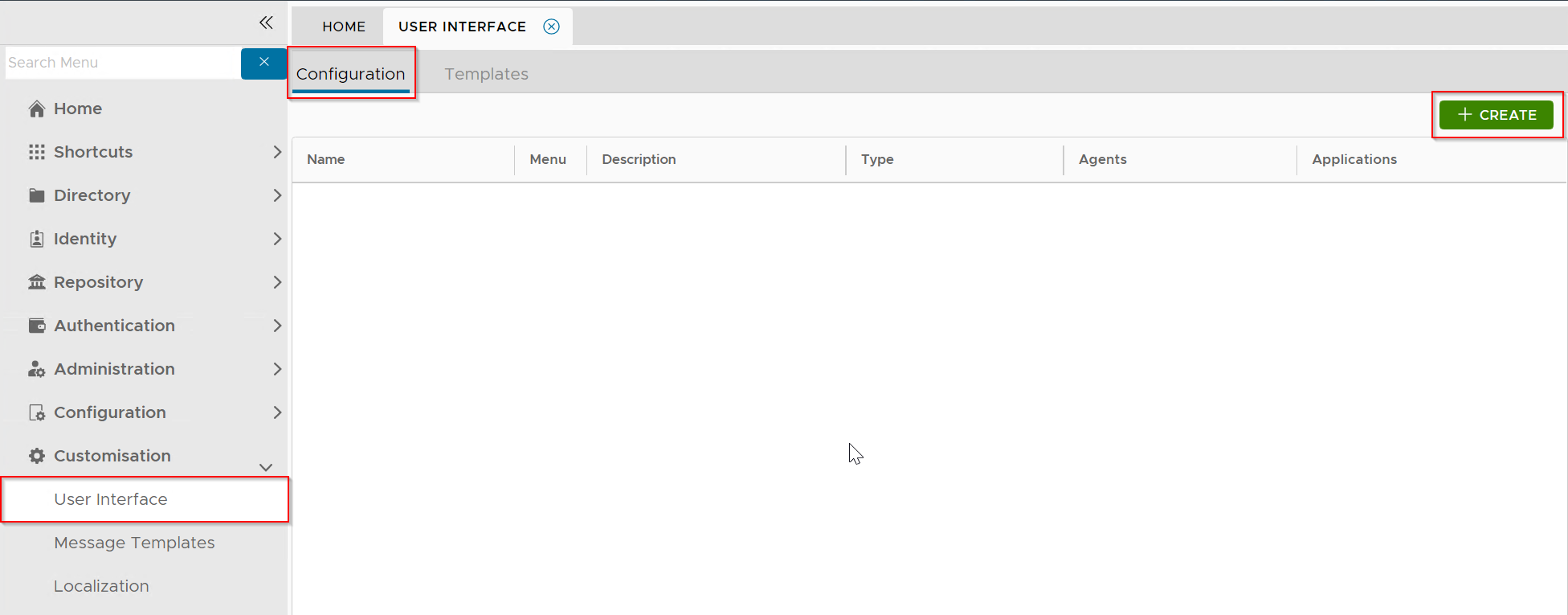
Click the "Create" button to create a new customisation:
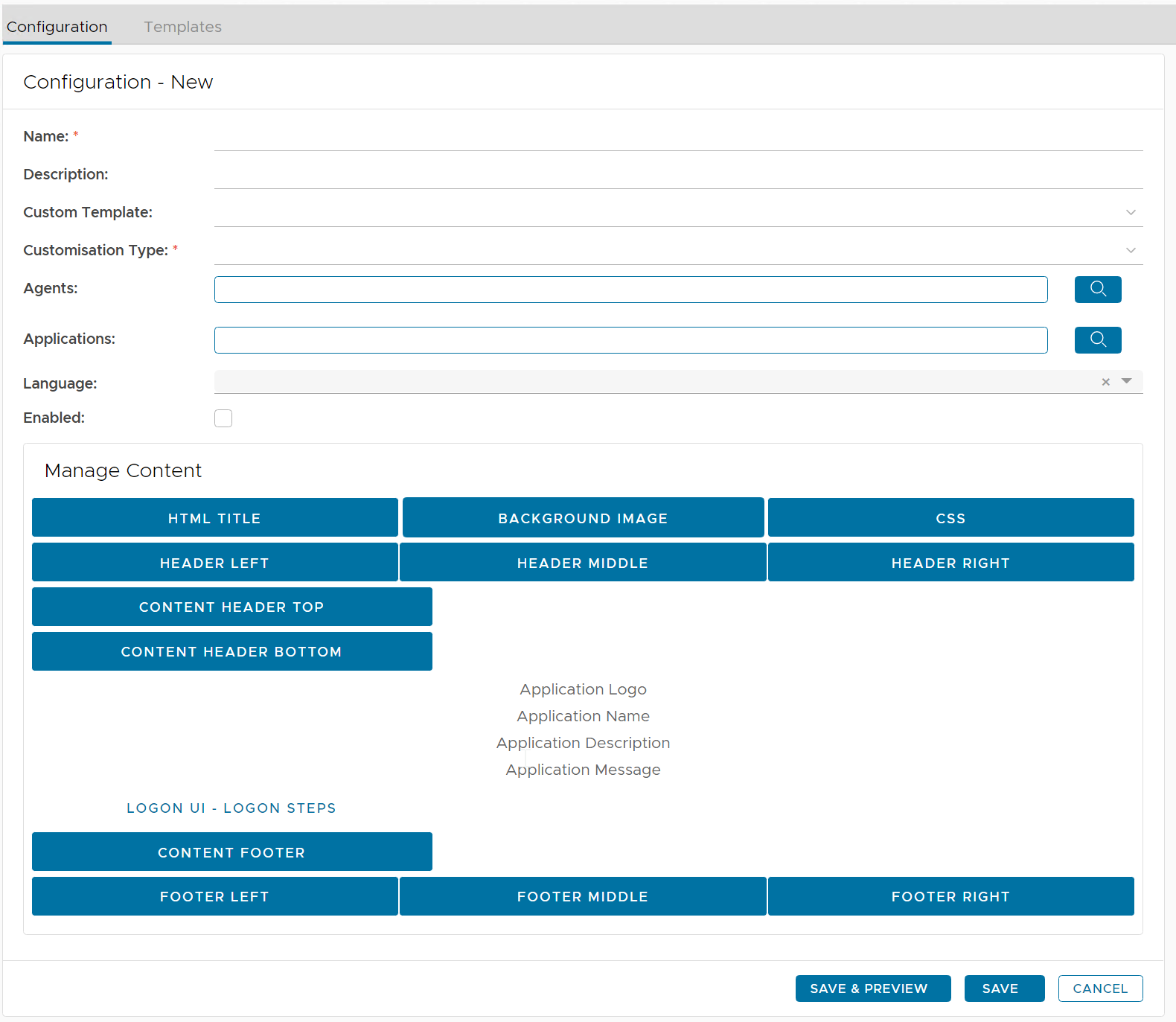
| Field | Description | Example |
|---|---|---|
| Name | Enter a descriptive name | Outlook Web Interface |
| Customisation Type |
| SSO Server |
| Agents | select the agents on which the applications are published | Single Sign-On Server |
| Applications | select the applications to be customised | Outlook Web Interface |

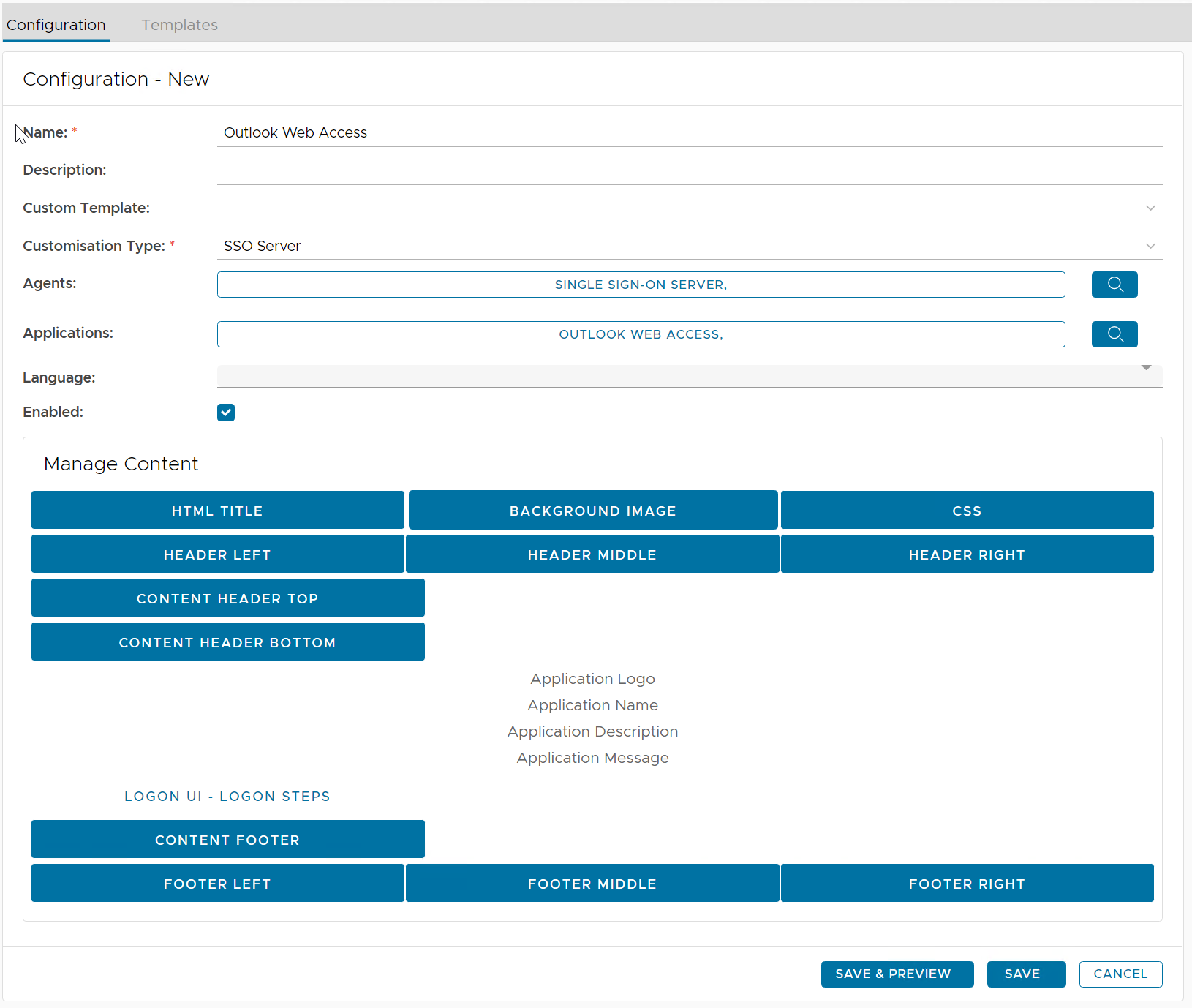
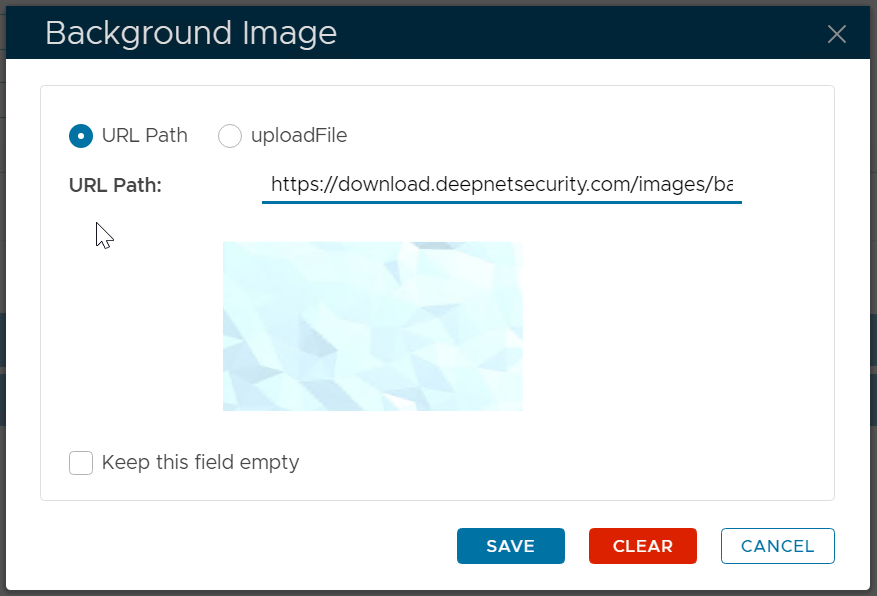
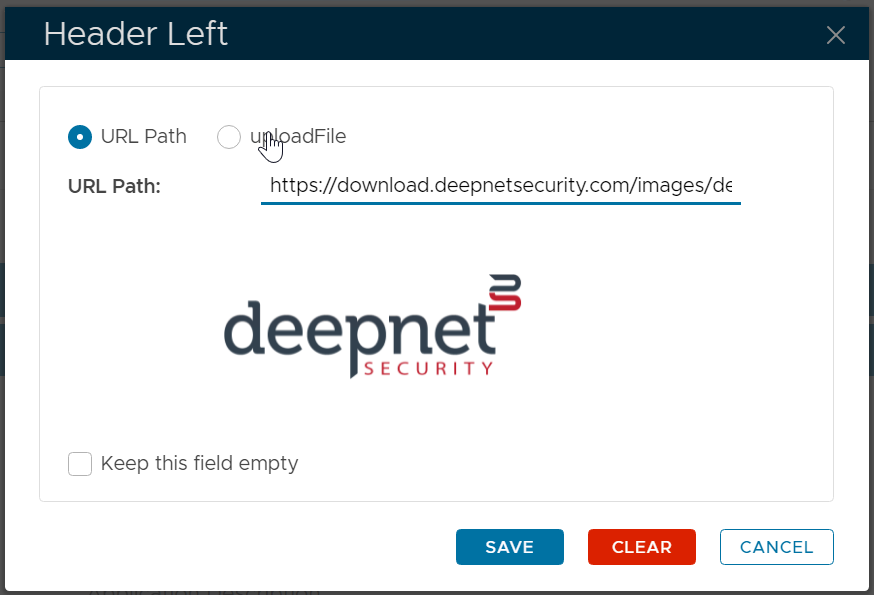
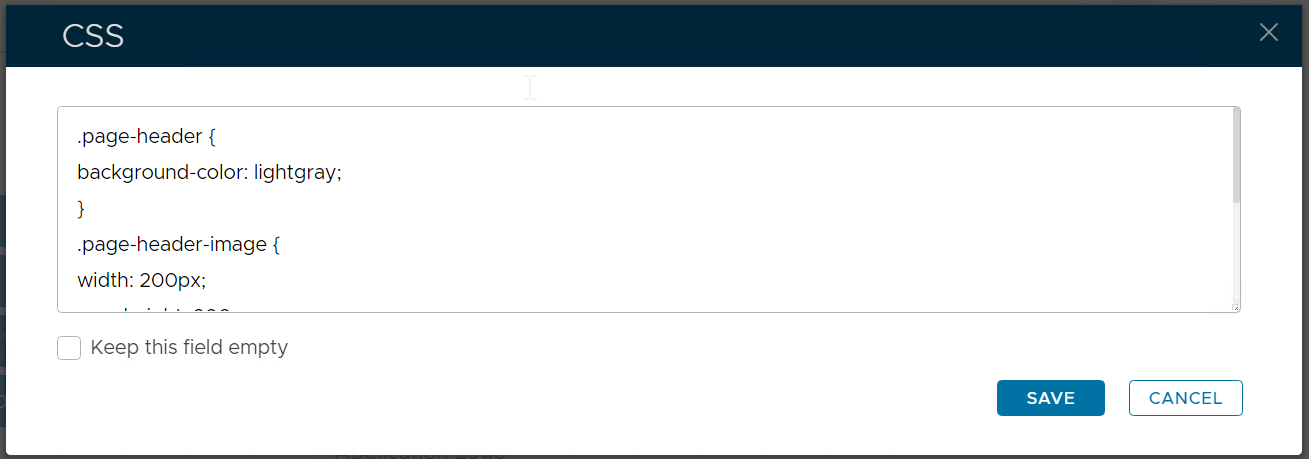
Now, you can customize any element in the body content.
For instance, to change the HTML Title, click "HTML Title"
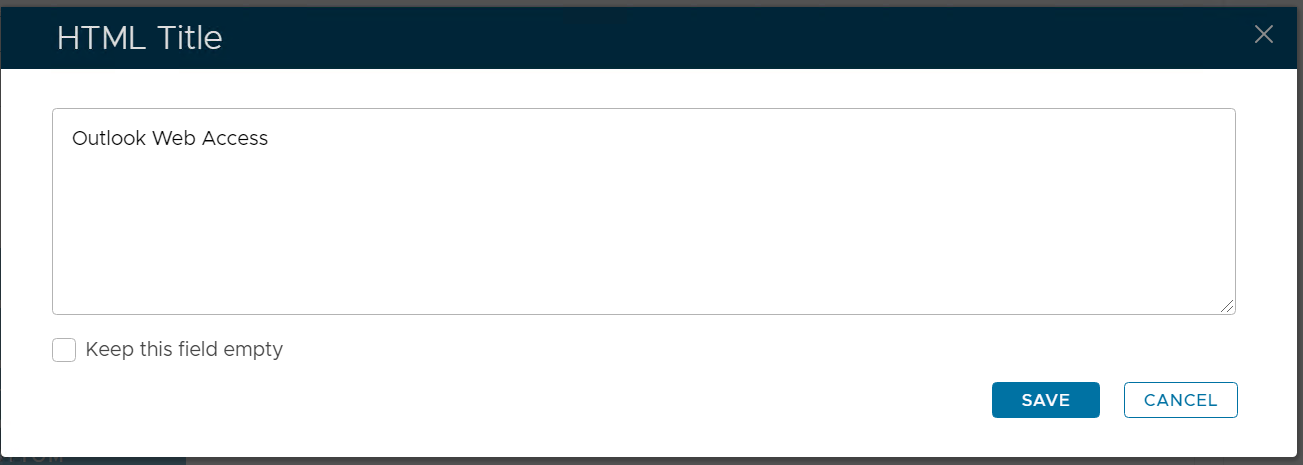
First, untick "Keep this field empty". Then, enter your HTML Title, e.g. Outlook Web Access

User Experience
| After Customisation | Before Customisation |
|---|---|
|
|