A SonicWall NGFW is a Next-Generation Firewall produced by the cybersecurity company SonicWall. These devices provide comprehensive network security by combining traditional firewall capabilities with advanced threat prevention features designed to identify and block modern, sophisticated cyber threats.
Using programmable tokens with a SonicWall NGFW involves two main parts: an administrator configuration on the SonicWall device/portal, and a user setup on the mobile app.
SonicWall uses the Time-Based One-Time Password (TOTP) standard, which is compatible with Google Authenticator, and given programmable tokens can be used as a direct replacement for google authenticator, we can use the same process to generate a suitable QR code, then use the QR code to program the hardware token.
Administrator Configuration
Log in to your SonicWall management interface (SonicOS or MySonicWall portal), then switch to configuration mode (see SonicWall instructions below);
Navigate to "Users | Local Users & Groups" or "Device | Users | Local Users" (depending on your firmware version).
Edit an existing user or add a new user (by clicking on "Add Users").
In the user's "Settings" tab, locate the One-Time password method dropdown list and select "TOTP".

Click on the  button to save the user settings (for new users, you may need to assign a temporary password and select "User must change password on next logon" to prompt the setup process for the user).
Next, navigate to the "Groups" Tab, then under the Member Of, add "SonicWALL Administrator", then click ;

User Setup
Once the administrator has enabled TOTP, the end-user must access their login portal (using their mobile device), then they need to complete the binding process on their first login attempt.
Log in to SonicWall Network Security Appliance portal using your username and password (e.g., "https://yourfirewallIP:4433");

On the screen that appears, you will be prompted to set up the authenticator app and a QR code will be displayed.
A QR code will now be displayed similar to the following;

You can use the QR code to program our programmable tokens using the instructions found in the following procedure;
- To program a SafeID/Diamond or SafeID/Pro token with a QR code, launch the SafeID/Diamond programming tool.
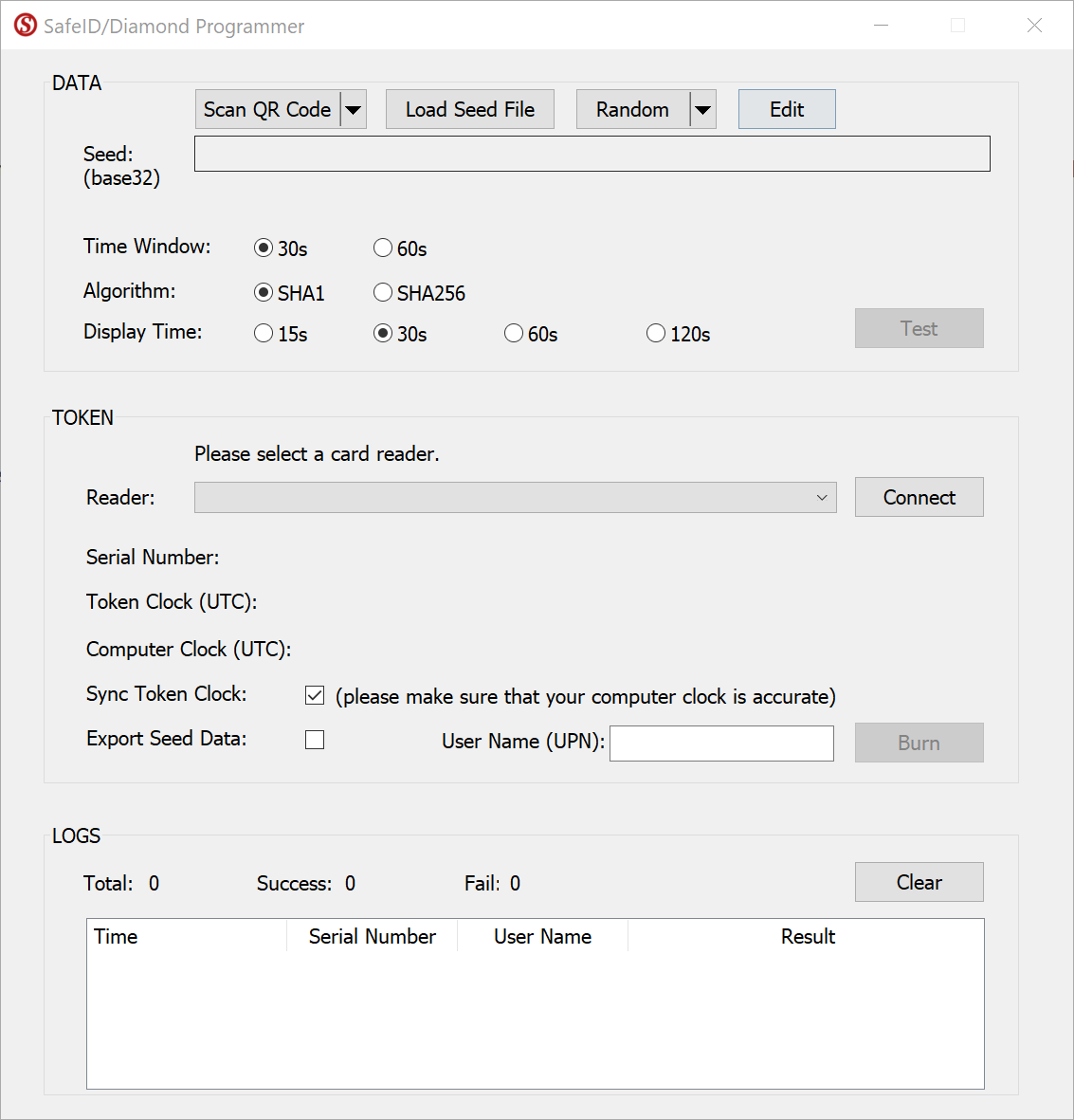
Click the Scan QR Code button
Before you scan the QR code please ensure that the clock on your computer is displaying the correct date and time.
You can scan the screen for a QR code, or load from a file.
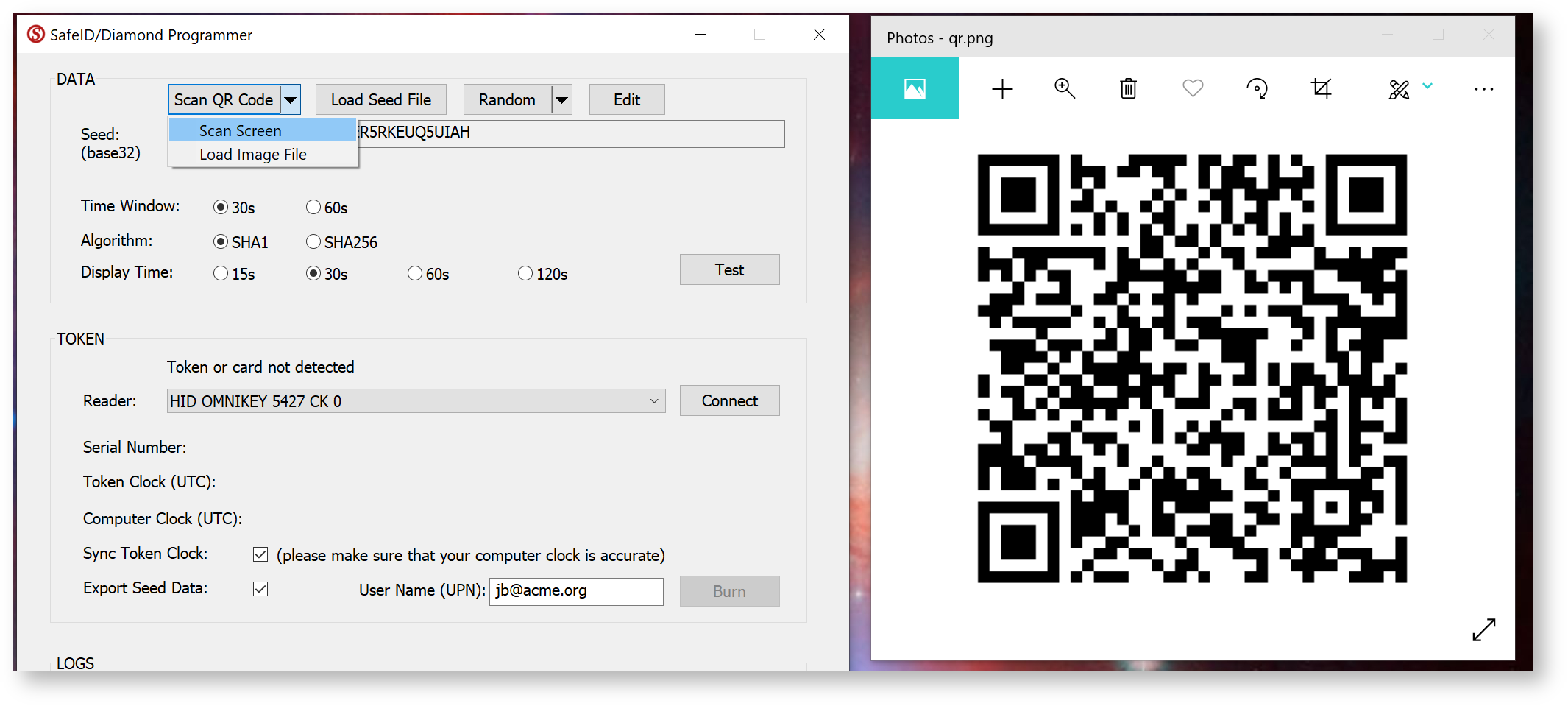
If you are scanning the barcode on the screen please ensure that the QR code is not obscured by other windows, and if you have more than one monitor please ensure that both the app and the QR code are displayed on the main display (display 1).
If you still have difficulty in scanning the QR code double check you only have the one instance of the app running, and that it is the latest version of the app. In most cases when there are issues with scanning of the QR code the most likely cause is the QR code contains the wrong data and may need to be regenerated. To test the QR code you could check that the code works correctly with the authenticator app it is intended for (e.g microsoft authenticator), and if this fails then you know that the QR code will need to be regenerated.
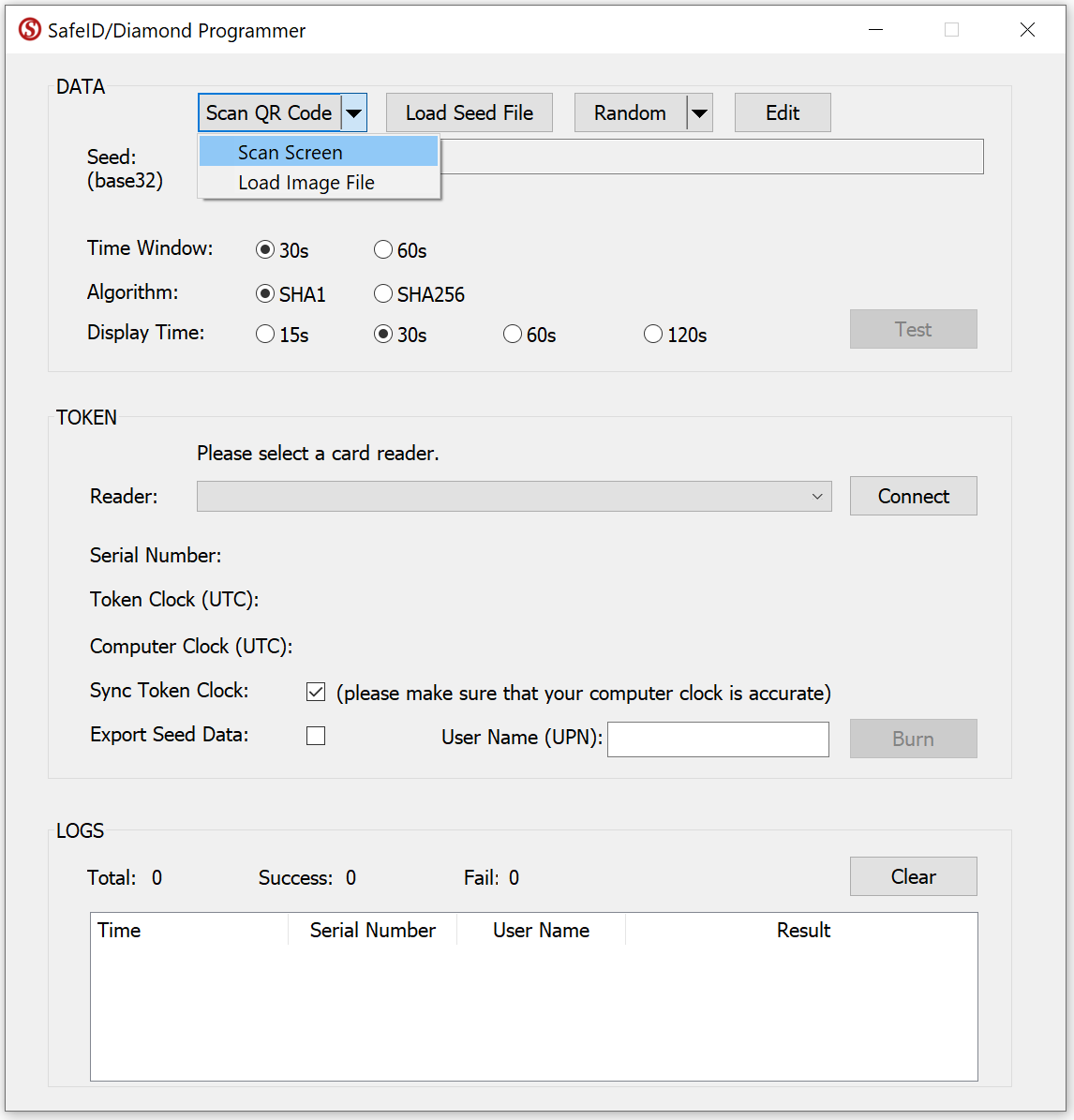
Select Scan Screen.
If succeeded, the Seed box should be filled with the token's seed data.
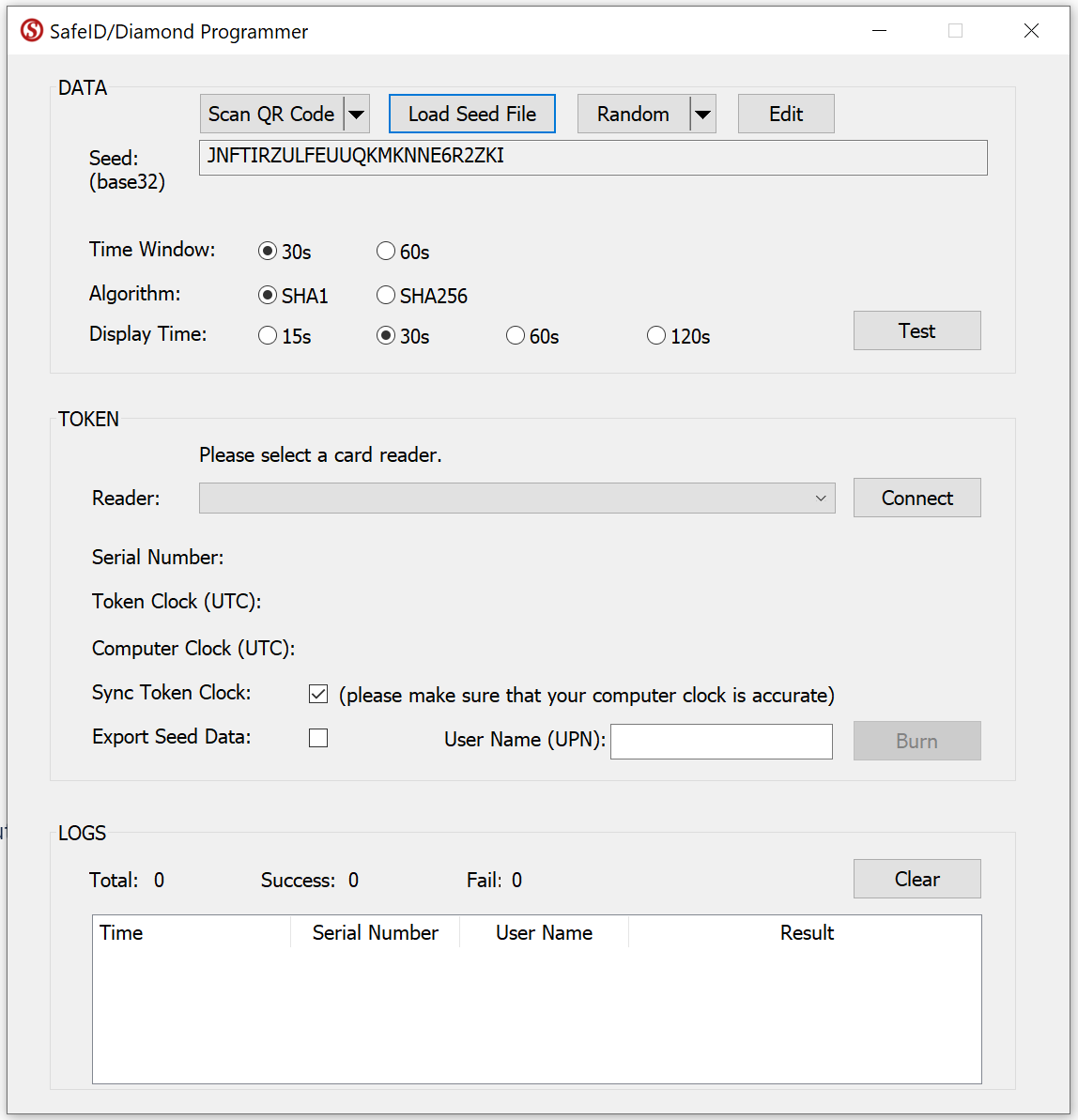
Now, select your smart card reader from the Reader drop-down list, e.g. "HID OMNIKEY 5427 CK"
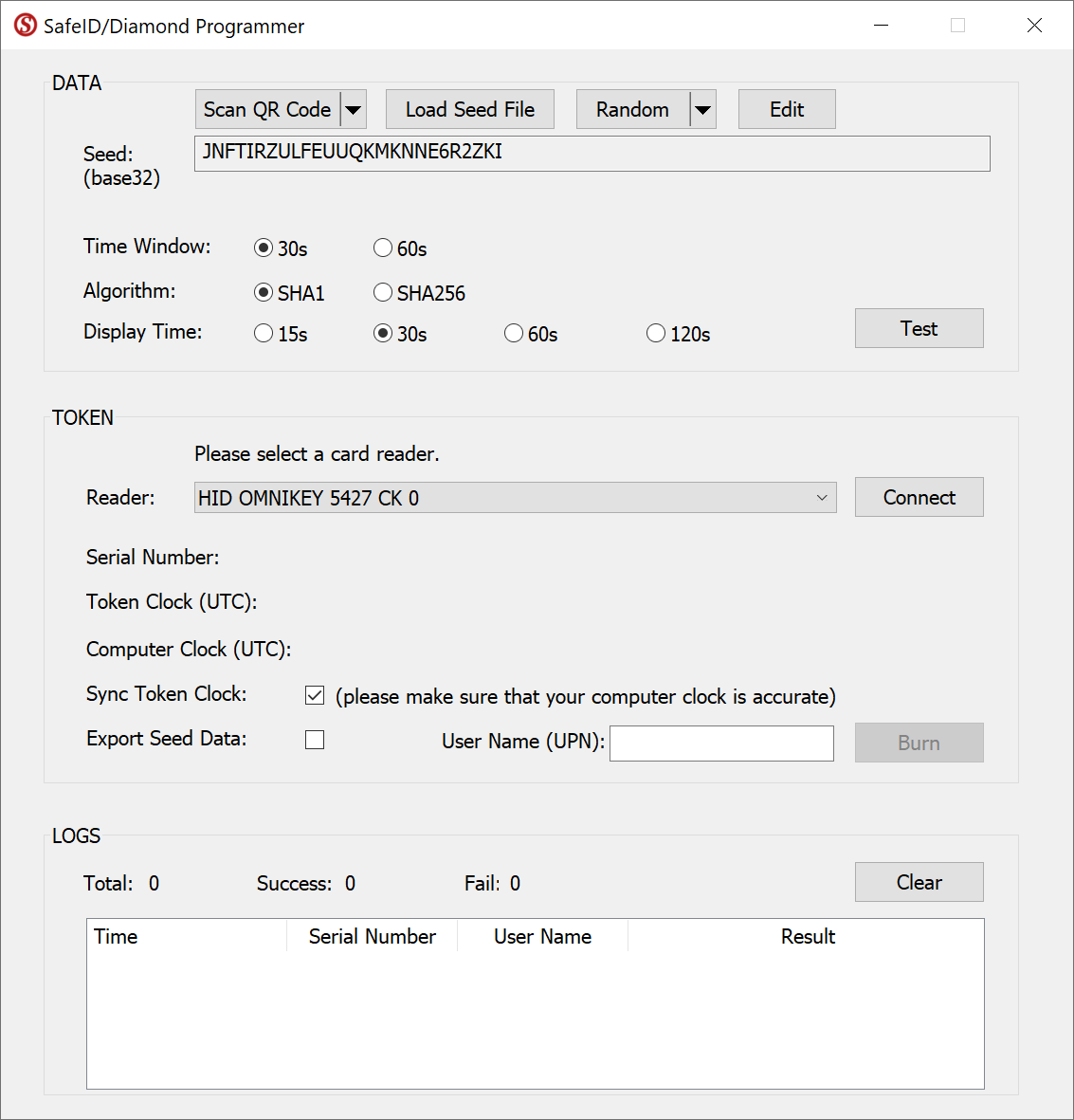
Press the Connect button

Now, switch on a SafeID token and place it on the reader.
The tool will read out the token's serial number and time, and display them:
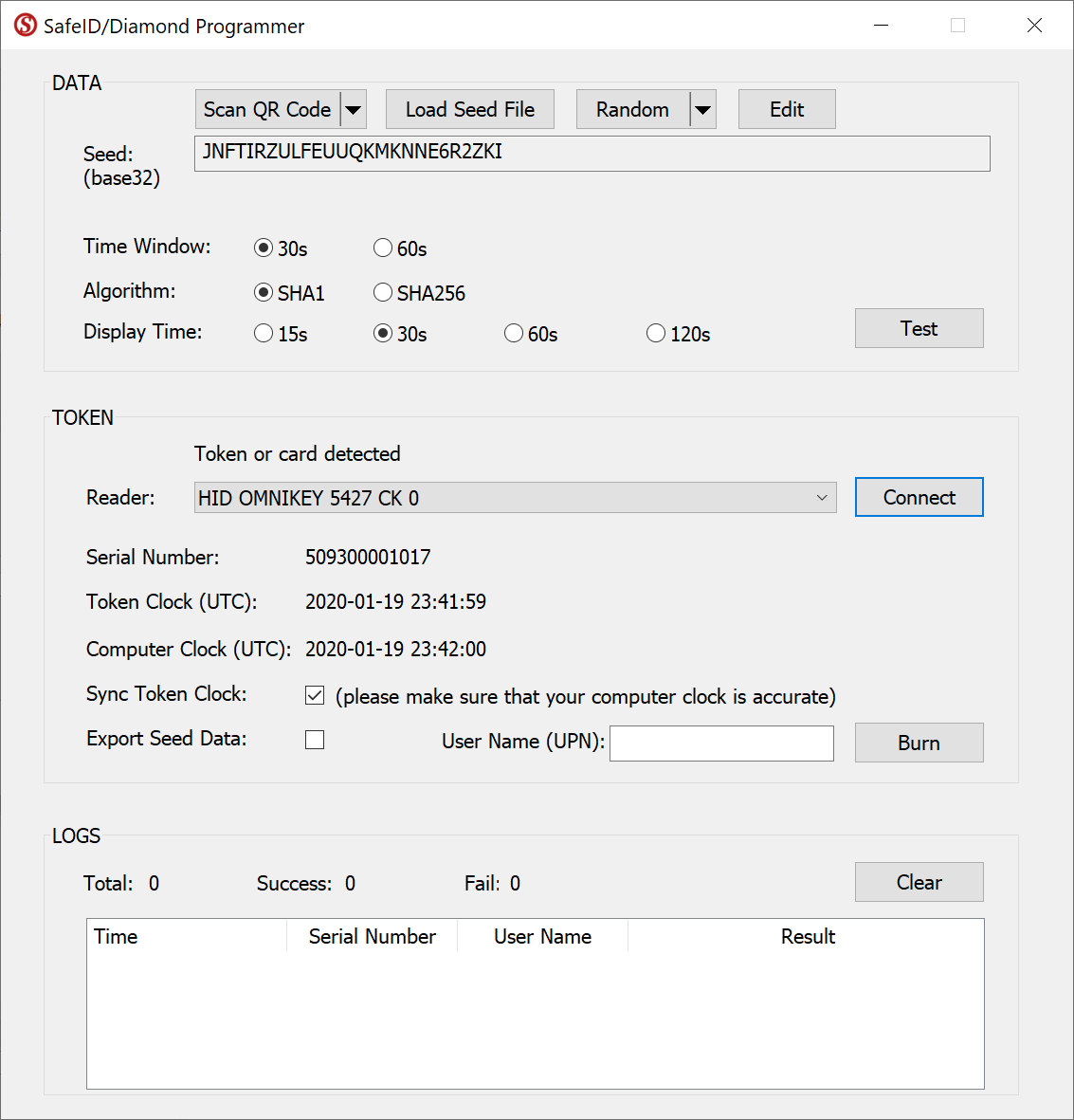
If you want to correct the clock on the token, then leave the "Sync Token Clock" checked, but first ensure the time on your pc is set correctly.
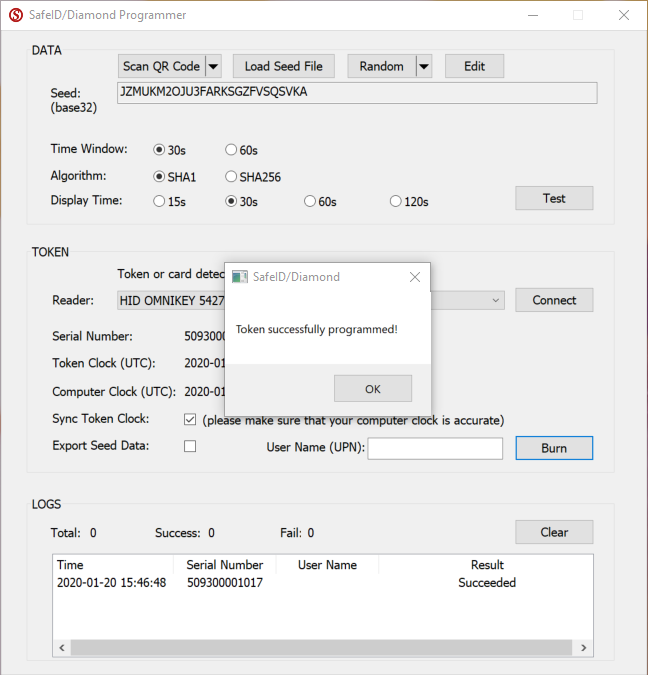
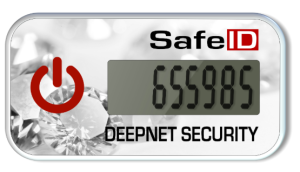
Switch off the token and switch it on again to generate a new code (the token may only use the new seed after being reset)
Related Articles
Verifying your token
Once you have programmed your token you will need to verify your programmable token by entering the 6 digit OTP code from the token (at the prompt "2FA Code"), then click  .
.
The programmable token will then be ready to use when next logging in to the user's account.