In DualShield Admin Console, navigate to "SSO | Service Providers"
Click "Create" to create a new service provider
Filling the form as below:
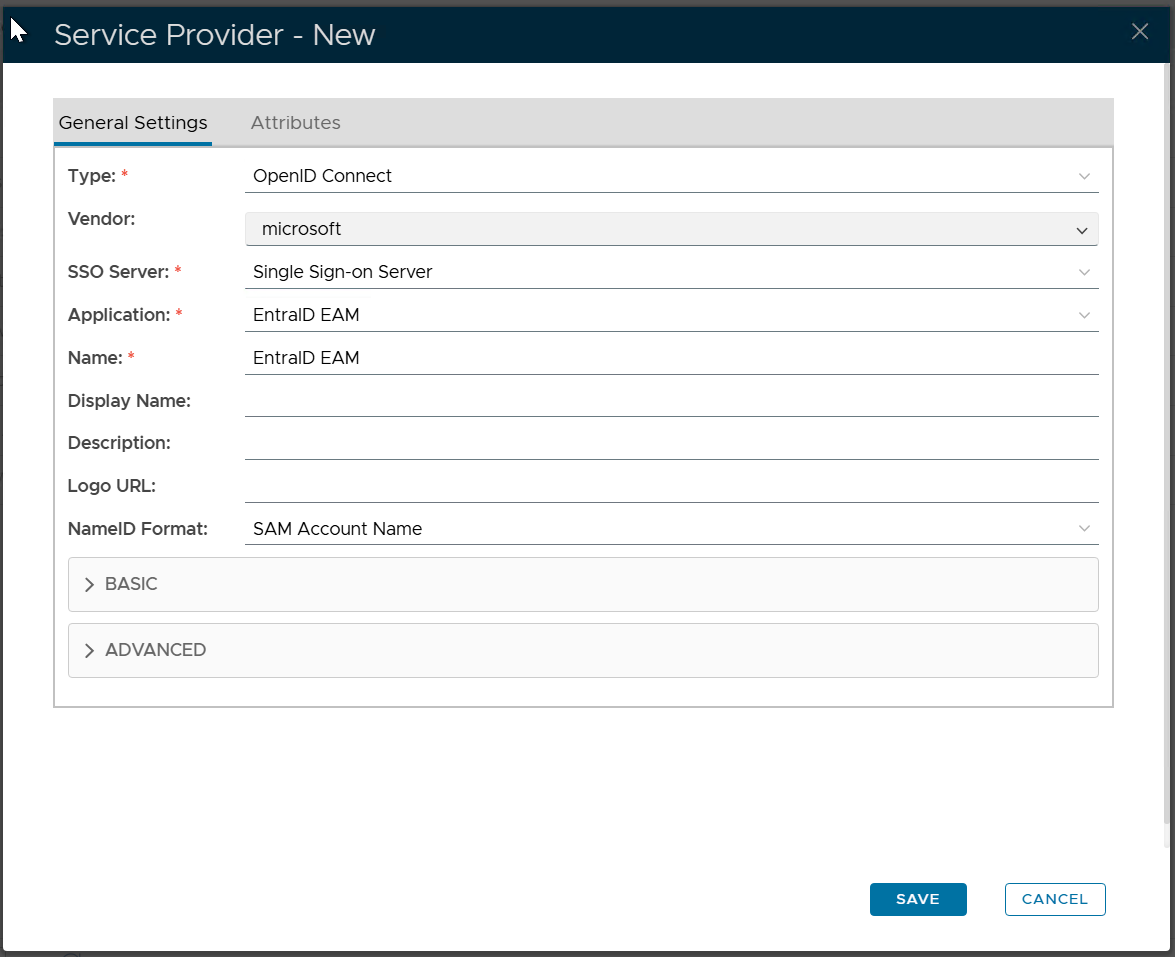
Click "SAVE"
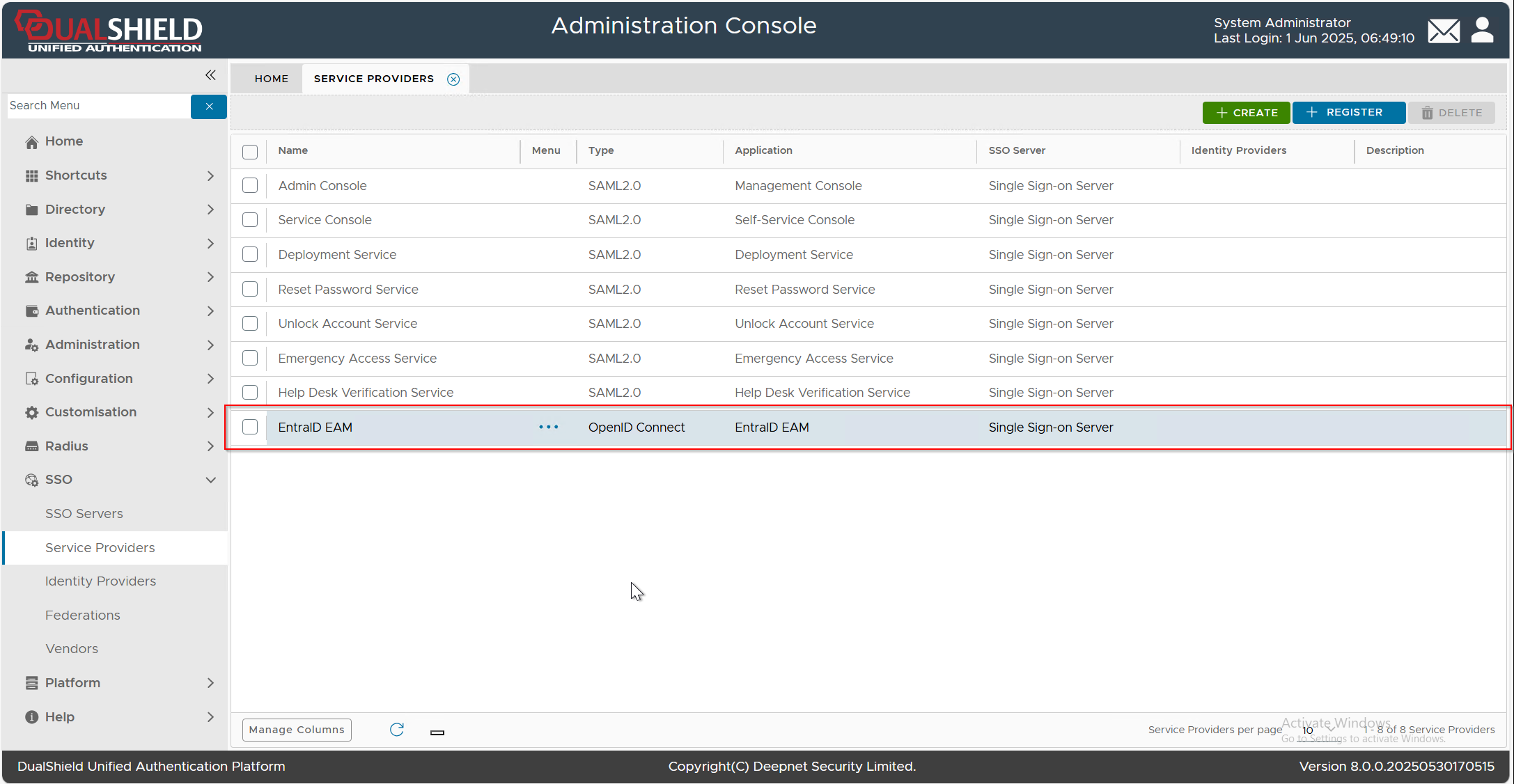
Add the attribute mapping for the "id_token_hint"
Click the context menu  of the newly created Service Provider, e.g. "EntraID EAM", select "Edit" from the menu, then select the "Attributes" tab
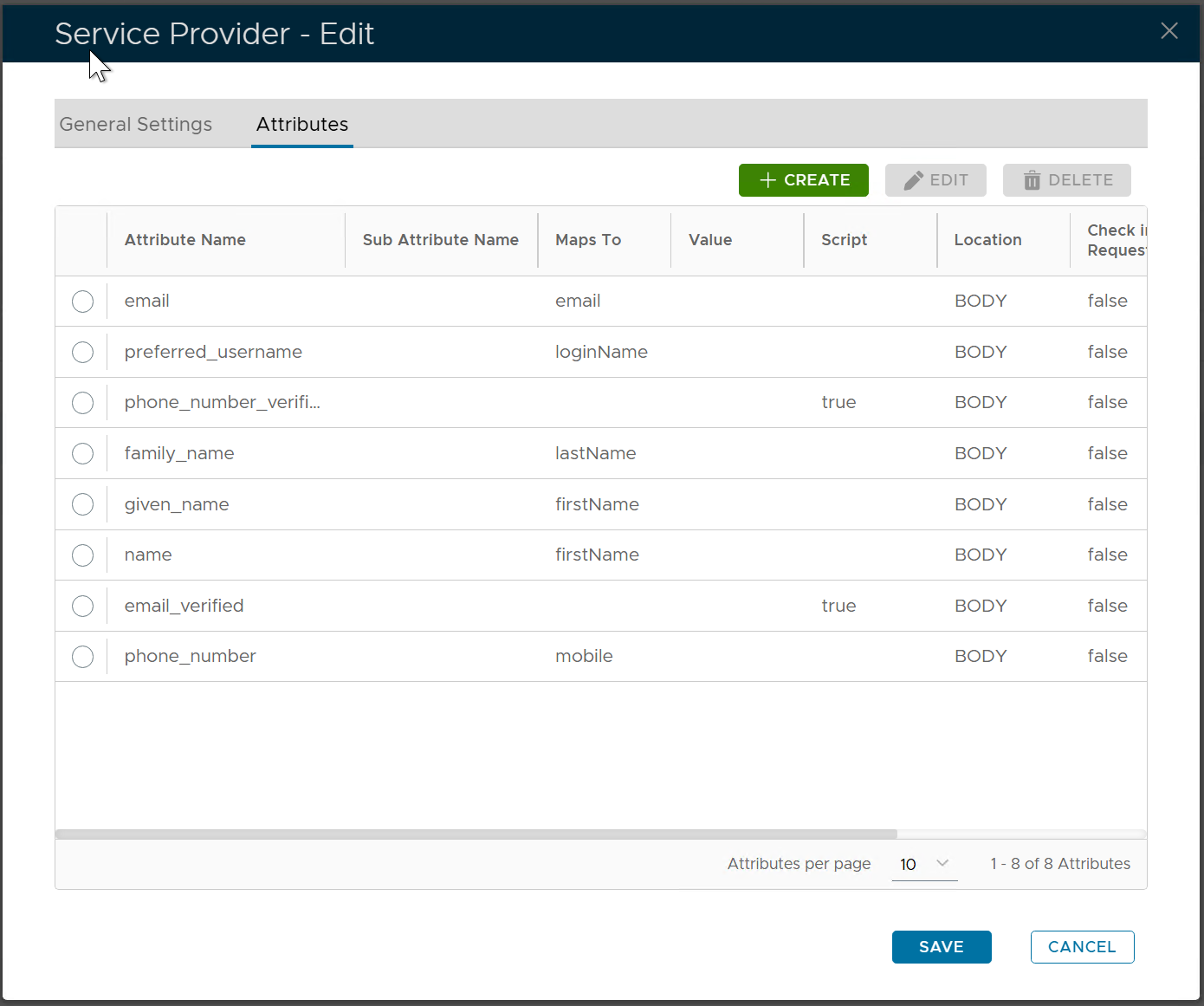
Click the "CREATE" button to create a new attribute
Fill in the following properties
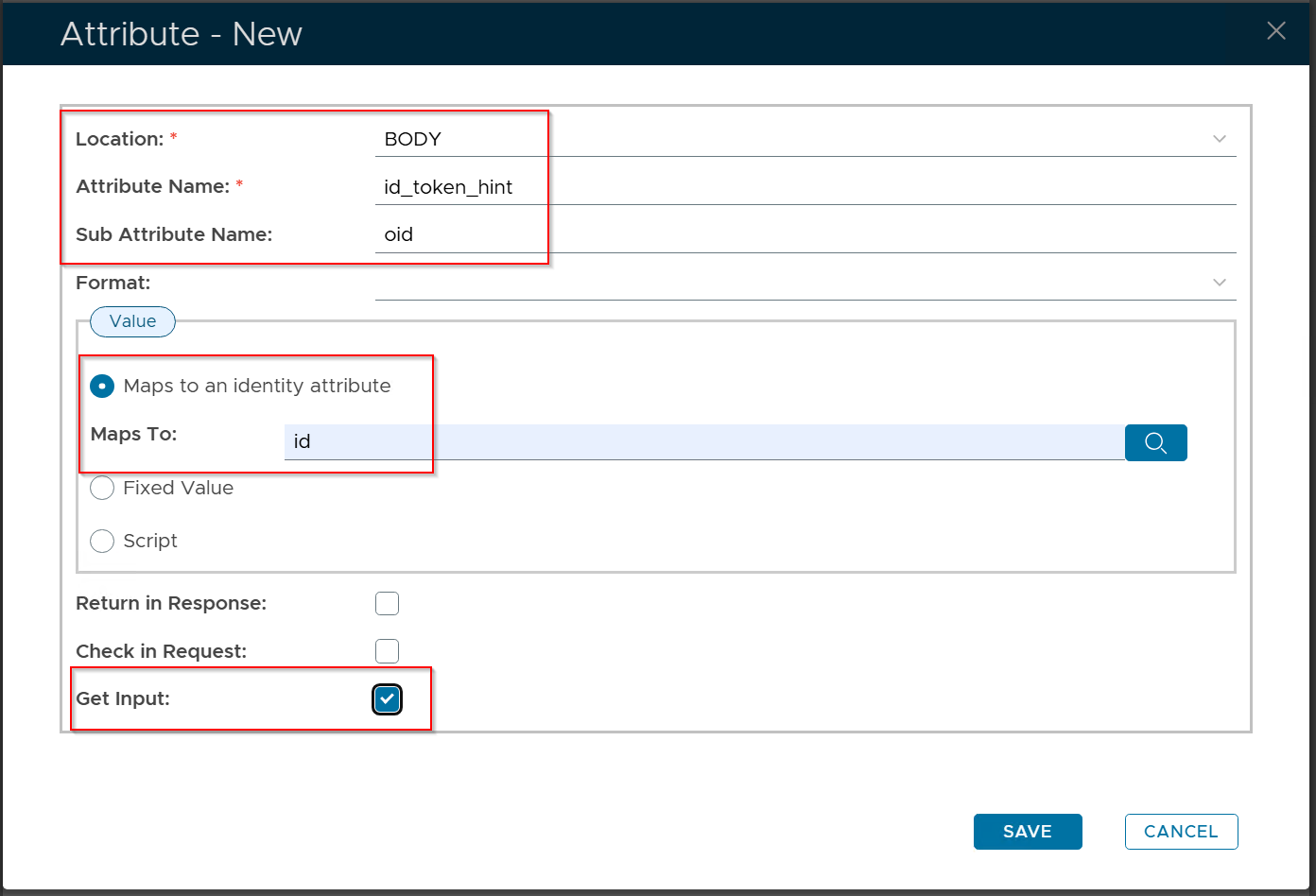
DualShield utilizes this attribute to retrieve the user ID from the traffic forwarded by Entra ID. Typically, Entra ID transmits data in form format, with id_token_hint being one of the form fields. The id_token_hint is a JWT token containing the oid claim, which represents the user account. This oid value can be mapped to the id column in DualShield's user table.
From DualShield's perspective, this attribute serves as an input parameter, which is why the Get Input option must be enabled.
Click the "SAVE" button to save the new attribute
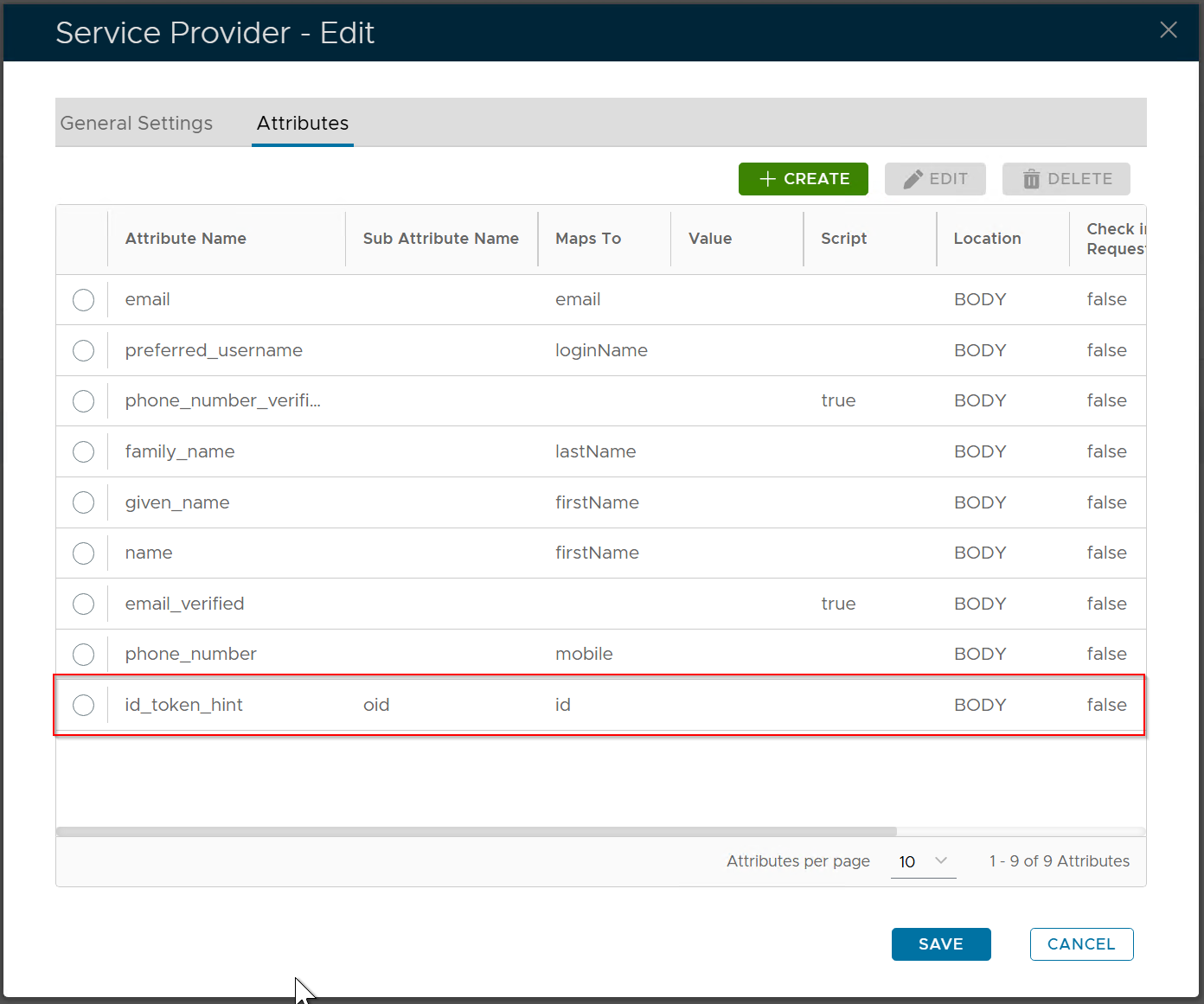
Click the "SAVE" button again to save the change in the attributes
Click the context menu of the newly created Service Provider, e.g. "EntraID EAM", select "Edit" from the menu, then select the "Attributes" tab
Click the "CREATE" button to create a new attribute
Fill in the following properties
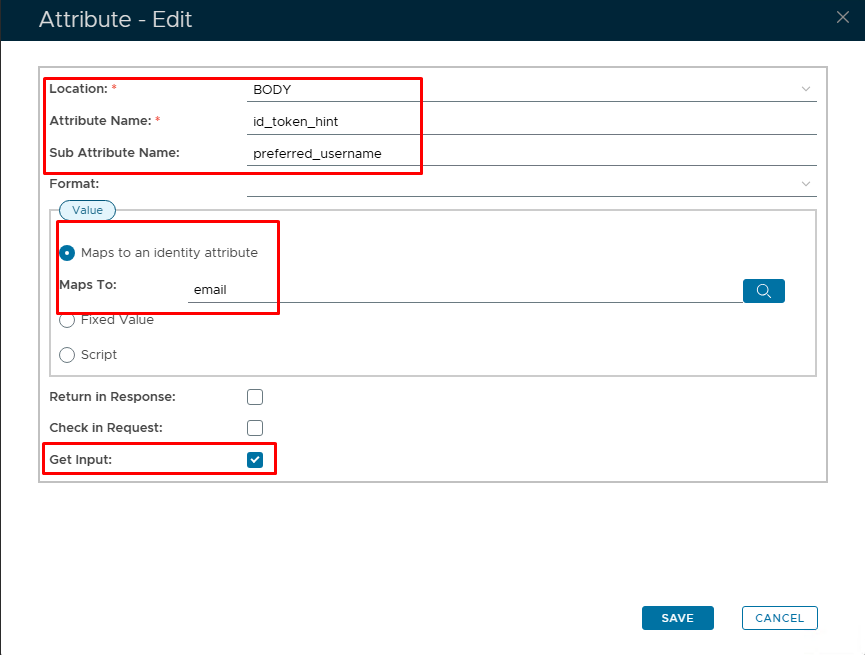
DualShield utilizes this attribute to retrieve the user ID from the traffic forwarded by Entra ID. Typically, Entra ID transmits data in form format, with id_token_hint being one of the form fields. The id_token_hint is a JWT token containing the preferred_username claim, which represents the user account. Thie preferred_username value can be mapped to the email column in DualShield's user table.
From DualShield's perspective, this attribute serves as an input parameter, which is why the Get Input option must be enabled.
Click the "SAVE" button to save the new attribute
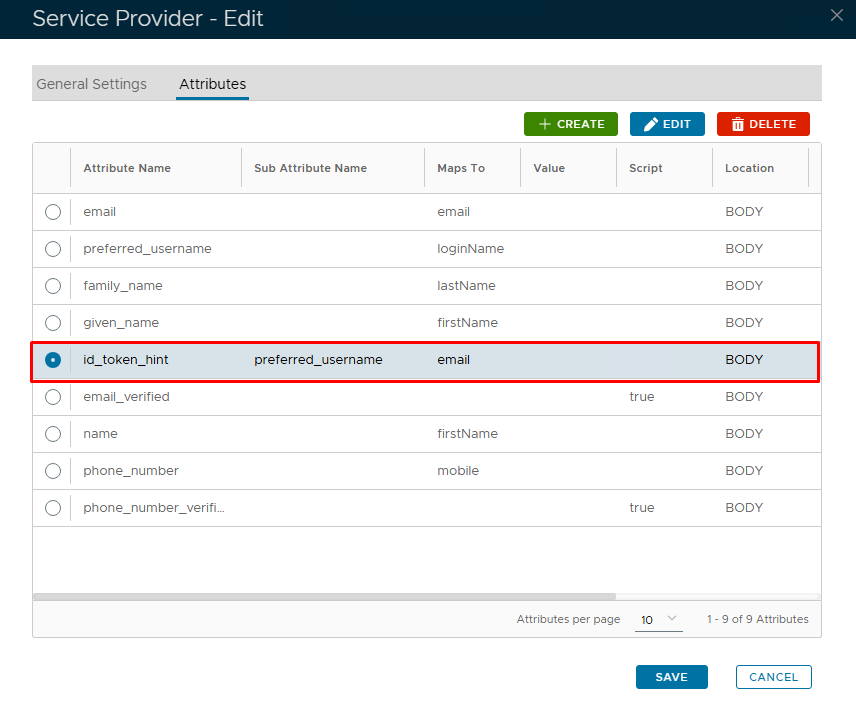
Click the "SAVE" button again to save the change in the attributes