To access the Graph Explorer, visit: https://developer.microsoft.com/en-us/graph/graph-explorer
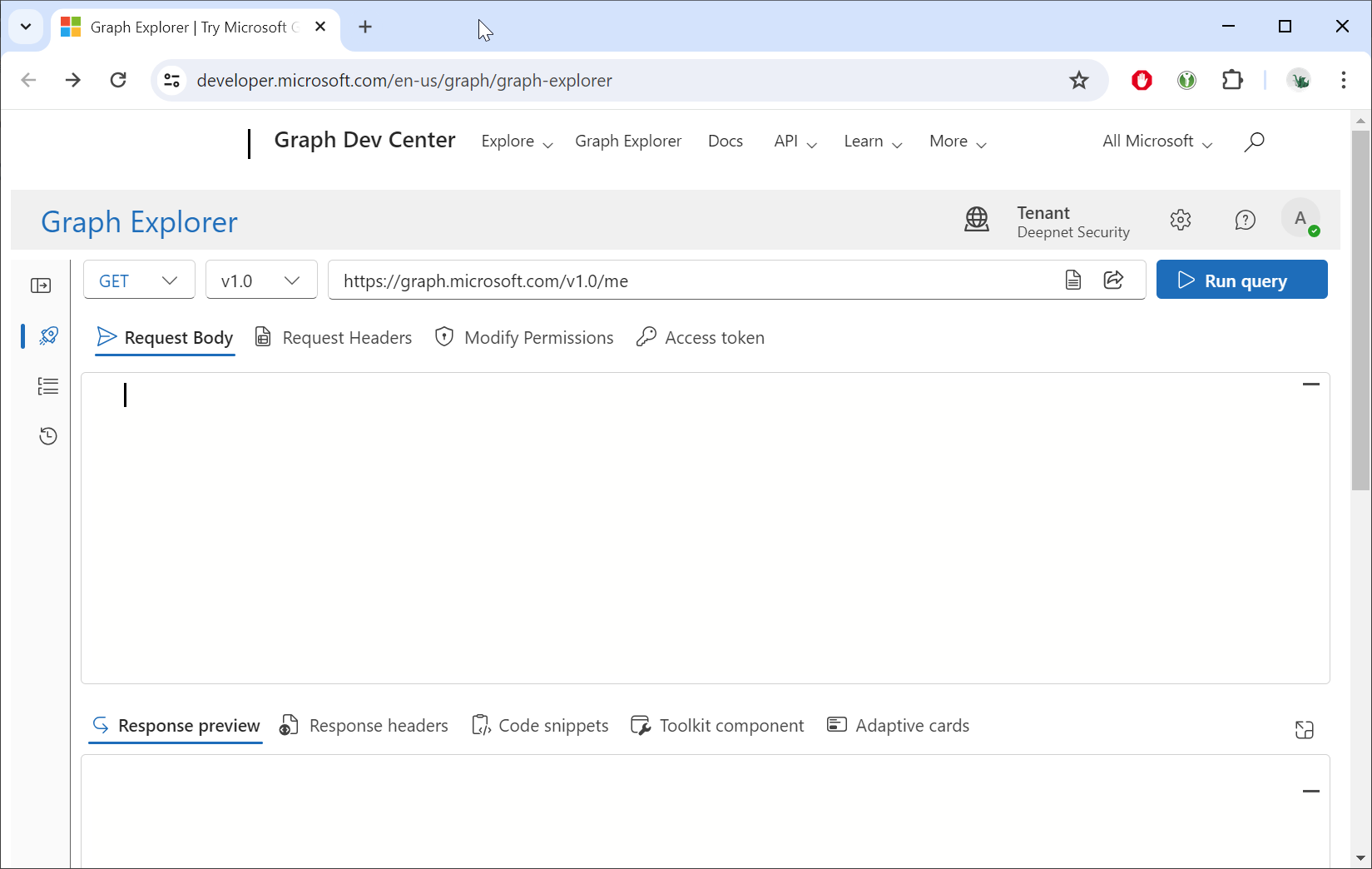
Sign in using your Entra account
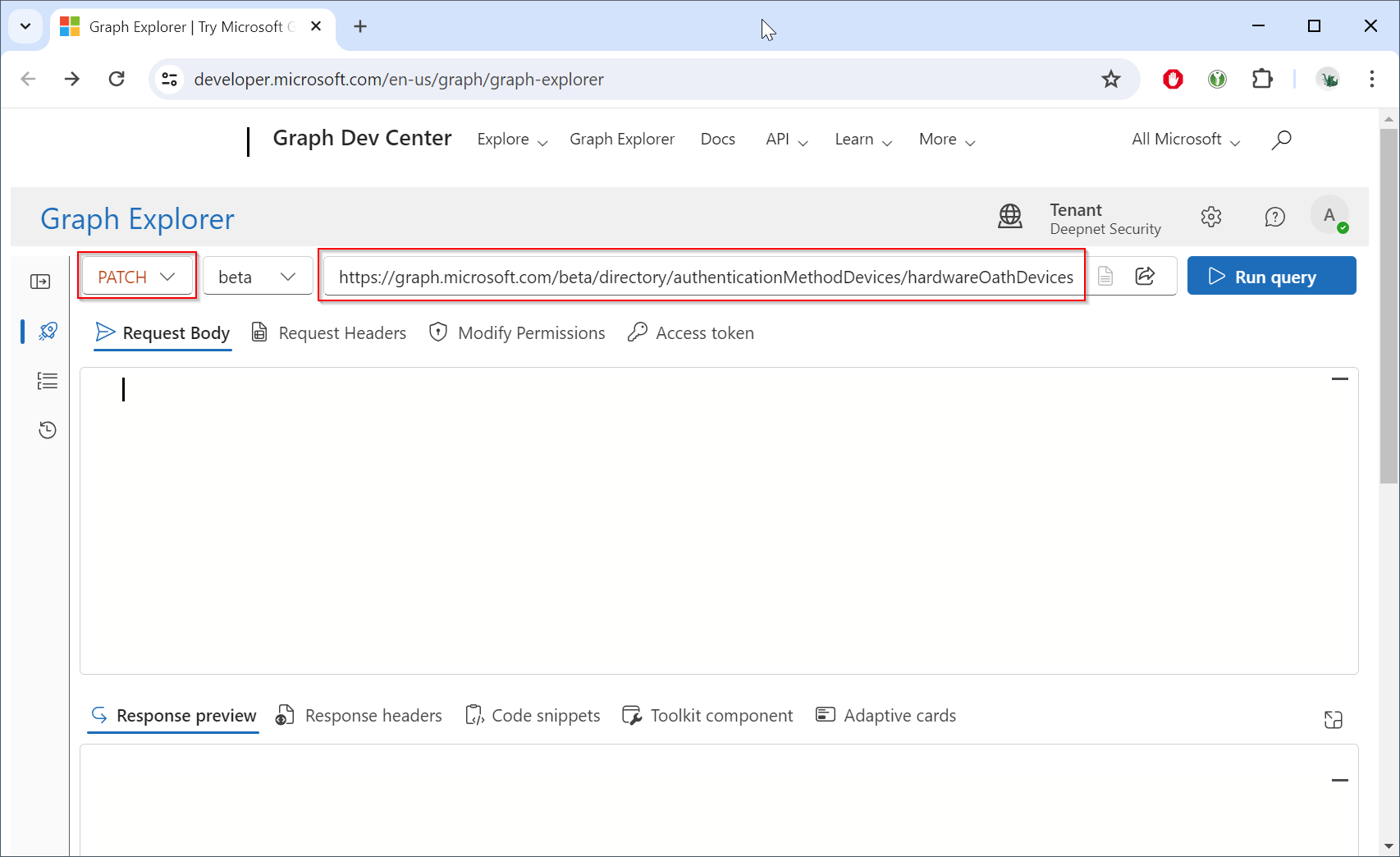
Change the HTTP method from "GET" to "PATCH", and change the endpoint to "https://graph.microsoft.com/beta/directory/authenticationMethodDevices/hardwareOathDevices"
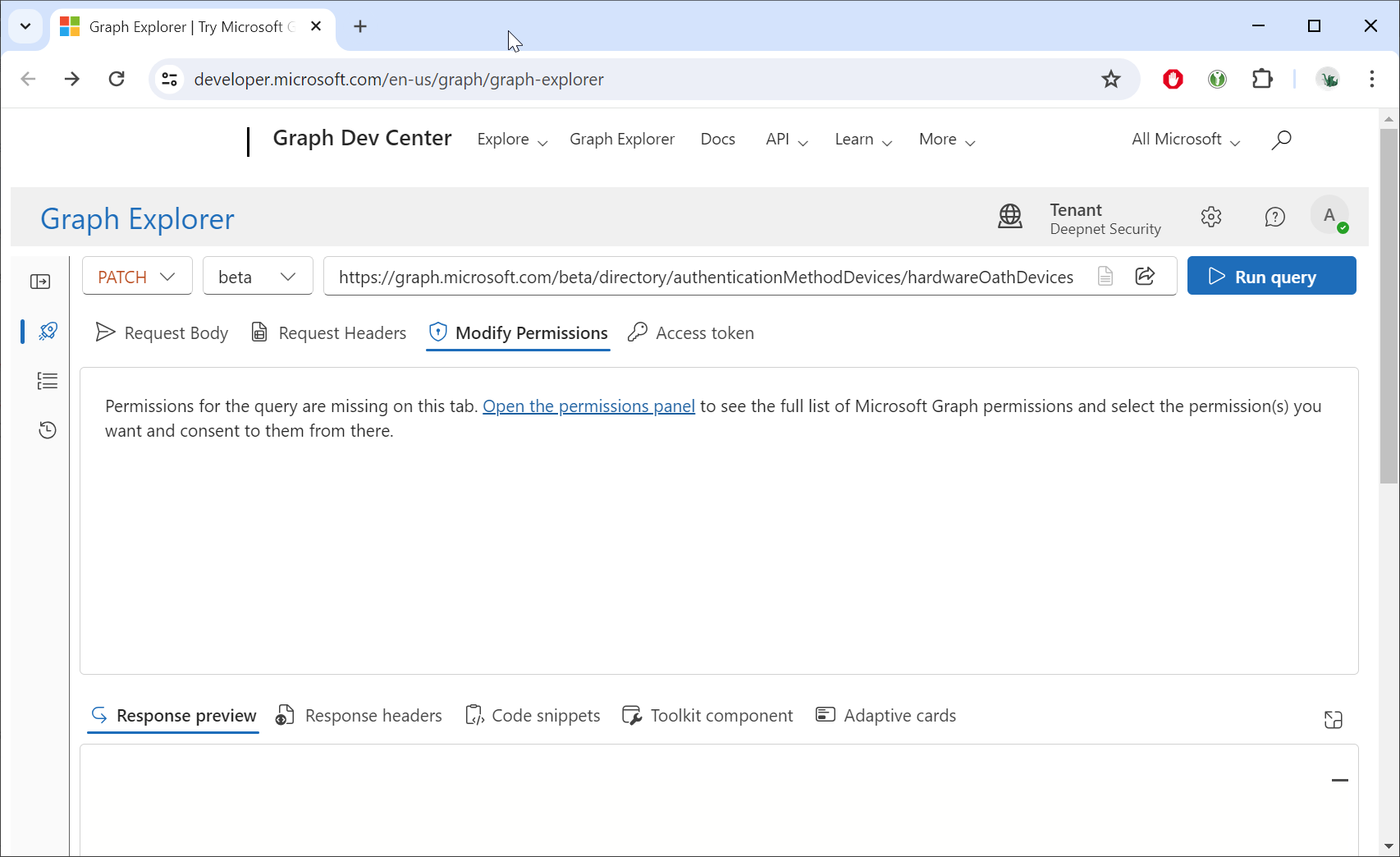
Click the "Modify Permissions"
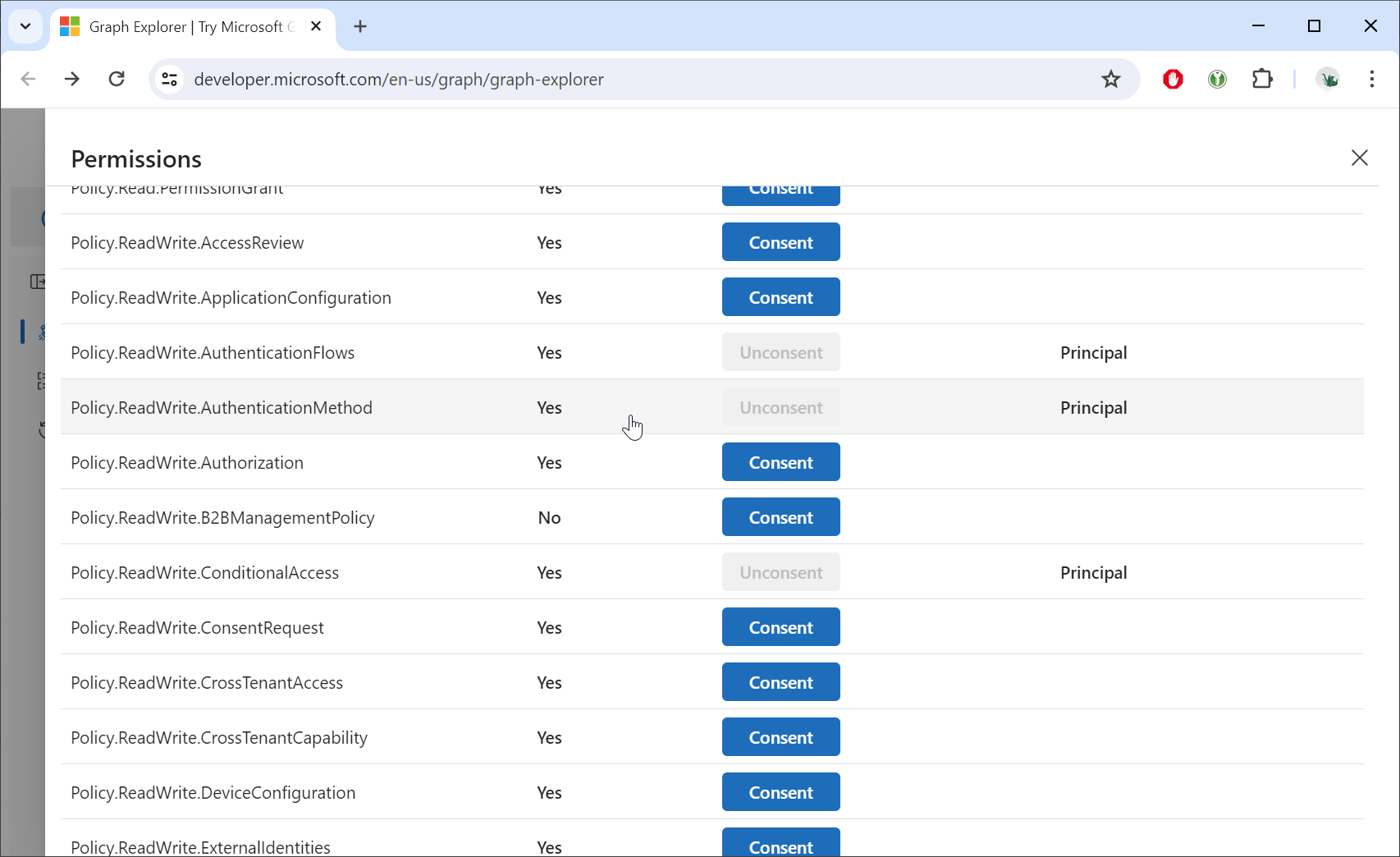
Grant consent for the "Policy.ReadWrite.AuthenticationMethod" permission
Click the "Request body" tab
Open the JSON file in a text editor, copy all the contents, and paste the data into the Request body
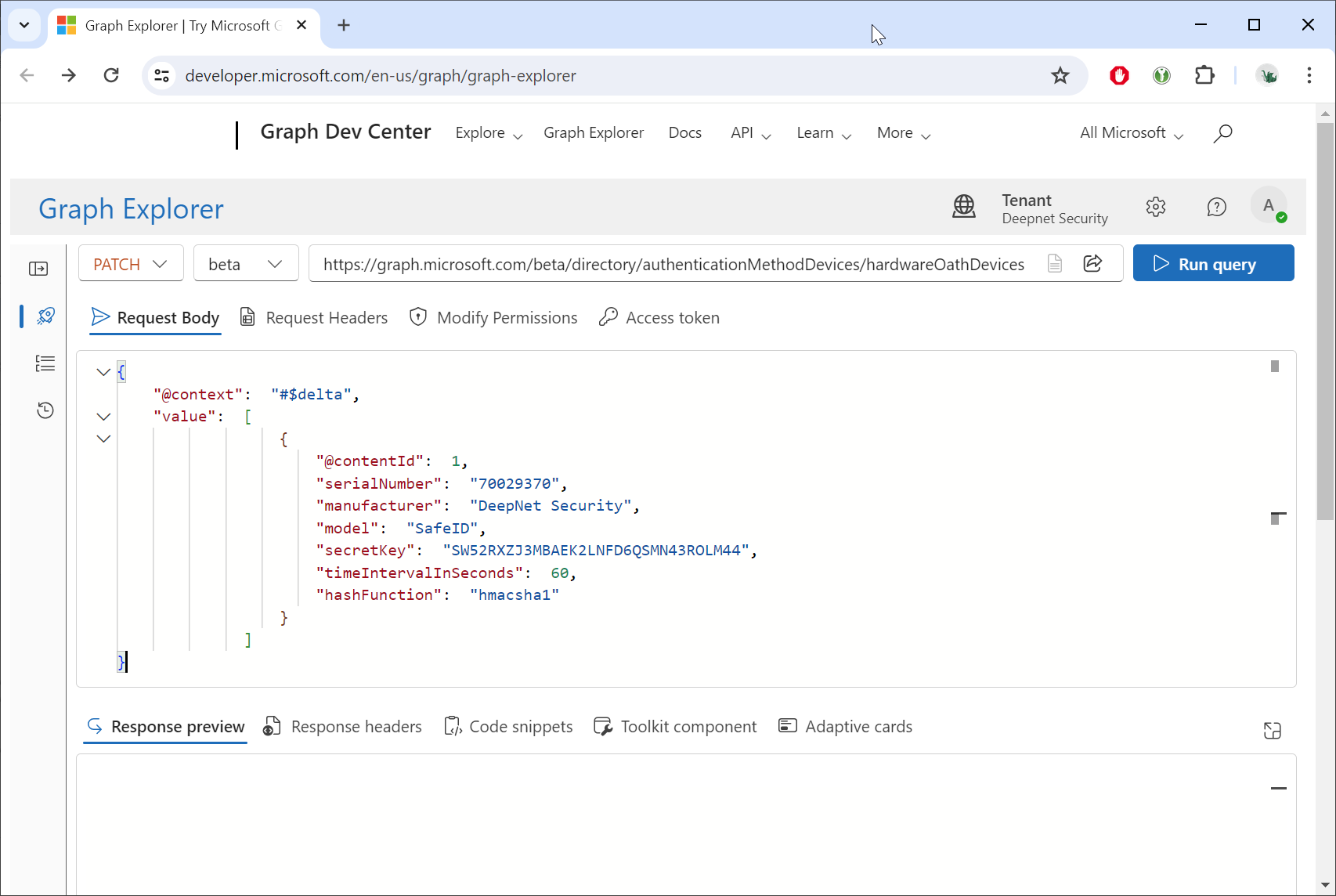
Click the Run query button.
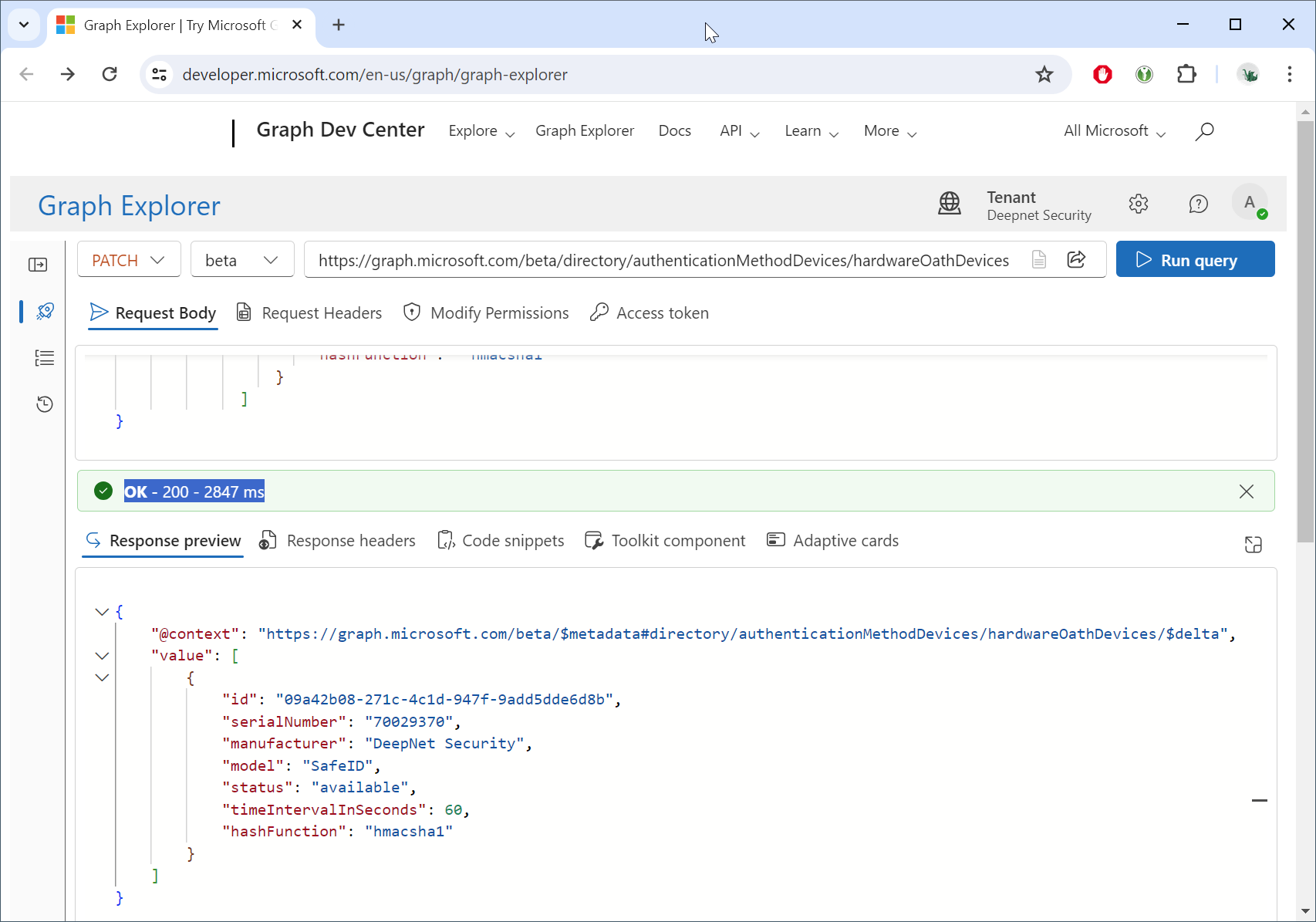
If you see "OK - 200 - ...", then the tokens have been successfully uploaded into the Token Resposiroty in your Entra ID tenant.
To check your Token Repository in Entra ID, you must also use the Graph API.
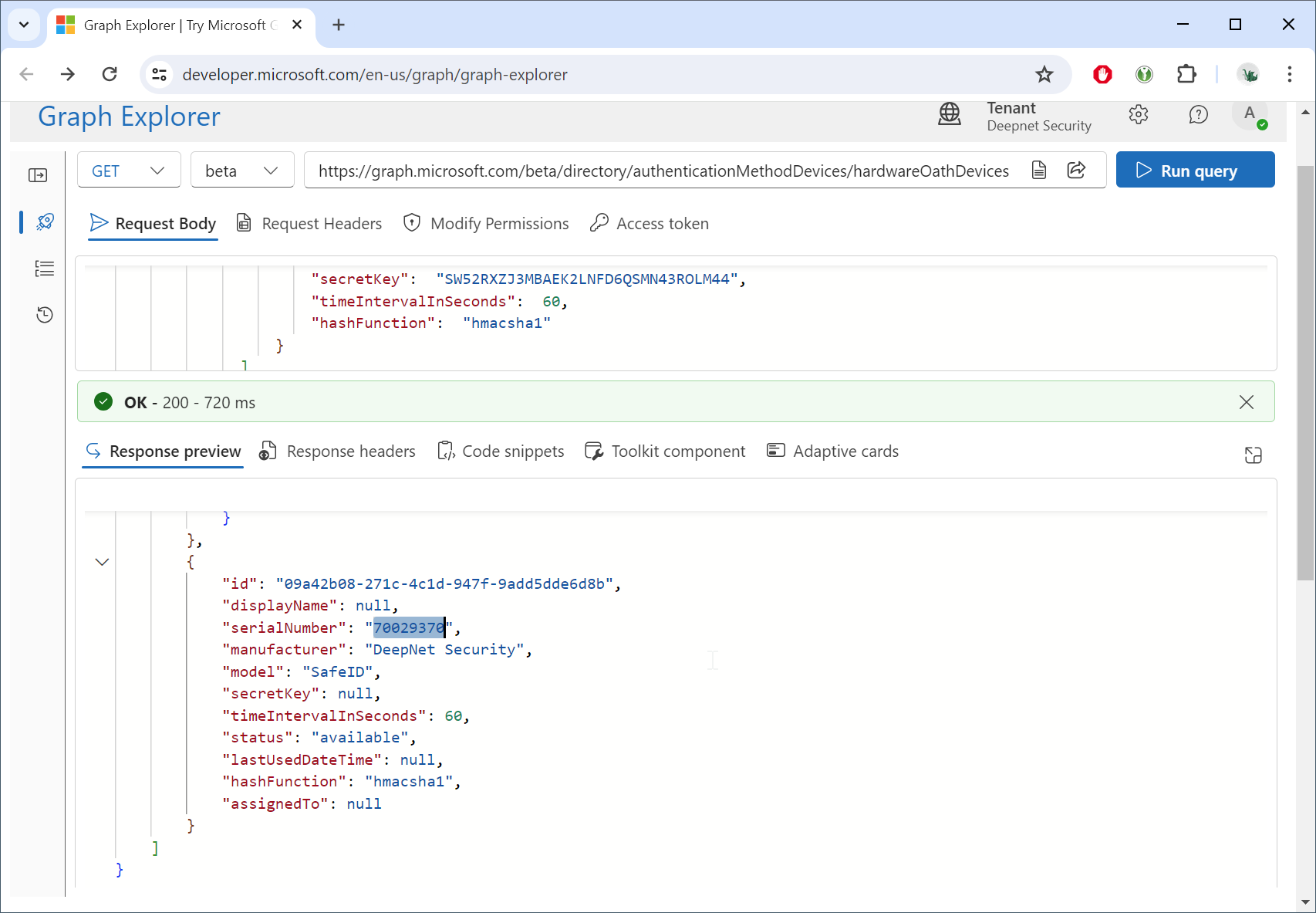
In the Graph Explorer, set the HTTP method to "GET", and set the endpoint URL to: https://graph.microsoft.com/beta/directory/authenticationMethodDevices/hardwareOathDevices
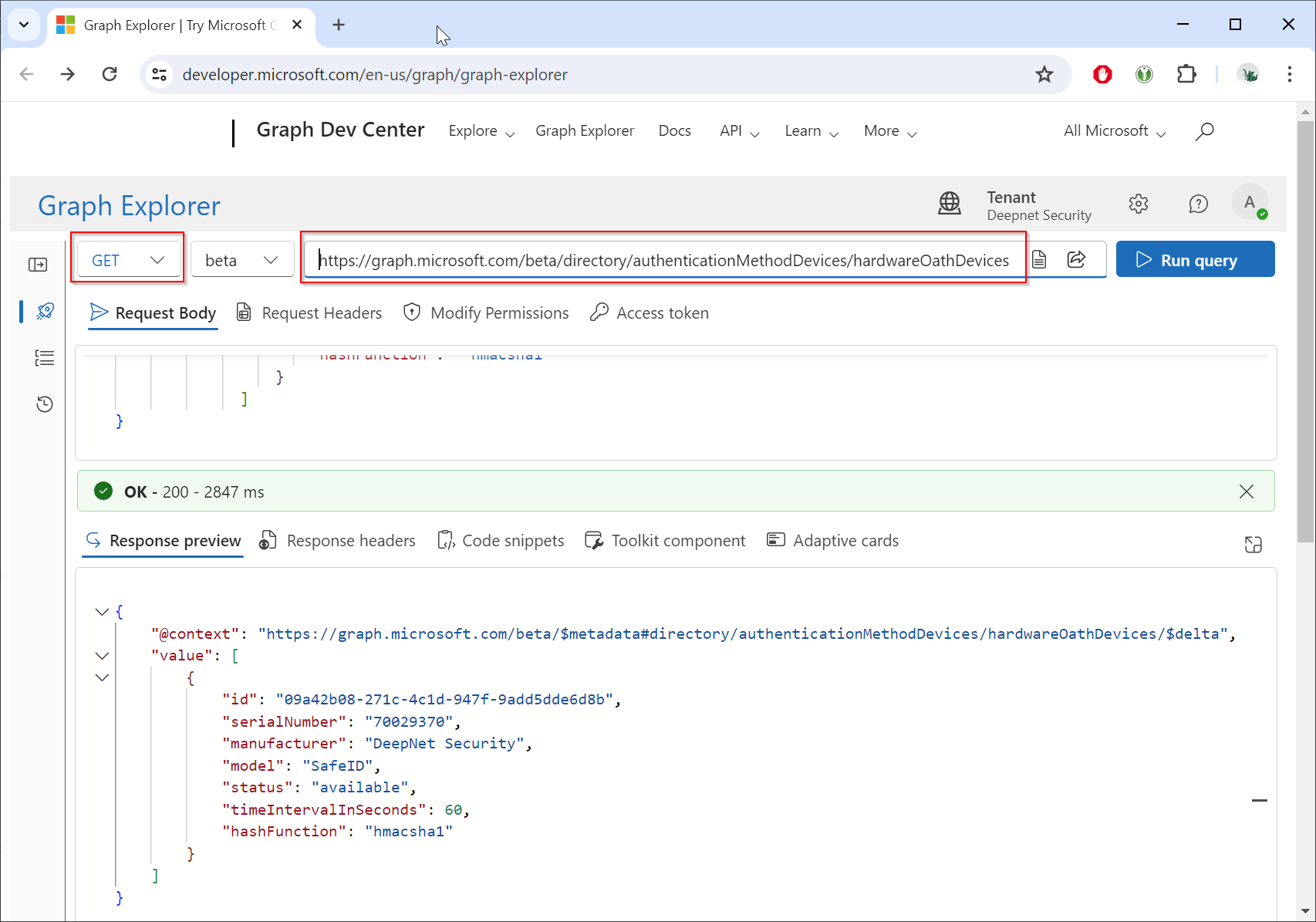
Click "Run Query"
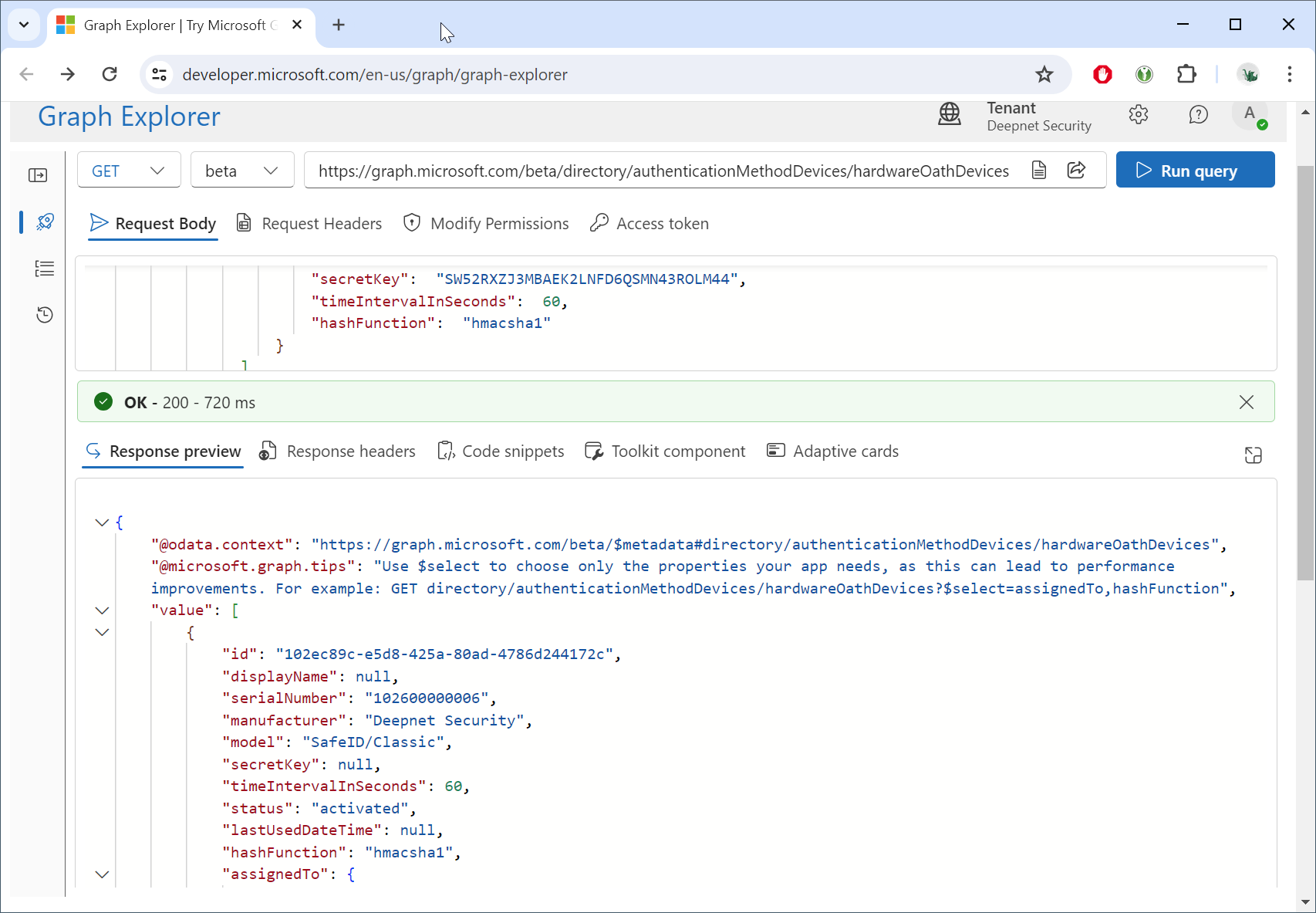
You can scroll down to find the tokens that you have just uploaded, e.g. "serialNumber": "70029370",
You can now give the tokens to your users and ask them to self-enroll their tokens in Entra ID
Navigate to: Security Info
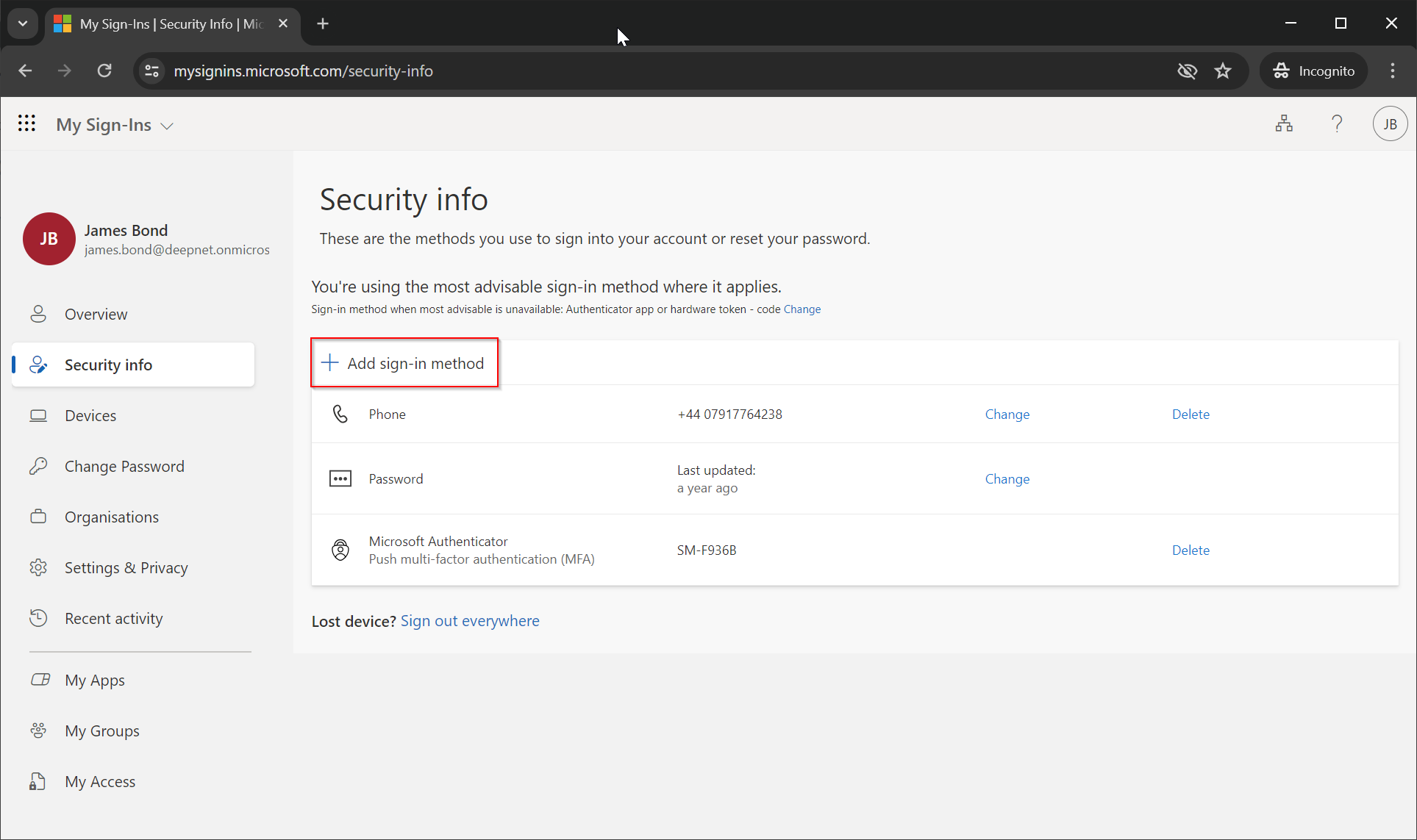
Click "Add sign-in method"
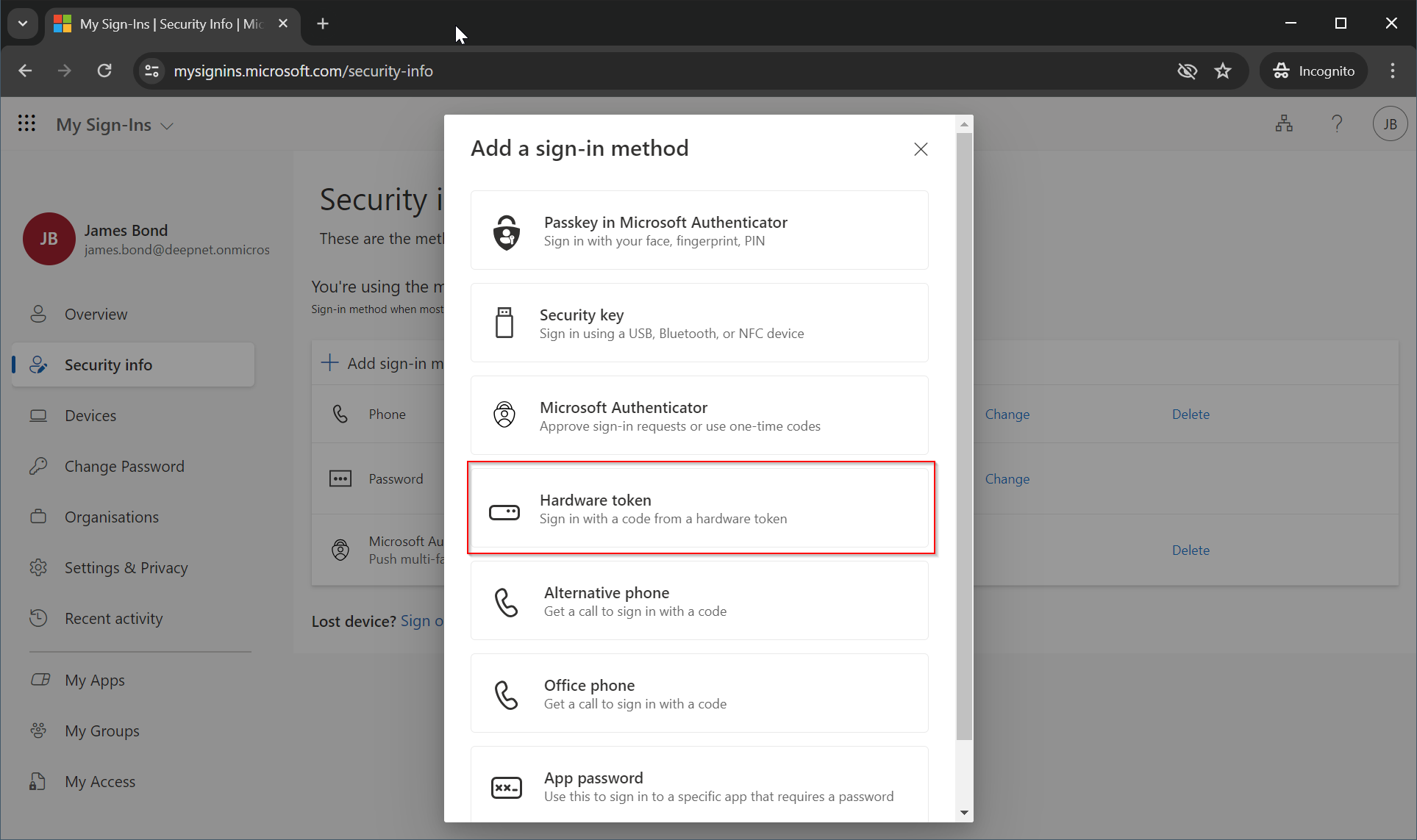
Select the "Hardware token" method from the available options.
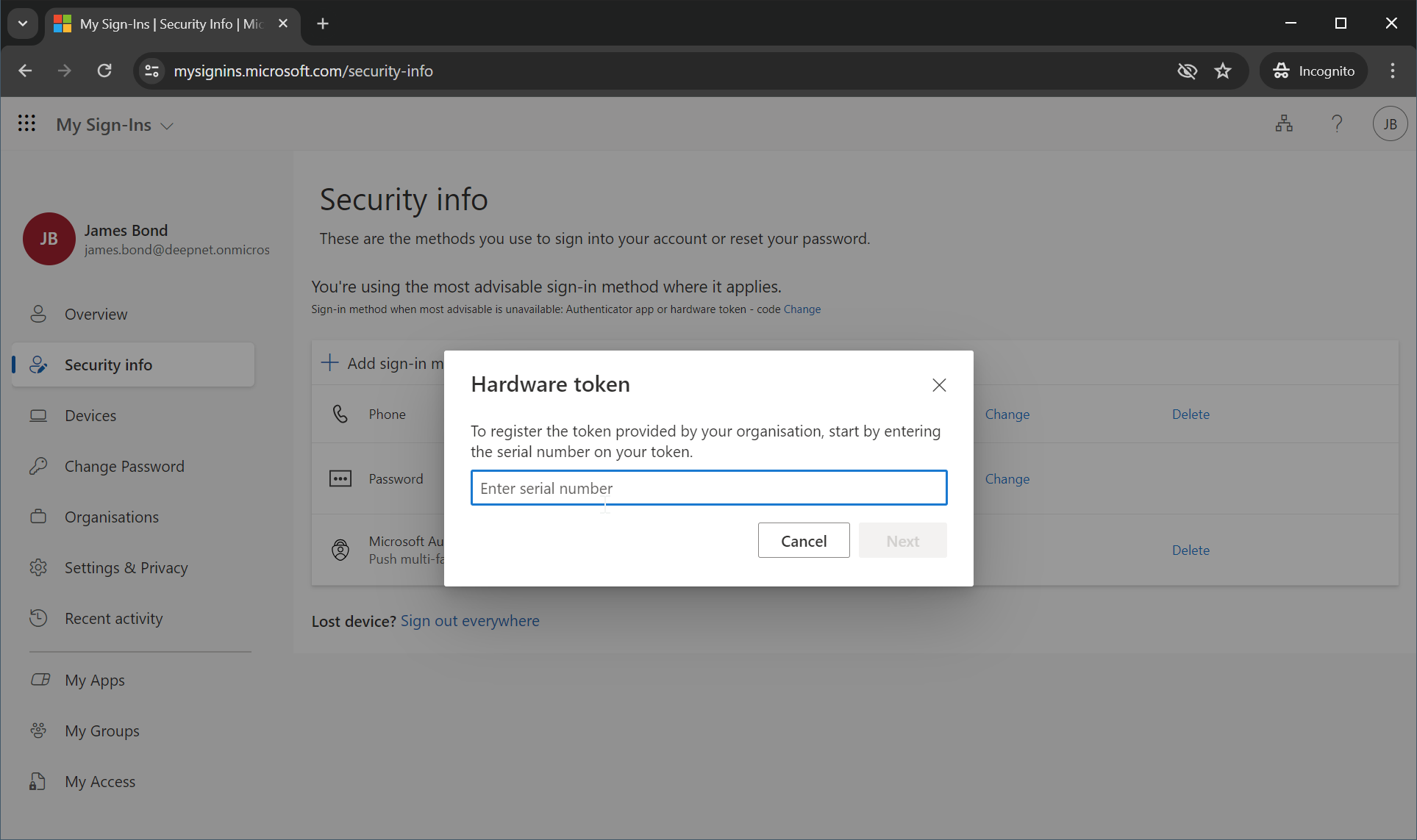
The user will be prompted to enter the serial number of the hardware token.
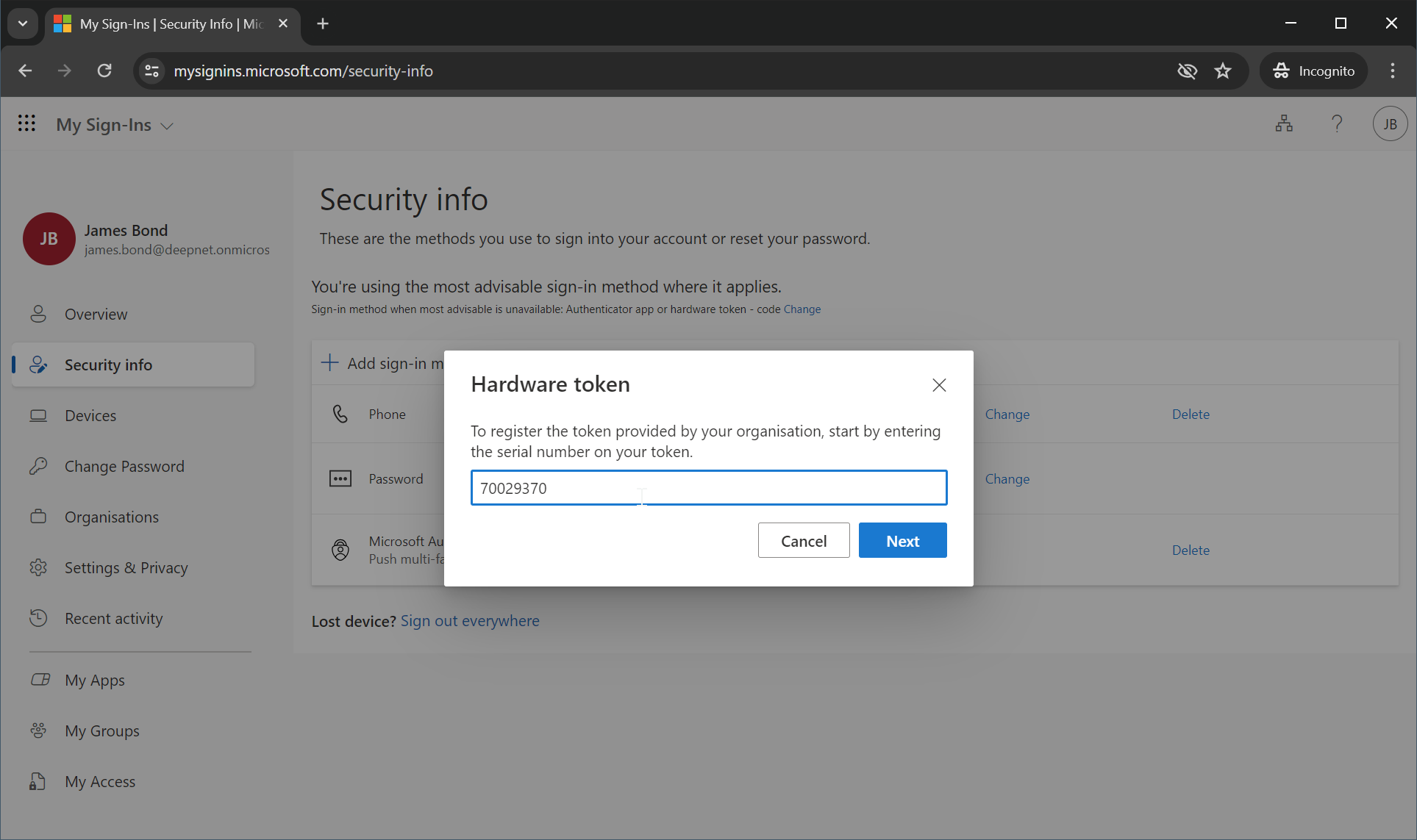
Enter the token's serial number, e.g. 70029370
Click "Next"
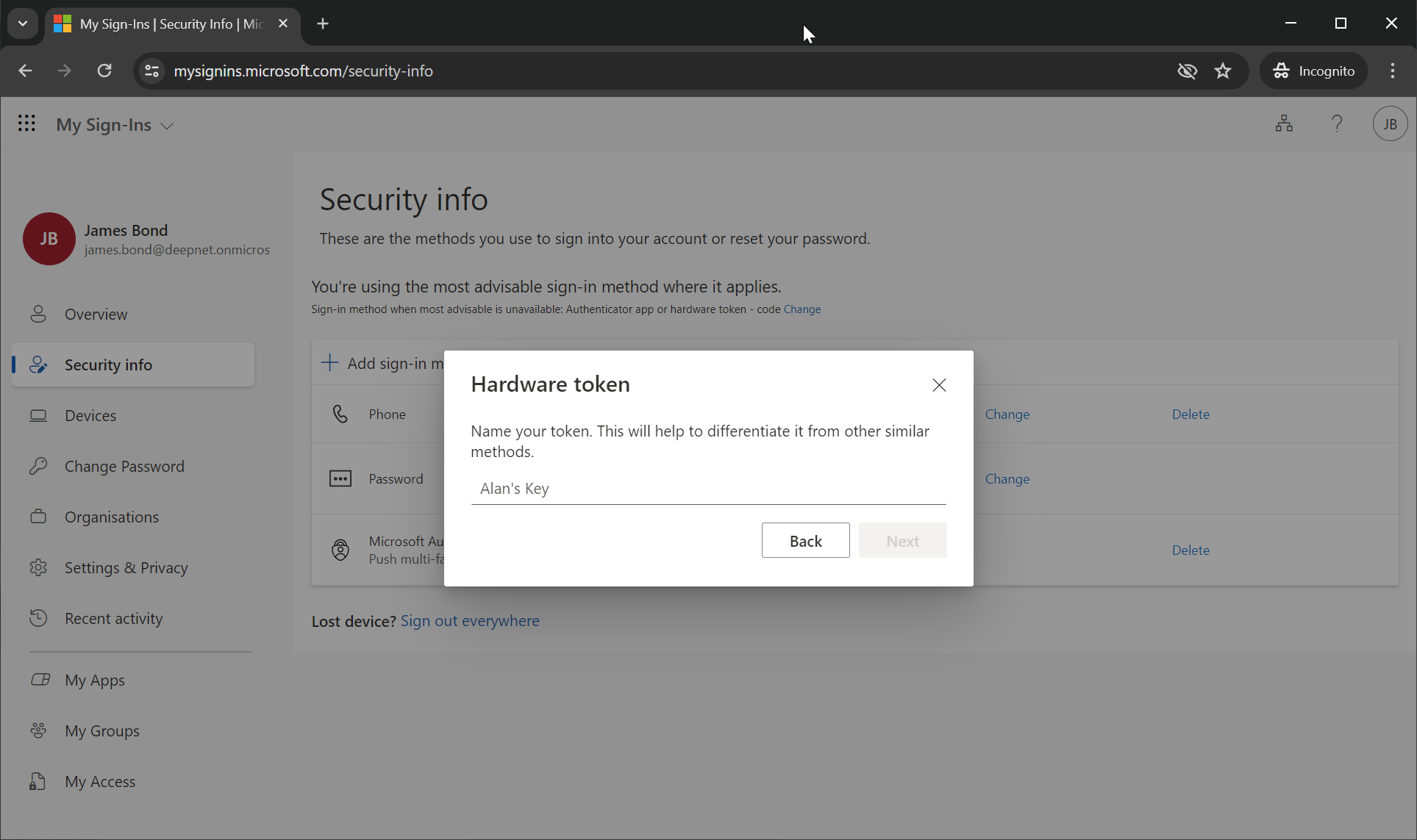
The user is now prompted to enter the name of the hardware token.
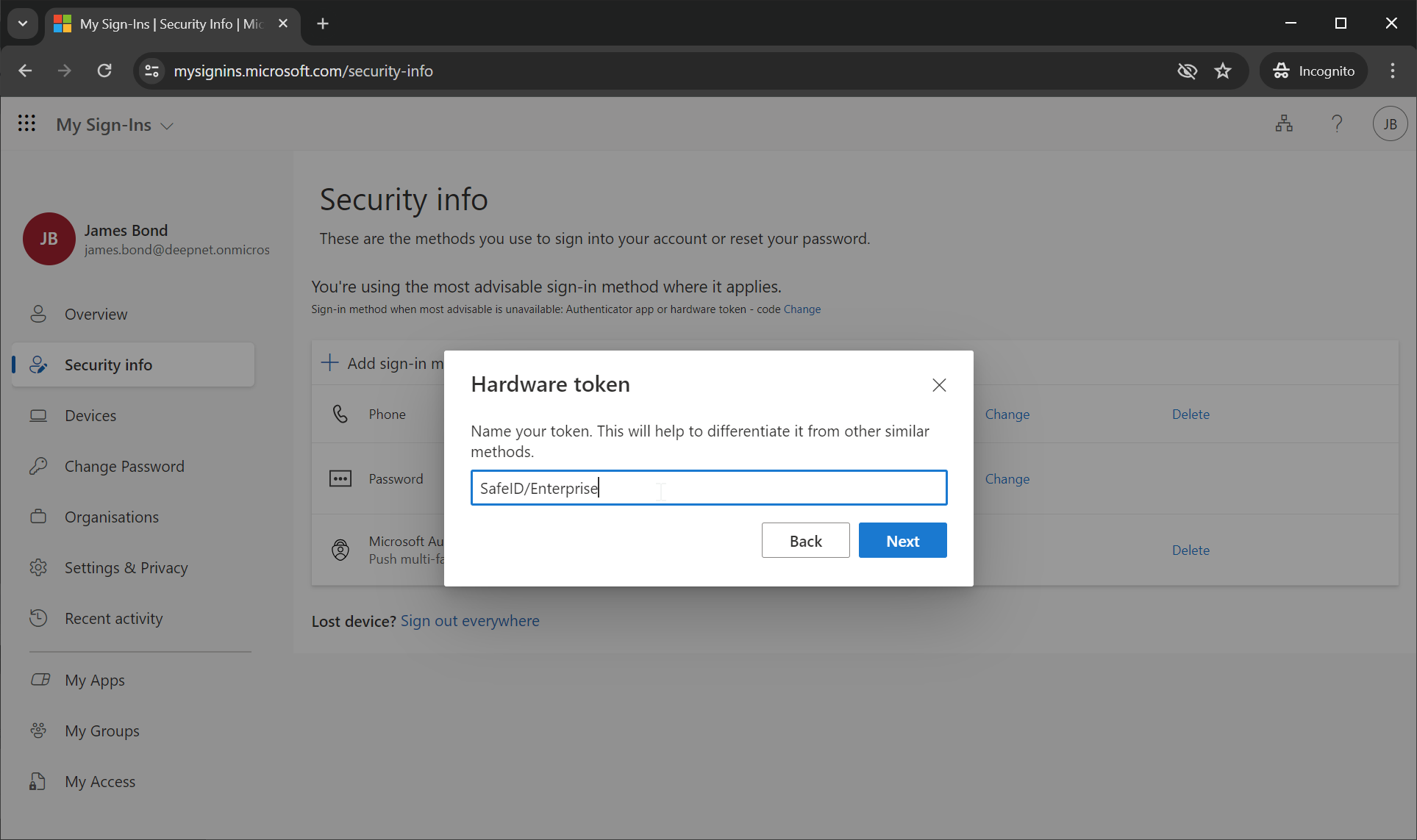
Enter the token's name, e.g. SafeID/Enterprise
Click "Next"
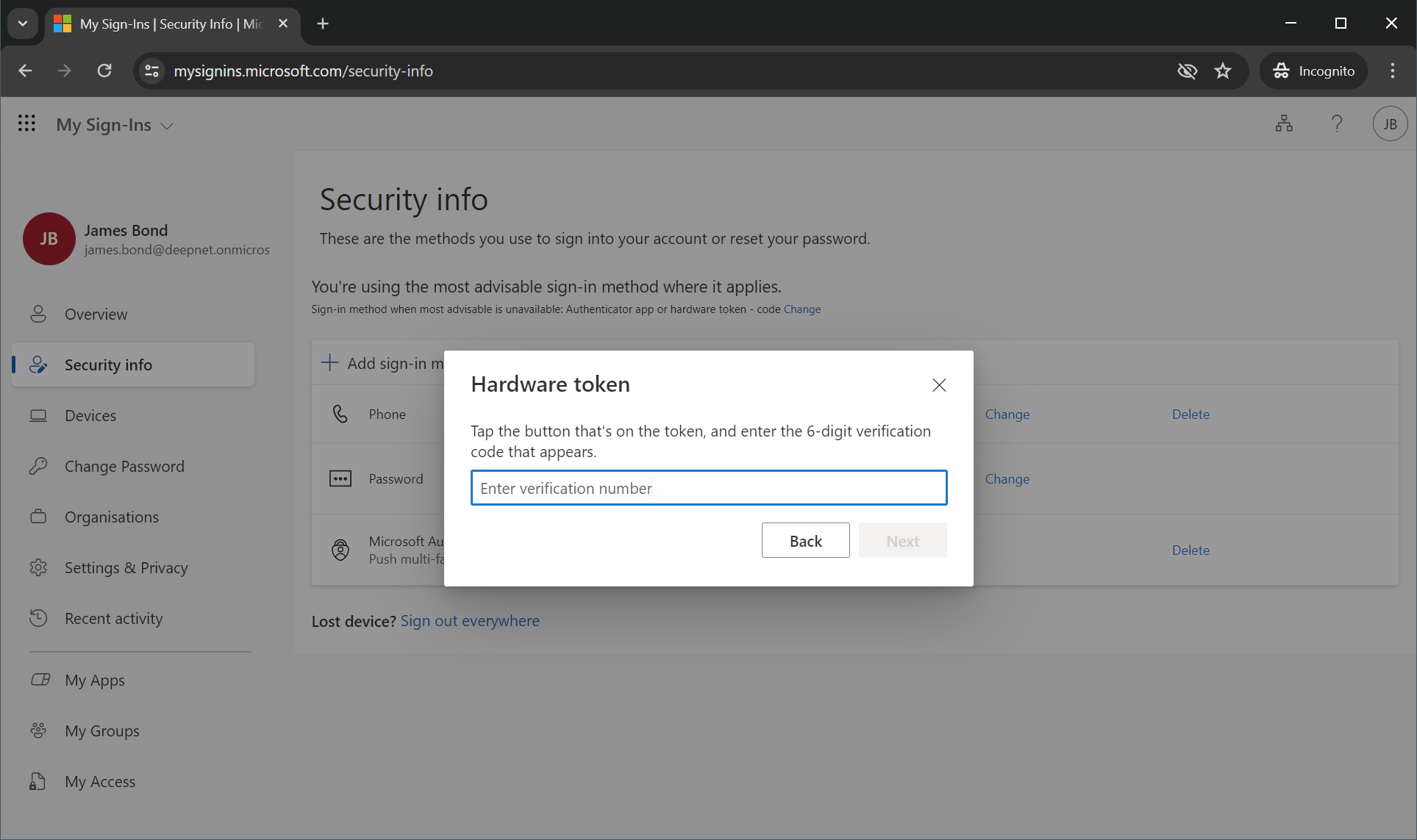
The user is now prompted to enter a verification code generated from the hardware token.
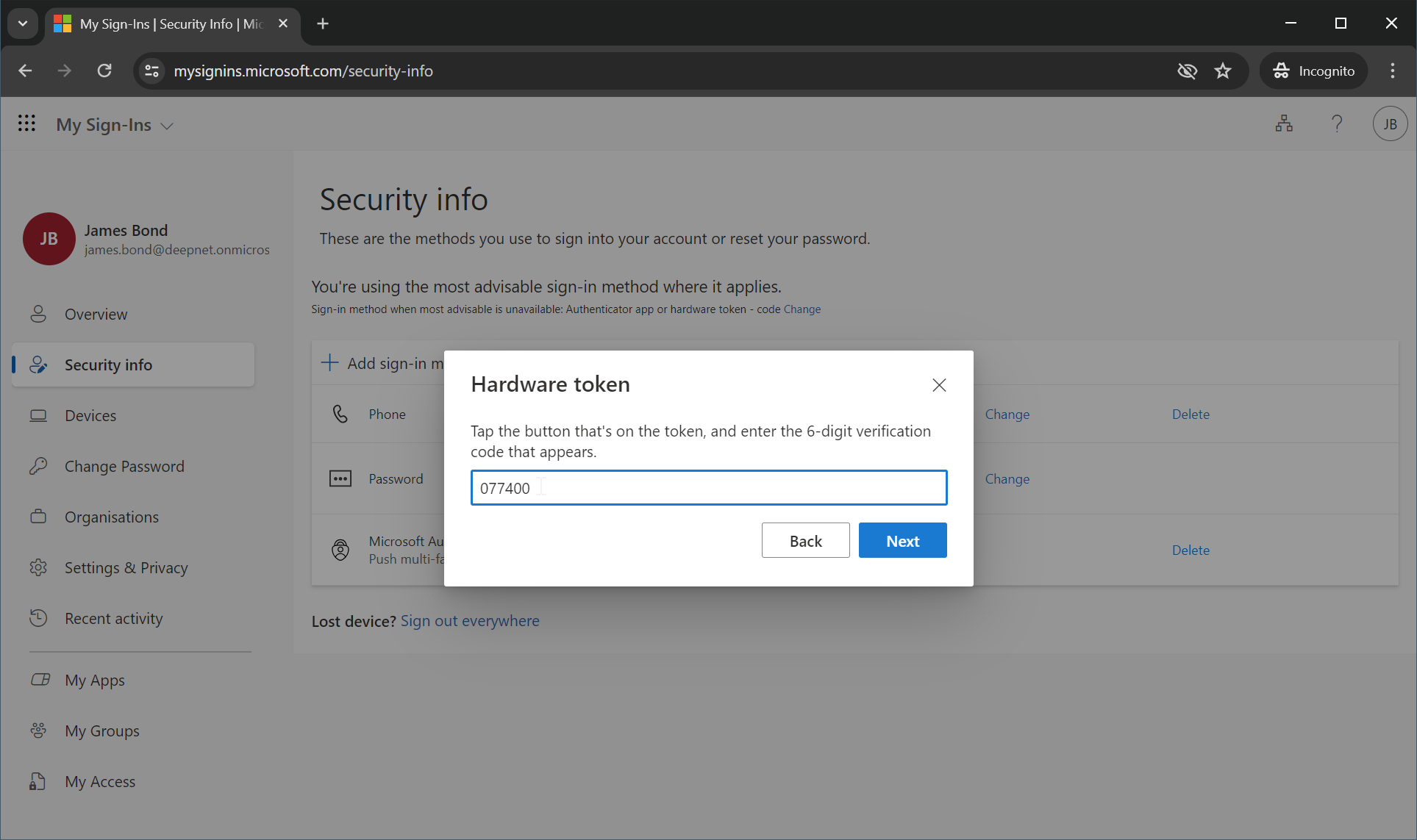
Enter the code generated from the hardware token, e.g. 077400
Click "Next"
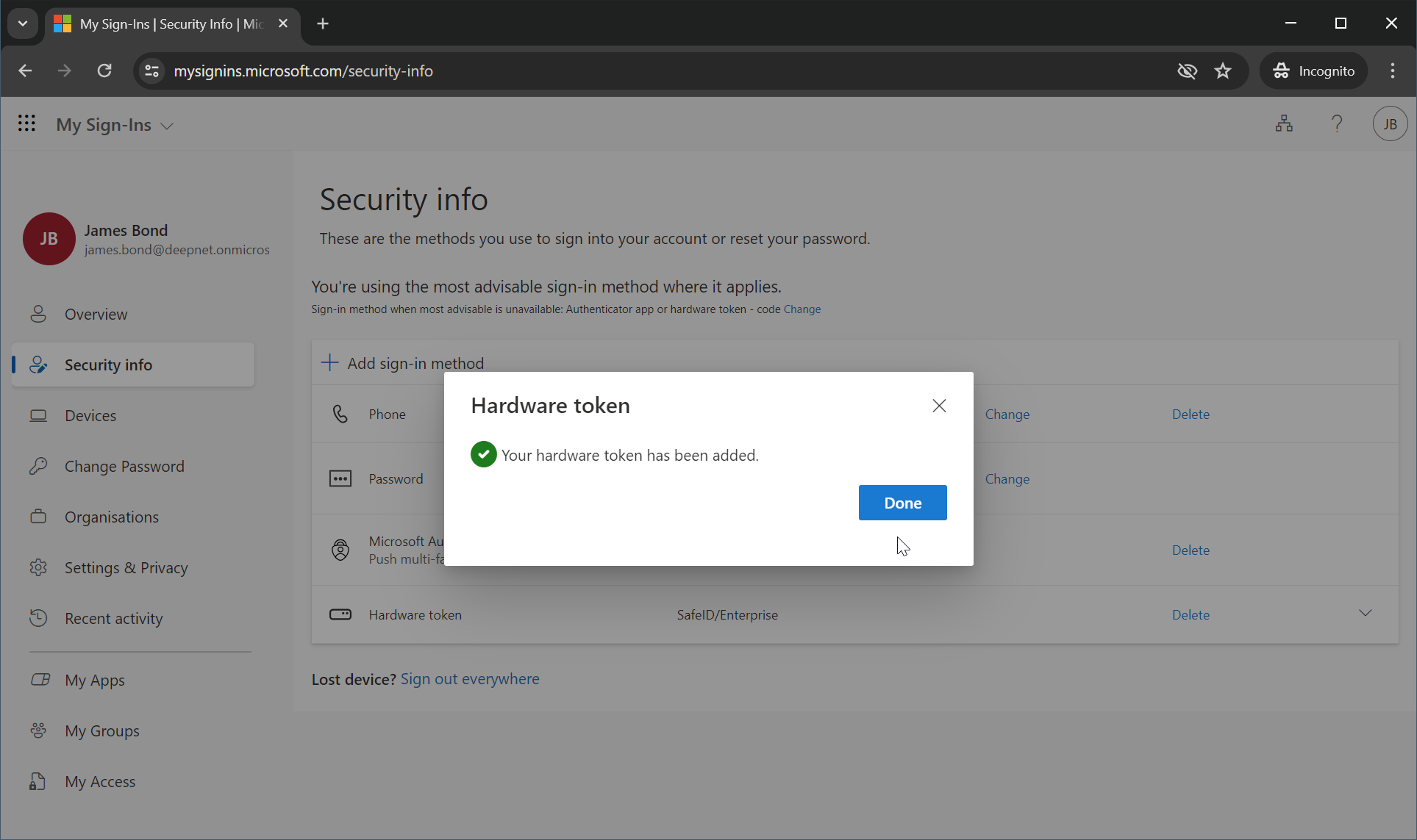
If the code entered is correct, the hardware token has been successfully added to the user's account.
Click "Done"
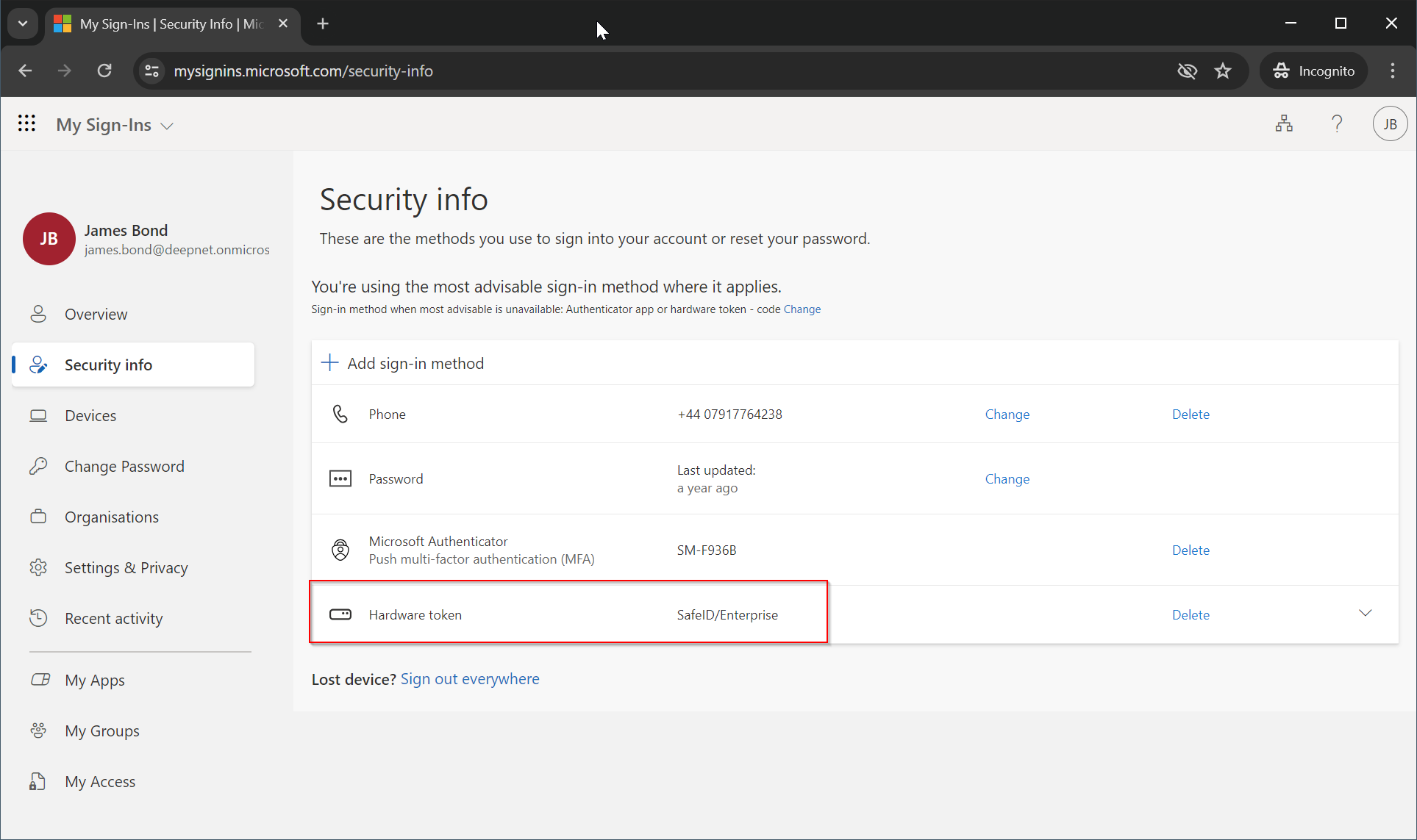
The hardware token is now ready to be used for verifying the user at the next login.