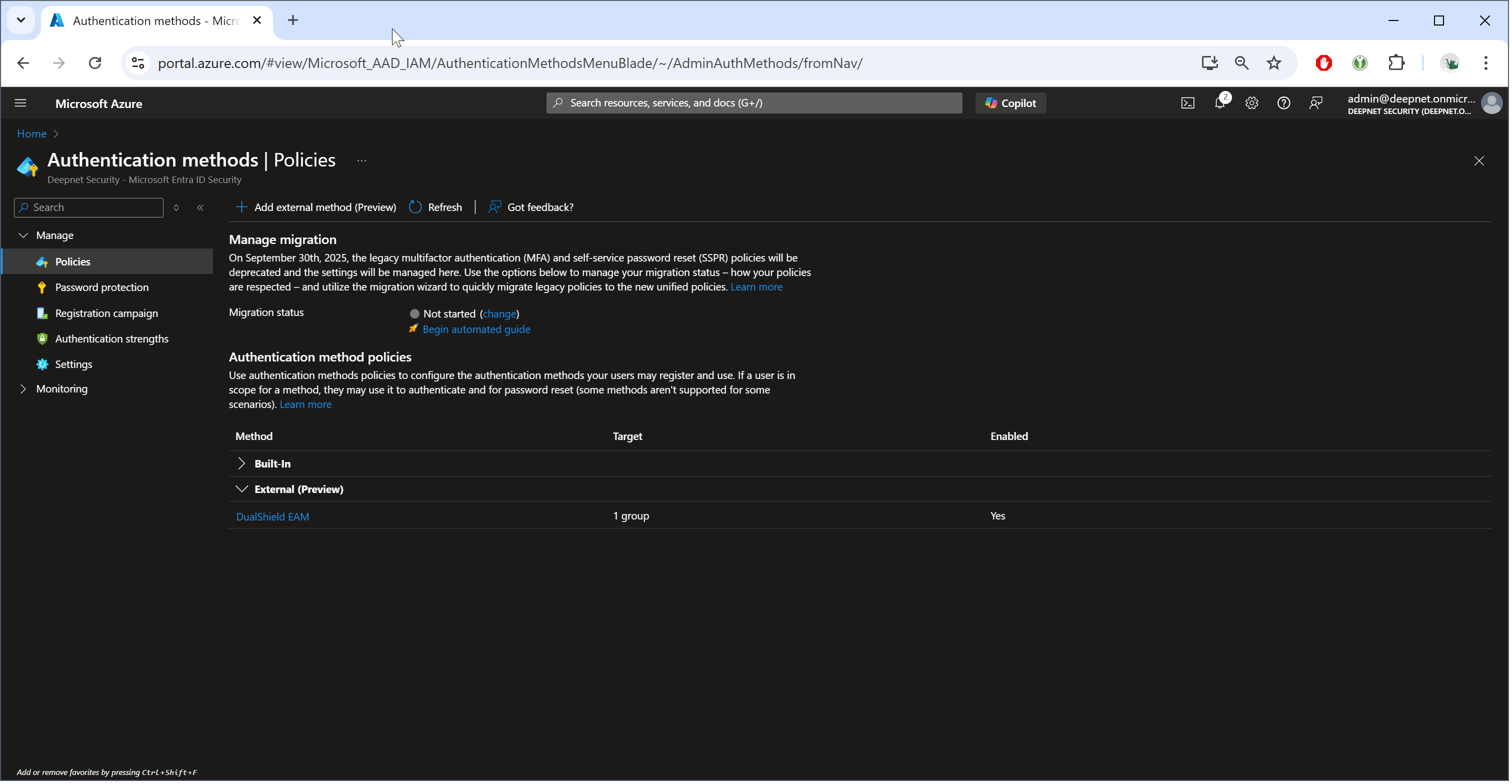
In Entra ID, navigate to "Authentication methods | Policies
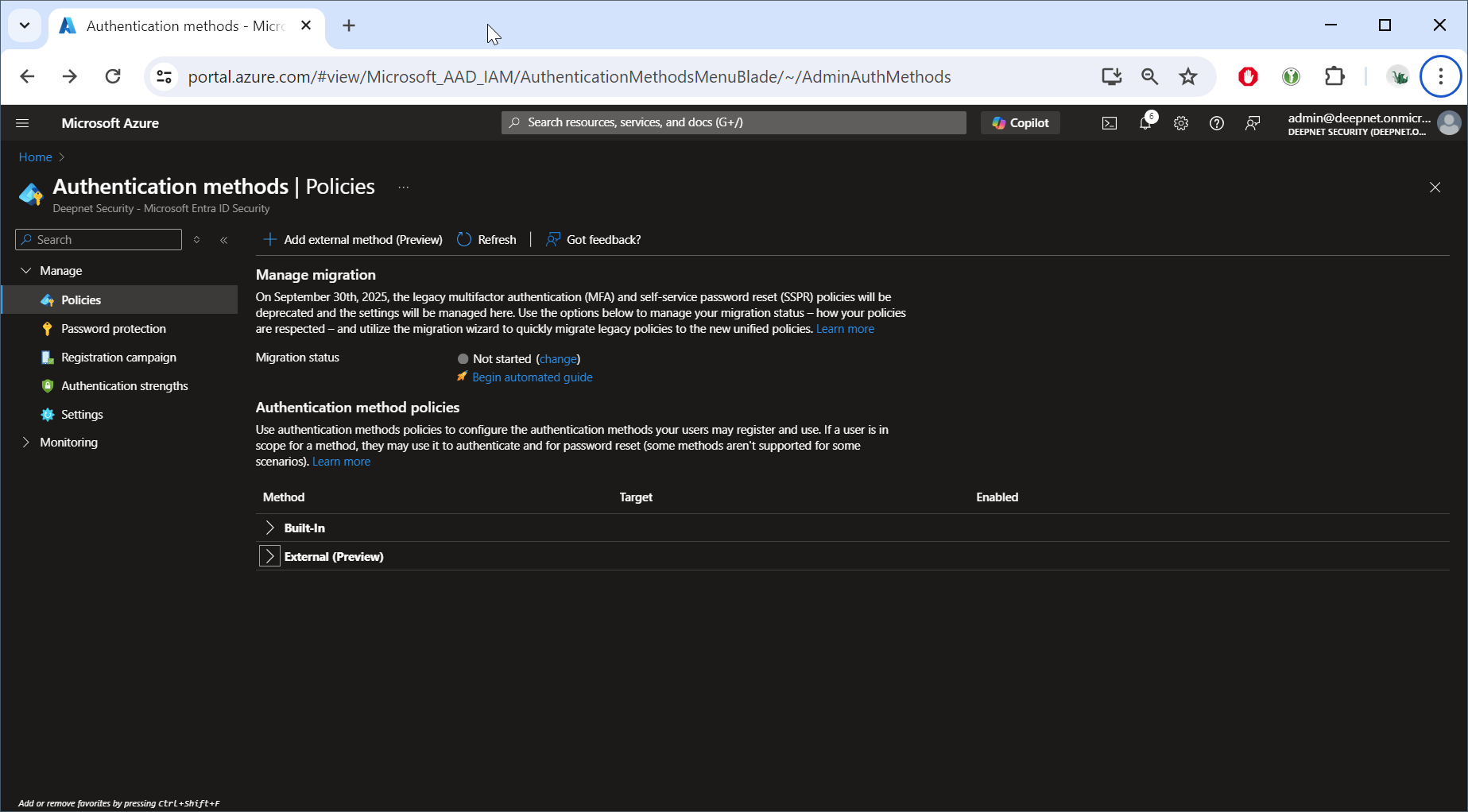
Click "Add external method (Preview)"
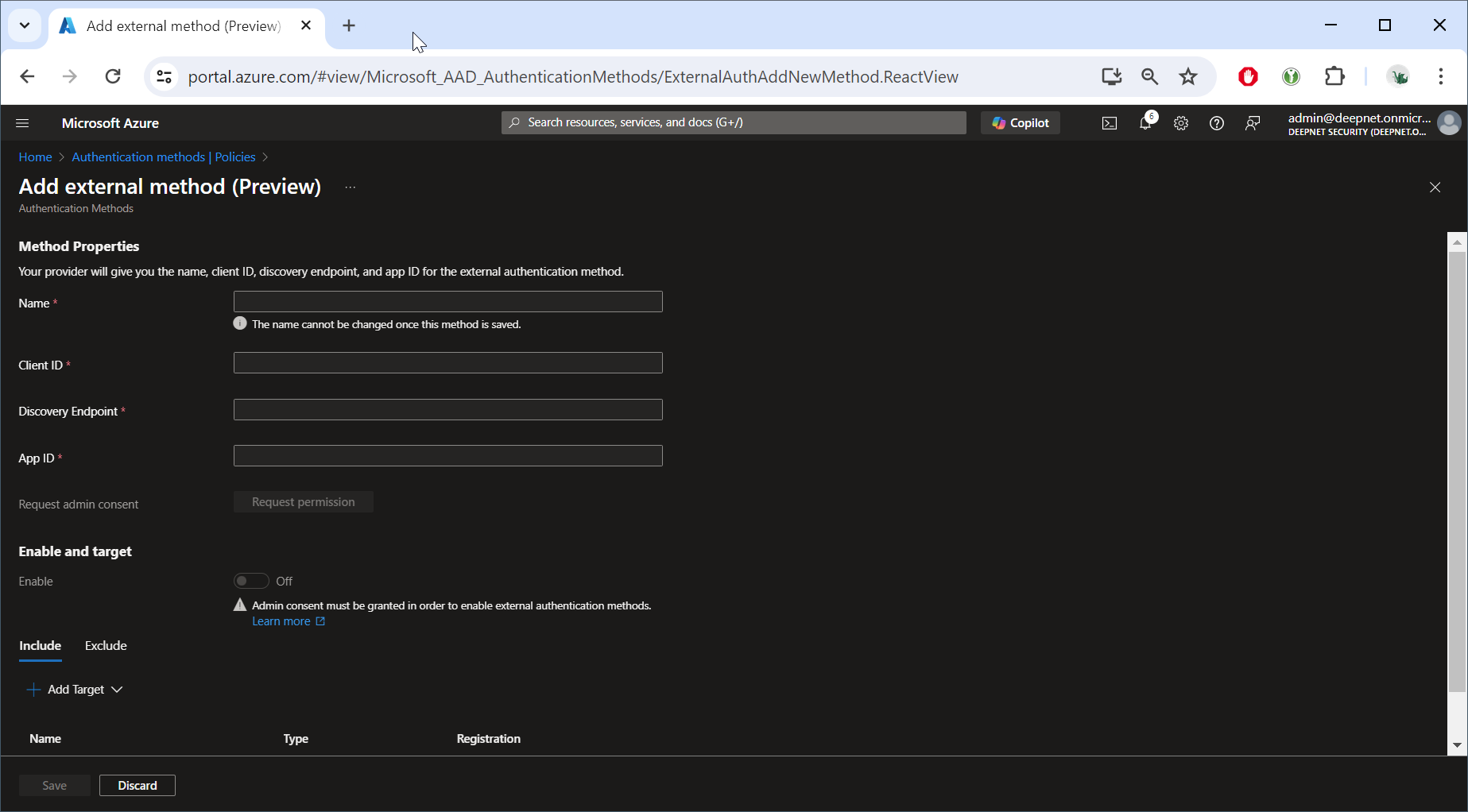
| Field | Value |
|---|---|
| Name | name of the new external authentication method, e.g. "DualShield (EAM)" |
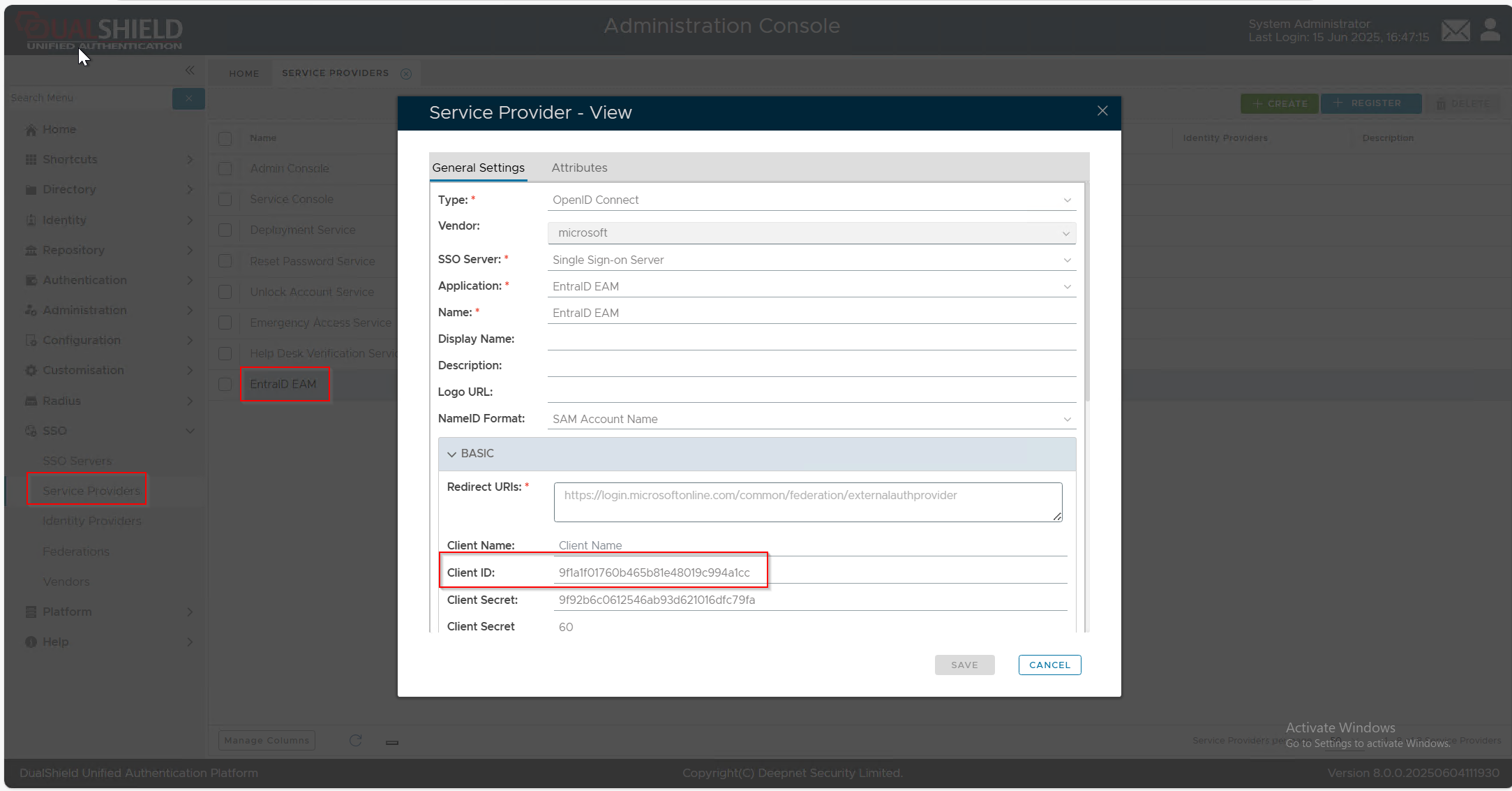
| Client ID | The Client ID of the service provider created in your DualShield server for EAM integration, e.g. "Entra ID EAM"
|
| Discovery Endpoint | https://Your-DualShield-SSO-Server-FQDN/sso/v1/authc/oauth/.well-known/openid-configuration |
| App ID | The Application ID of the enterprise application created in your Entra ID tenant for EAM integration, e.g. "DualShield EAM"
|

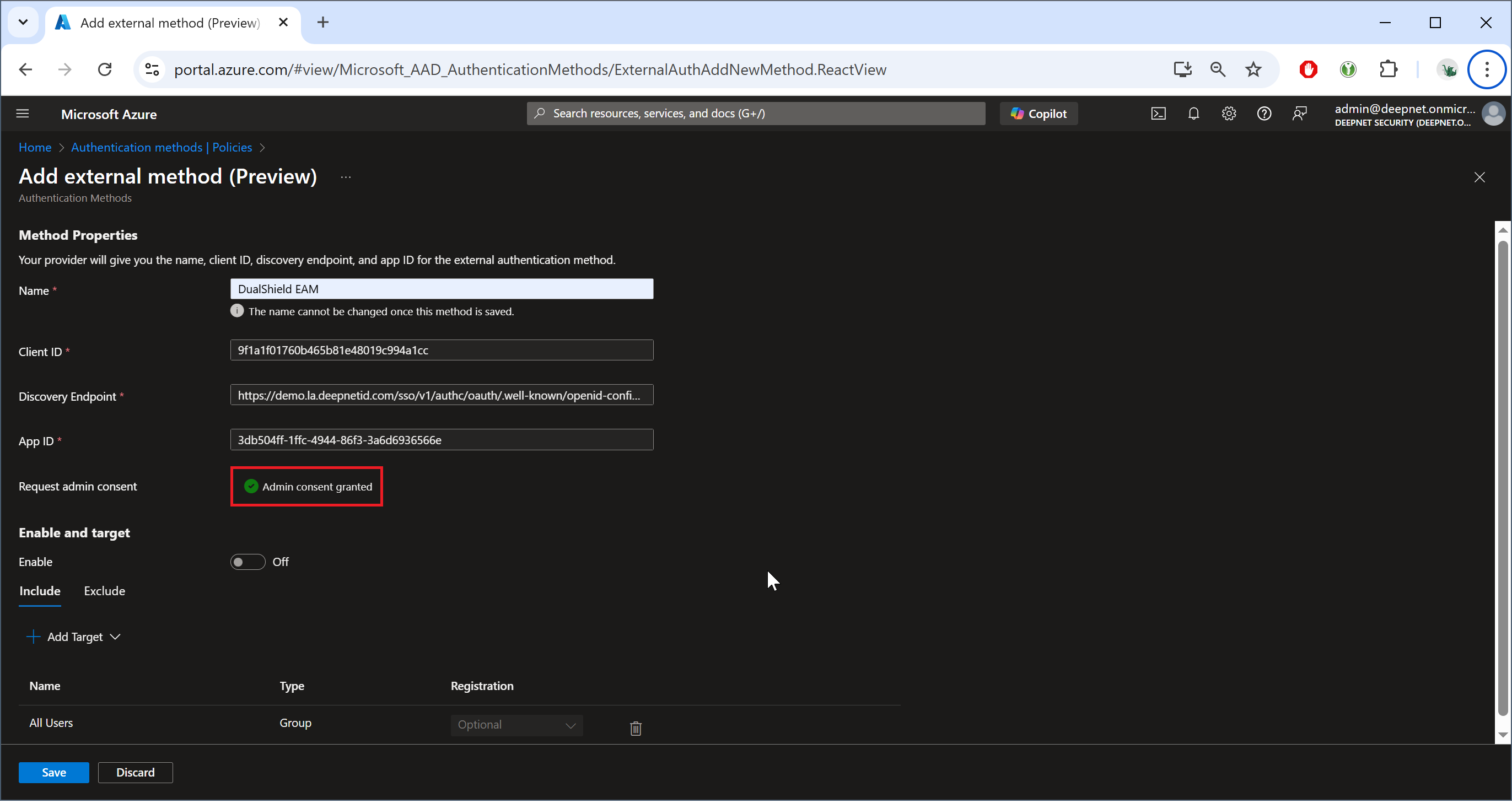
Next, click the button "Request permission"
A browser window will pop up and ask you to select an account.
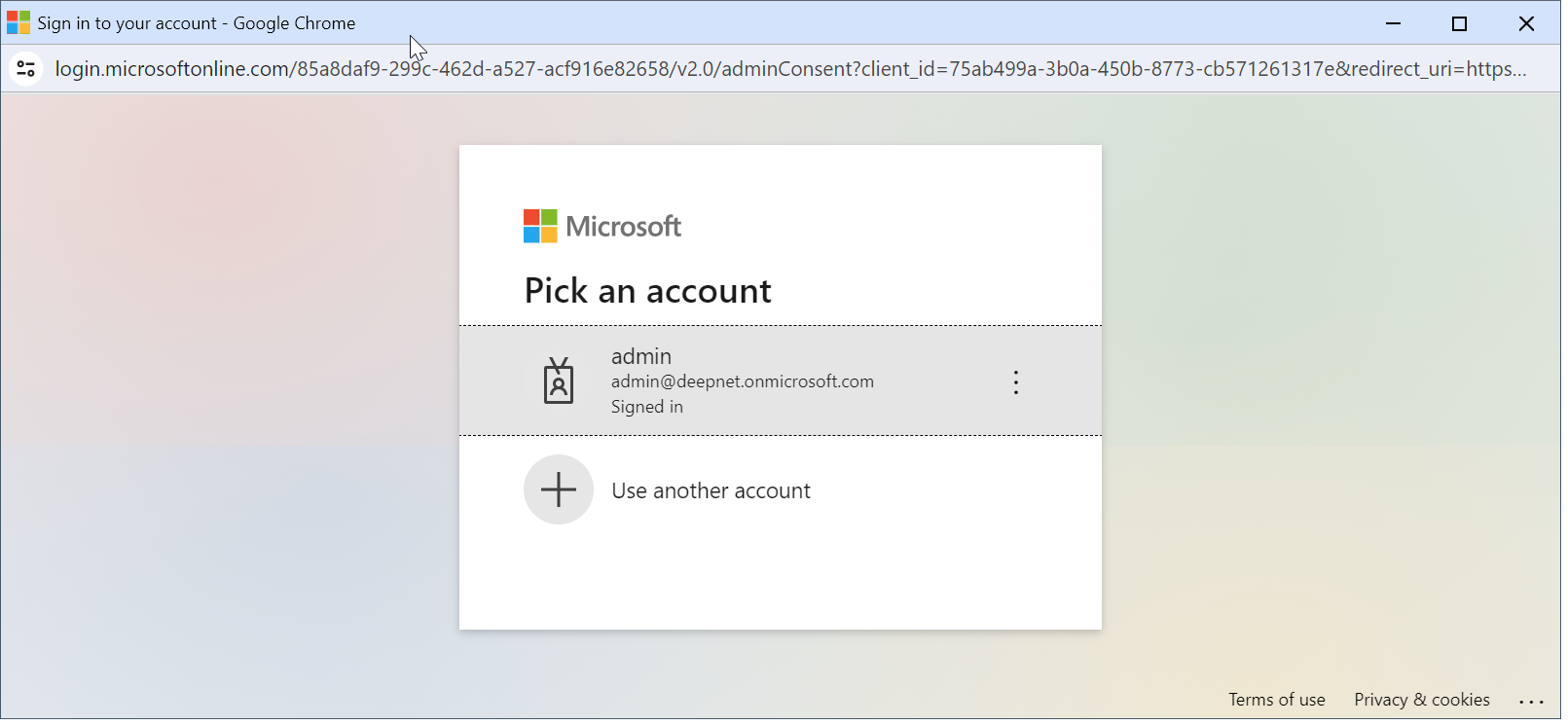
Please select an admin account for your Entra tenant.
The Microsoft "Permission requested" window will be prompted:
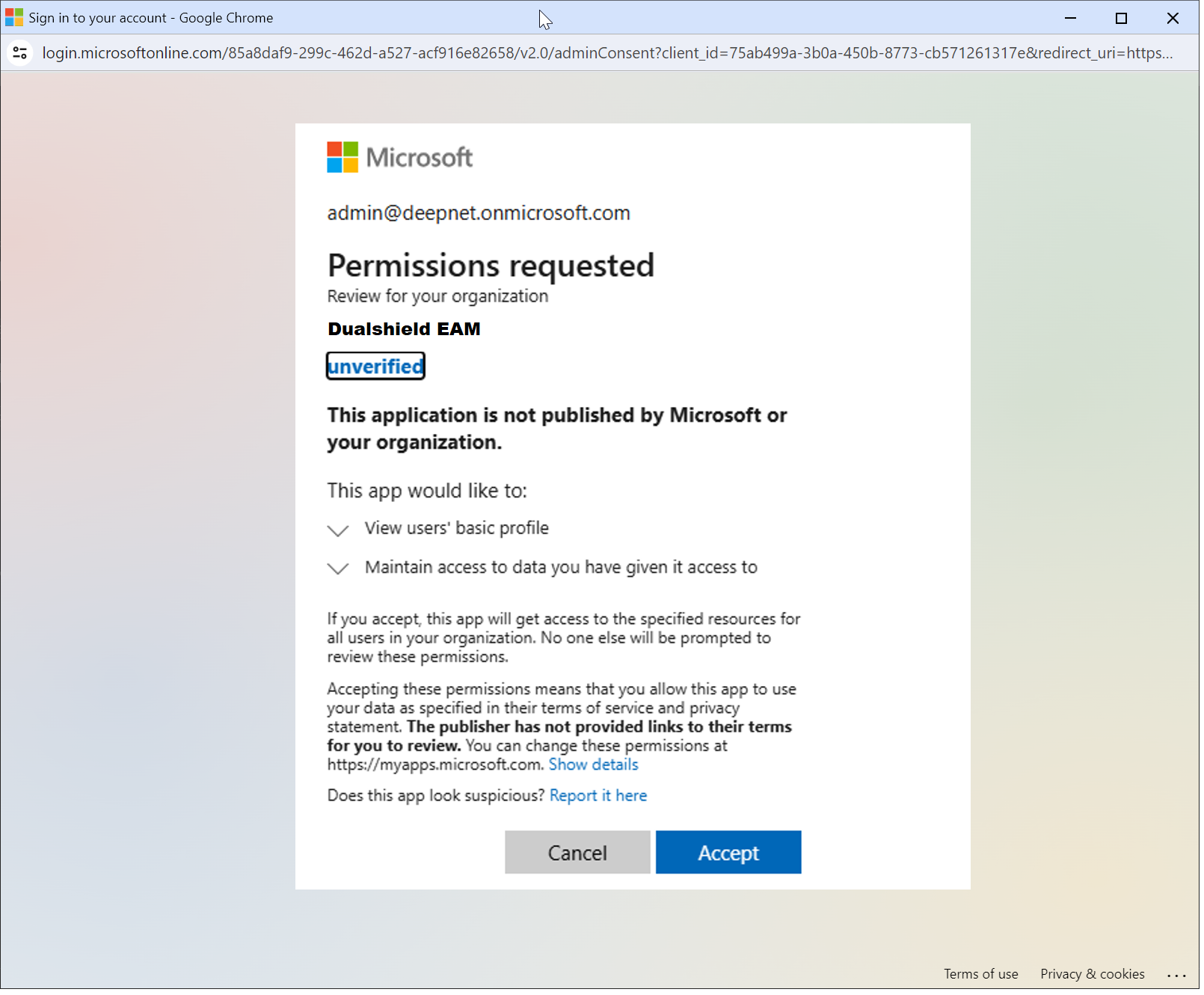
Click "Accept"
You should now see "Admin consent granted"
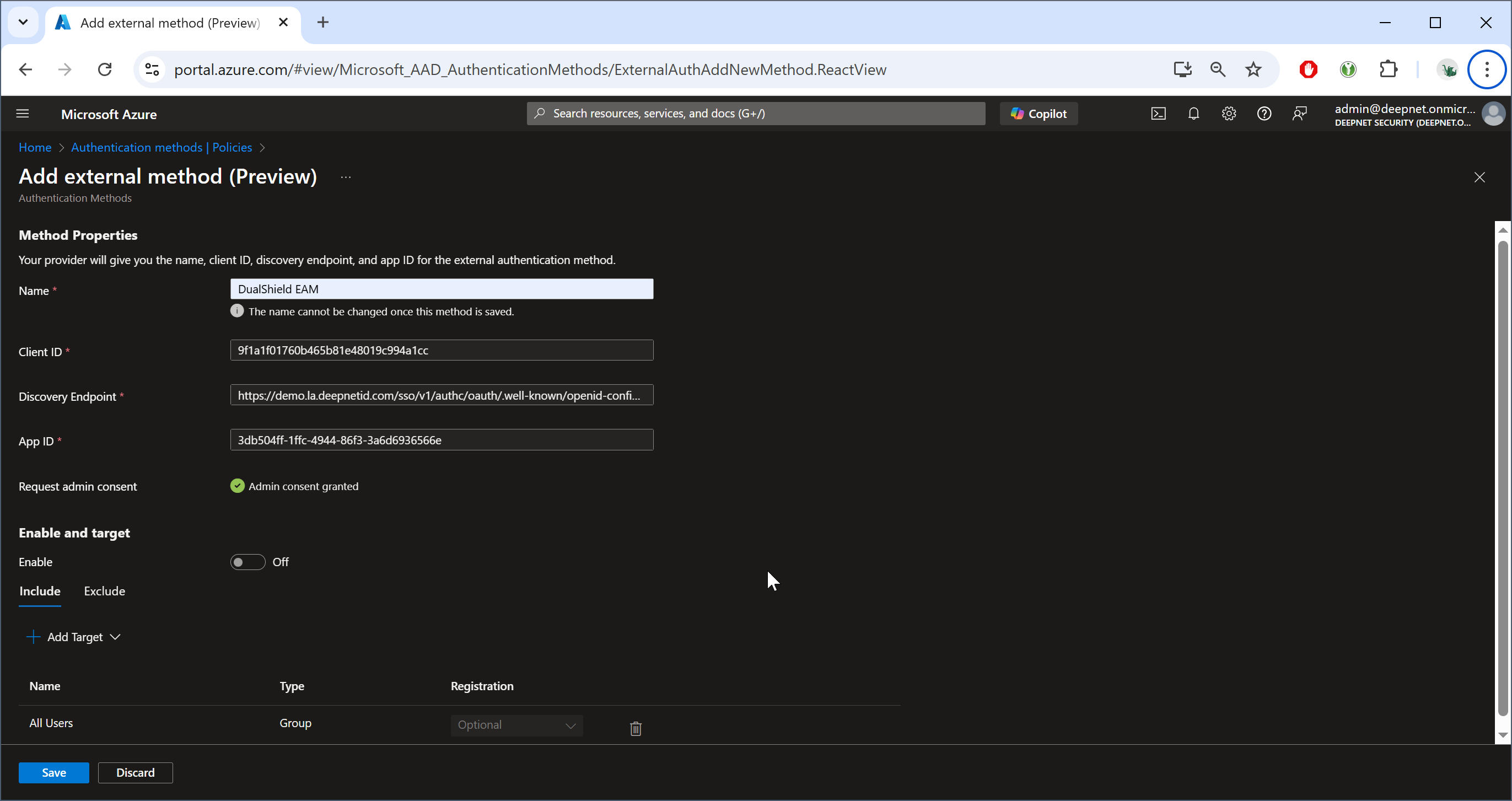
Now, enable the option: "Enable and target"
Click "Add Target"
Add the group that you have created for EAM, e.g. "DualShsield EAM"
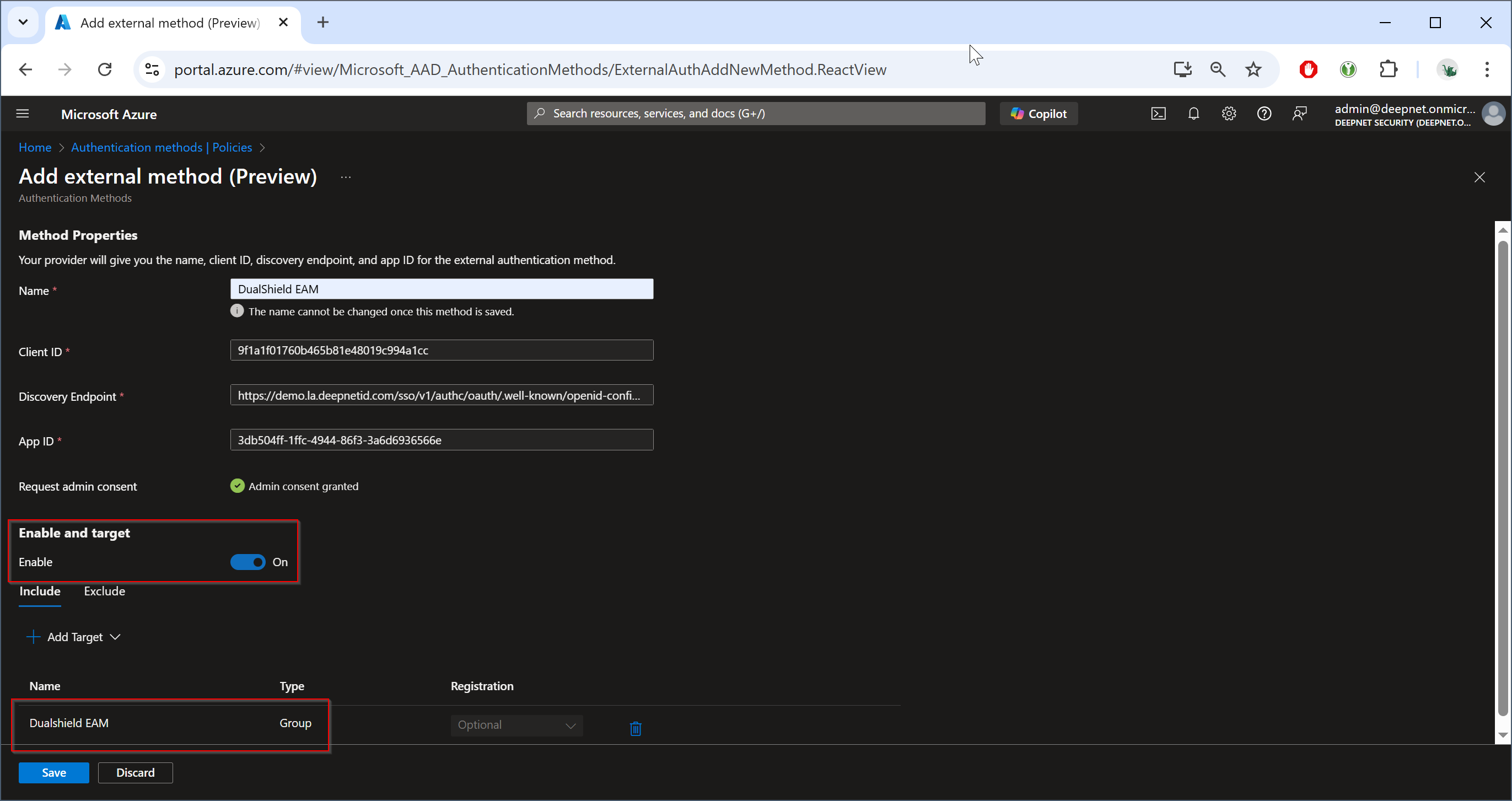
Click "SAVE"