Take the following steps tp prepare the installation files
Step 1: Download the off-the-shelf installer package
Download the off-the-shelf installer package and unzip it to a local folder on your PC, e.g. "D:\Software\CLO for Entra ID\Custom Package"
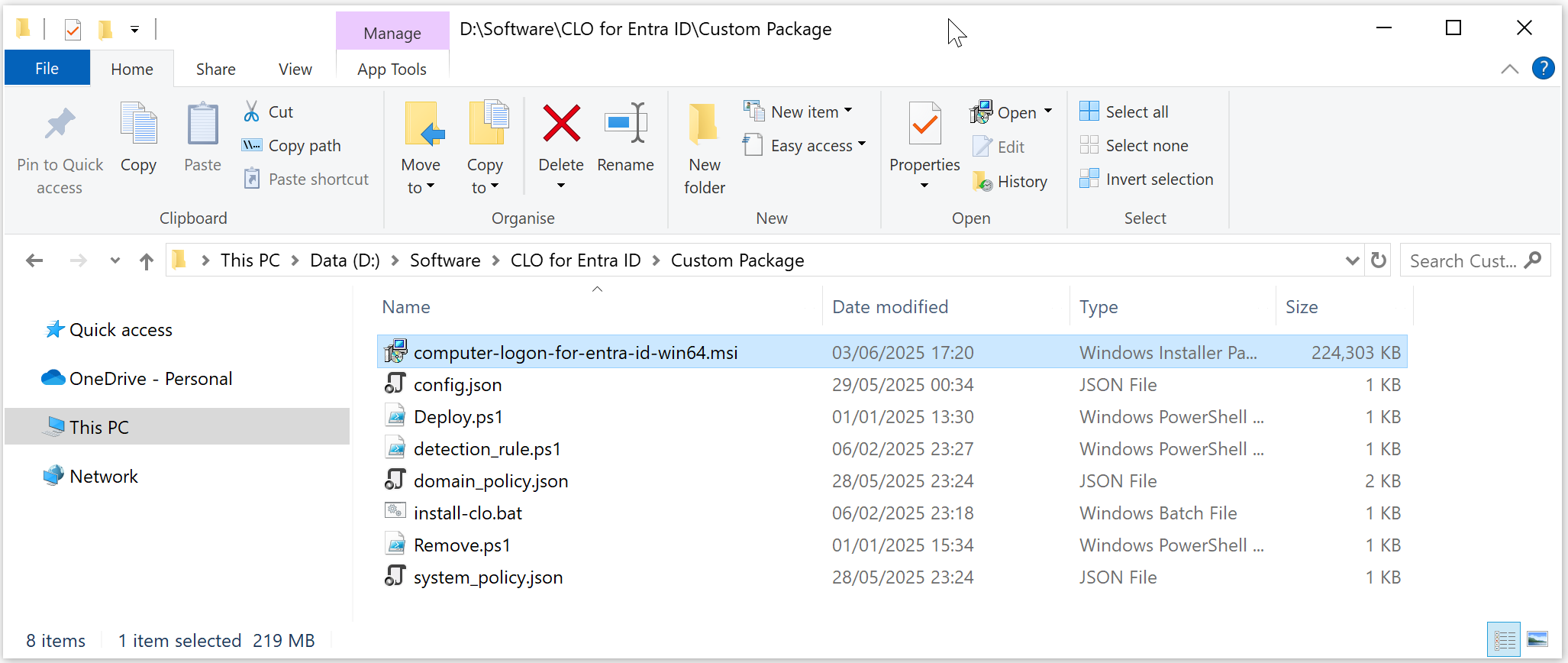
The package contains the following files:
FILE | Description |
|---|---|
| computer-logon-for-entra-id-win64.msi | Agent installer |
config.json | Configuration file |
| domain_policy.json | Domain policy file |
| system_policy.json | System policy file |
| install-clo.bat | Batch commands for custom installation |
| deploy.ps1 | Power Shell commands for Intune deployment |
| remove.ps1 | Power Shell commands for Intune deployment |
| detection_rule.ps1 | Power Shell commands for Intune deployment |
Step 2: Customise the configuration file
The Deepnet Computer Logon Agent for Entra ID requires a custom configuration file in order to function correctly for the users. You must customise the configuration file with your own data.
Open the config.json in a text editor, such as Notepad

If the application you set up for Computer Logon with MFA supports single tenant
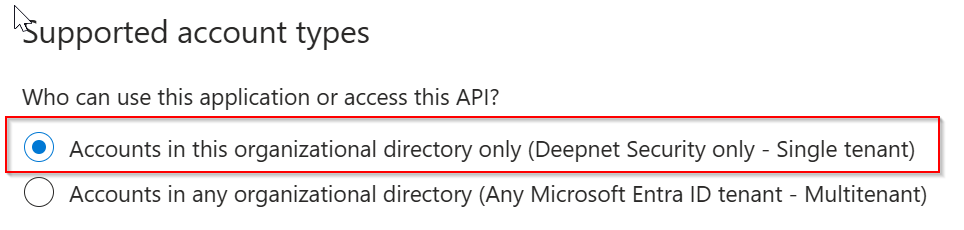
then, replace "YOUR-TENANT-ID" in the configuration file with your Tenant ID in the Entra ID.
However, if the application you set up for Computer Logon with MFA supports multitenant
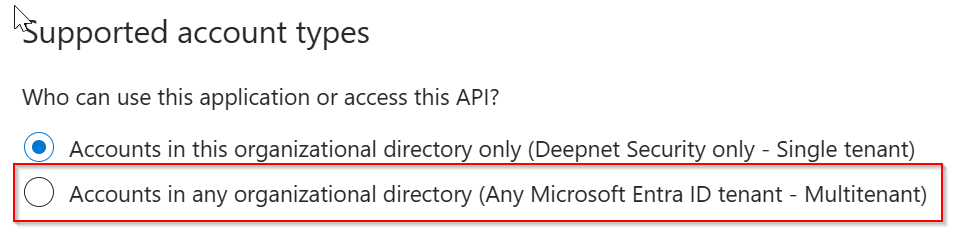
then, replace "YOUR-TENANT-ID" in the configuration file with the word "common"
Now, replace "YOUR-CLIENT-ID" with the "application (client) ID"
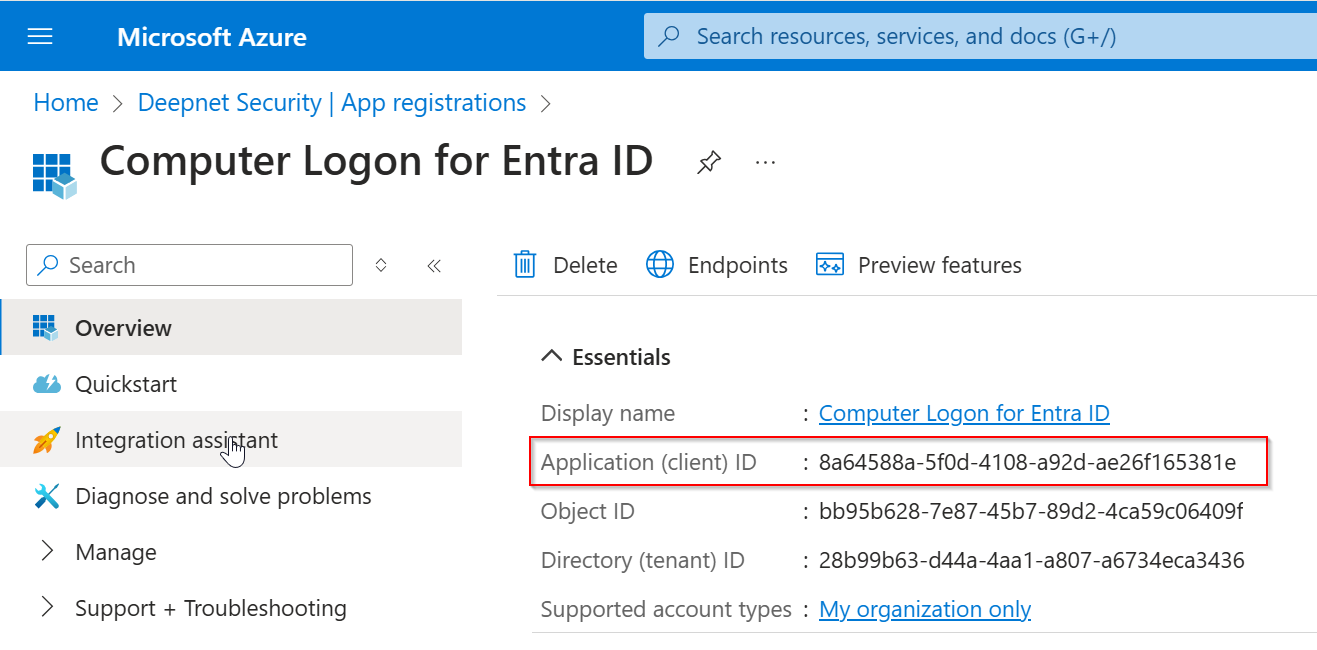
Save the configuration file.

Step 3: Customise the domain policy
Computer Logon for Entra ID supports many MFA scenarios, including
- MFA for both Entra ID (Azure AD) domain users and local users.
- MFA at bootup login, screen unlock, and elevated access
- MFA when PC is online & offline
For each scenario, it provides a separate set of options that allow you to control whether or not MFA is required, and the frequency of MFA requirement etc.
Those options are in the "domain_policy.json" file.
Options for Local Users
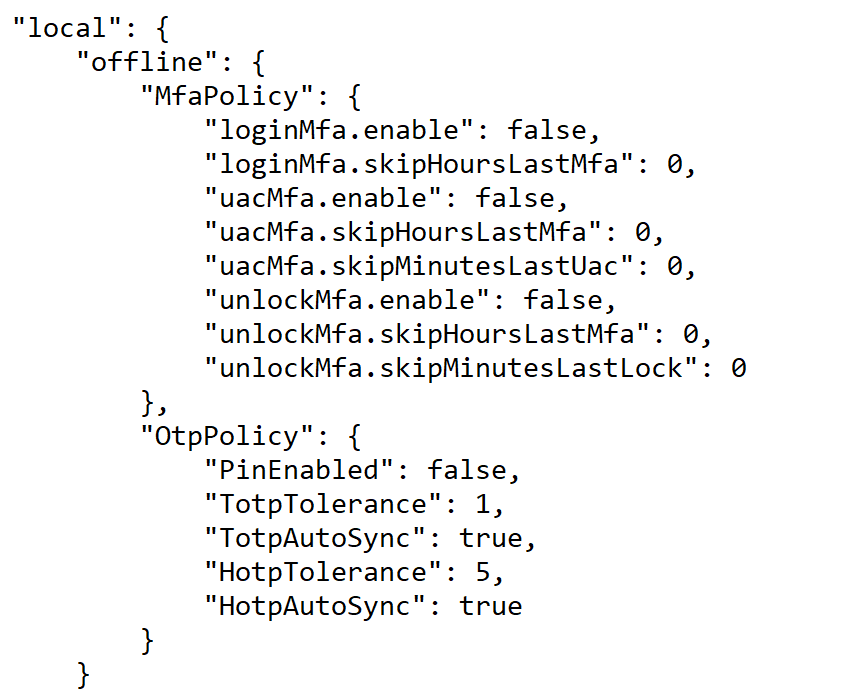
| online | offline | |
|---|---|---|
| bootup login | local\offline\MfaPolicy\loginMfa | |
| screen unlock | local\offline\MfaPolicy\unlockMfa | |
| elevated access | local\offline\MfaPolicy\uacMfa |
Options for Domain Users
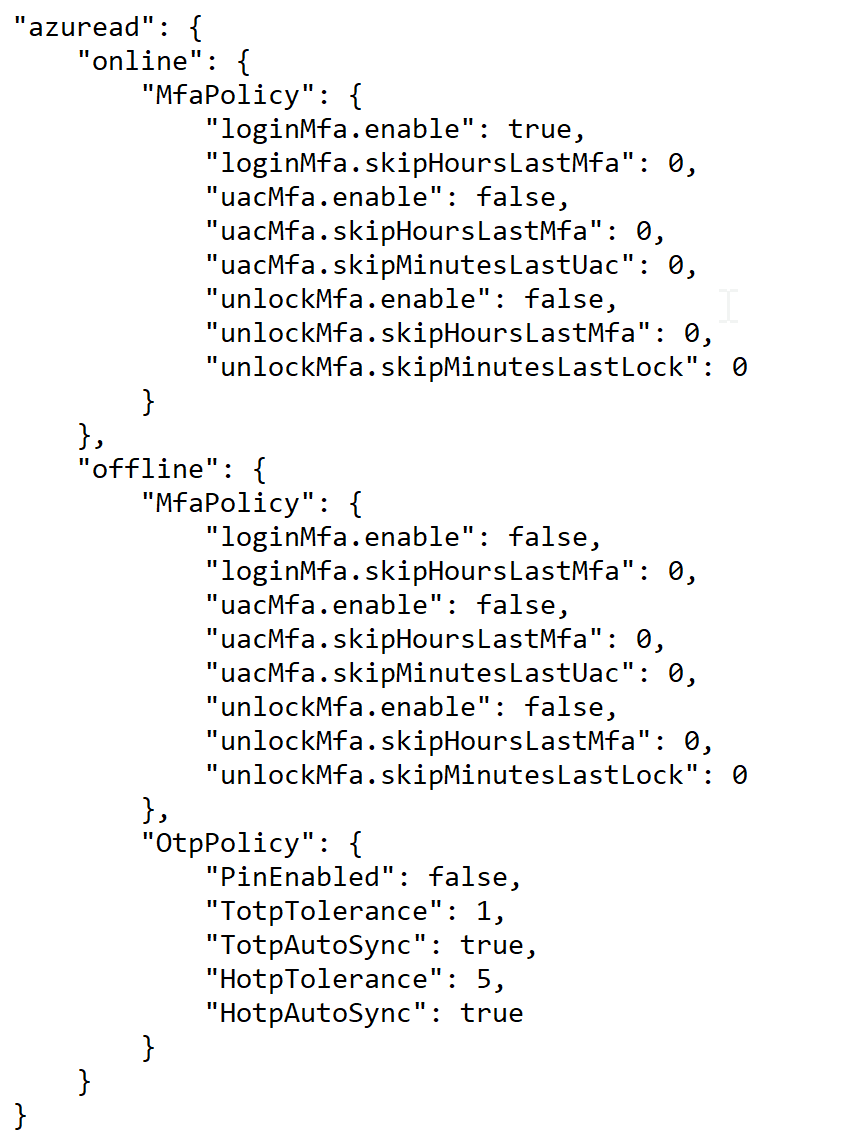
| online | offline | |
|---|---|---|
| bootup login | azuread\online\MfaPolicy\loginMfa | azuread\offline\MfaPolicy\loginMfa |
| screen unlock | azuread\online\MfaPolicy\unlockMfa | azuread\offline\MfaPolicy\unlockMfa |
| elevated access | azuread\online\MfaPolicy\uacMfa | azuread\offline\MfaPolicy\uacMfa |
If you wish to customise some of those options, then you need to edit the "domain_policy.json" file in a text editor and change the corresponding options.
For instances
- if you want to enforce MFA for Azure AD domain users when PC is online on screen unlock, then you need to set the option "azuread\online\MfaPolicy\unlockMfa" to "true"
- if you want to enforce MFA for local users when PC is online on screen unlock, then you need to set the option "local\online\MfaPolicy\unlockMfa" to "true"