Introduction
DualShield 5.5 introduced a new type of logon procedure called ICE (which stands for "In Case of Emergency").
ICE logon procedure generally has emergency code in its logon step, which enables your users to use emergency code.
As its name implies, ICE is a Logon Procedure that can be used in emergency situations (such as a user has lost or forgot to bring their tokens).
DualShield protects applications using Logon Procedures, and there is normally only a single logon procedure for each application.
There is however a feature that can be enabled that allows a secondary logon procedure to be used, and this feature is called "In Case of Emergency" (or ICE for short).
What does it do ?
Ice inserts an icon into the logon page of the protected application that provides the user with an optional alternative logon procedure ((the procedure is selected by clicking on the icon).
If the icon is ignored, then the users logon experience is completely unaffected.
Why offer two logon procedures for the same application ?
As you can see the general function of ICE is a relatively easy concept to grasp, but it's purpose is not so obvious. Given that the system administrator already has control over the number of steps in an authentication sequence, what authentication methods are available to each step, and even the order they are presented in it may not be obvious why you would want to have an entirely different logon procedure that can be switched to.
The real purpose of this feature becomes apparent when you see how it is used in practice, then compare this to the alternative equivalent solution that would need to be used if this option was not available.
Authentication with ICE !
In this scenario a user normally authenticates himself at the self-service console logon screen with a username and an OTP.
To authenticate the user will normally enter his username, generate an OTP using his token, then complete authentication by supplying the OTP to the logon screen.
On this occasion however, the user had left home in a hurry and in a rush left their token at home. They are now at the logon screen but realise they cannot generate an OTP password.
Fortunately, this circumstance was anticipated by the user's system administrator, and the user was provided with a procedure to perform under these circumstances.
The user clicks on the recently added "Use ICE logon procedure" link and the logon page is updated;
Advantages
You may ask, why do I need to set up an ICE logon procedure if users can simply use the Emergency Code anyway in the place of an OTP, as I talked about in the last article? Well, there are a few good reasons;
- OTP might not be allowed in the normal operation
- ICE is more visual and intuitive to the users
- ICE allows users to use credentials other than Emergency Code, such as Questions & Answers
- OTP might not be allowed in the normal operation
How to add ICE to an existing application
Aa an example we will add ice to our Reset Password Service.
Before ICE
Before any changes have been made to the Reset Password Service our logon screen will appear as follows;
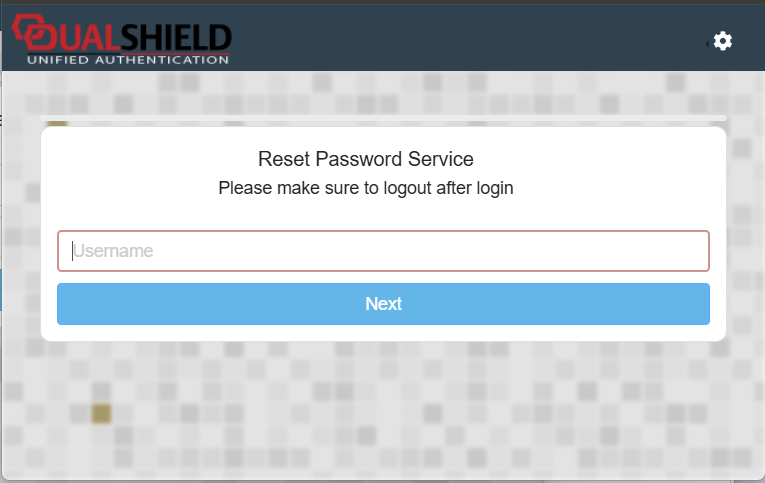
At this point the user would normally log in to the service using the logon steps and authentication method options that are present in the default logon procedure
Adding ICE
We will now create an new logon procedure that will offer alternative logon steps and authentication methods (for this example a single step using a FIDO2 key).
The following procedure will create the new ICE logon procedure and add it to the protected application (as an optional, alternative logon procedure);
From the management console, navigate to "Authentication | Logon Procedures", then click on the
 button;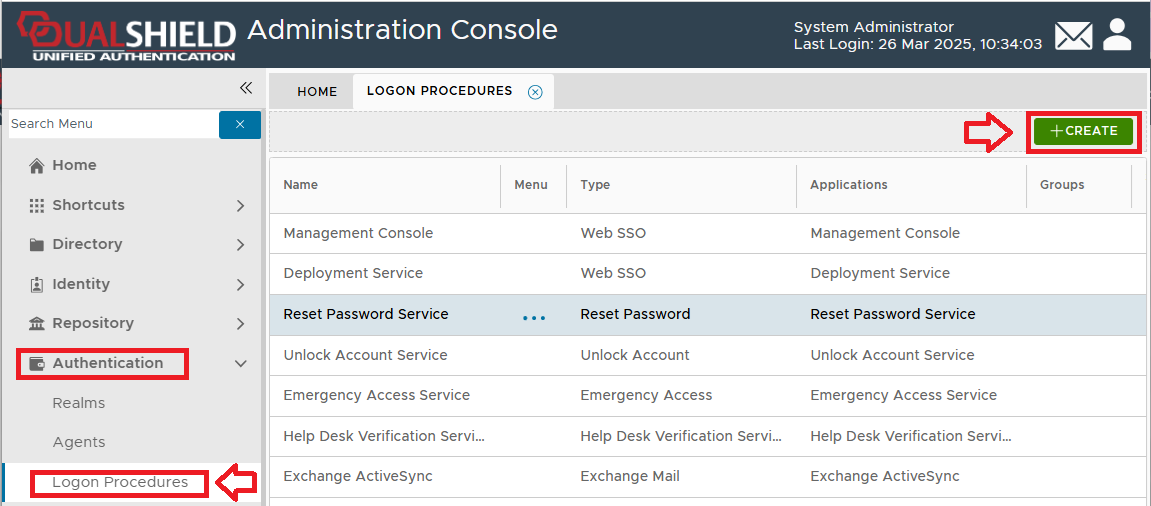
A new window will now open titled "Logon Procedure - New", fill in the details as per the example below, then click
 ;
;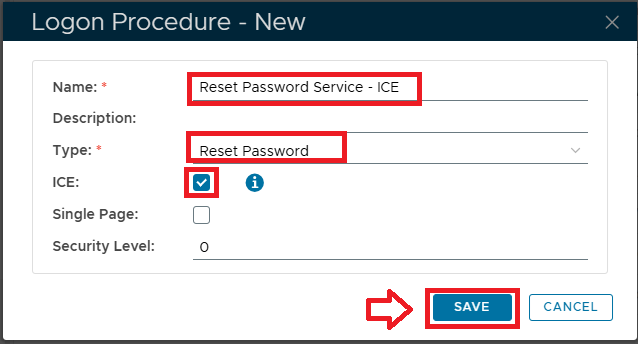
Please note that we name the new logon procedure with a name that identifies that it will be used with the password reset portal, with a type that matches the type of the existing logon procedure, but with the "ICE" checkbox also selected.
Now this new logon procedure has been saved we will need to provide it with logon steps.
Left click on the context menu of the new logon procedure then select the option "Logon Steps", then lick on the
 button;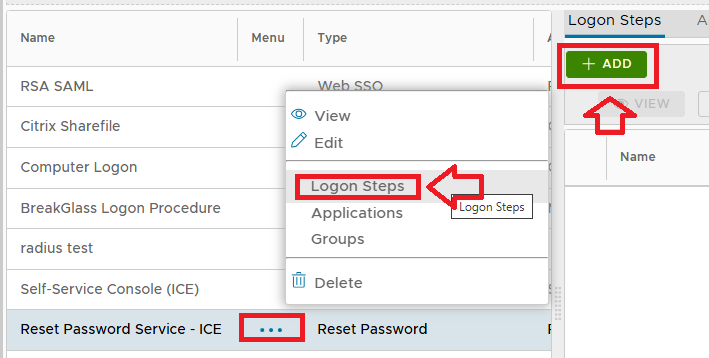
A new window will now open titled "Logon Step - New", for this test only select the option "FIDO2", then click
 ;
;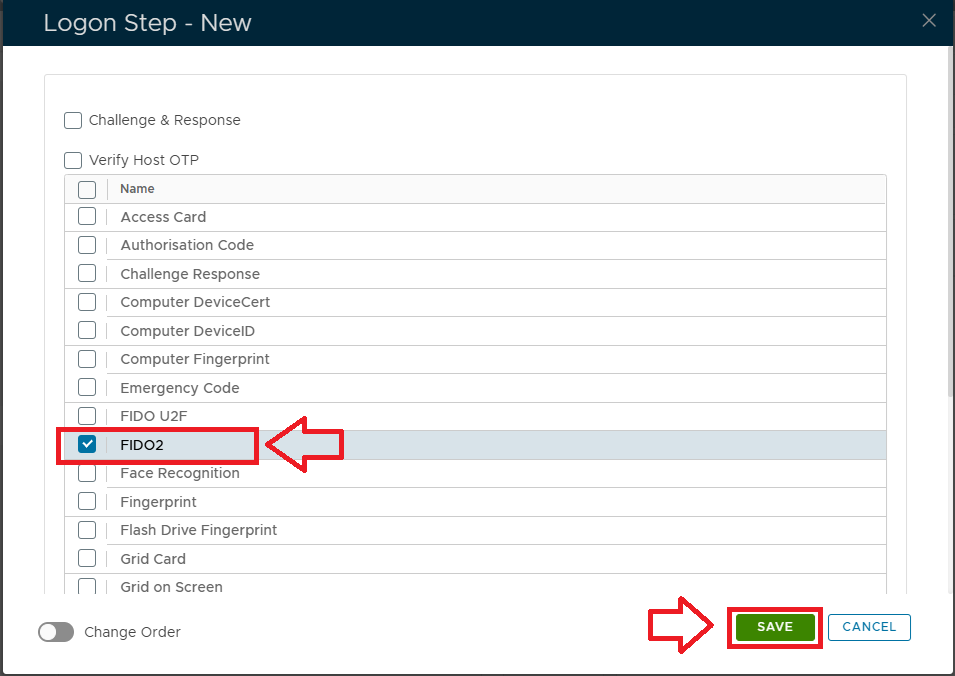
The single step logon procedure will now include the authentication method "FIDO2";

Next we add the newly created logon procedure to the application "Reset Password Service".
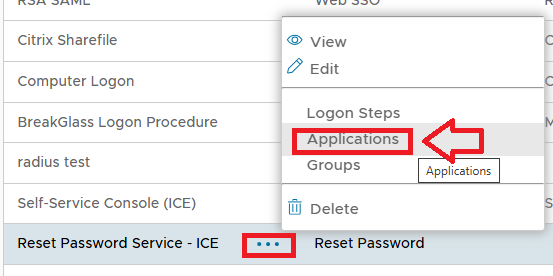
Left click on the context menu of the newly created logon procedure, then select the option "Applications";
The logon procedure is assigned by selecting the service "Reset Password Service", then clicking

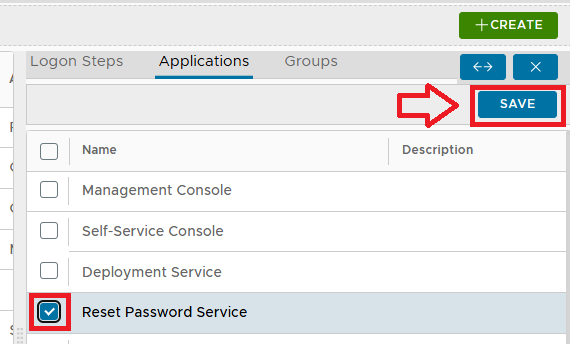
Our password reset service now has two logon procedures, and we can now test logging on to see how ICE has changed the logon experience.
After ICE
Now that we have created, and added our new logon procedure, we can try logging on to the service to see how things have changed;
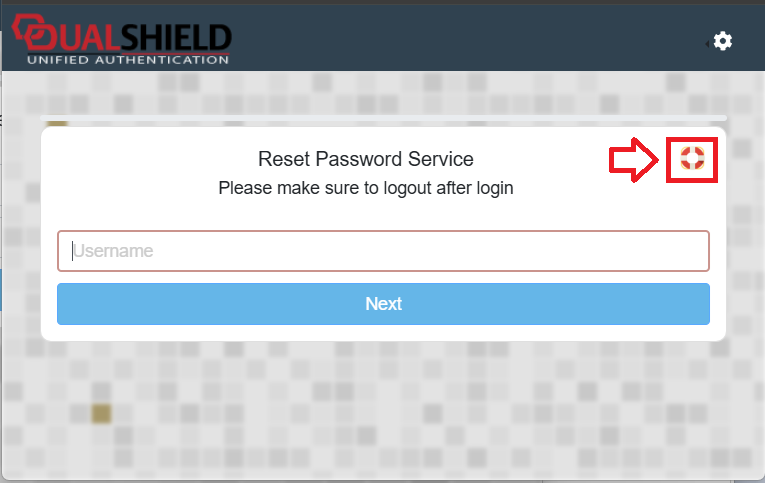
At first glance the screen appears very similar, but upon closer inspection there is a new icon in the top right hand corner (resembling a lifebuoy throwing ring).
We are still able to log in using the normal logon procedure, but now if we click on this new icon the screen changes as follows;
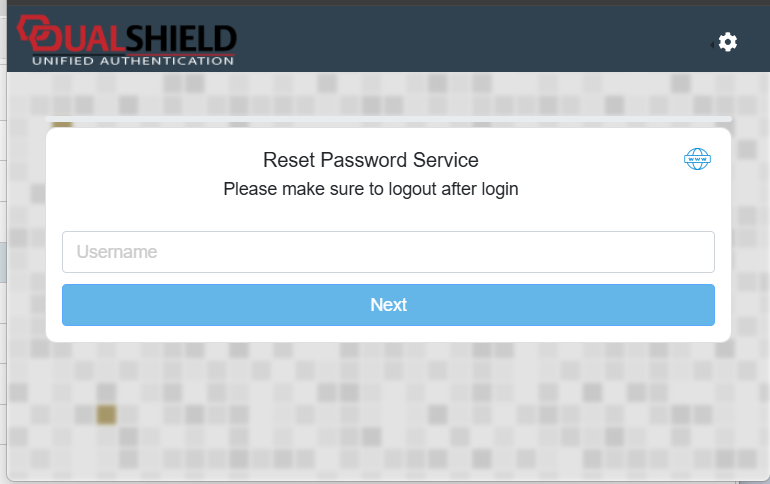
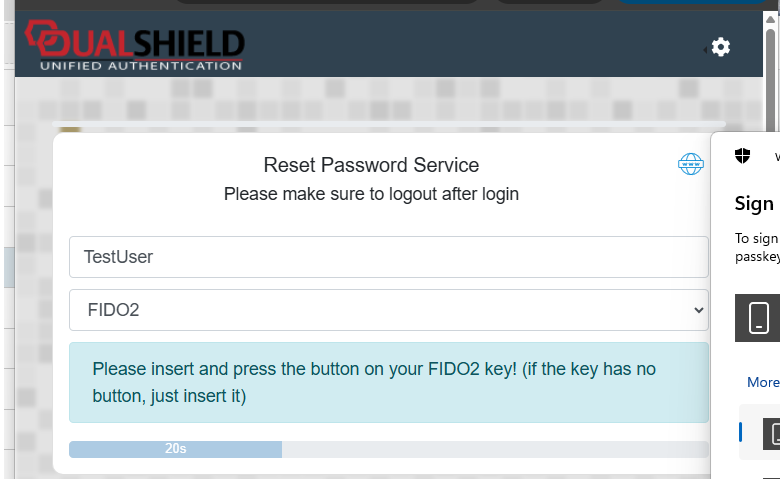
Again not a lot appears to be different (just the same ring showing in a ice blue colour), and if provide our login credentials, we will discover that we are no longer using the default logon procedure, but instead we are presented with the logon options that are determined by our new ICE logon procedure;
Conclusions
On the surface ICE just provides a means to allow the user to switch to using an alternative logon procedure that will contain alternative logon steps and options to their normal logon procedure.
The users of the protected application will now have the option to use authenticate via the ICE logon procedure.
Please note an application can only have the one ICE logon procedure, but must also include a non-ICE logon procedure.
If an application has an ICE logon procedure but no non-ICE logon procedures, then DualShield will regard this application ill-configured, and the self test will fail.