Step 1: Download the off-the-shelf installer package
Download the off-the-shelf installer package and unzip it to a local folder on your PC, e.g. "D:\Software\CLO"
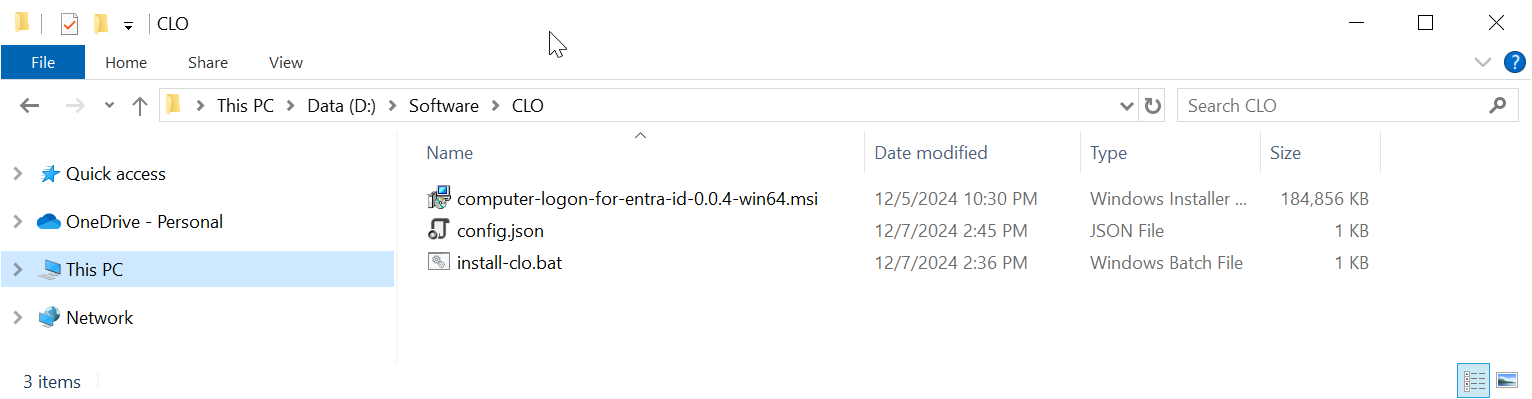
The package contains 3 files:
FILE | Description |
|---|---|
| computer-logon-for-entra-id-xxx-win64.msi | Agent installer |
config.json | Configuration file |
| install-clo.bat | Batch commands |
Step 2: Customise the configuration file
The Deepnet Computer Logon Agent for Entra ID requires a custom configuration file in order to function correctly for the users. You must customise the configuration file with your own data.
Open the config.json in a text editor, such as Notepad

If the application you set up for Computer Logon with MFA supports single tenant
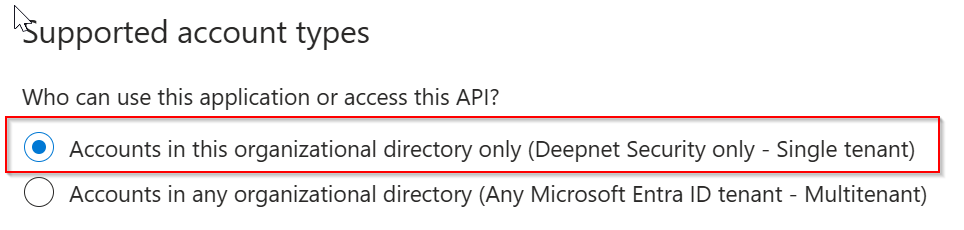
then, replace "YOUR-TENANT-ID" in the configuration file with your Tenant ID in the Entra ID.
However, if the application you set up for Computer Logon with MFA supports multitenant
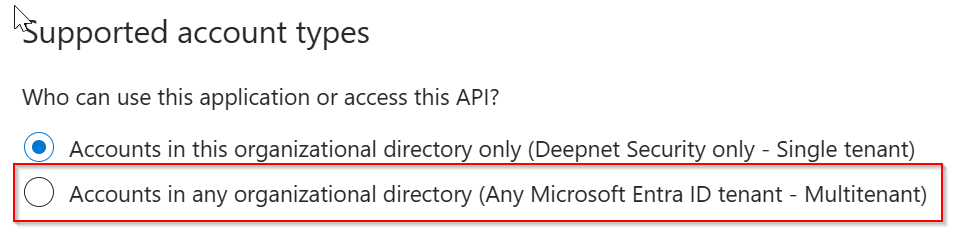
then, replace "YOUR-TENANT-ID" in the configuration file with the word "common"
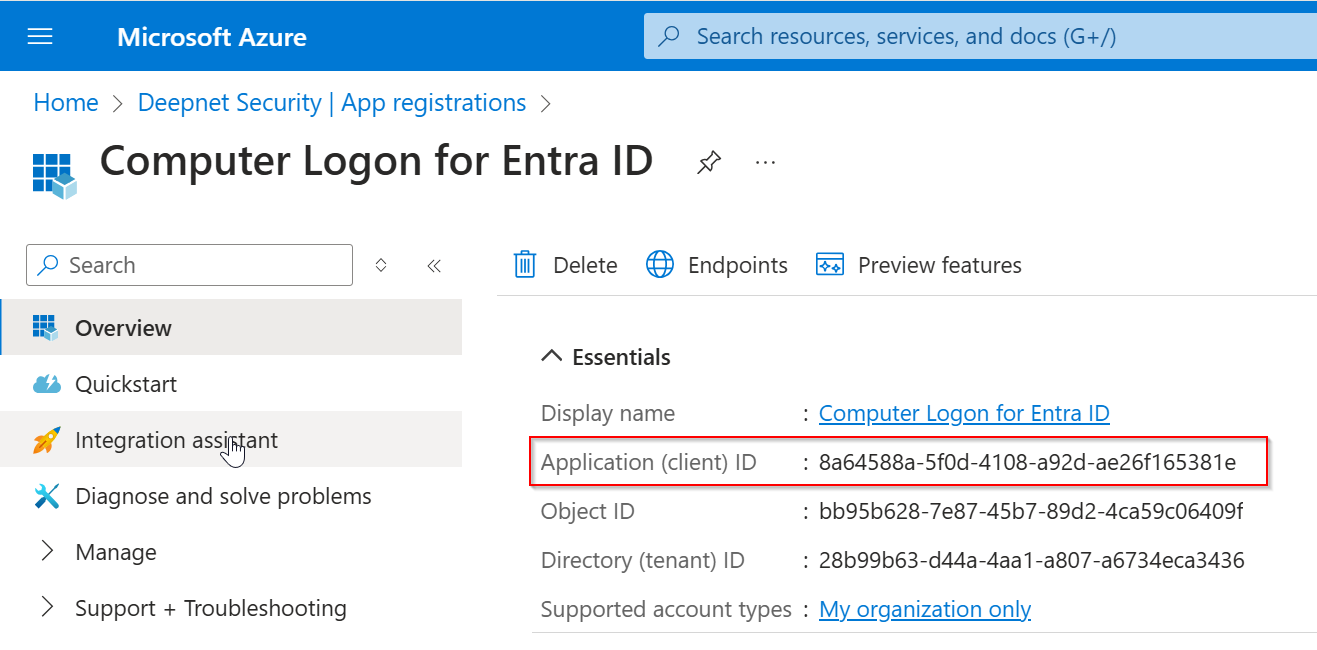
Now, replace "YOUR-CLIENT-ID" with the "application (client) ID"
Save the configuration file.
