IT administrators can distribute the off-the-shelf installer to their users, together with the custom configuration file. User can easily install the software using the off-the-shelf installer, but after installation users must manually copy the custom configuration file on to their PCs.
A better way of distributing the software is to create a custom installer package that includes both the off-the-shelf installer and the custom configuration file. The custom installer will install the software and automatically update the configuration file. This way, users will not need to carry out any manual work.
Step 1: Download the off-the-shelf installer package
Download the off-the-shelf installer package and unzip it to a local folder on your PC, e.g. "D:\Software\CLO"
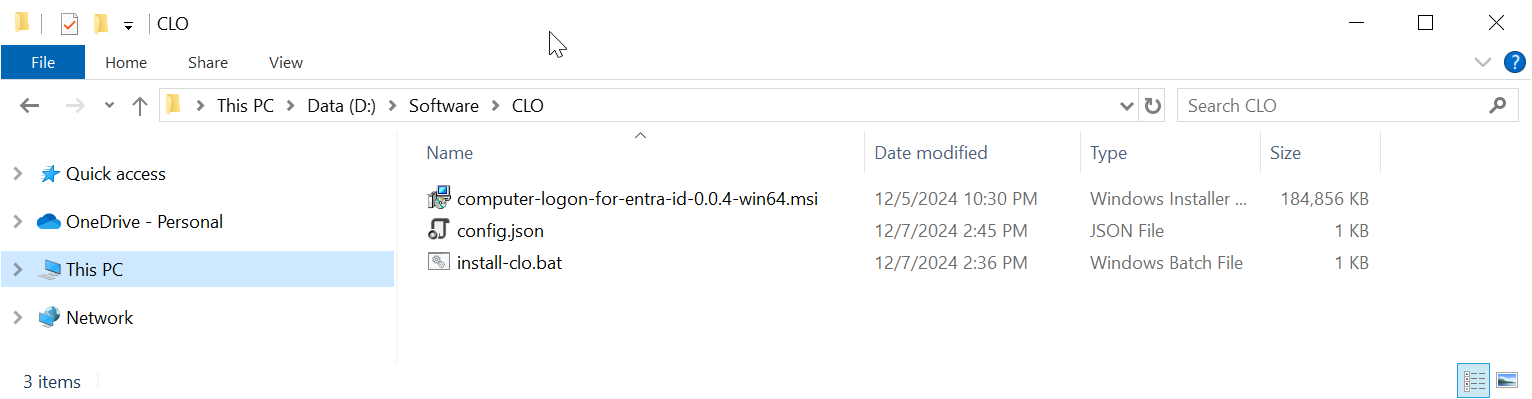
The package contains 3 files:
FILE | Description |
|---|---|
| computer-logon-for-entra-id-xxx-win64.msi | Agent installer |
config.json | Configuration file |
| install-clo.bat | Batch commands |
Step 2: Customise the configuration file
The Deepnet Computer Logon Agent for Entra ID requires a custom configuration file in order to function correctly for the users. You must customise the configuration file with your own data.
Open the config.json in a text editor, such as Notepad

If the application you set up for Computer Logon with MFA supports single tenant
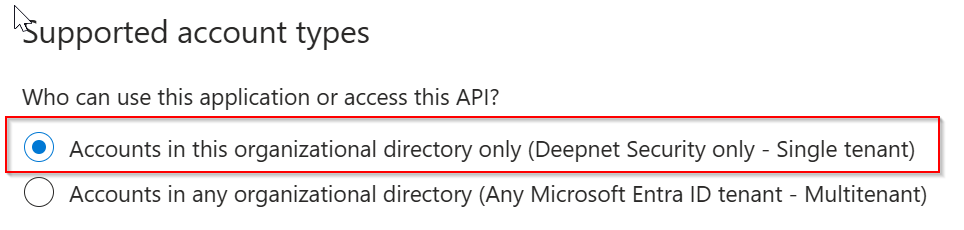
then, replace "YOUR-TENANT-ID" in the configuration file with your Tenant ID in the Entra ID.
However, if the application you set up for Computer Logon with MFA supports multitenant
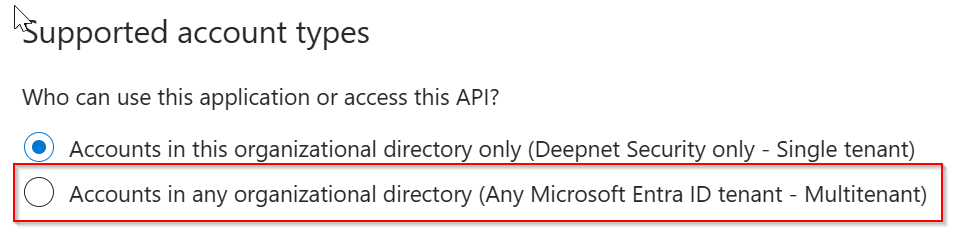
then, replace "YOUR-TENANT-ID" in the configuration file with the word "common"
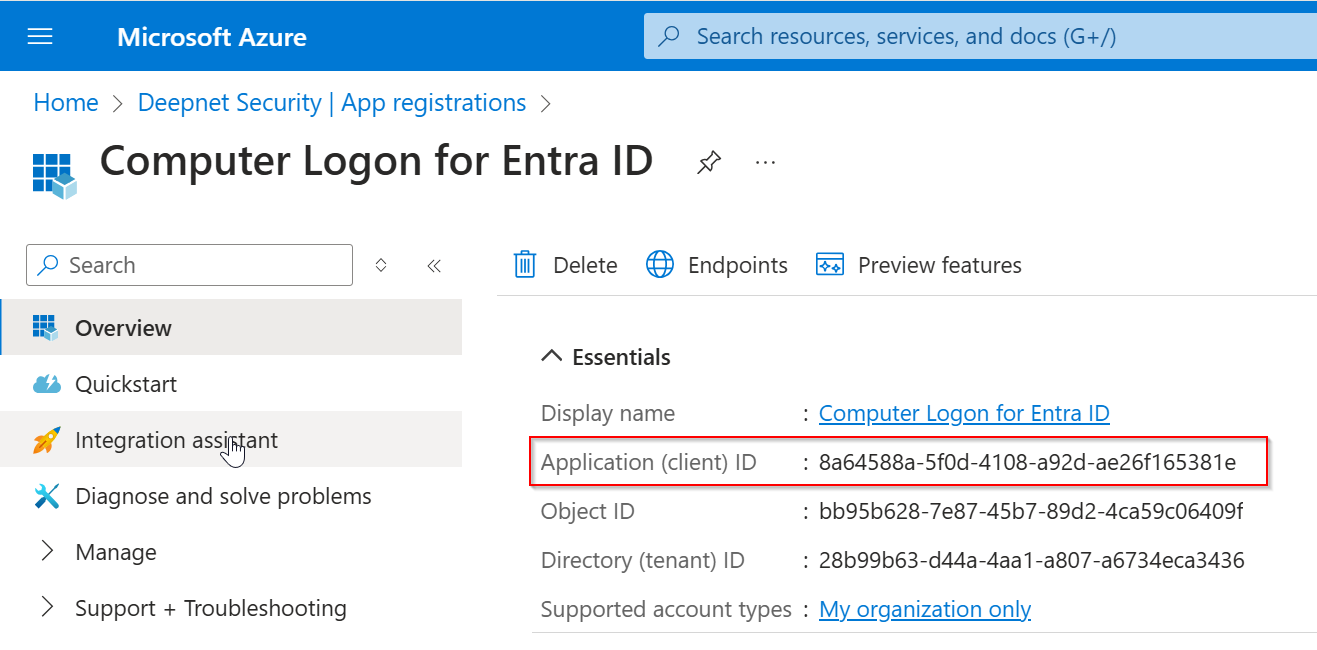
Now, replace "YOUR-CLIENT-ID" with the "application (client) ID"
Save the configuration file.
