In order to create (or edit) a computer logon agent policy, we will first need to open the management console and navigate to "Administration | Policies";
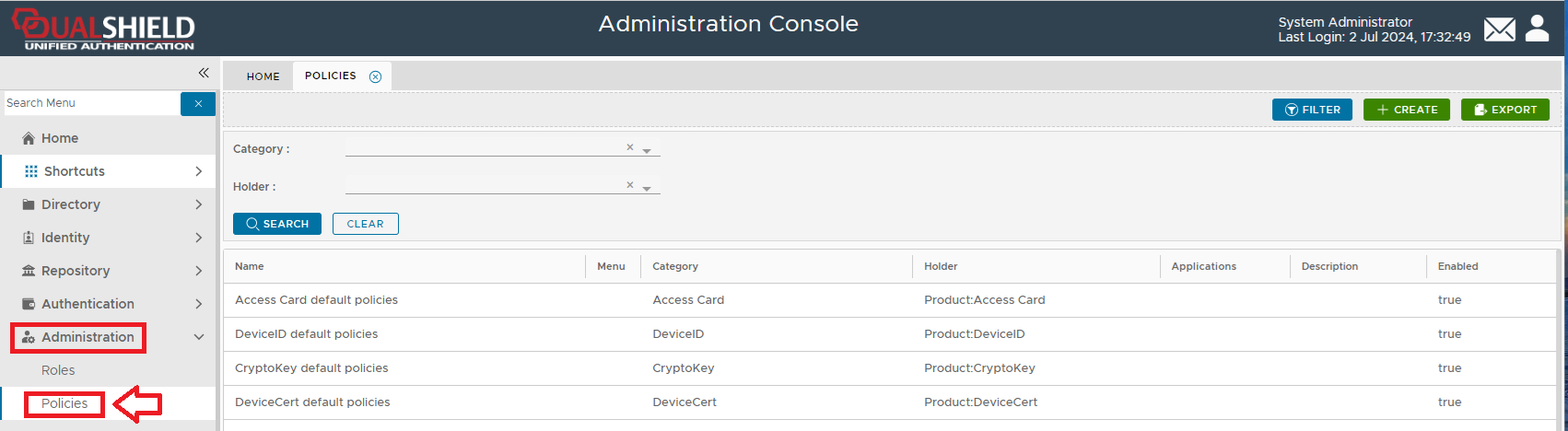
To create a new Computer Logon Agent Policy click on the  button, and a new window titled "Policy - New" will now open;
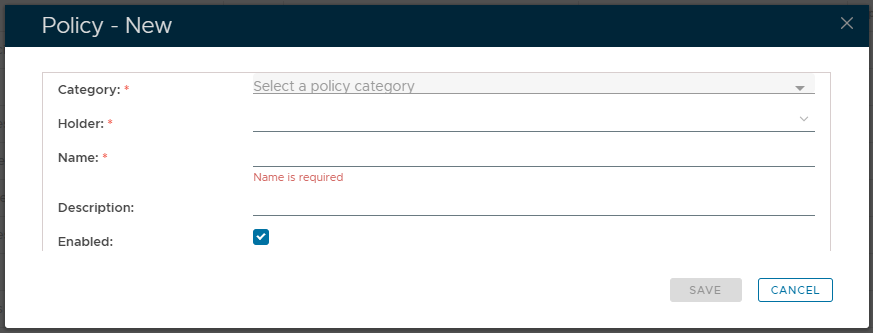
At the prompt "Category" , select "Computer Logon Agent", and the form will be updated with policy settings;
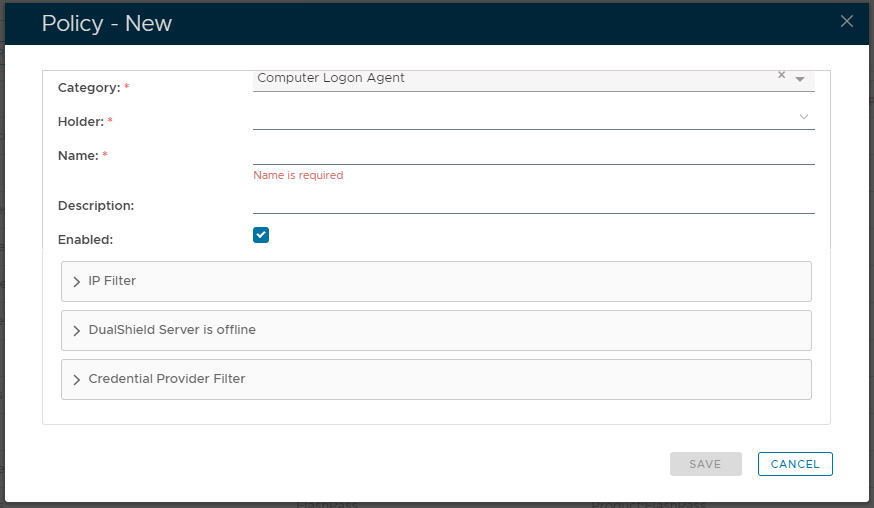
Policy Bindings
Enter or select the following policy bindings:
| Holder: | The policy holder defines the scope of the policy.
|
| Name: | An unique name that describe this policy |
| Applications: | Optionally, you can bind the policy to a specific application or a list of applications. To specify the application(s), select the field: Apply policy to these applications If the field Apply policy to these applications is left empty, then the policy will be applied to all applications. |

Policy Options
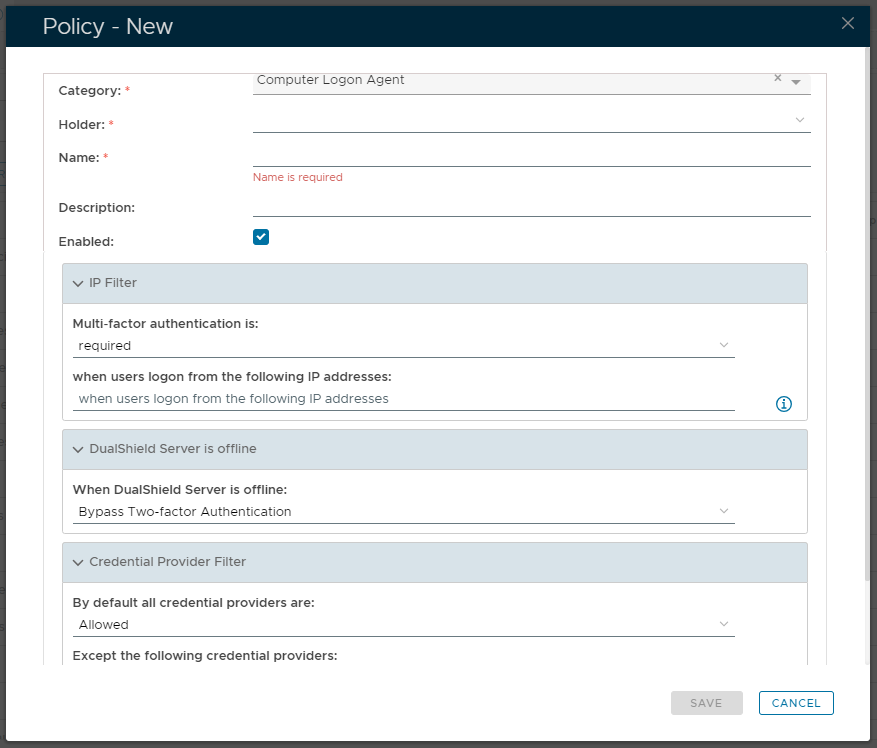
The policy options are organised into 3 main sections;
- IP Filter - These filters allow the administrator to either allow or deny logon access to users with specific IP addresses
- DualShield Server is offline - specify what actions to take if the agent is unable to contact the DualShield server,
- Credential Provider Filter - allow/deny access via specified credential providers
"IP Filter" Section
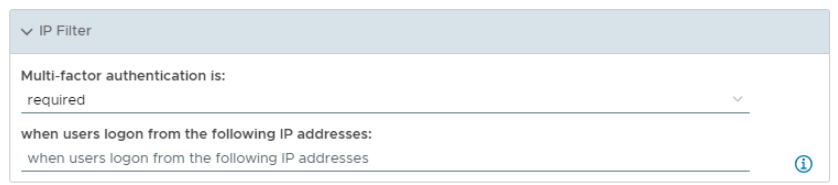
The option "Multi-Factor Authentication is" provides the following 2 authentication options:
Required
This option means that all users will be enforced to login with 2FA/MFA.
Not Required
This option means that all users will be exempted from 2FA or MFA. This option is typically used to exempt a group of users from 2FA or MFA.
(Please note that users in the context of a policy include users in the scope of the policy only, i.e. the policy holder).
The option "when users logon from the following IP addresses" allows you to restrict the previous "Multi-factor authentication" selection to apply to specified IP addresses.
(Single IP address or IP ranges, e.g. 192.168.0.1; 192.168.0.10-192.168.0.20. IP with proxy: 1.2.3.4[192.168.0.254], IP range with proxy: (1.2.3.0-1.2.3.255)[192.168.0.254], note: 192.168.0.254 is the proxy server).
"DualShield Server is offline" Section

In this section you are provided with 3 options for actions to be performed when when the Agent is unable to contact the DualShield server.
Bypass Two-Factor Authentication
If this option is selected then the logon agent will bypass two-factor authentication if the connection with the DualShield server is lost.
Switch Clients to Offline Logon Mode
If this option is selected then a loss of connection will cause the client to switch to offline logon mode.
Decline All Logon Requests
If this option is selected then a loss of connection will cause all attempts to logon to be rejected whilst the agent is unable to connect to the DualShield server.
"Credential Provider Filter" Section
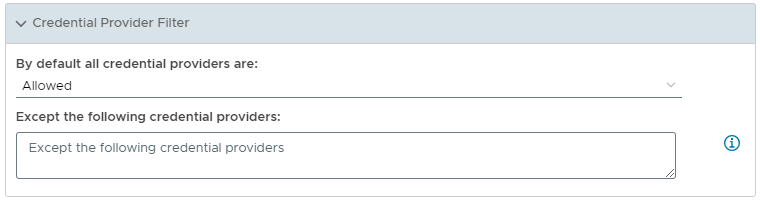
The option "By default all credential providers are:" the following 2 authentication options:
Allowed
If this option is selected then, by default, all credential providers are allowed access.
Blocked
If this option is selected then, by default, all credential providers are blacked from access..
The option "Except the following credential providers:" allows you to provide a list of provides that are exceptions to the default credential provider setting.
Enter each credential provider, one uuid, per line