To create a token for a user, you need to navigate to the user's token management panel
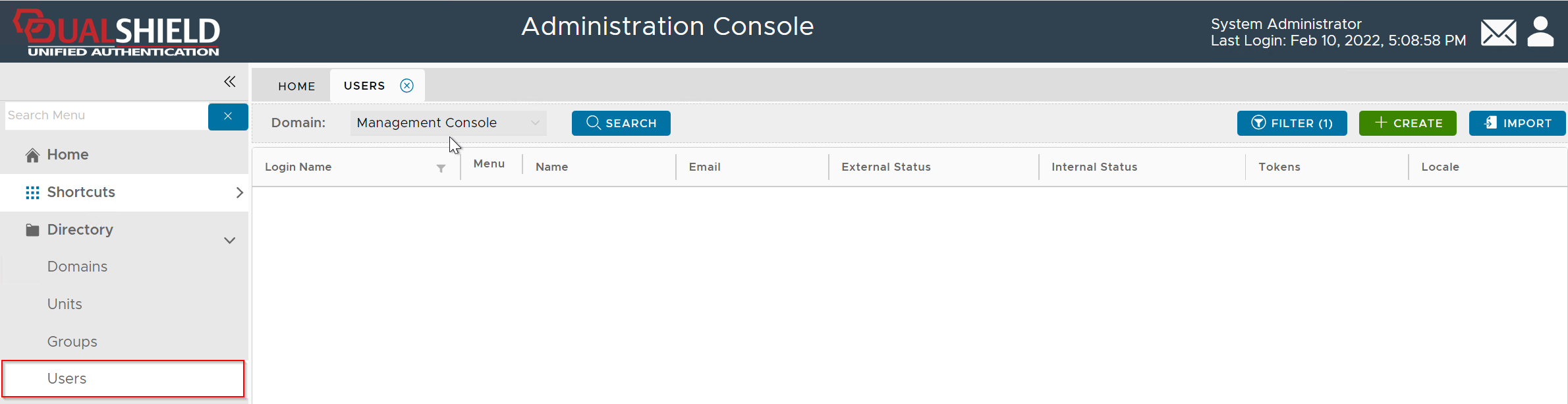
In the Domain list, select the domain that you want to work on, e.g. DeepnetMFA.com
If you click the "Search" button, it will list all users in the entire directory up to the query limit.
To narrow down your search, click the "Filter" button
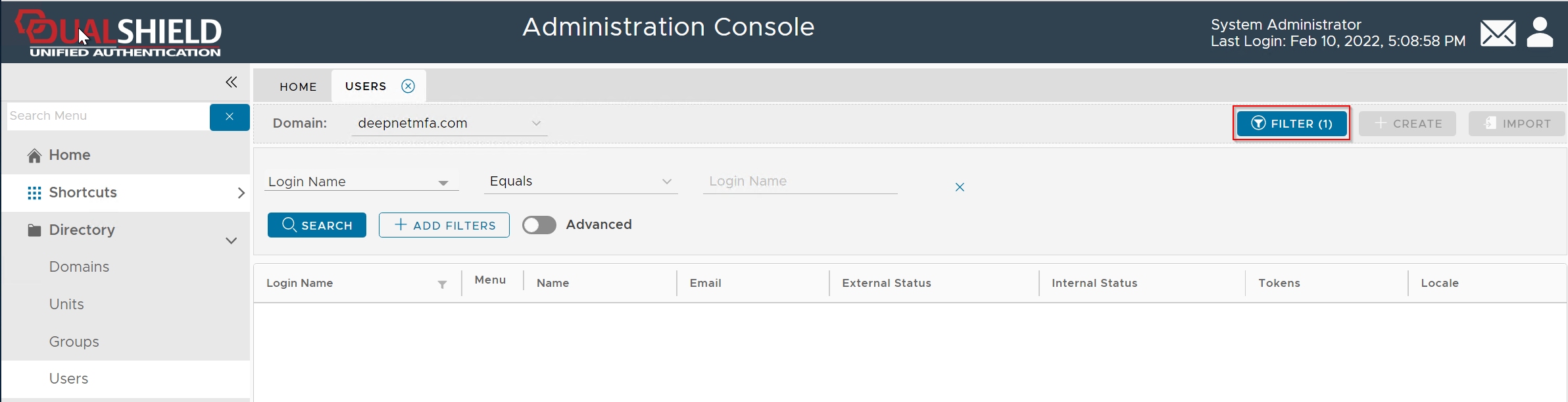
Enter the user's login name, e.g. 2FA, then click the "Search" button (You can change the search filter or add more filters)
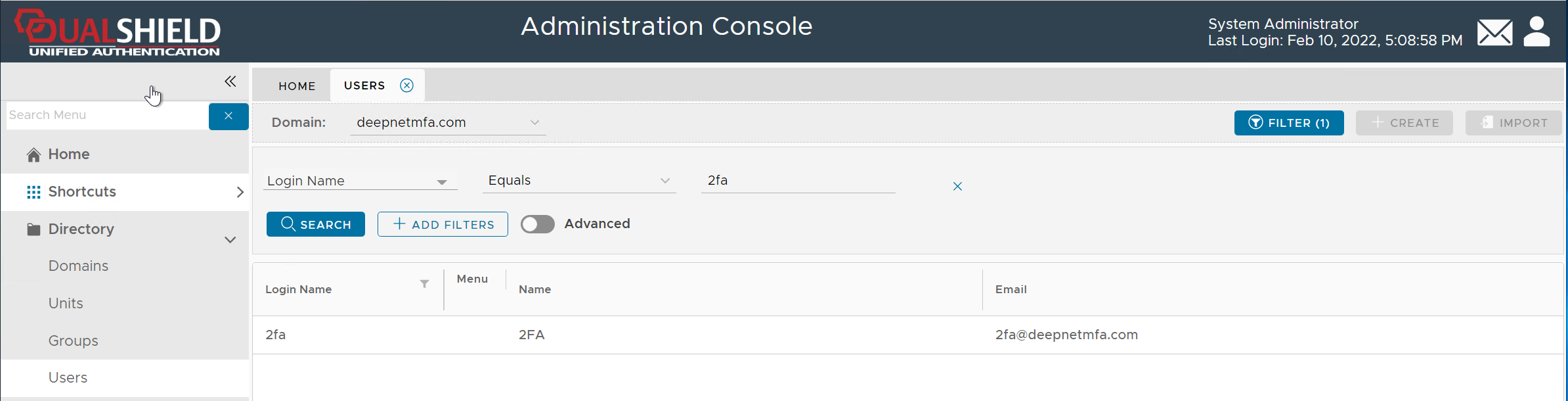
Once you have found the user account, click on its context menu icon "..." to bring up the context menu:
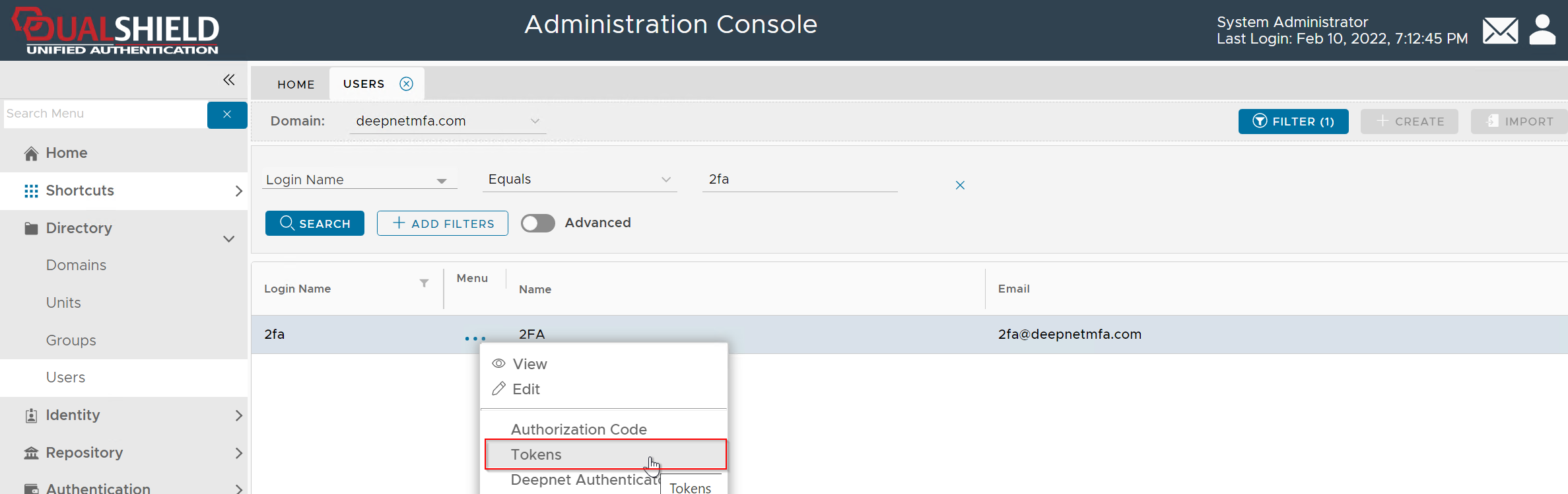
Click "Tokens" from the context menu
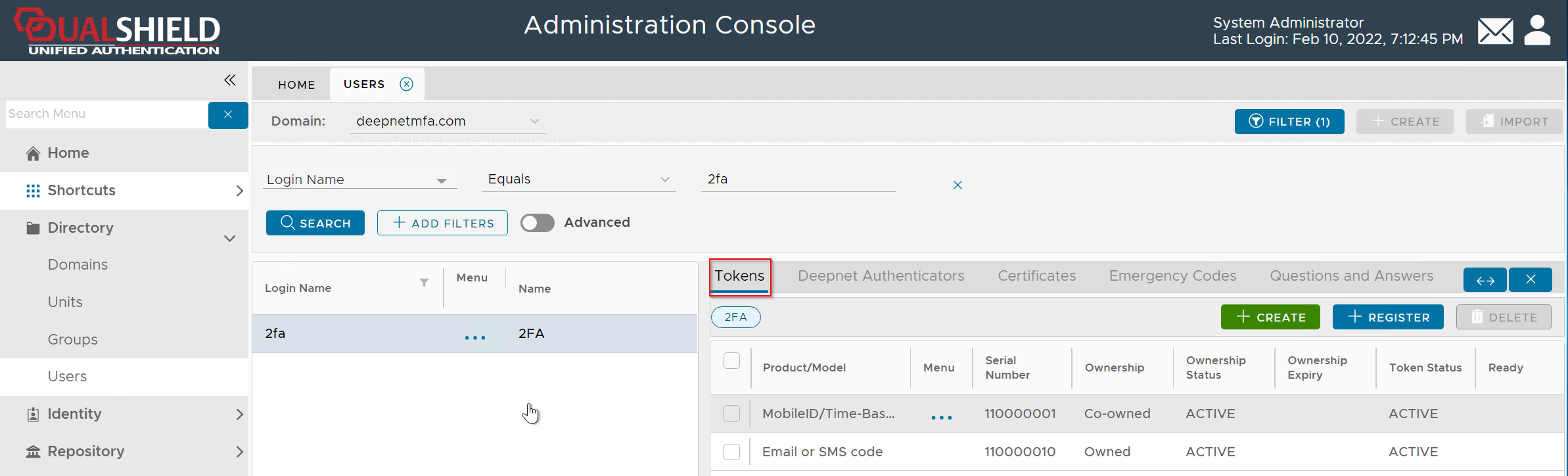
Then, click the "CREATE" button on the toolbar
Typically, you do not need to fill in any box in the form.
The mobile number and email address are only used for sending the download link to the user, and they are retrieved from the user's AD account. You would only need to enter the user's mobile number or email address in this form if
- you want to send the token's download link to the user by text or email
- the user's AD account does not have a mobile number or email address
- the user wants to use an alternative mobile number or email address to receive the token's download link
Click the SAVE button to create a new MobileID token
