This article describes how the Keycloak user database can be connected to DualShield as an external user directory, in the same way that Active Directory is connected to DualShield.
Keycloak stores its user directory in a SQL database, and it allows customers to choose one of the commonly used SQL servers, such as Postgres or MySQL, etc. However, Keycloak uses a proprietary database structure to store its user directory. In order to connect the Keycloak user database to DualShield, we need an adapter or converter. As DualShield supports LDAP, we developed a SQL to LDAP converter called DualShield MyVD which is based on an open-source project called MyVD.
| Component | Description |
|---|---|
| Hardware |
|
| Software | Windows
Linux
|
The article describes how to install DualShield VD on a Windows server.
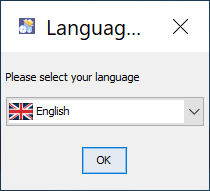
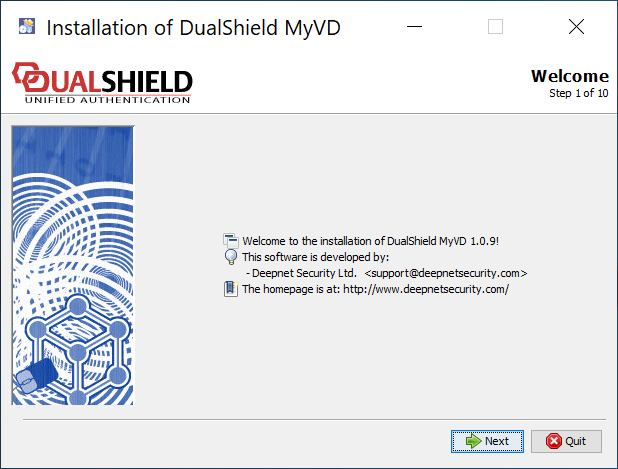
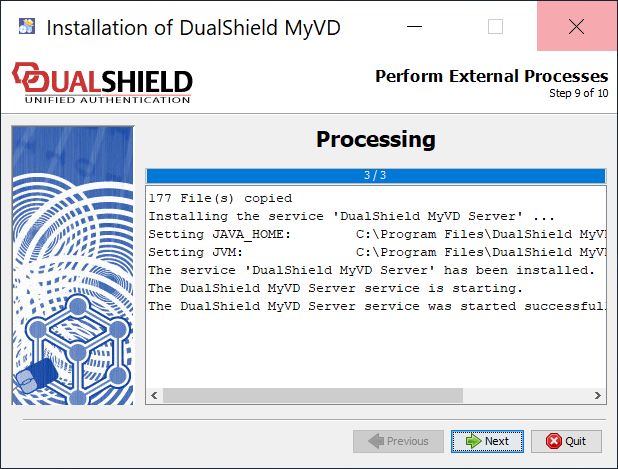
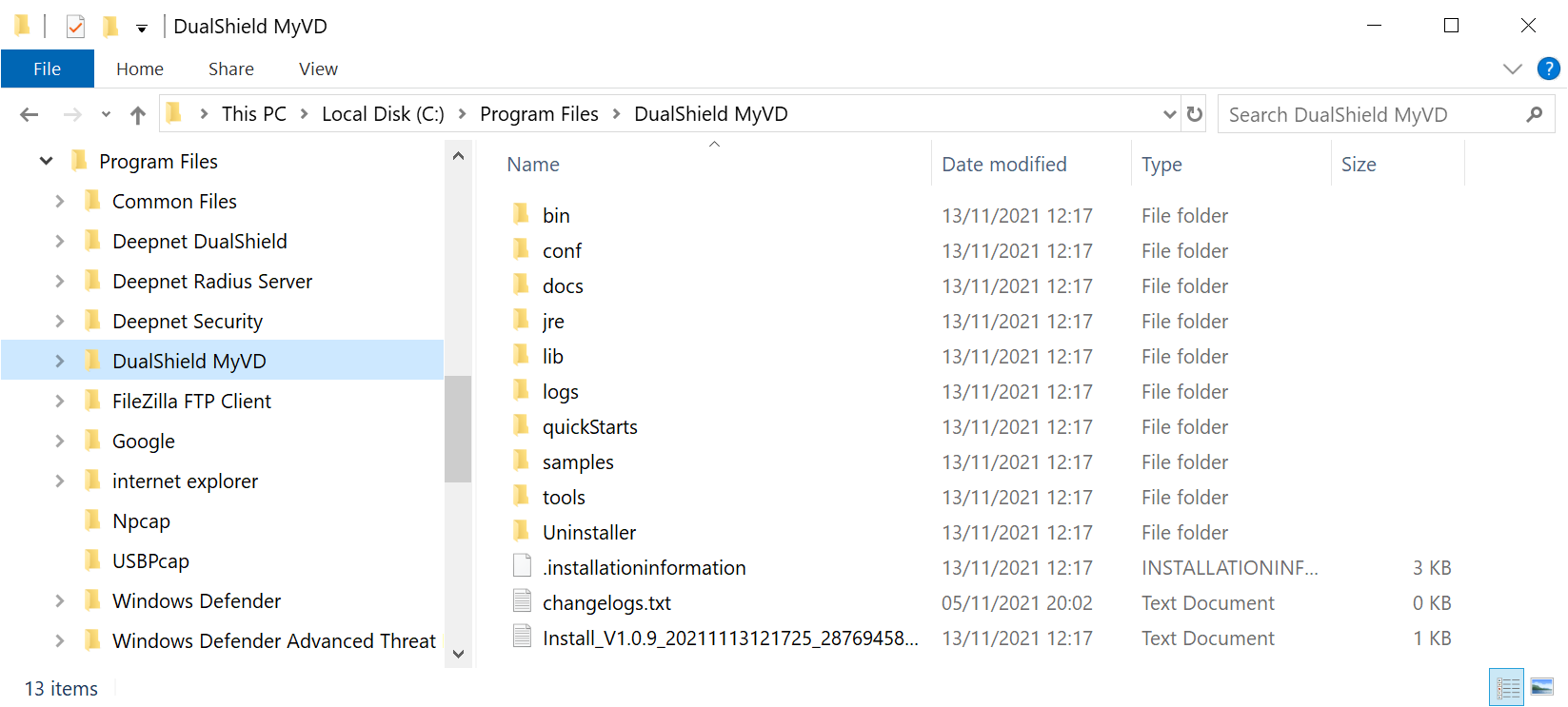
To install DualShield MyVD, launch its installer "setup-dualshield-myvd-xxxx.yyyy.exe", where xxxx.yyyy is its version and build number.
| |||||||||||||||
| |||||||||||||||
| |||||||||||||||
| |||||||||||||||
| |||||||||||||||
| MyVD Port Number ____________________________________________________________________ Enter the port number that MyVD will be using as its working port You can simply accept the default port number 10983 unless this port is not available. | ||||||||||||||
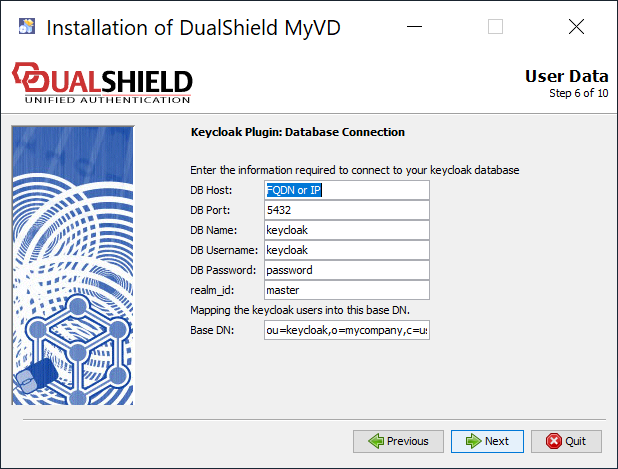
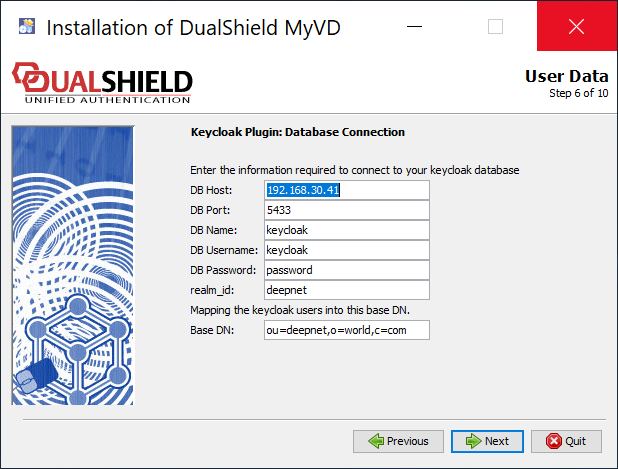
| Keycloak Database Connection ____________________________________________________________________ Provide the details below in order to make the connection to your Keycloak database and one of the realms
| ||||||||||||||
| |||||||||||||||
| |||||||||||||||
| |||||||||||||||
| |||||||||||||||
|