This article describes how the Keycloak user database can be connected to DualShield as an external user directory, in the same way that Active Directory is connected to DualShield.
How it Works
Keycloak stores its user directory in a SQL database, and it allows customers to choose one of the commonly used SQL servers, such as PostgreSQL or MySQL, etc. However, Keycloak uses a proprietary database structure to store its user directory. In order to connect the Keycloak user database to DualShield, we need an adapter or converter. As DualShield supports LDAP, we developed a SQL to LDAP converter called DualShield MyVD which is based on an open-source project called MyVD.
In DualShield a user directory is called a domain, whereas in Keycloak a user directory is called a realm. We will map a realm in Keycloak to a domain in DualShield. As Keycloak does not have the concept of the domain and OU, we will first map a realm in Keycloak to an LDAP OU, then map the LDAP OU to a domain in DualShield
| Keycloak | LDAP | DualShield | ||
|---|---|---|---|---|
| Realm | >> | OU | >> | Domain |
By using OU, we can also support multiple realms in Keycloak. Any realm in Keycloak can be mapped to a domain in DualShield via an LDAP OU.
Please note that in DualShield there is a component called realm as well. However, a realm in DualShield is a group of domains, instead of a single domain.
Install DualShield MyVD
| Component | Description |
|---|---|
| Hardware |
|
| Software | Windows
Linux
|
The article describes how to install DualShield VD on a Windows server.
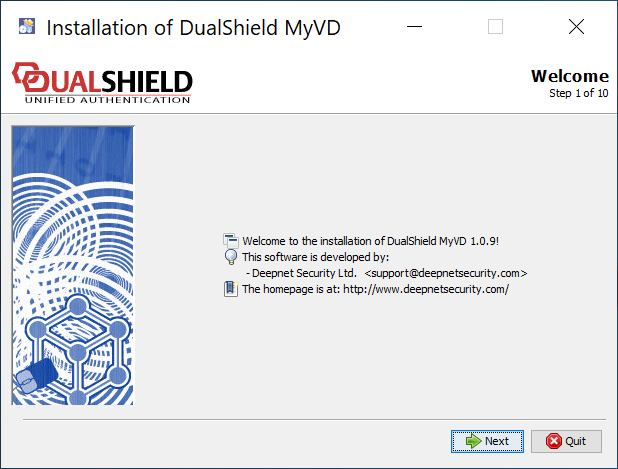
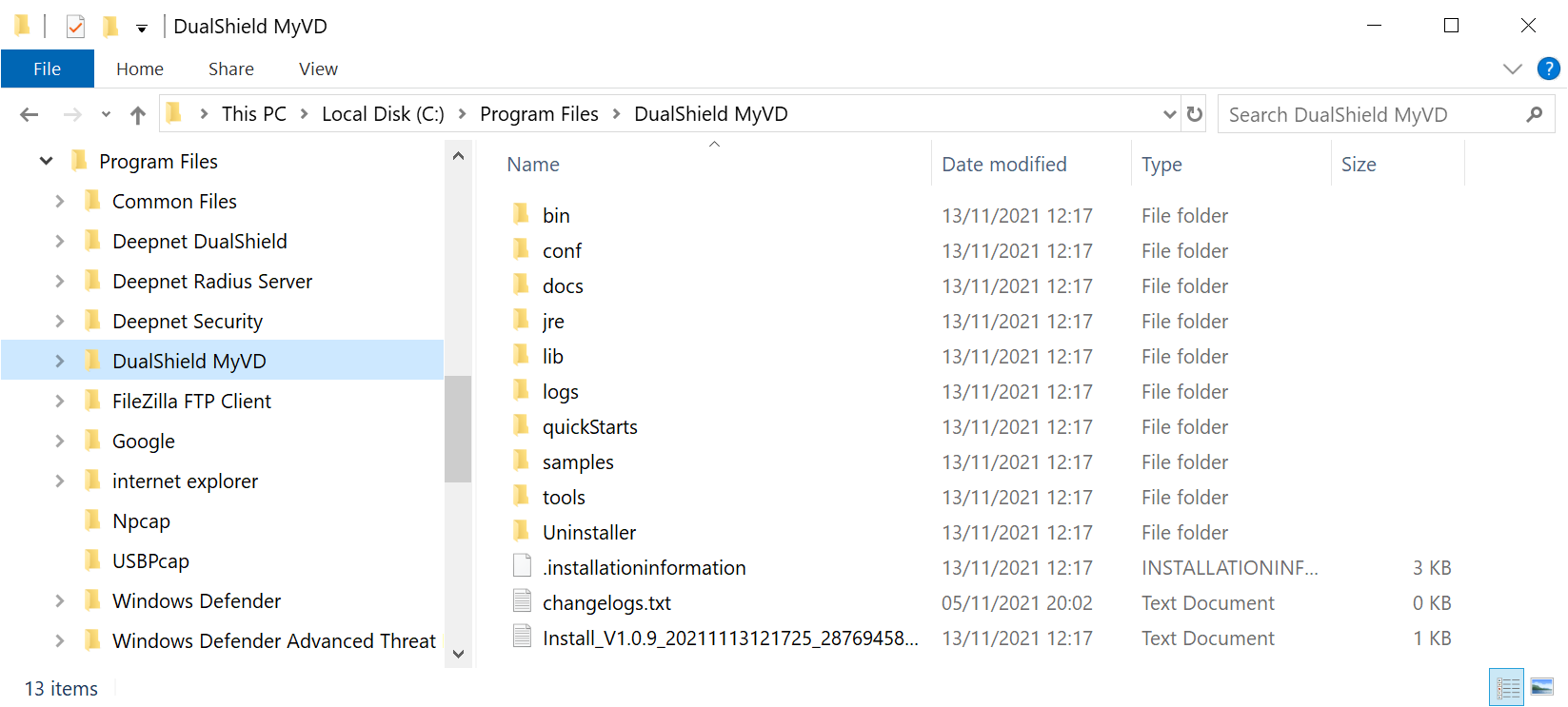
To install DualShield MyVD, launch its installer "setup-dualshield-myvd-xxxx.yyyy.exe", where xxxx.yyyy is its version and build number.
| |||||||||||||||
| |||||||||||||||
| |||||||||||||||
| |||||||||||||||
| |||||||||||||||
| MyVD Port Number ____________________________________________________________________ Enter the port number that MyVD will be using as its working port You can simply accept the default port number 10983 unless this port is not available. | ||||||||||||||
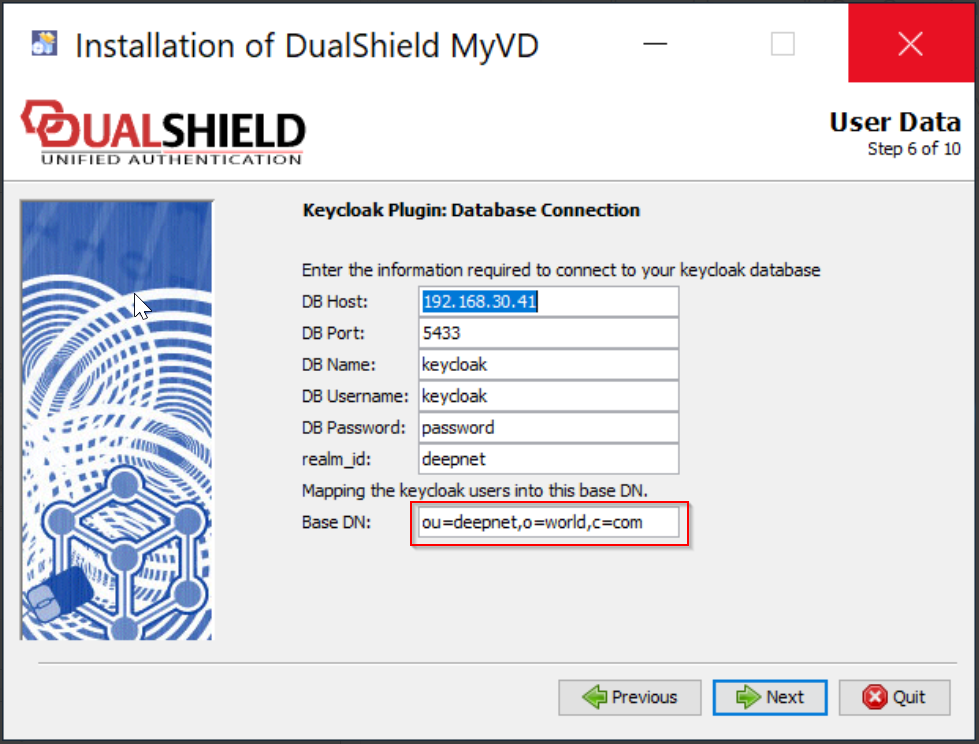
| Keycloak Database Connection ____________________________________________________________________ Provide the details below in order to make the connection to your Keycloak database and one of the realms
| ||||||||||||||
| |||||||||||||||
| |||||||||||||||
| |||||||||||||||
| |||||||||||||||
|


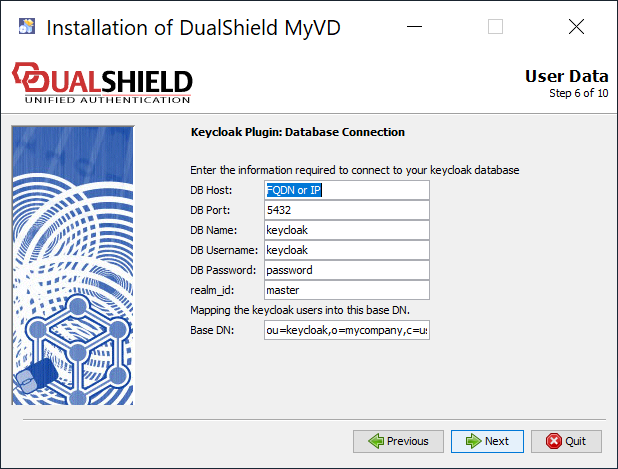
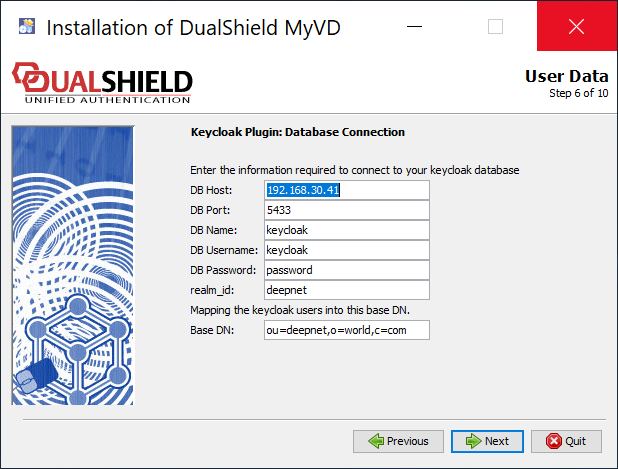


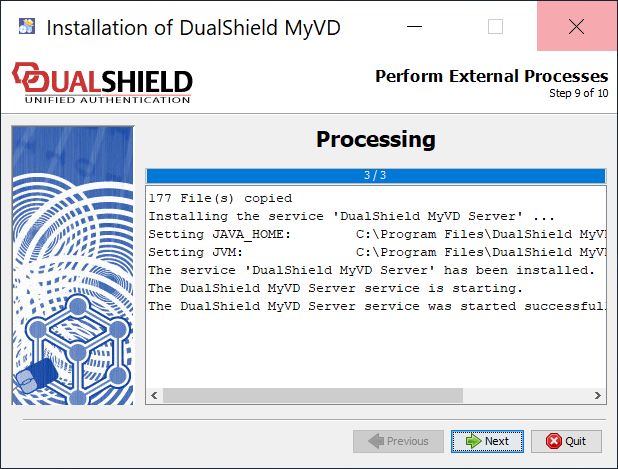

Add Identity Source
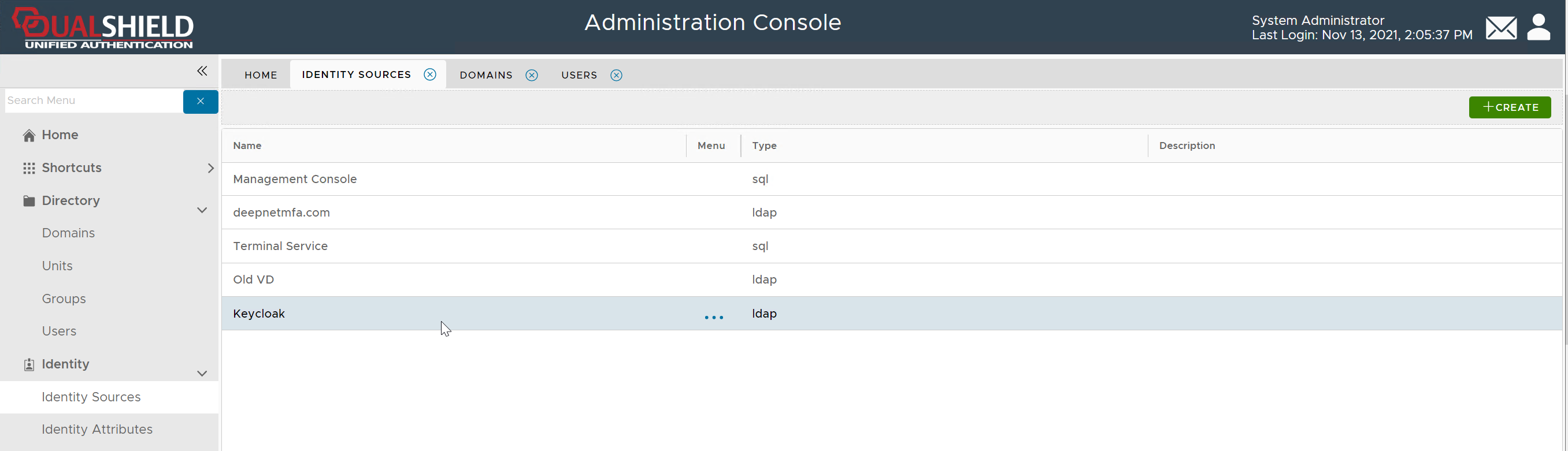
In the DualShield Admin Console, navigate to "Directory > Identity Source", click the "Create" button on the toolbar
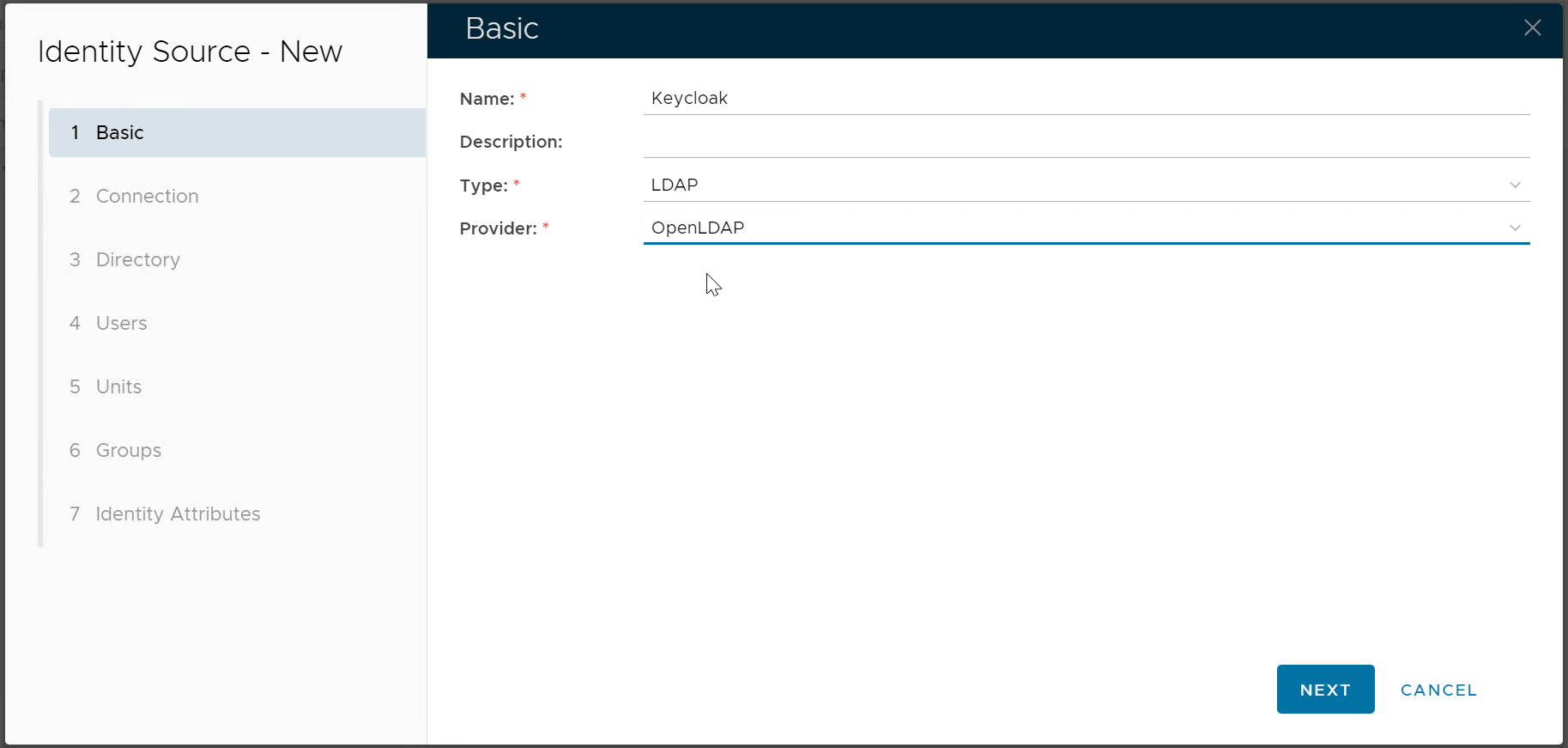
| Enter the name of this new Identity Source, e.g. Keycloak Select LDAP as the Type Select OpenLDAP as the Provider |
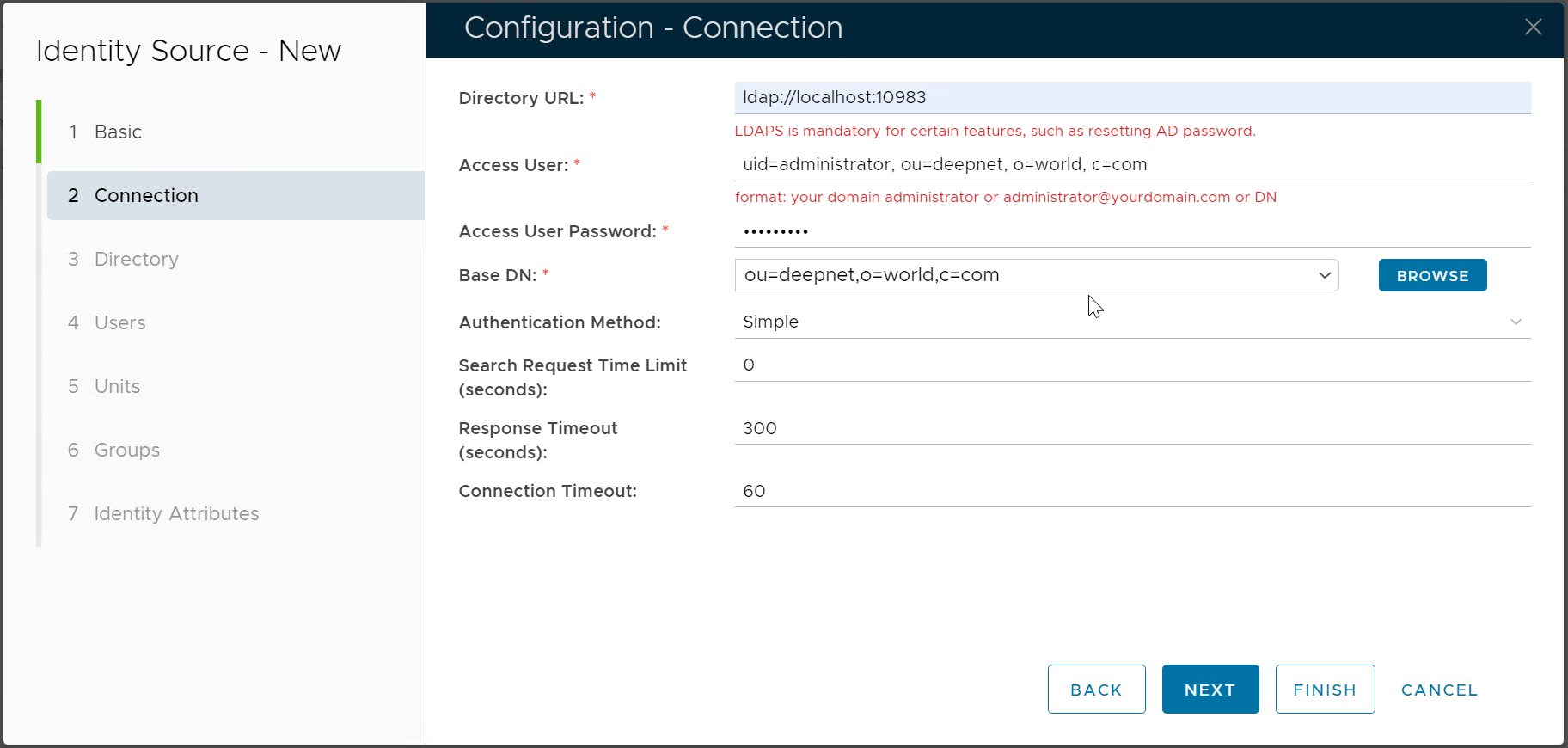
| Directory URL Enter the IP address or the hostname of the machine where DualShield MyVD is installed, as well as the port number Access User The Access User is a user account that DualShield will use to connect to the realm in the Keycloak database. This user account can be any user account in the realm in Keycloak. The Access User must be provided in the DN format that includes the following attributes
|
| |
| |
| |
| Change the value of Group UUID Attribute to "entryUUID" |
| Change the value of Unique Identifier to "entryUUID" Change the value of User Principal Name to "mail" |


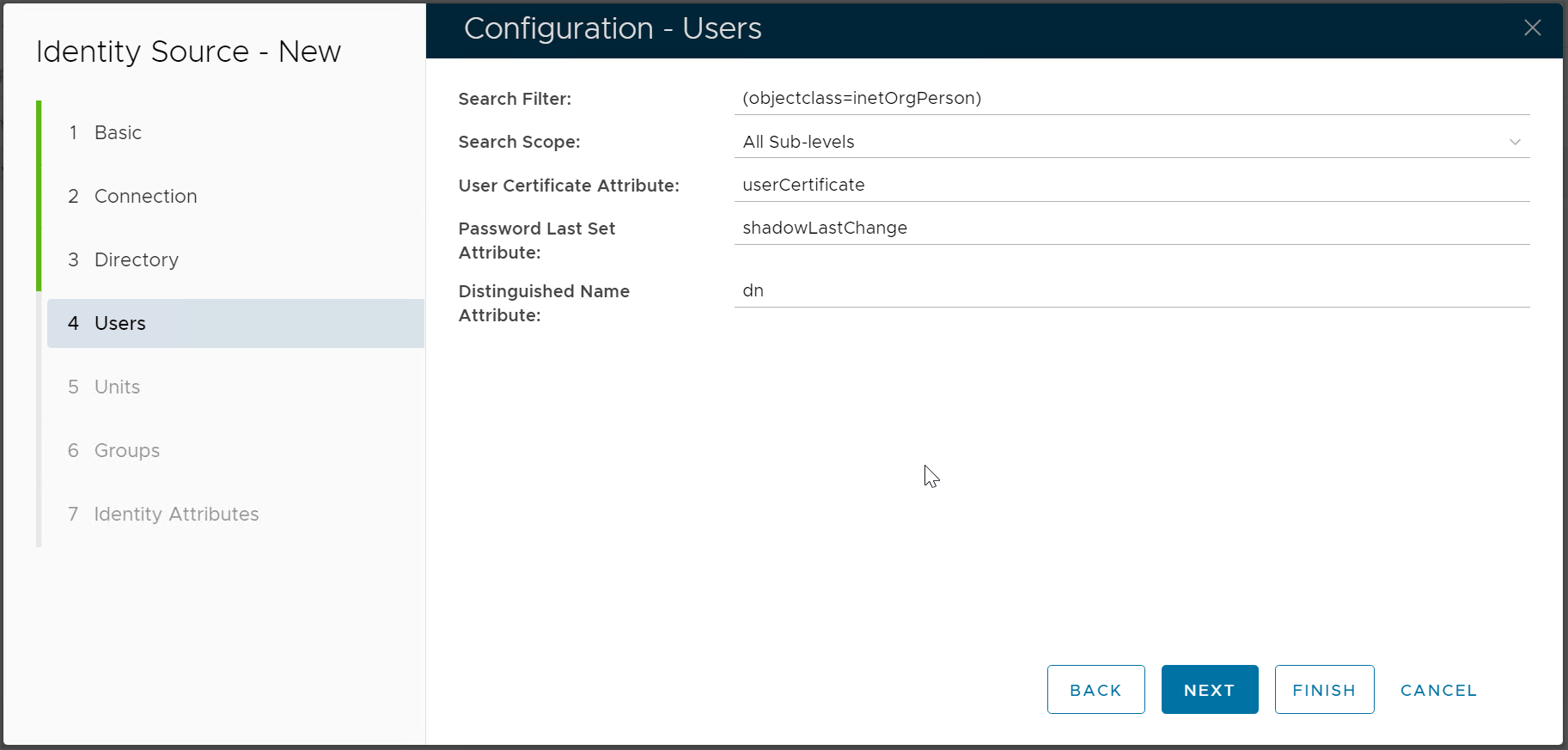
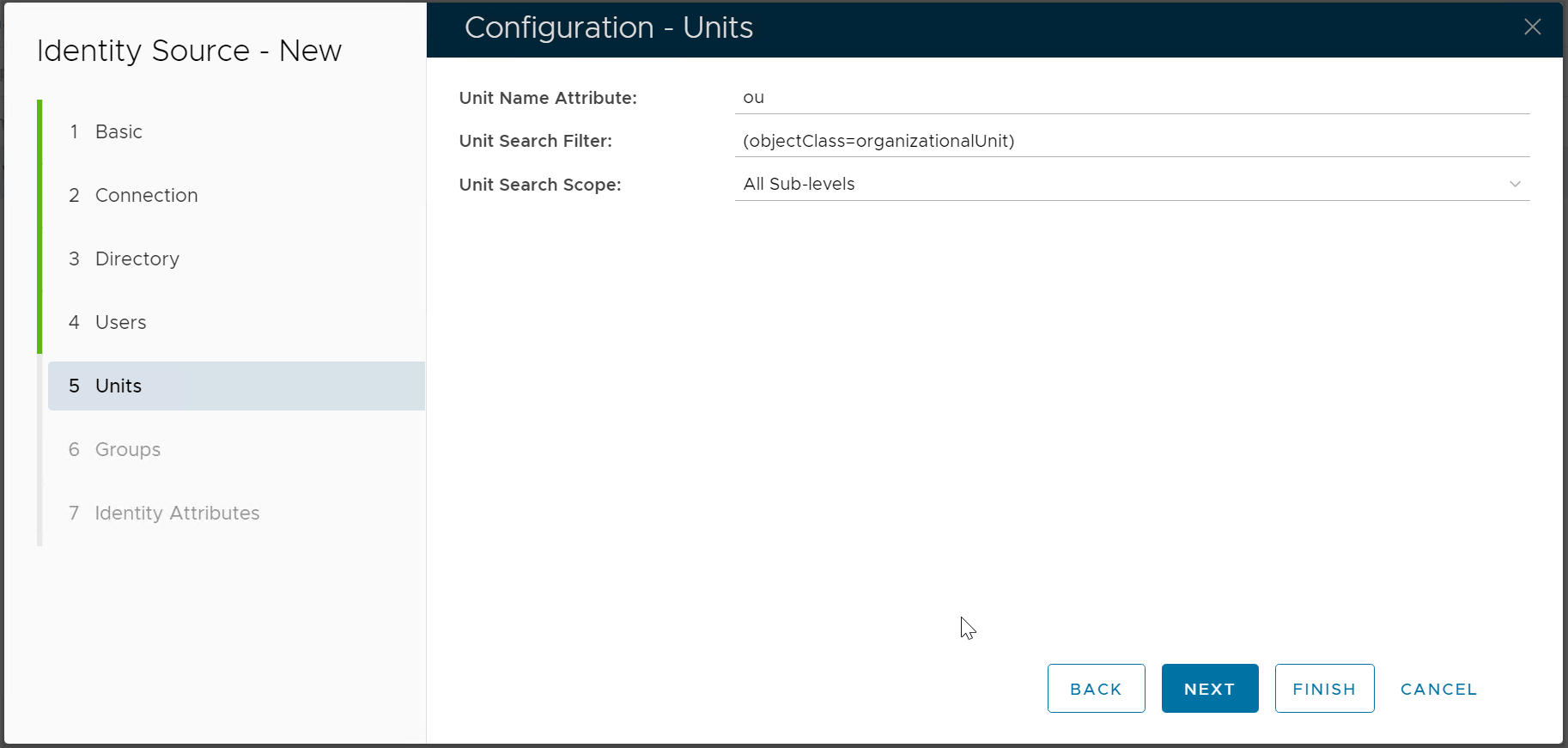
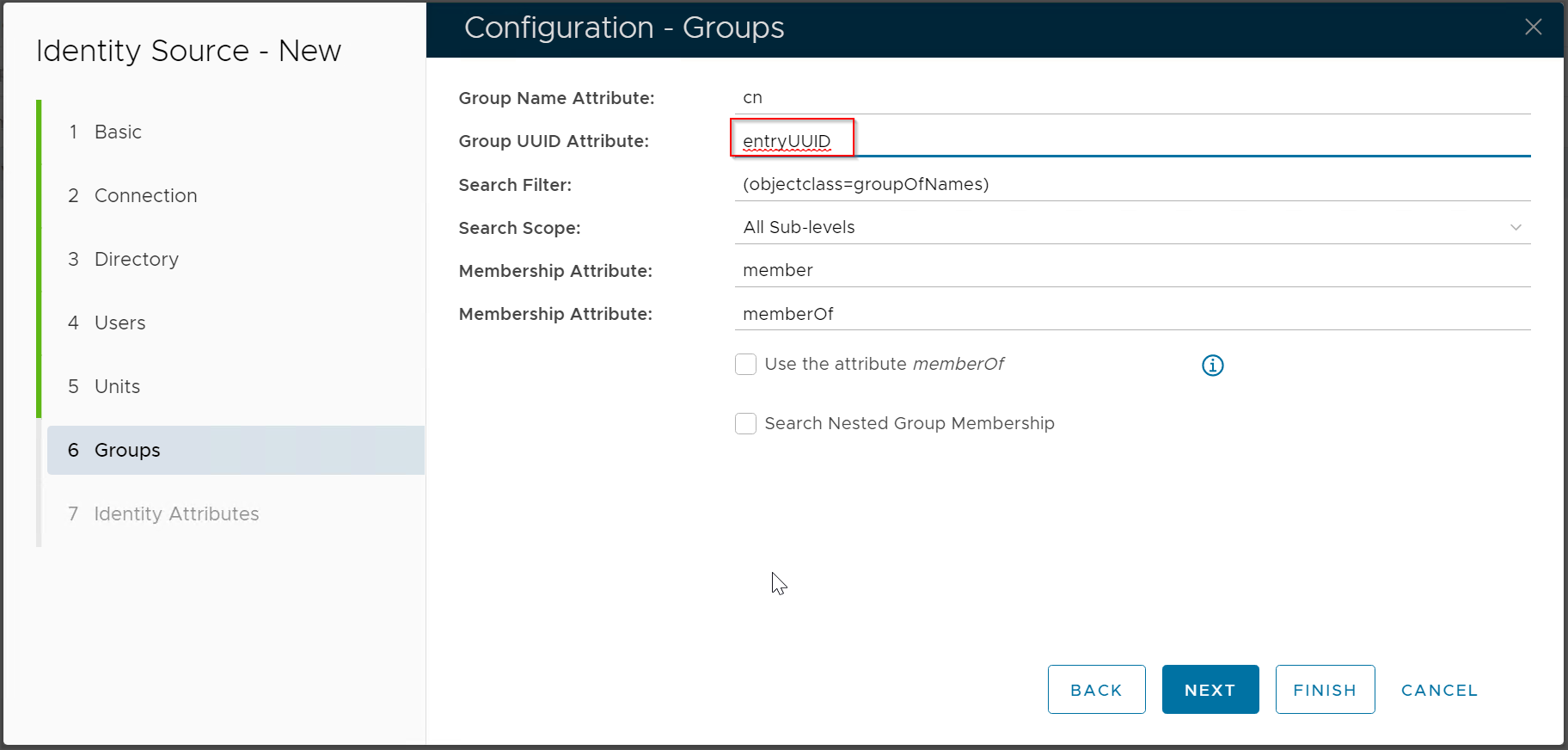
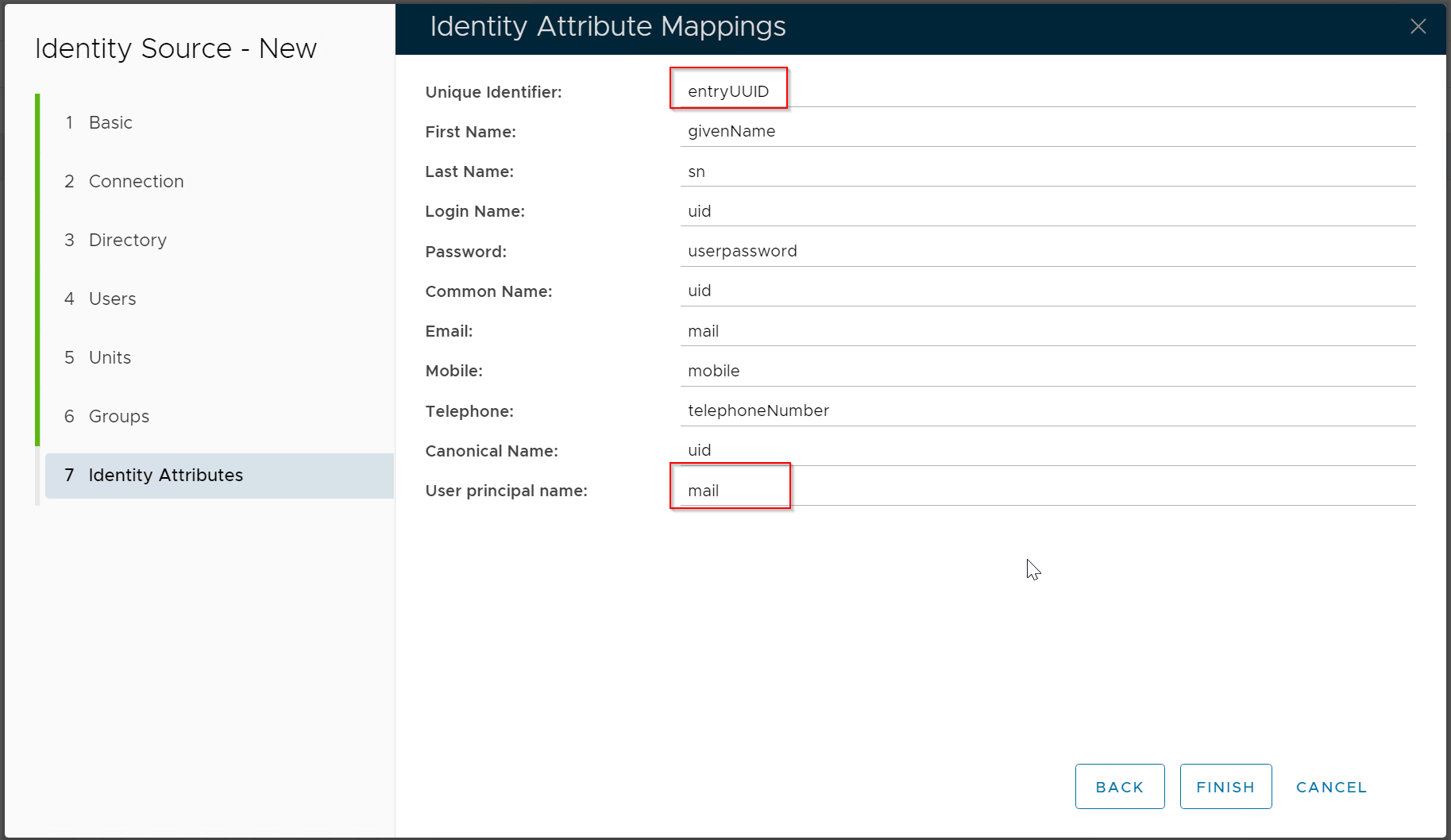
Add Domain
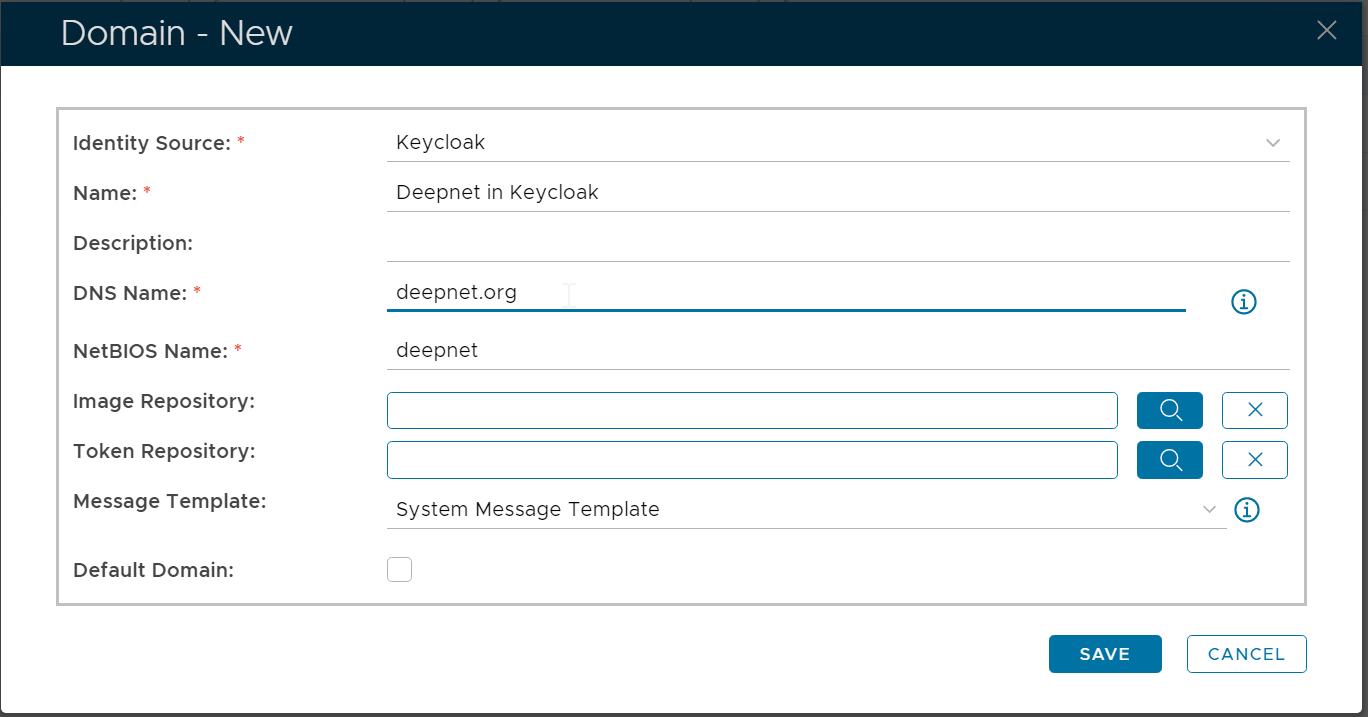
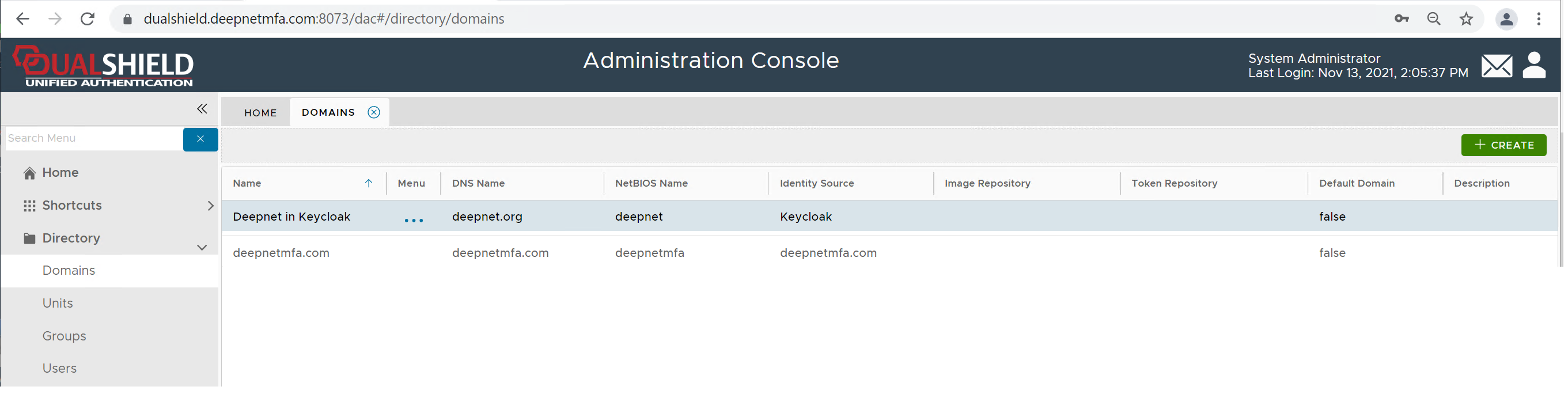
Navigate to "Directory > Domain", click the "Create" button on the toolbar
| Select the Identity Source created in the previous steps above, e.g. KeyCloak Enter a name the describes this new domain Enter the domain's DNS name. This should be the domain name in the user's email address or UPN Enter the realm name in Keycloak as the NetBIOS Name |