Authentication Settings
Logon to the NetMotion Mobility Server
Click on Configure>Authetication Settings

Option - You may set up a separate authentication profile or use the global settings.
To create a separate Profile simply click New on the top left and give the profile a name, at the prompt.
You can then select the profile you wish to use, here.
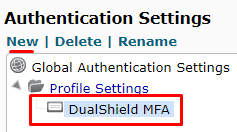
There are three settings that need to be applied. The settings are found in the middle pane.
| Section | Option |
|---|---|
| Authentication | Protocol |
| RADIUS: User Authentication | Retransmit Interval |
| RADIUS: User Authentication | Servers |

Click on Protocol
Select RADIUS - EAP (PEAP and EAP-TLS)
Click Apply

Select Retransmit Interval (under 'User Authentication')

Click on Servers (under 'User Authentication')
Click the Add button

In the RADIUS Server Entry, please enter the following information:
| Option | Value |
|---|---|
| Host address: | Enter the IP address of machine that your DualShield Radius Server was installed |
| Port: | 1812 |
Shared Secret: & Confirm Shared Secret: | The shared secret will match the one you created when Registering NetMotion as a RADIUS client |
Click: OK

Client Settings
Click on Configure>Client Settings

Tick the box of the Radius Server you will be using and click Save below.

Server Settings
Add RADIUS Server
- In the main menu, “Configure | Authentication Settings ”
- Select "Global Authentication Settings" in the left pane
- Select “RADIUS: User Authentication - Servers” in the middle pane

- Click “Add” button in the right pane to add the DualShield Radius Server

- Enter the Dualshield Radius Server IP address, Port and Shared secret.
- Click "OK" button to save it
Set User Authentication Protocol to RADIUS EAP
- Select “Authentication: Protocol” in the middle pane

- Select “RADIUS - EAP (PEAP and EAP-TLS)”

- Click “Apply” to save it
Set RADIUS Retransmit Interval
- Select "RADIUS: User Authentication | Retransmit Interval" setting.
Enter an interval long enough for a user’s mobile device to receive and respond to authentication requests. Recommended: at least 40000 milliseconds.

Click Apply.
Client Settings
Enable Always Prompt for User Credentials
- In the main menu, Select “Configure | Client Settings”
- Select "Global Client Settings" in the left pane
- Select “Logon | Always Prompt for User Credentials” in the middle pane

- Enable "Always prompt when connecting

- Click “Apply” to save it
Set Connecting Dialog Duration
- Select "Connecting Dialog Duration" in the middle pane

- Change Wait time to 120 seconds

- Click "Apply" to save it