We will add the Dualshield SSO as a Claims Provider in the ADFS server.
First, download the IdP Metadata from the DualShield server
Download metadata by URL
https://your-dualshield-fqdn:8074/sso/saml2metadata
Replace "your-dualshield-fqdn" with the fully qualified domain name of your DualShield server, e.g.
https://dualshield.deepnetid.com:8074/sso/saml2metadata
Download metadata from the Admin Console
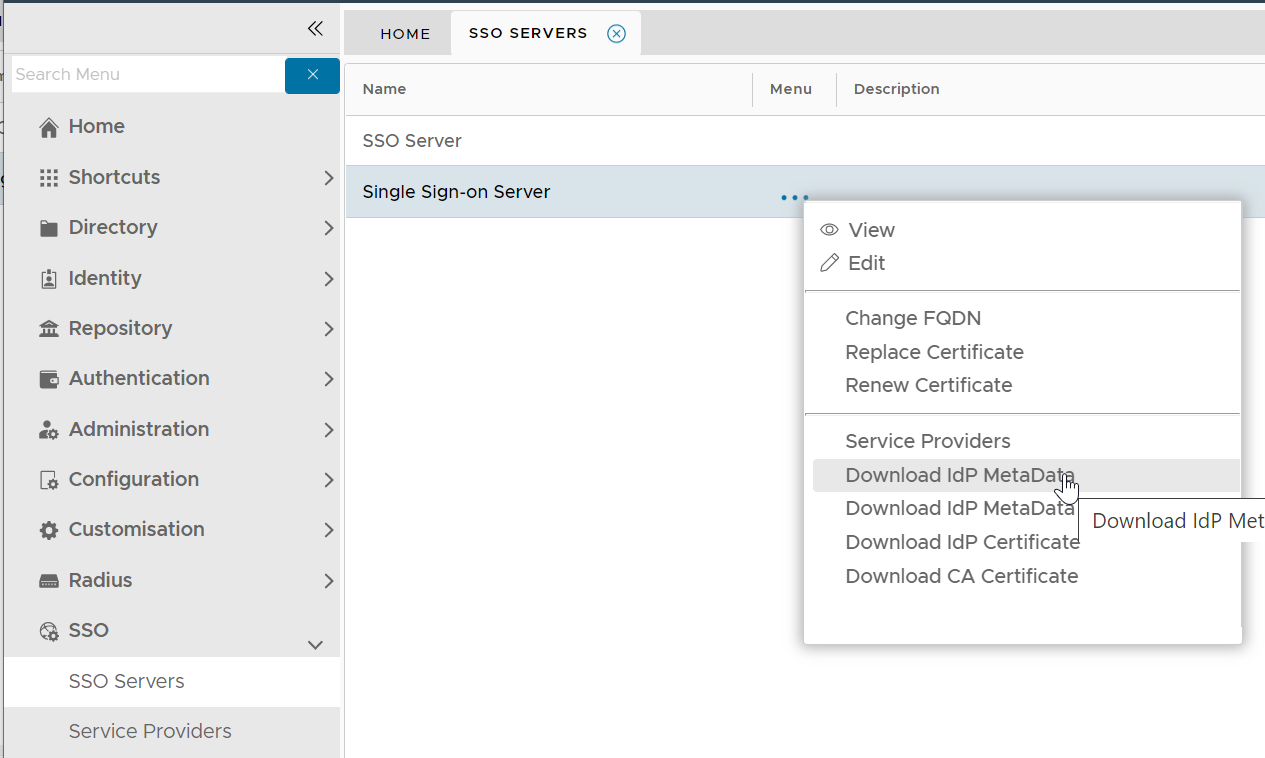
Select "Download IdP MetaData" from its context menu. It will be saved in the local drive as "SSO Server.xml"

Download metadata by copy and paste
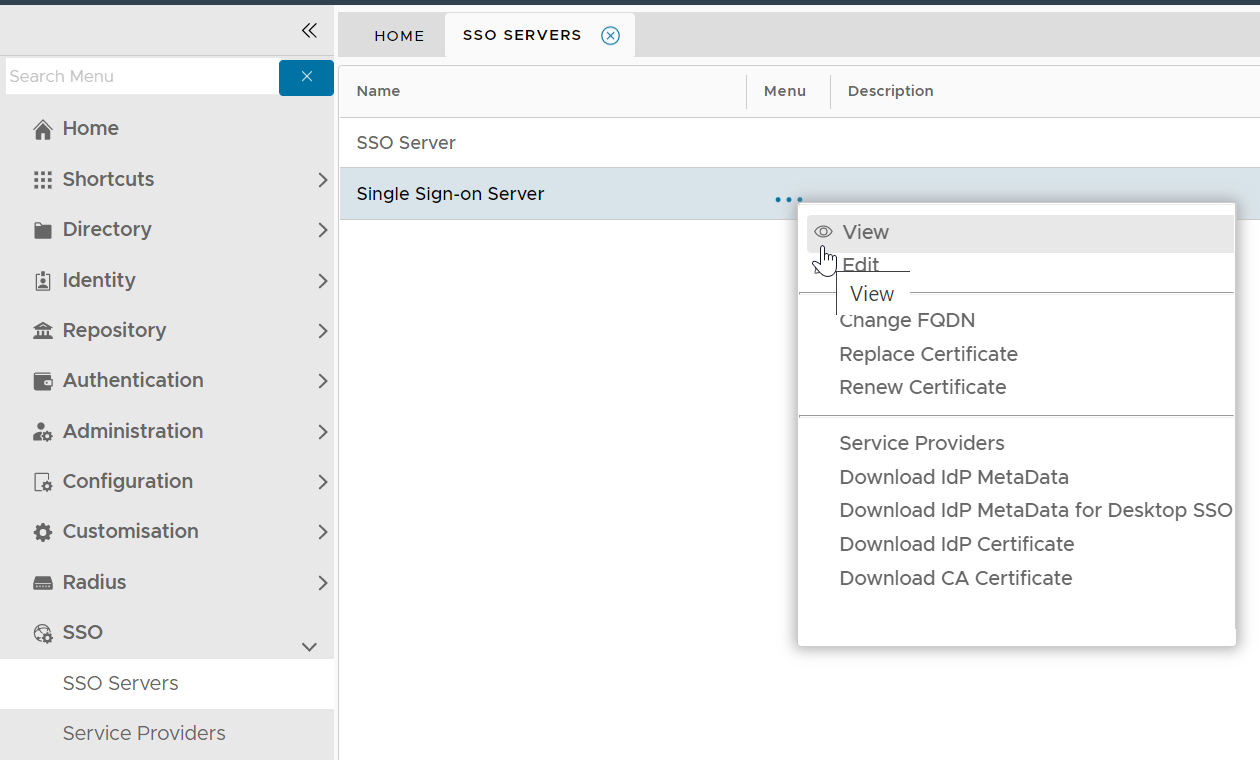
Select "View" from its context menu
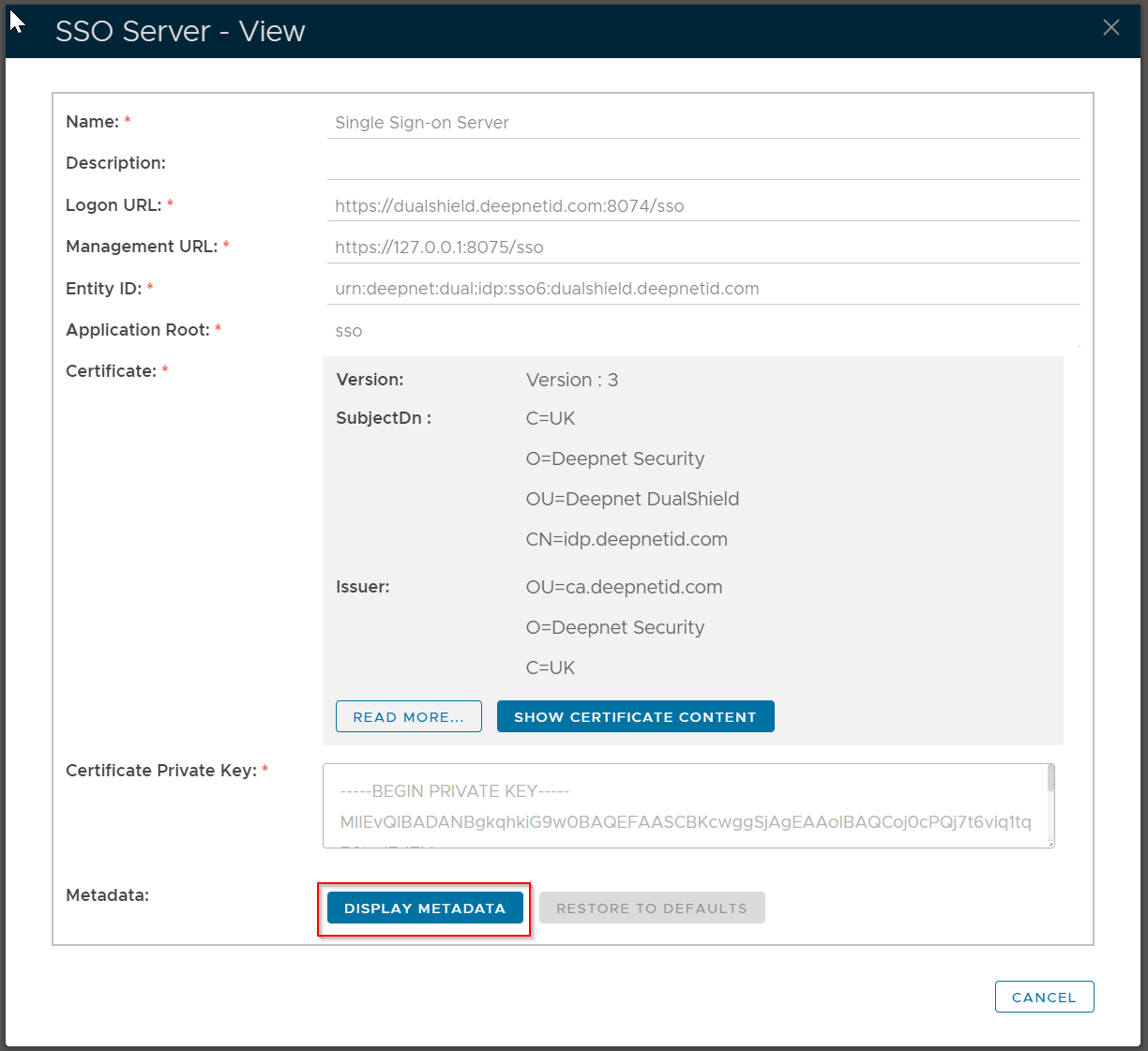
Click "Display Metadata"
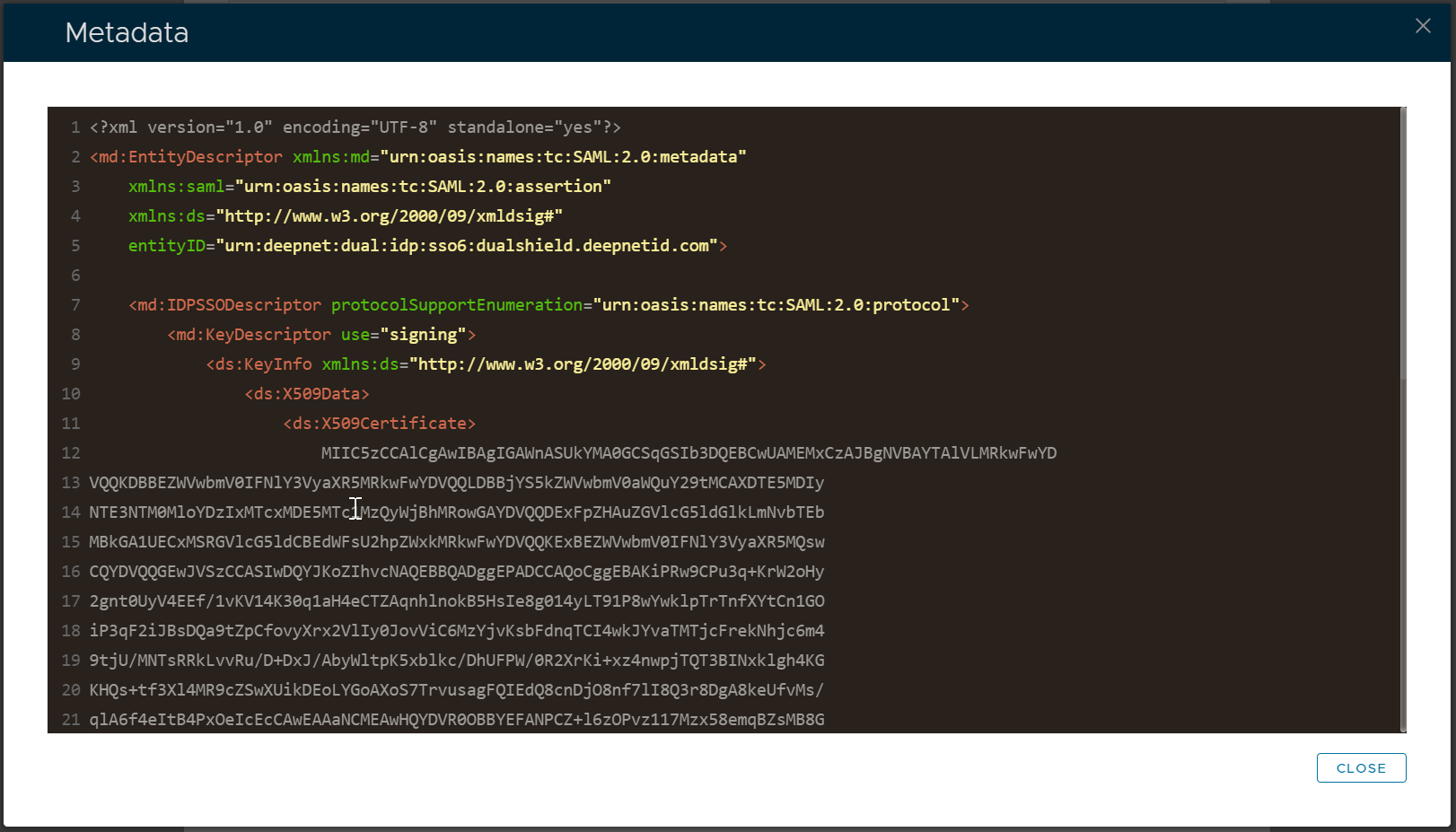
- Log into the DualShield Management Console, in the main menu, select “SSO | SSO Servers”, click "Download IdP Metadata"
- Select the newly created web application, e.g. "ADFS" and click "Save". Please see How to create an application.
Now, open the ADFS Management console and in the left hand window expanding the Trust Relationships heading and selecting “Claims Provider Trust”.

Right click and select “Add Claims Provider Trust” to start the Add Claims Provider Trust wizard.
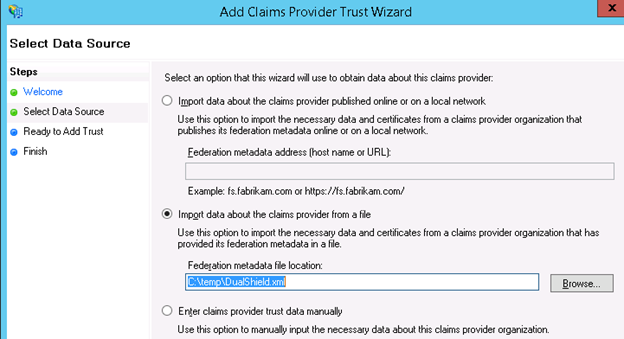
Click through the welcome panel to the Select Data Source panel, select the “Import data about the claims provider from a file”.
In the "Federation metadata file location" text field enter the DualShield's IdP metadata file you have downloaded and saved:
Click “Next” to continue.
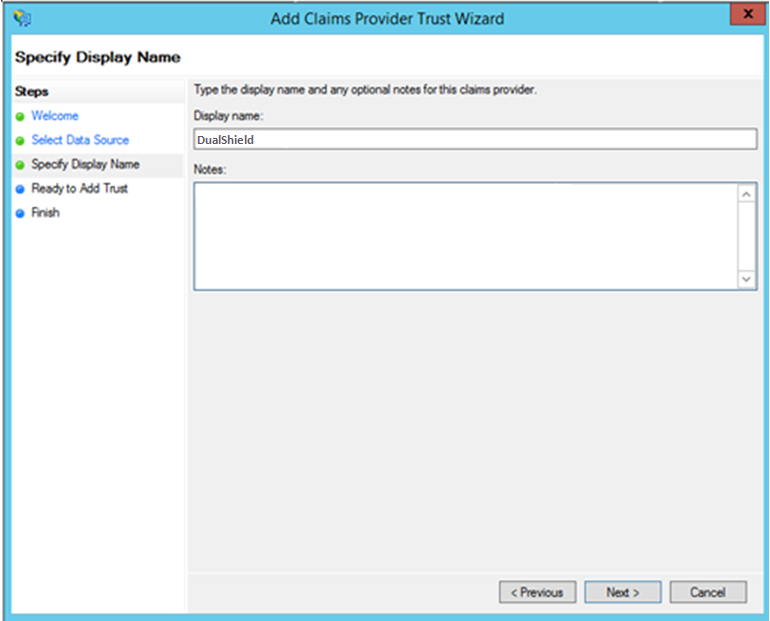
Change the display name to whatever you like, say "DualShield"
Click “Next” to continue.
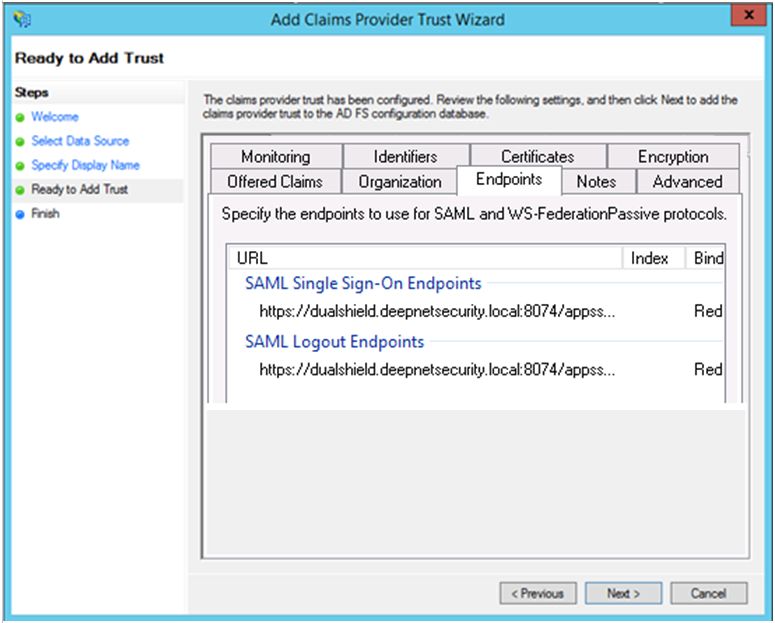
Click the "Endpoints" tab to review the SAML endpoint settings
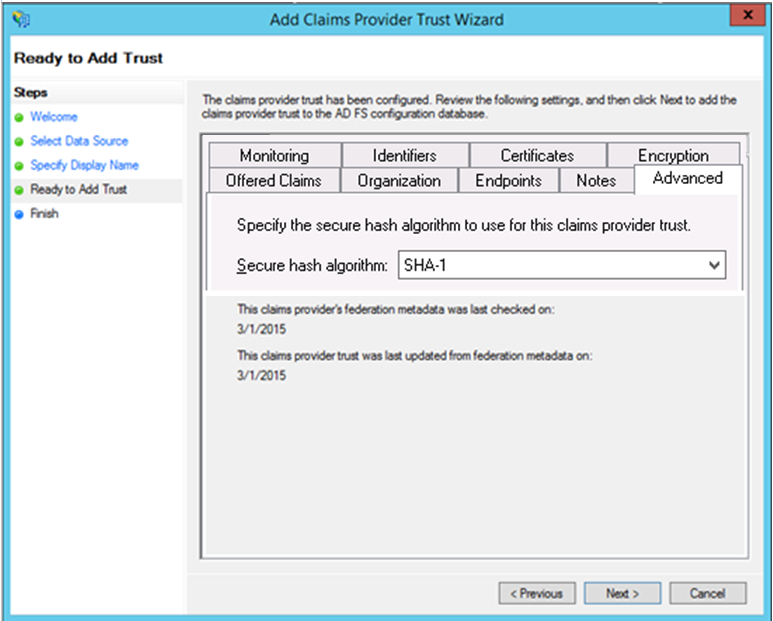
Click the "Advanced" tab and change Secure hash algorithm to "SHA-1"
Click “Next” to finish.