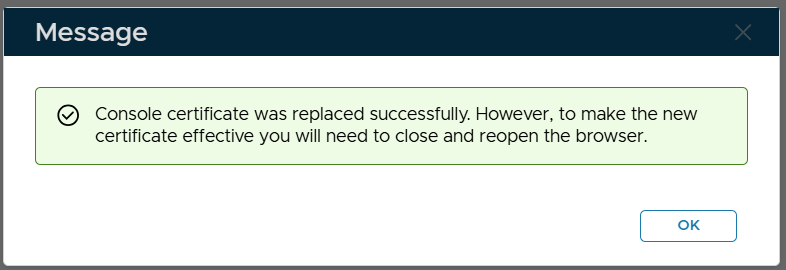
Finally, you need to complete the Certificate Signing Request using the certificate that you downloaded from the CA
Click the context menu of the Certificate Signing Request
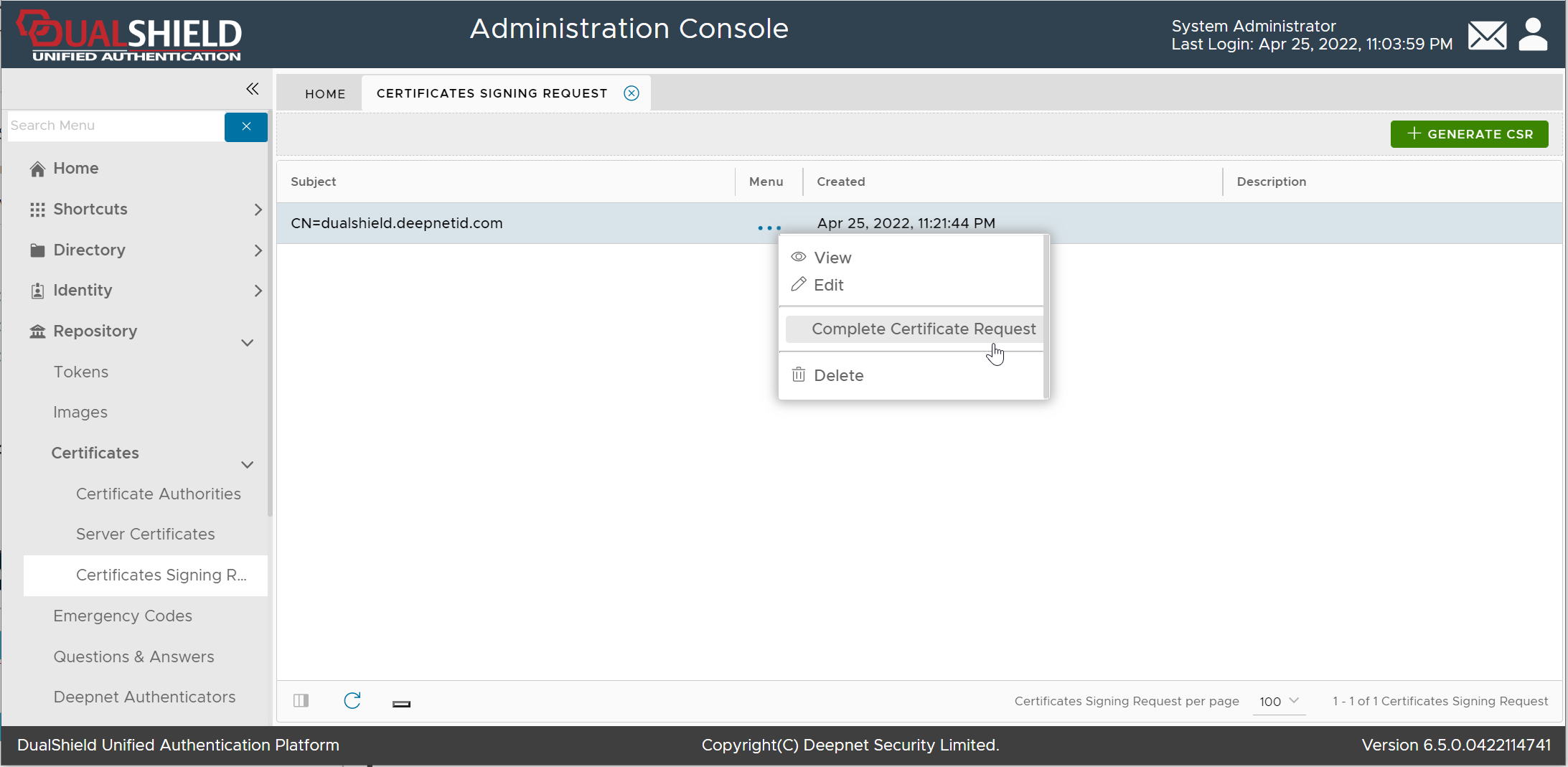
Select "Complete Certificate Request"
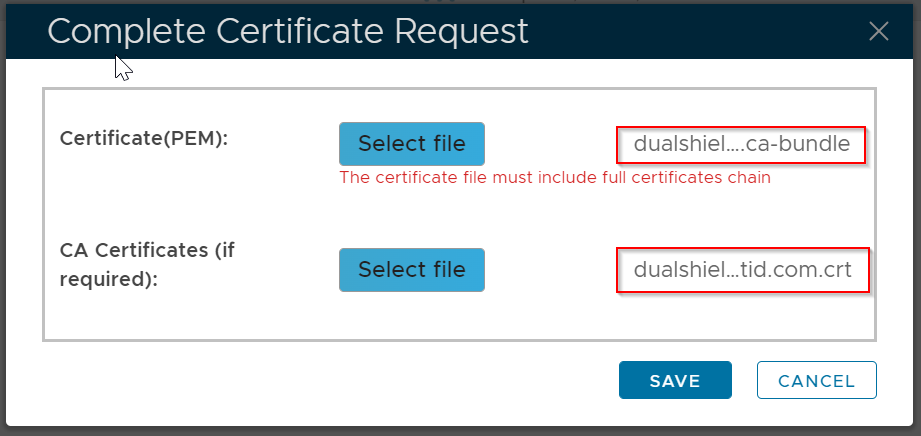
Select the CA Bundle file, and the certificate CRT file
Click Save
The certificate will be saved in the "Server Certificate" list
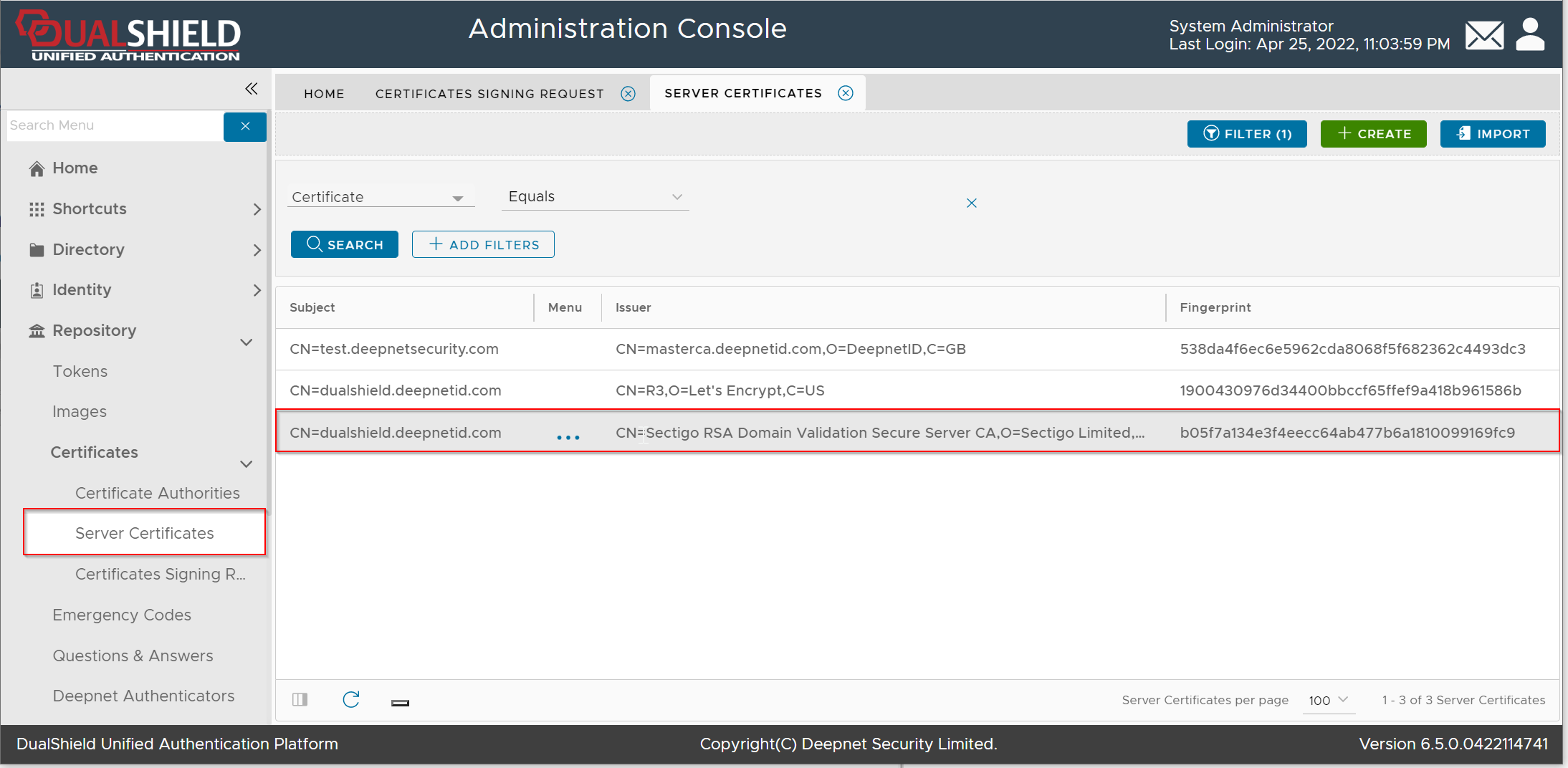
Please note that this does not automatically update the web certificate of your DualShield consoles. If you wish to do that then...
Click on the ellipses corresponding to the newly imported Server Certificate and select Apply
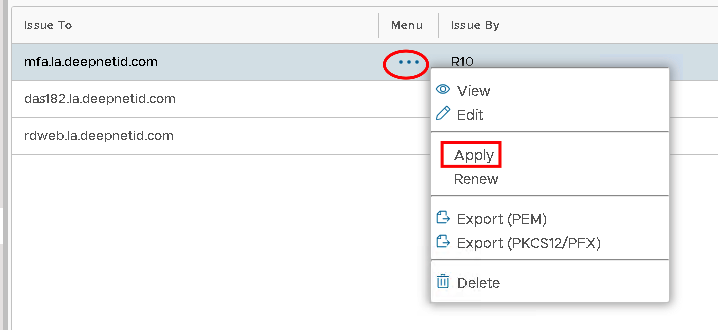
Select the correct SSO Server from the drop down...
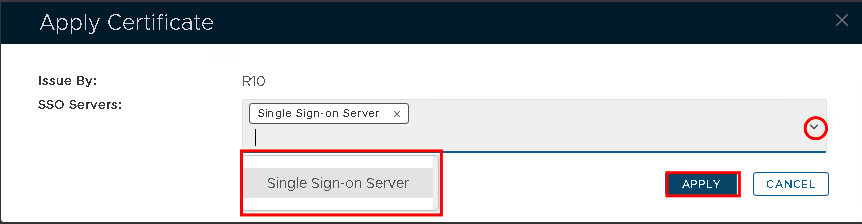
Hit Apply
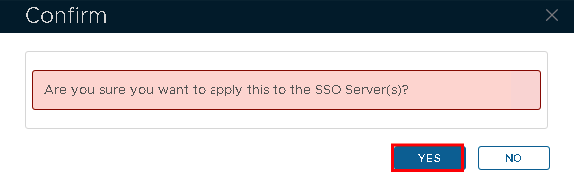
Click Yes.
Navigate to "SSO | SSO Servers", click the context menu of "Single Sign-On Server"
Select "Replace Certificate" from the context menu

The "Replace Console Certificate" window will pop up:
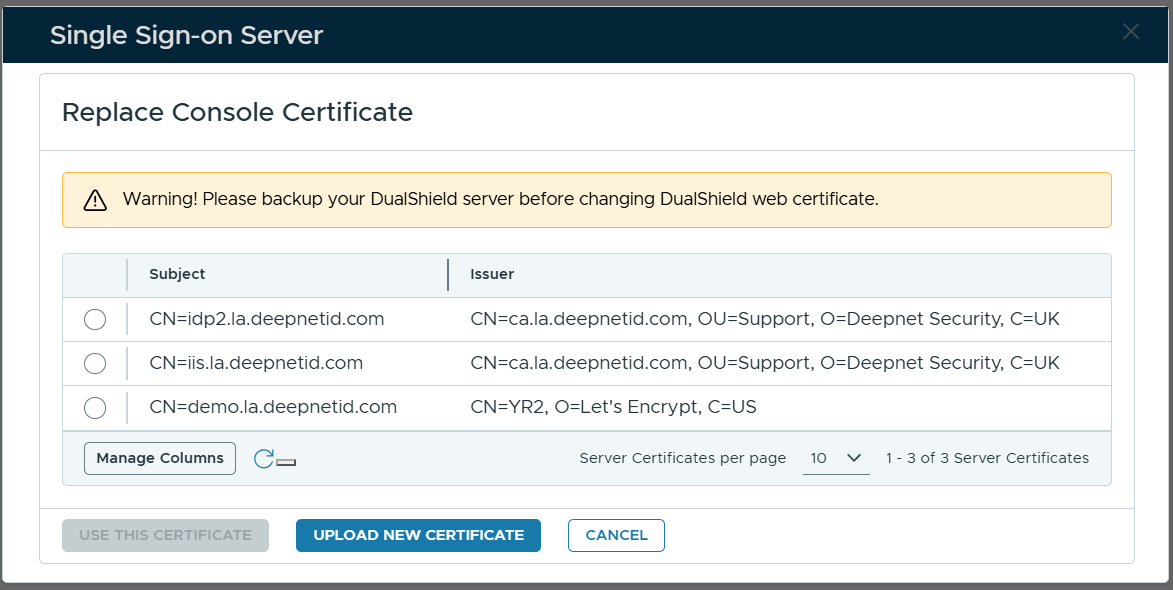
Select the certificate to be used
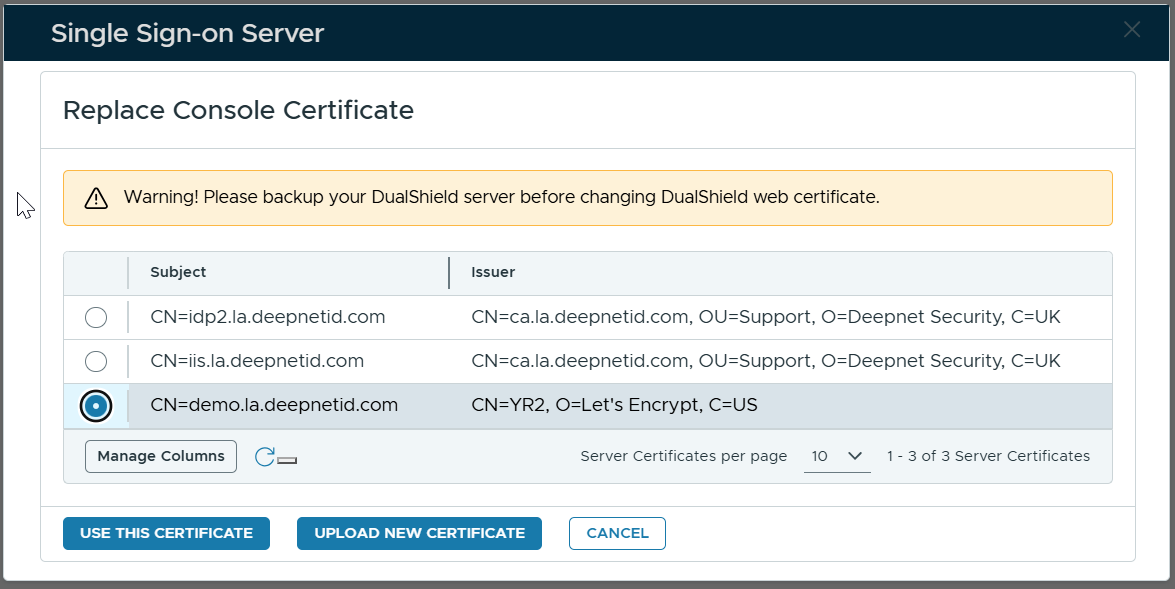
Click "Use This Certificate"