This guide describes how to create a custom installer package using the Windows tool called "IExpress"
Step 3: Create a custom installer package using iExpress
Run iExpress as administrator
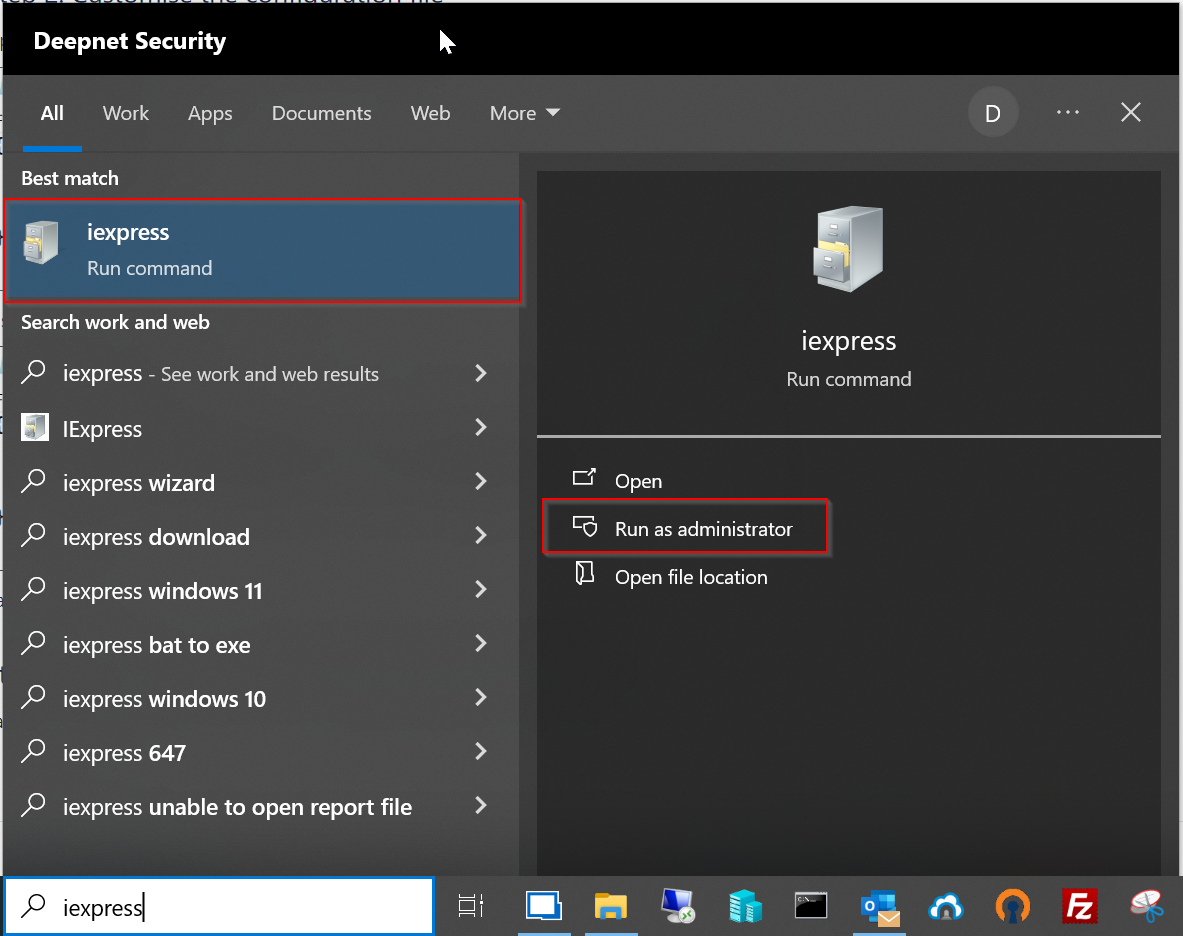
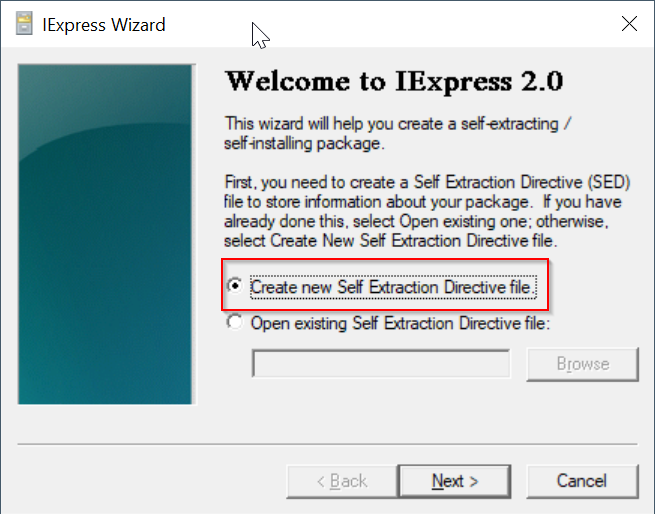
Select the option "Create new Self Extraction Directive file"
Click "Next
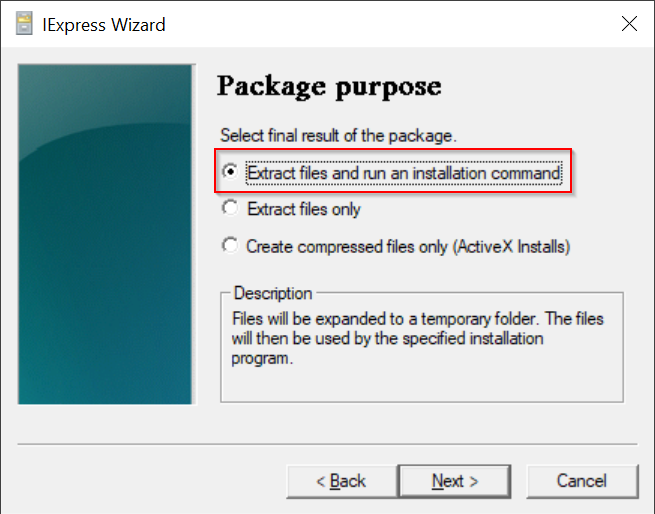
Select the option "Extract files and run an installation command"
Click "Next"
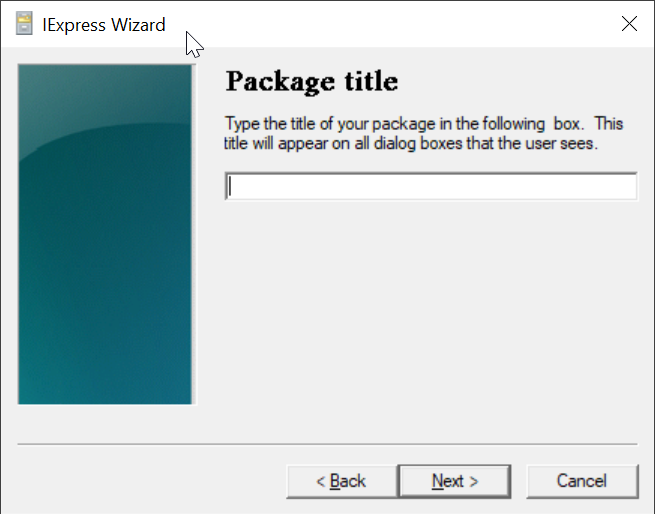
Enter "Deepnet Computer Logon Agent for Entra ID"
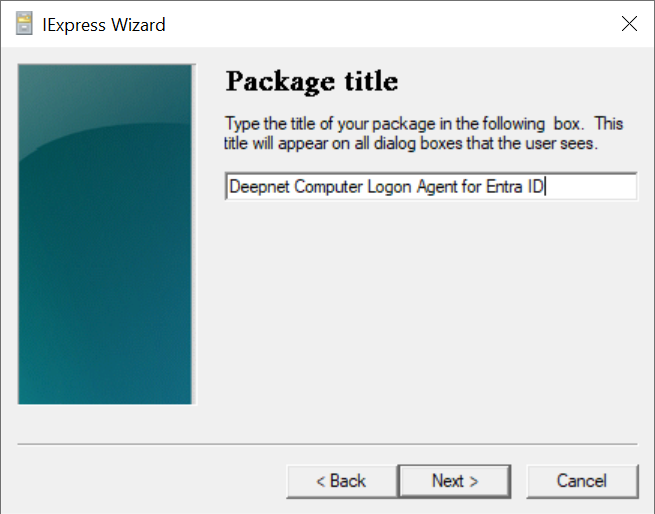
Click "Next"
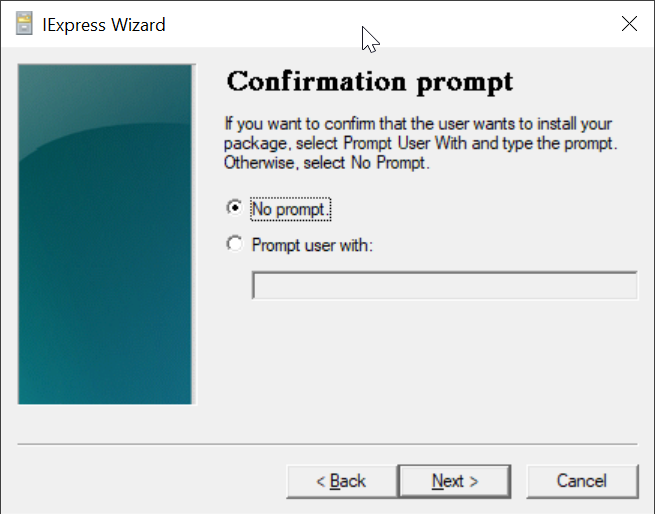
Select "No prompt"
Click "Next"
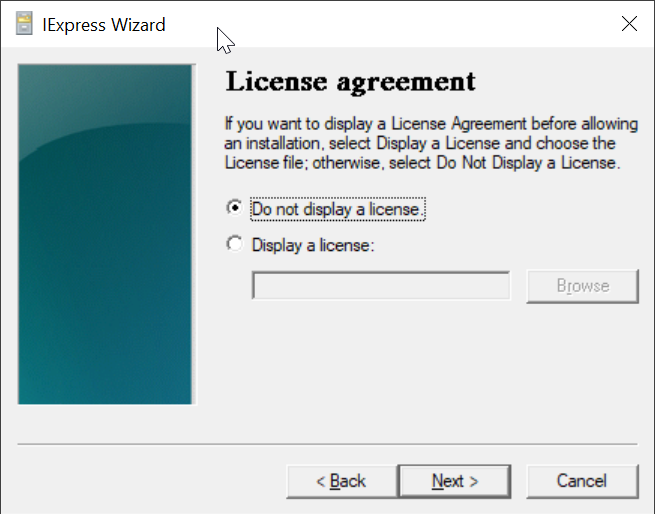
Select "Do not display a license"
Click "Next"
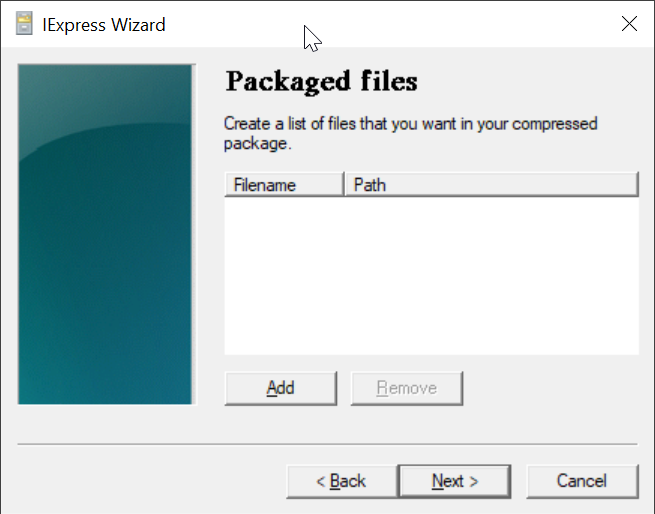
Click "Add"
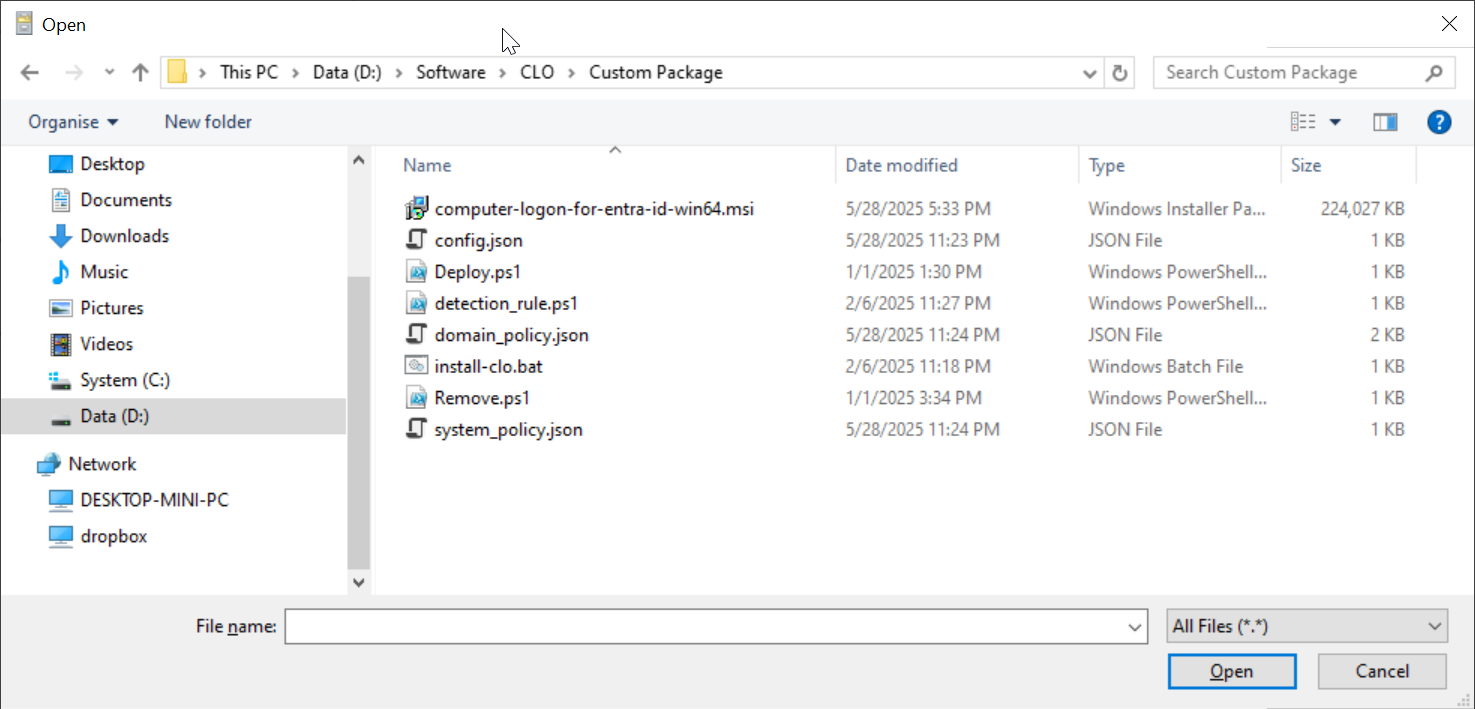
Navigate to the folder where the files are kept, e.g. "D:\Software\CLO\Custom Package"
Select all files in the folder
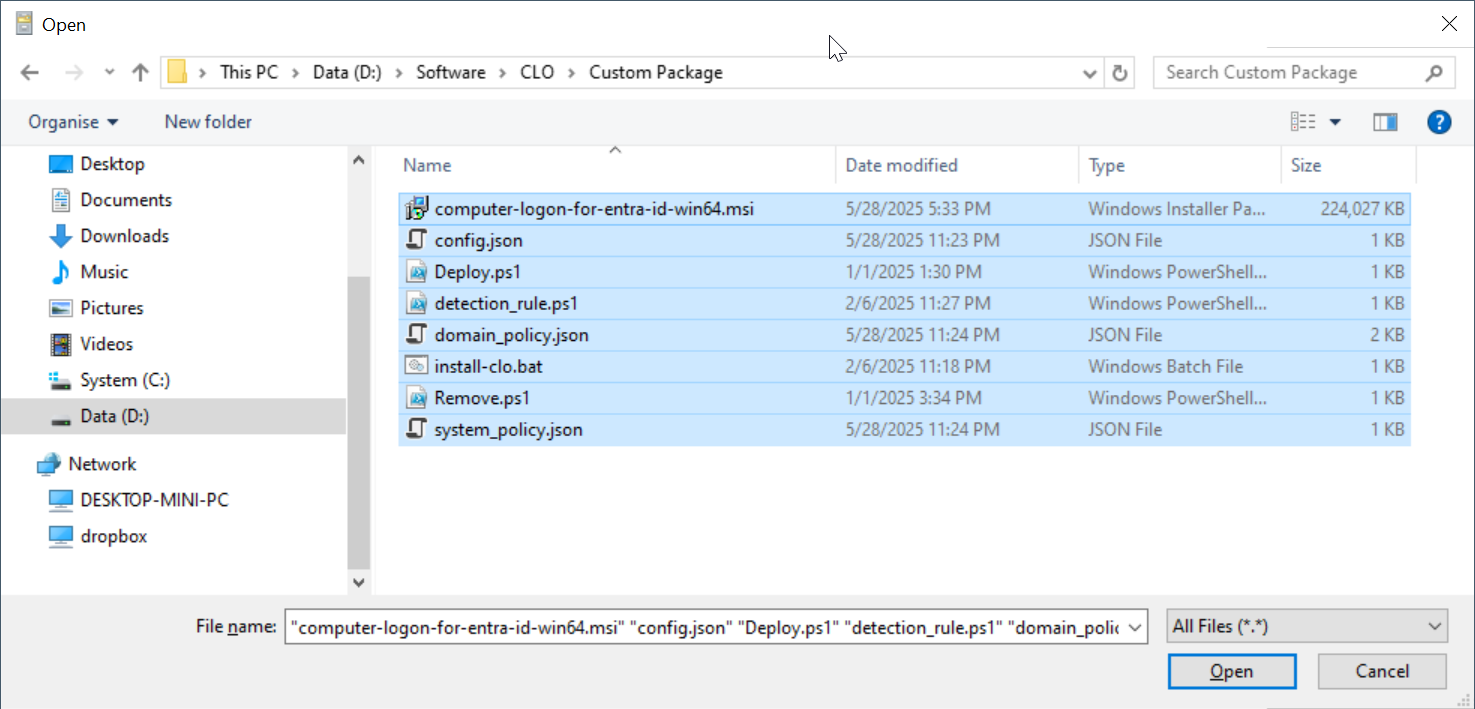
click "Open"
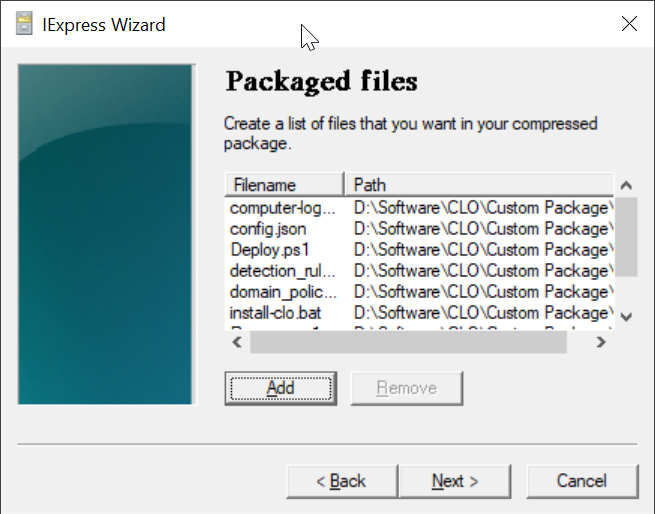
All 3 files are added
Click "Next"
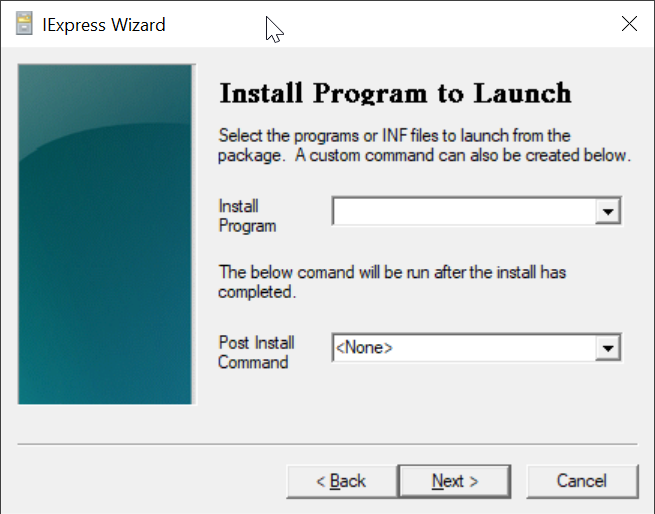
In the "Install Program" box, enter "cmd /c install-clo.bat"
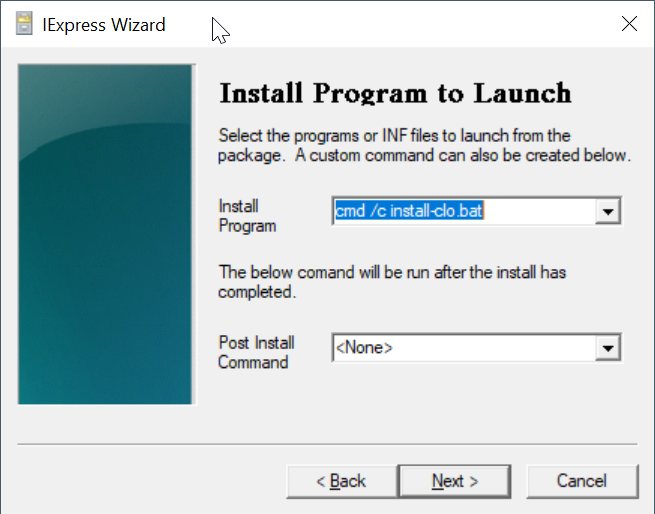
Click "Next"
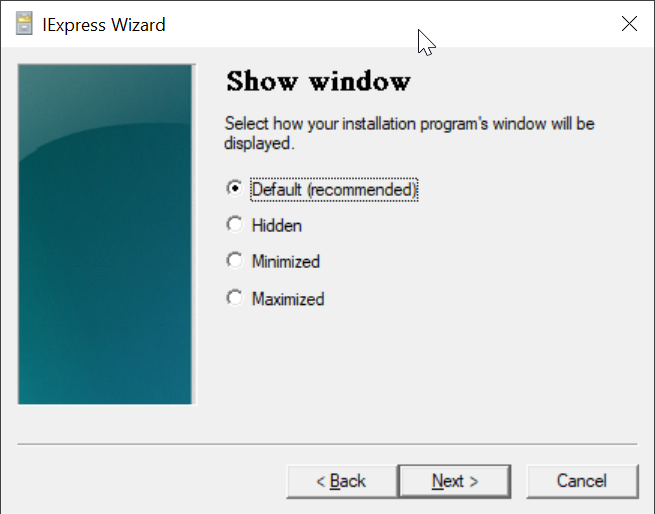
Click "Next"
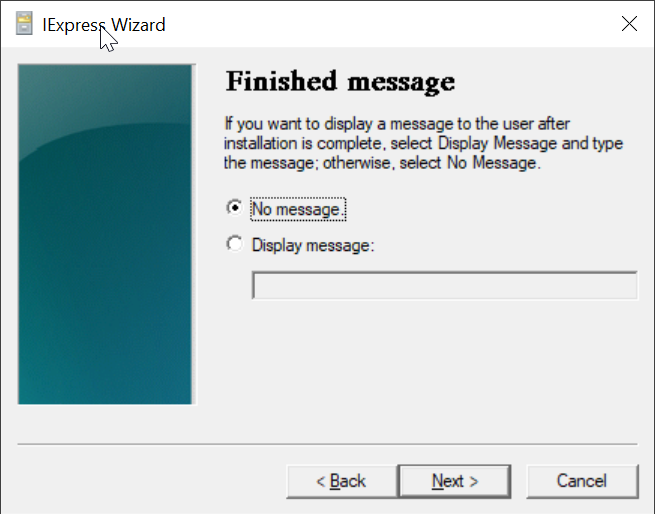
Click "Next"
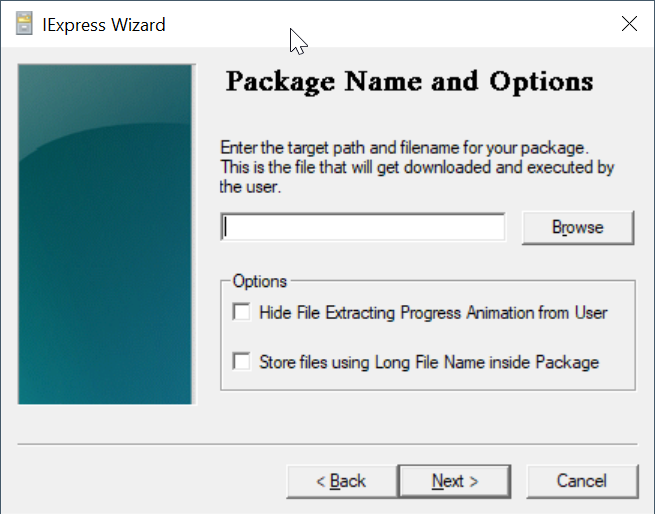
Click the "Browse" button to select a folder where you want to save the custom installer file. e.g. "D:\Software\CLO"
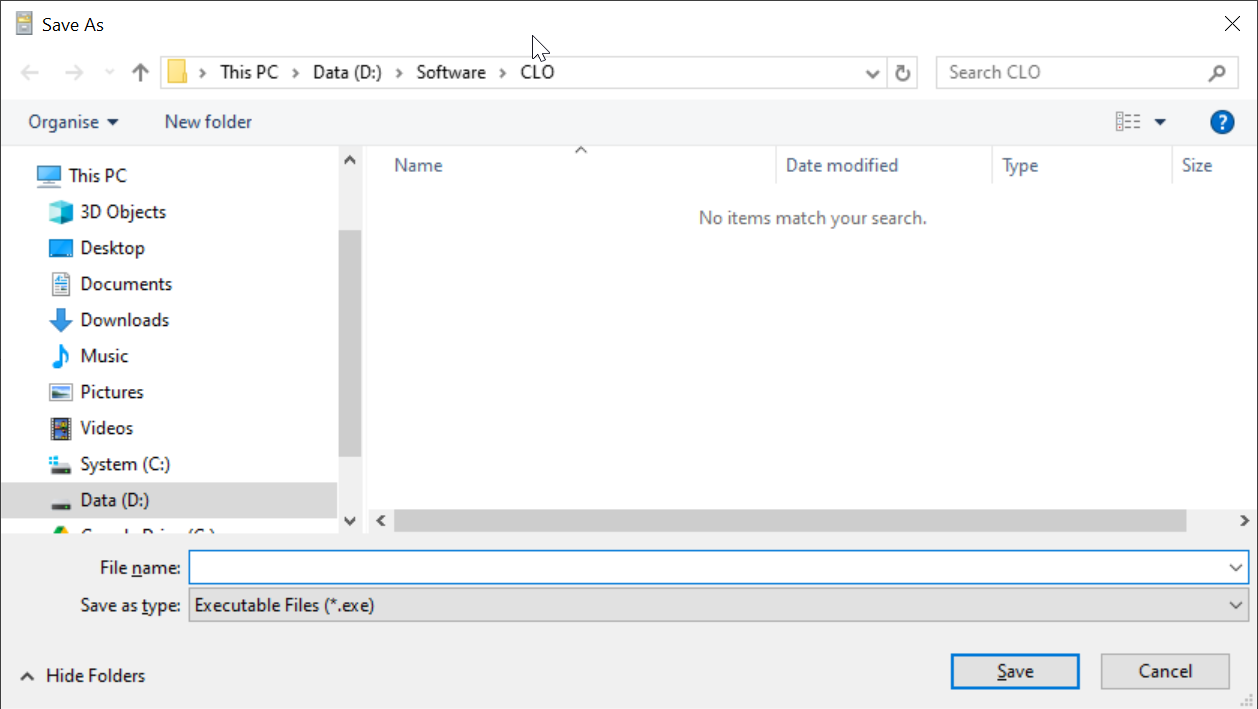
In the "File name" box, enter the name for your customer installer, e.g. Deepnet-CLO-Installer
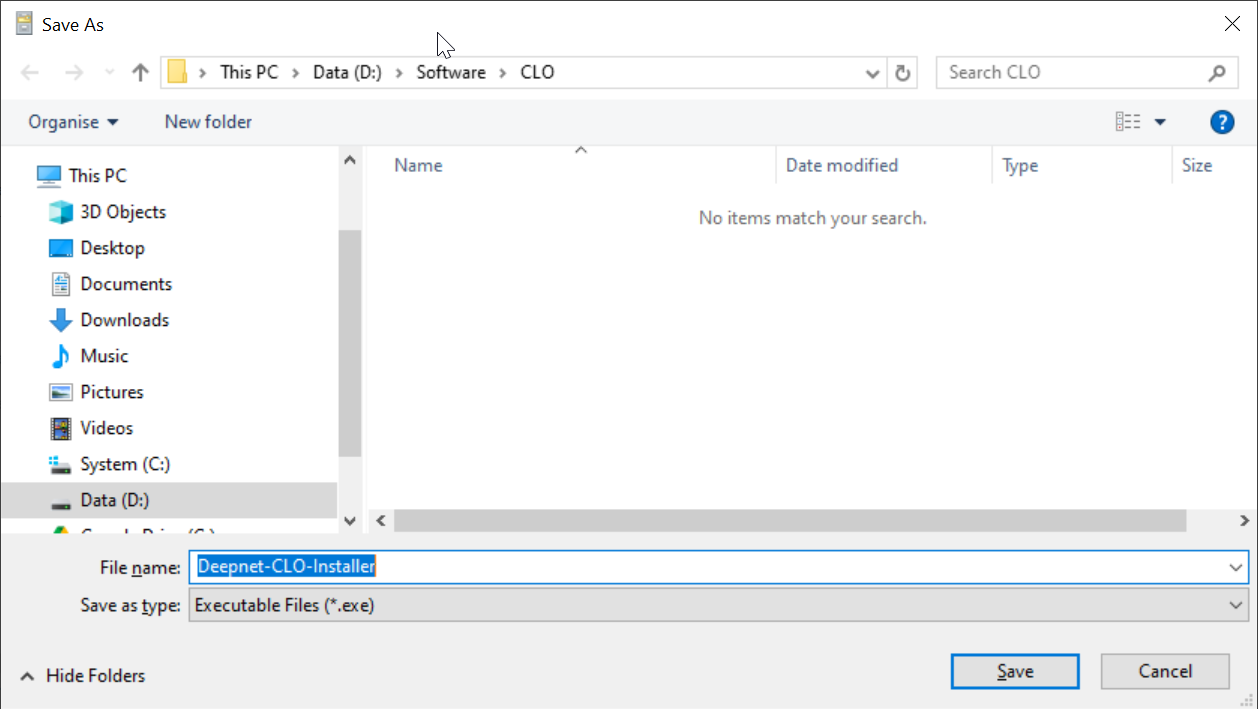
Click "Save"
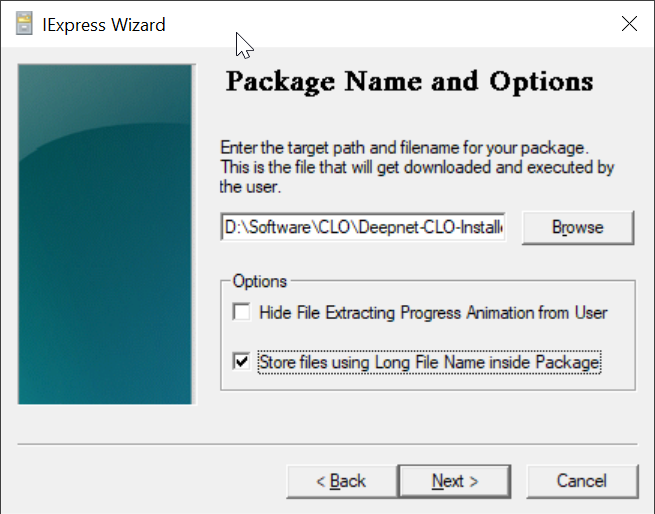
Select "Store files using Long File Name inside Package"
Click "Next"
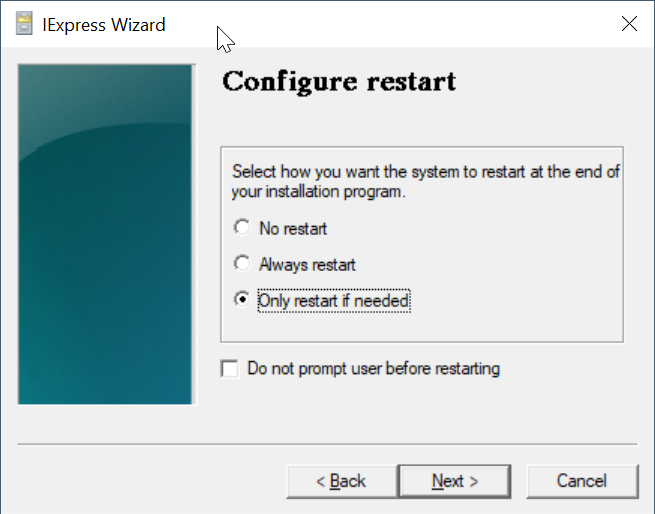
Click "Next"
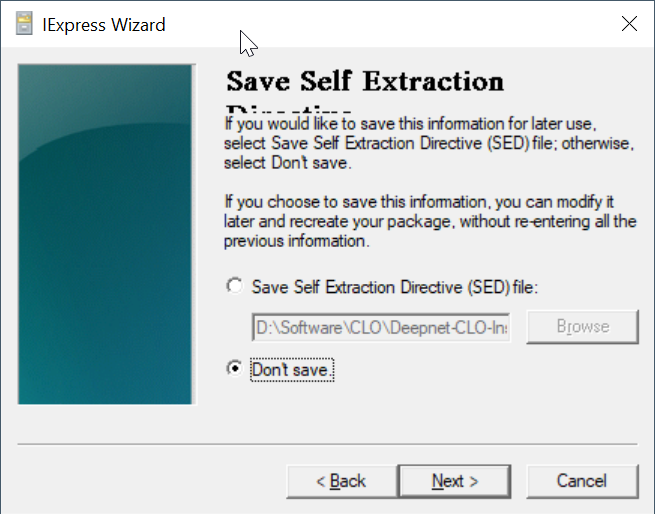
Select "Don't save"
Click "Next"
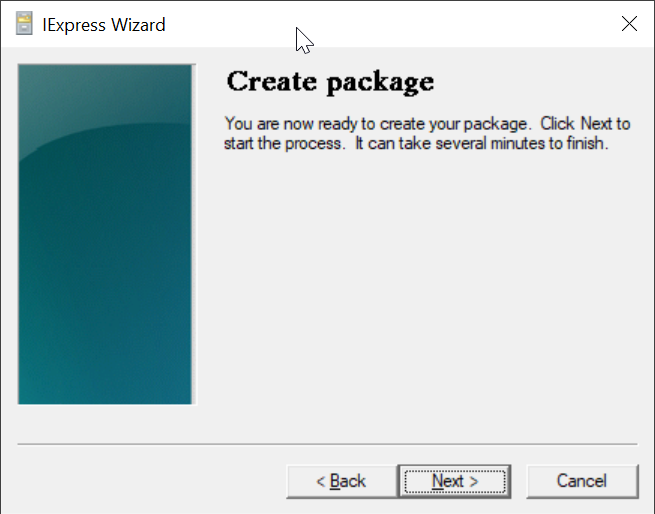
Click "Next"
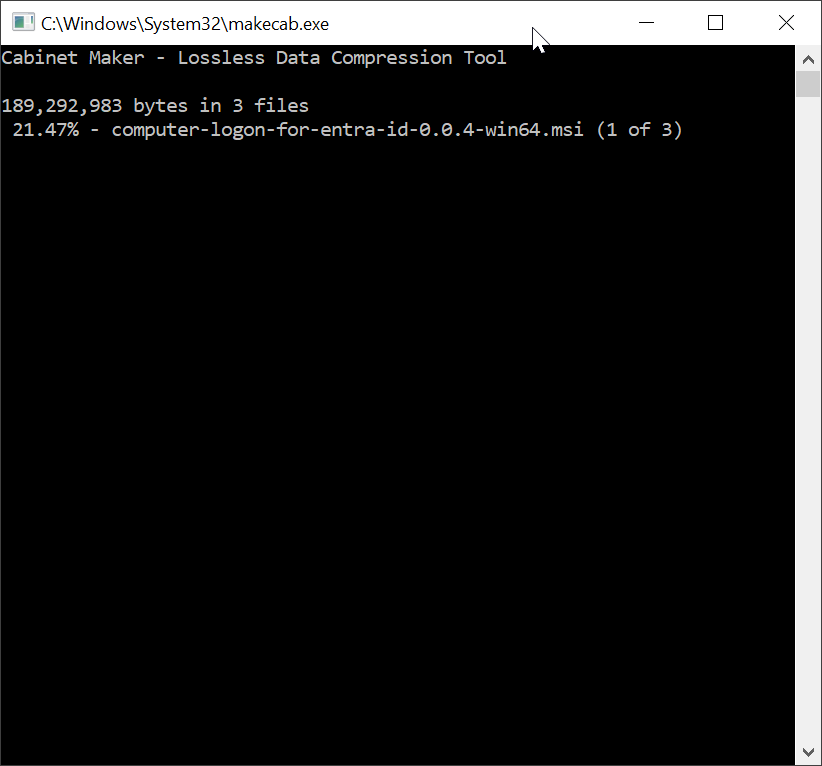
Wait for it to finish
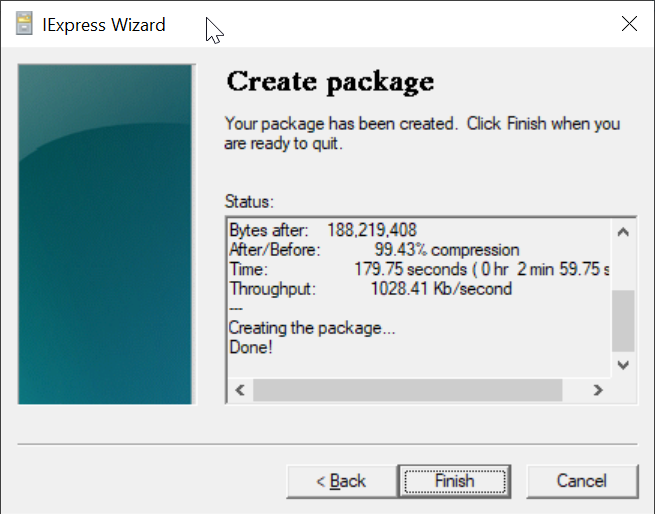
Click "Finish"
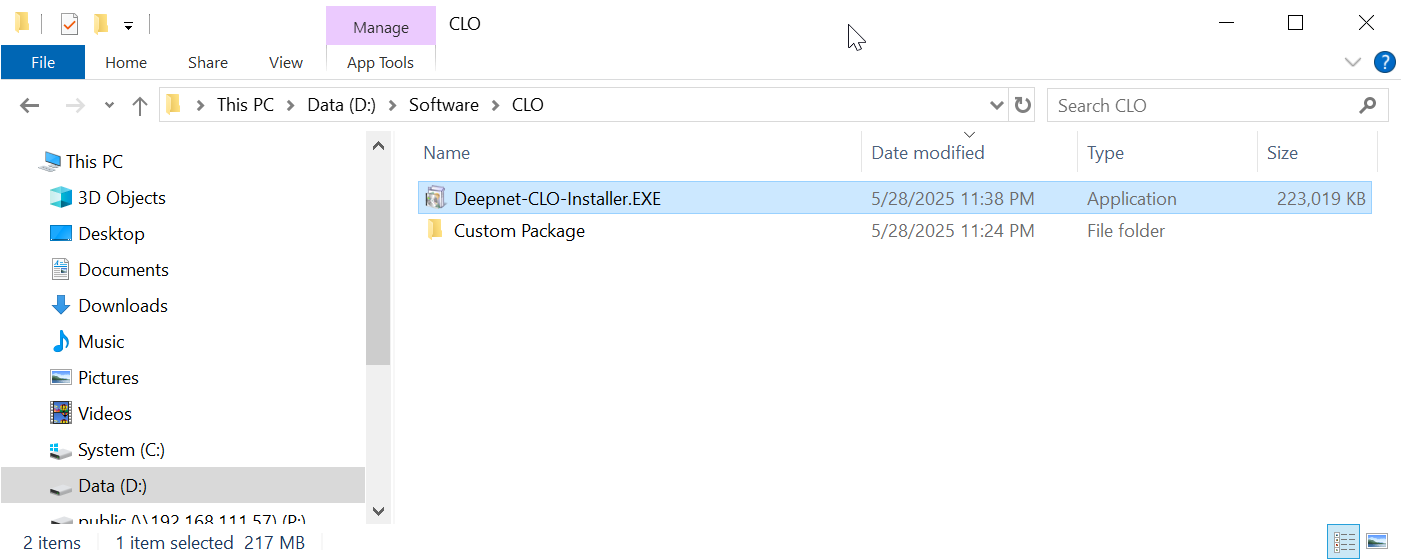
Now, you can distribute your custom installer "Deepnet-CLO-Installer.EXE" to your users.