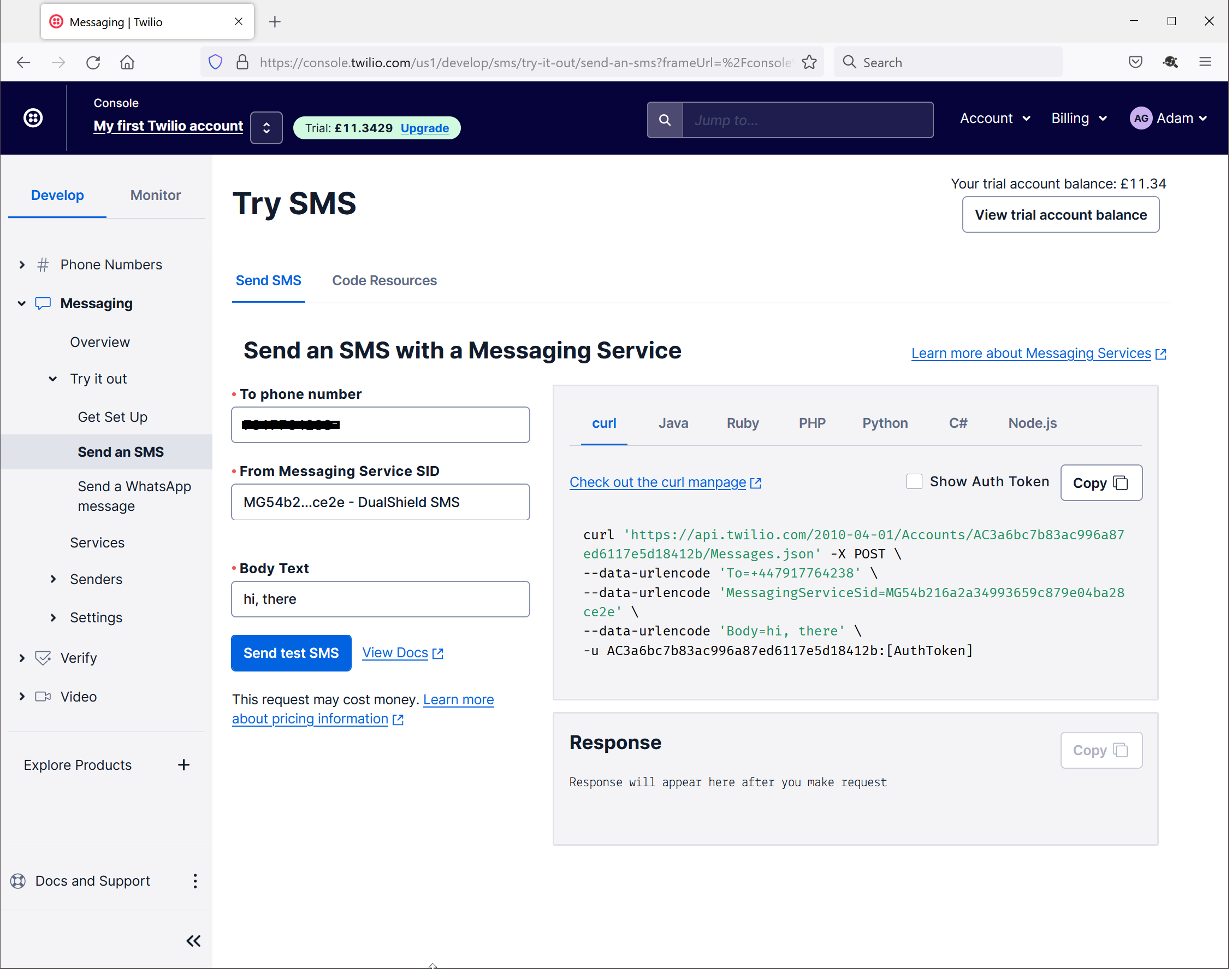
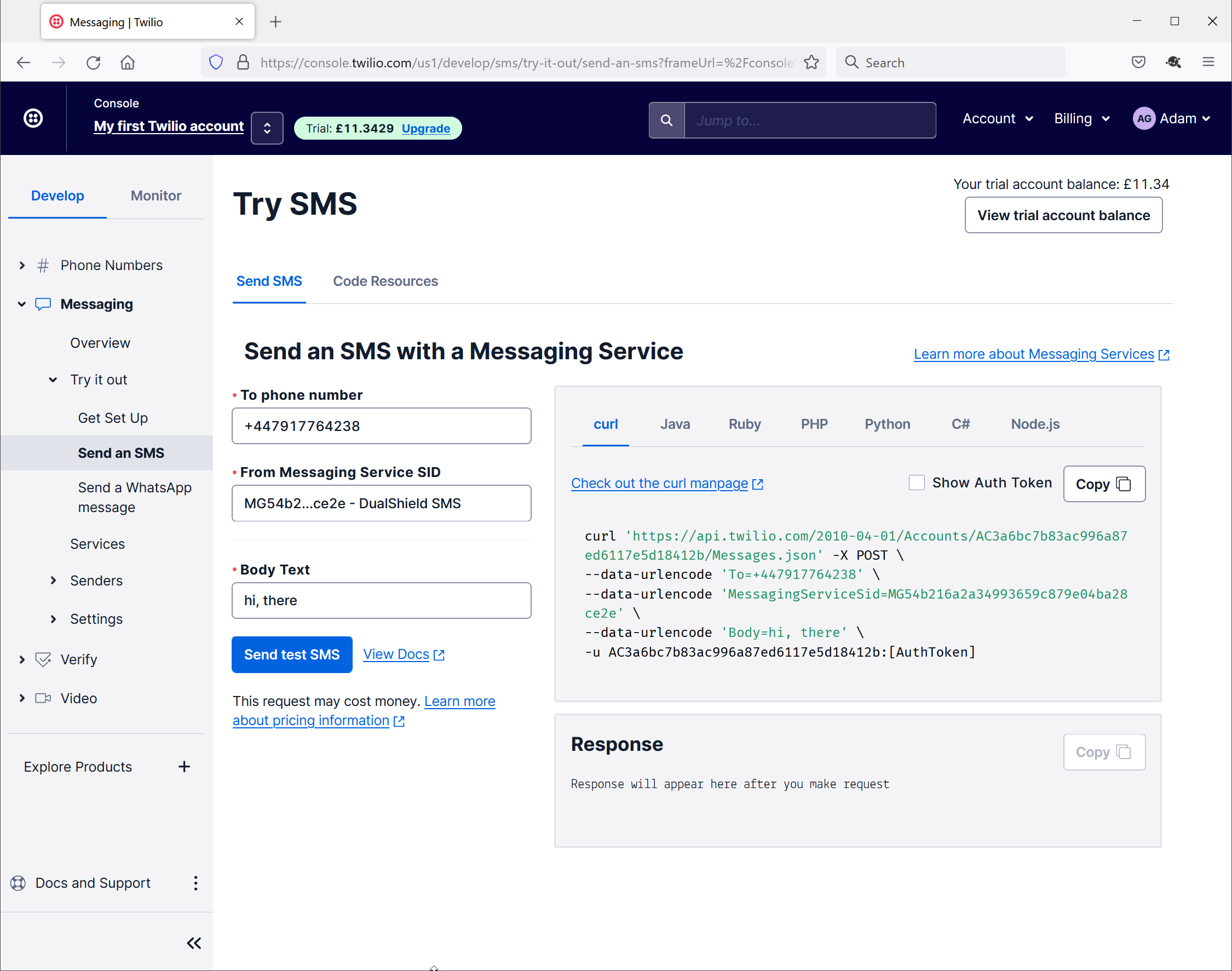
...
Enter a name in the "Messaging Service friendly name" box
Click "Create Message Service"
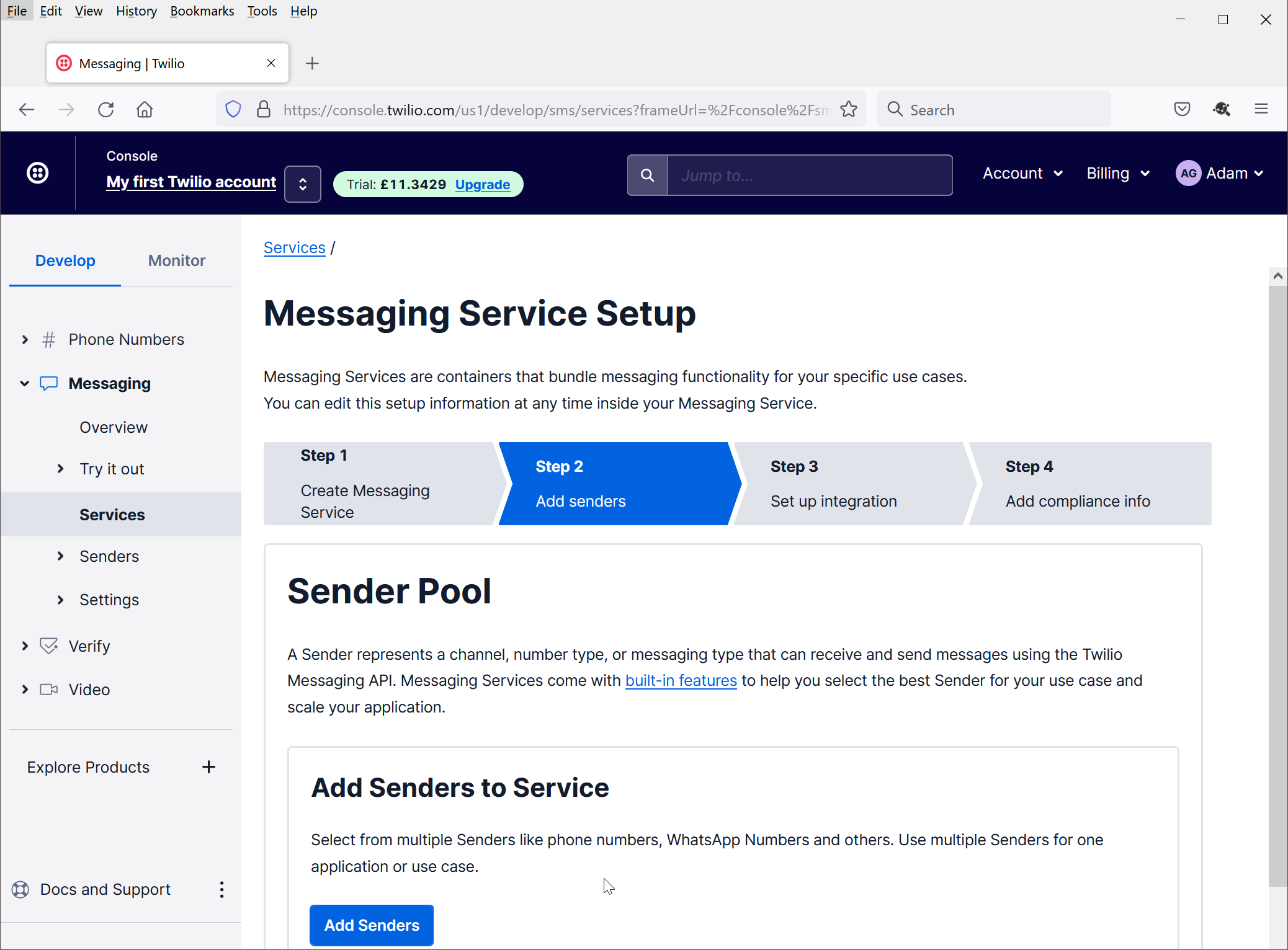
Click "Add Senders"
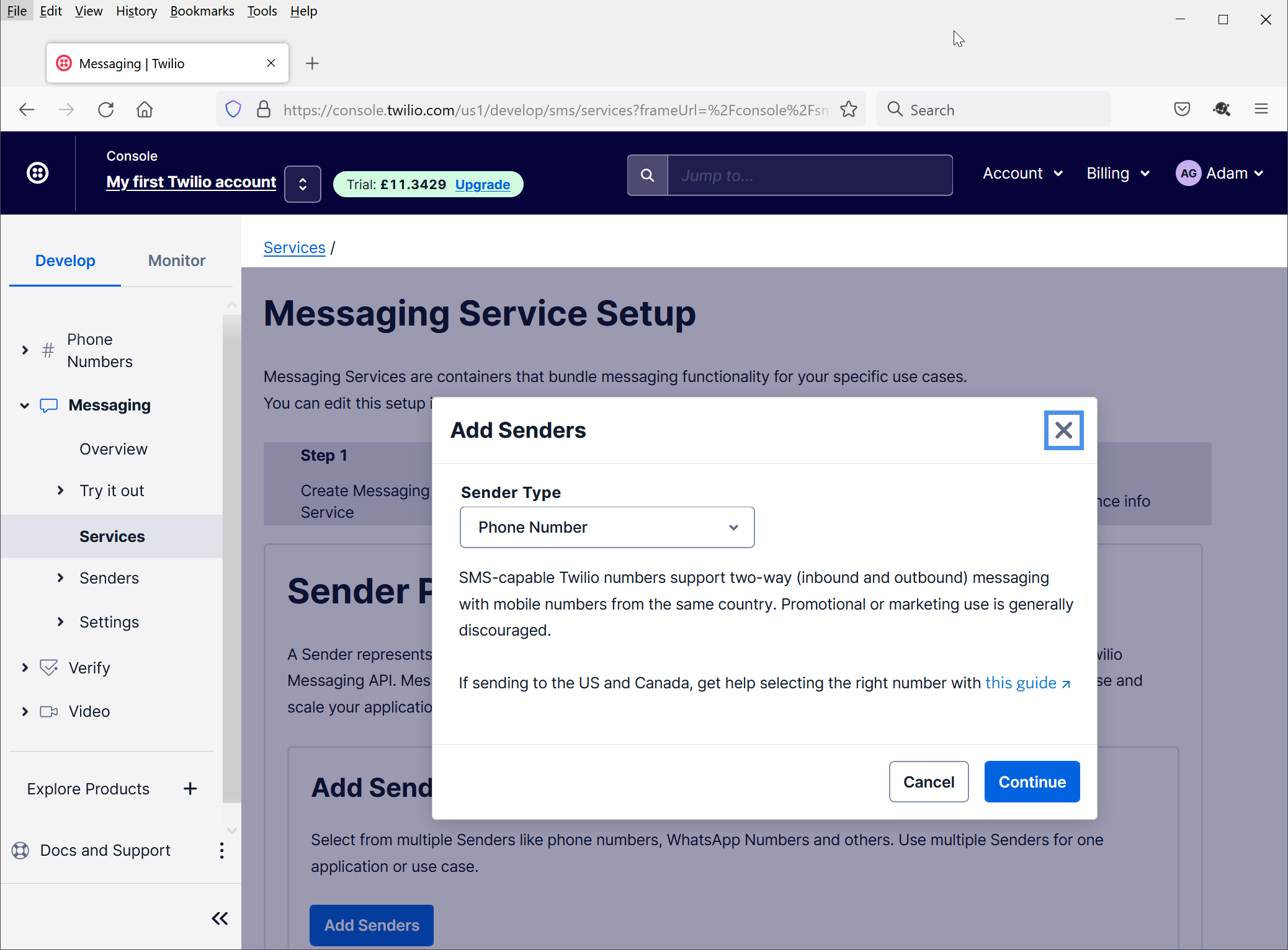
Select "Phone Number" as the "Sender Type",
Click "Continue"
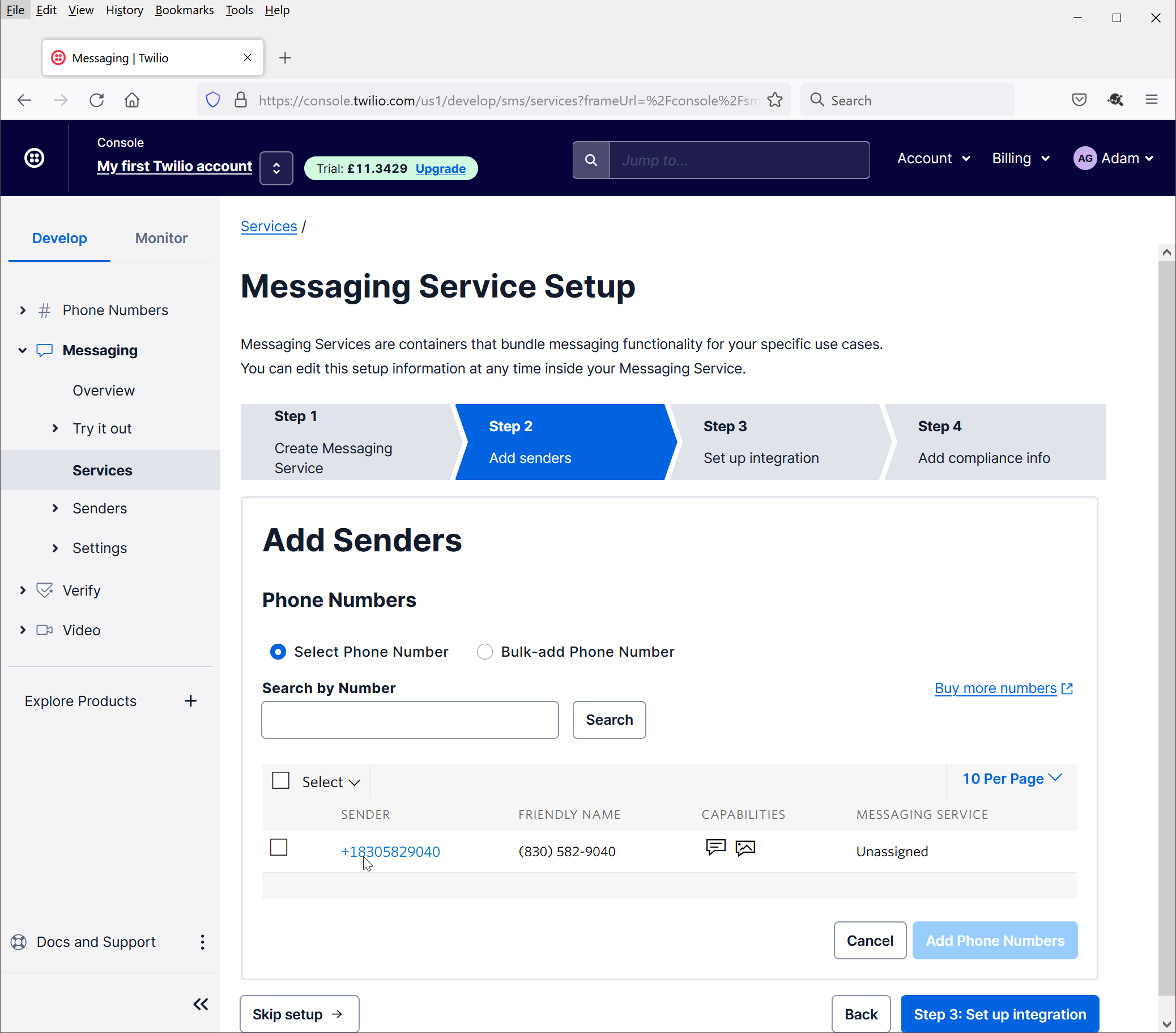

Check the phone number to be used as the Sender
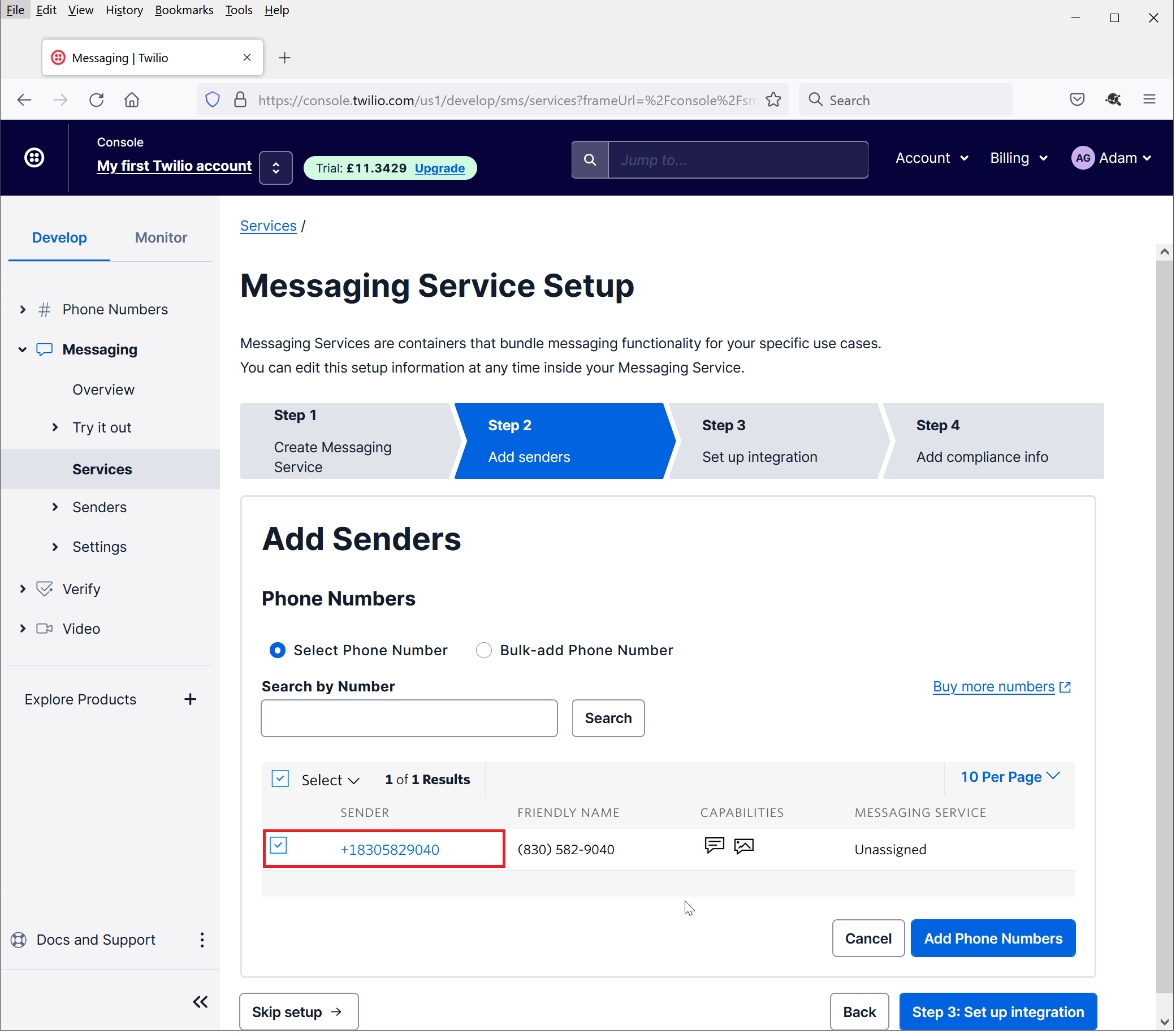
Click "Add Phone Numbers"
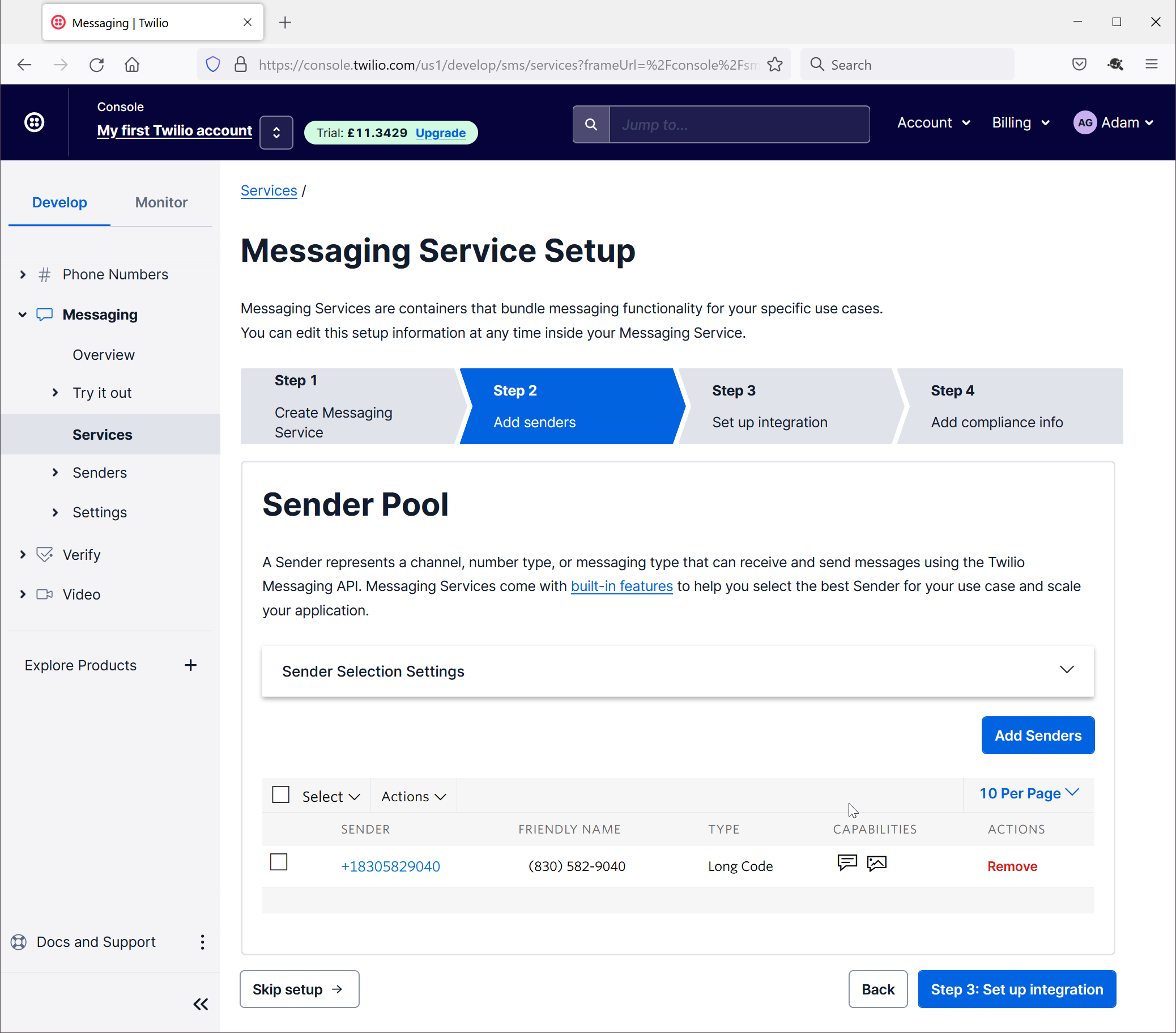
Click "Step 3: Setup Integration"
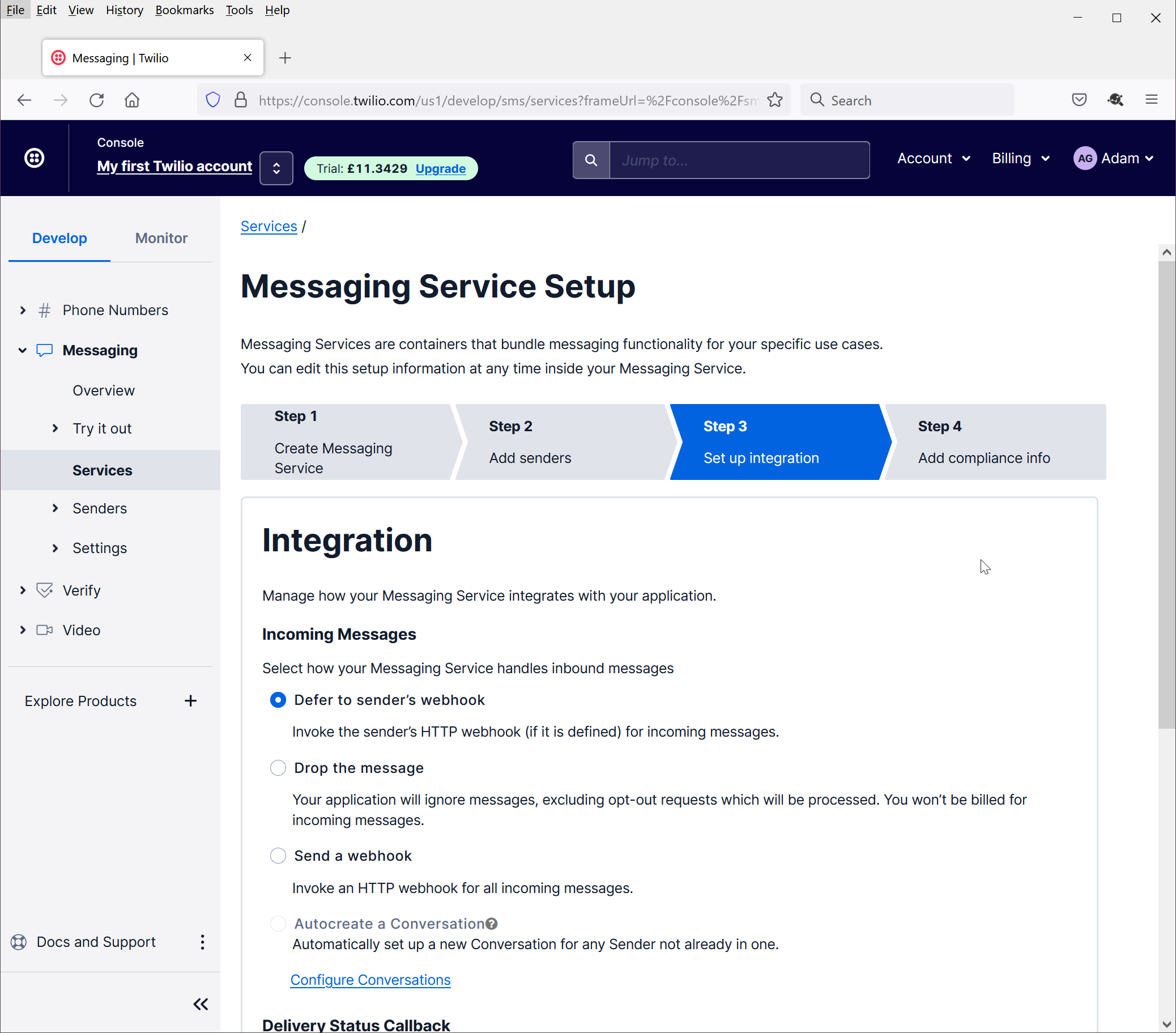
Select "Send a webhook"
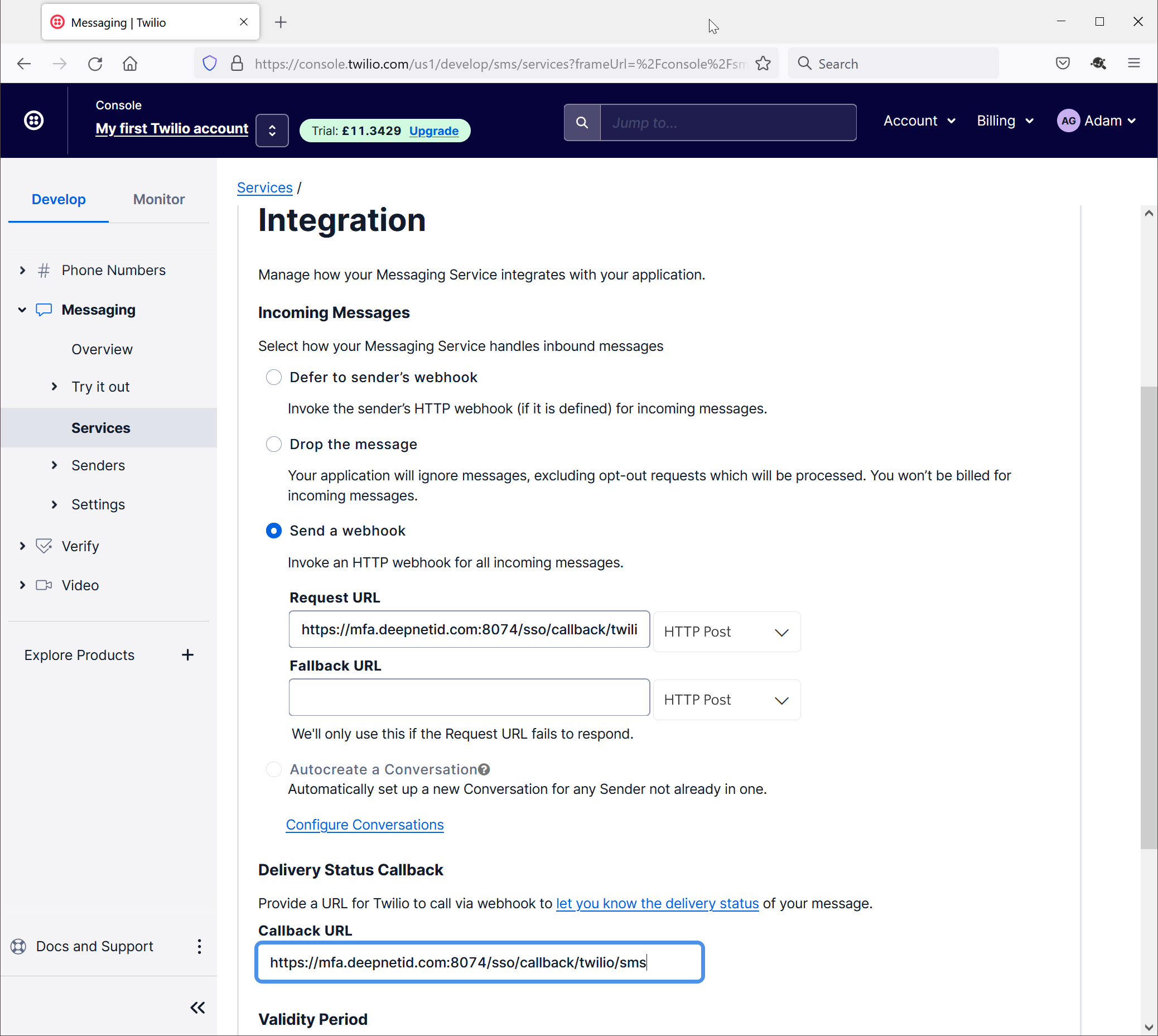
In both the Request URL and Callback URL boxes, enter
https://your-dualshield-fqdn:8074/sso/callback/twilio/sms
Replace "your-dualshield-fqdn" with the real FQDN of your DualShield server, e.g. https://mfa.deepnetid.com:8074/sso/callback/twilio/sms
Scroll down the screen
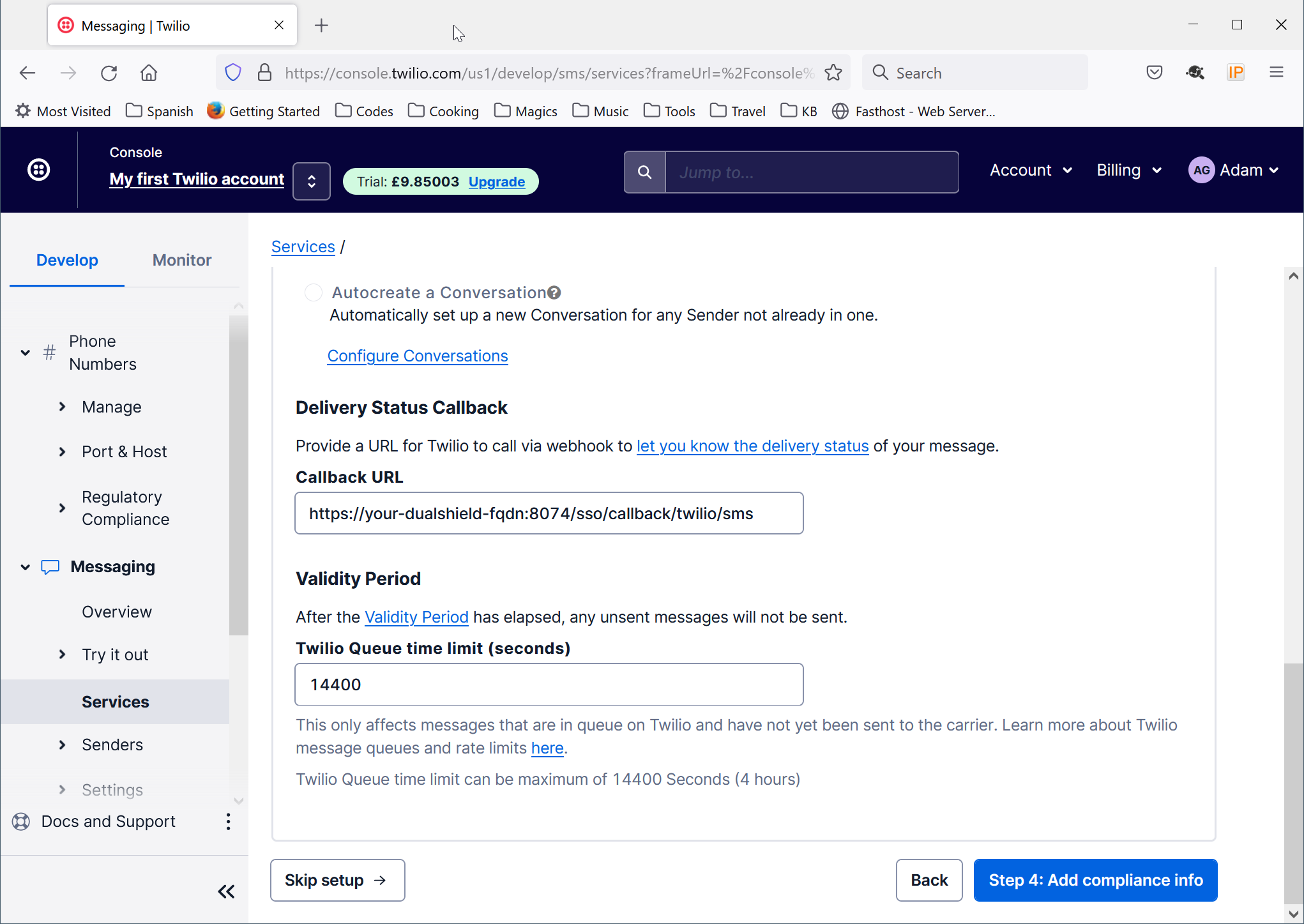
Click "Step 4: Add compliance info"
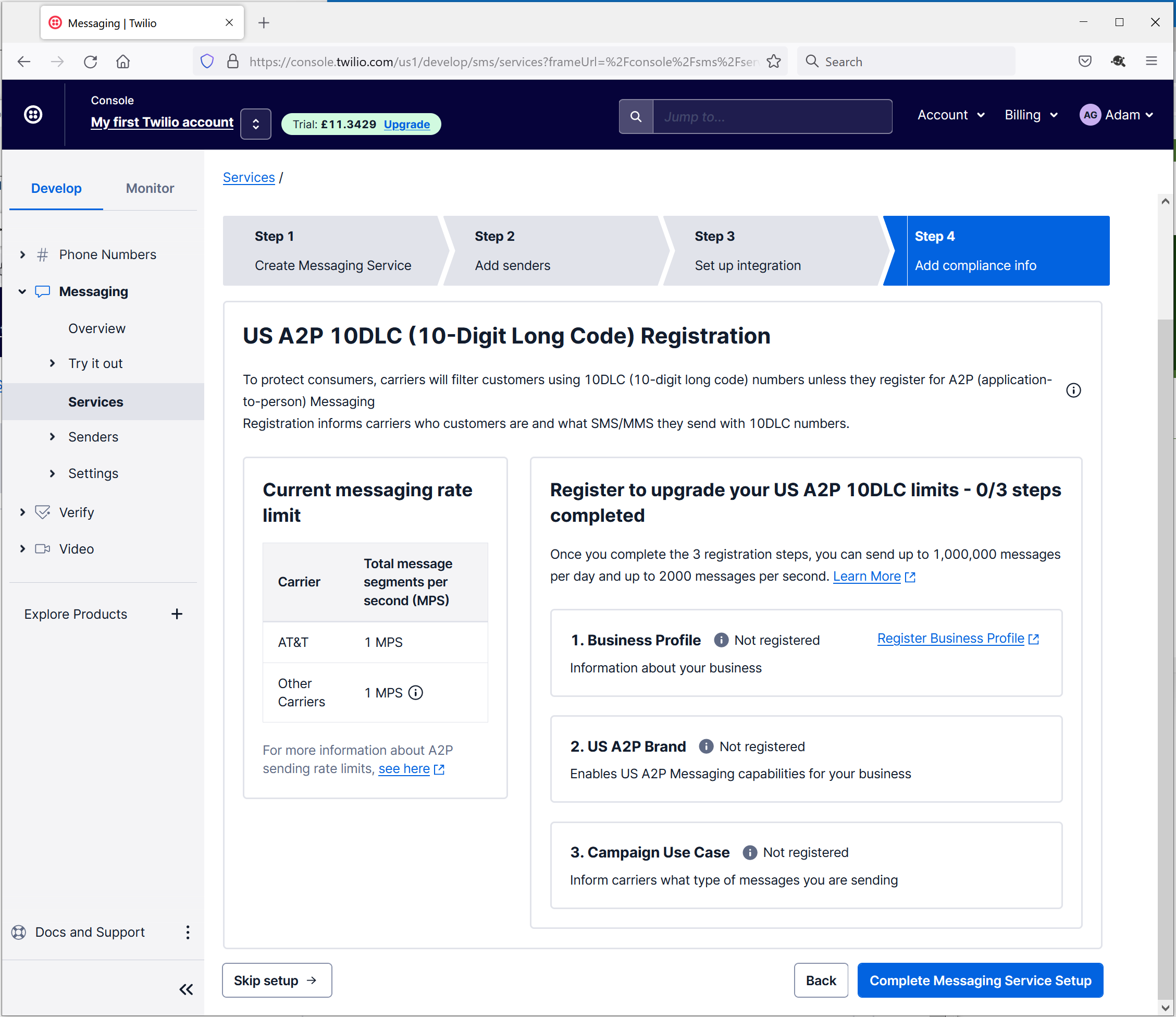
Click "Complete Messaging Service Setup"
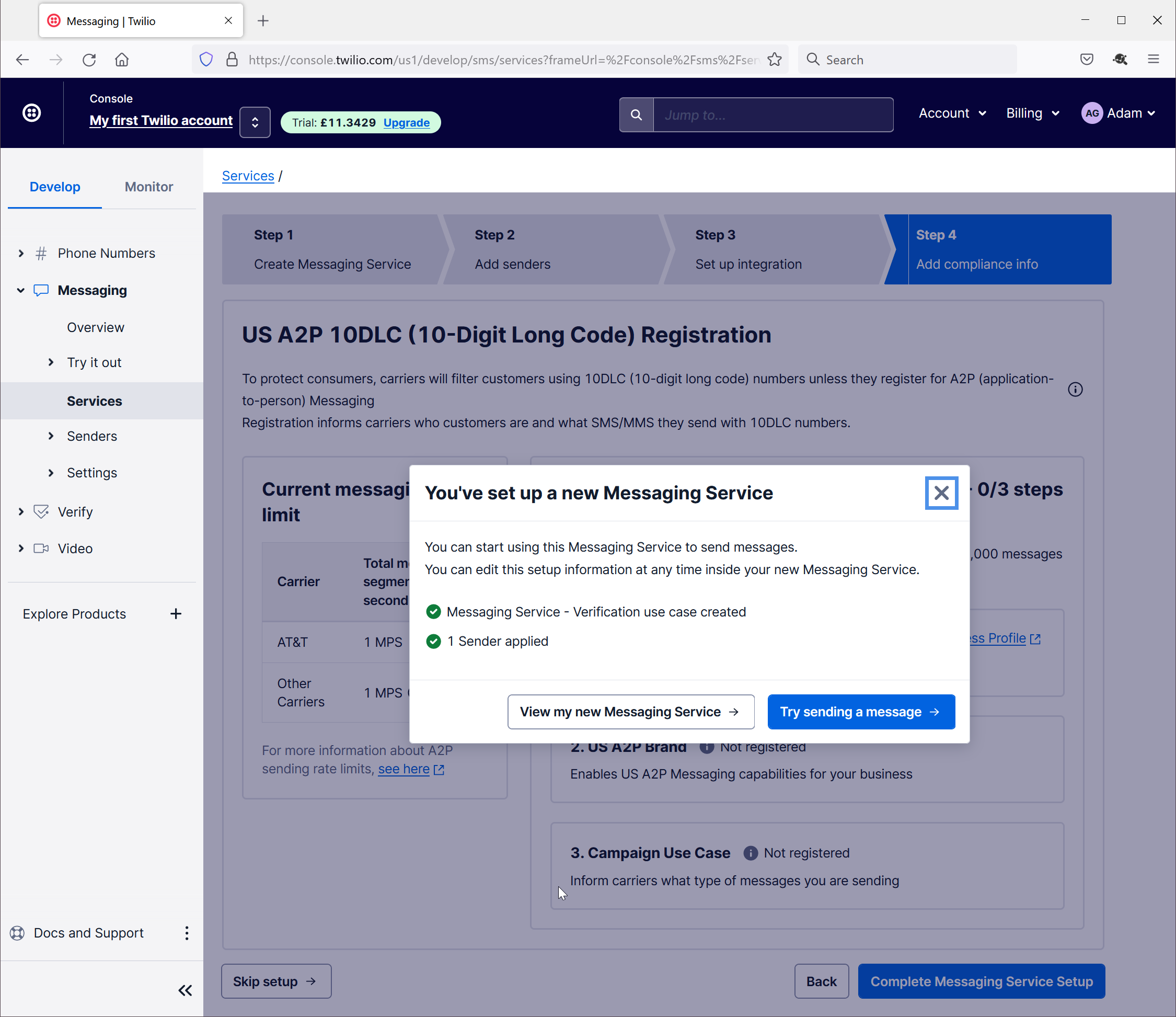
Click "Try sending a message"