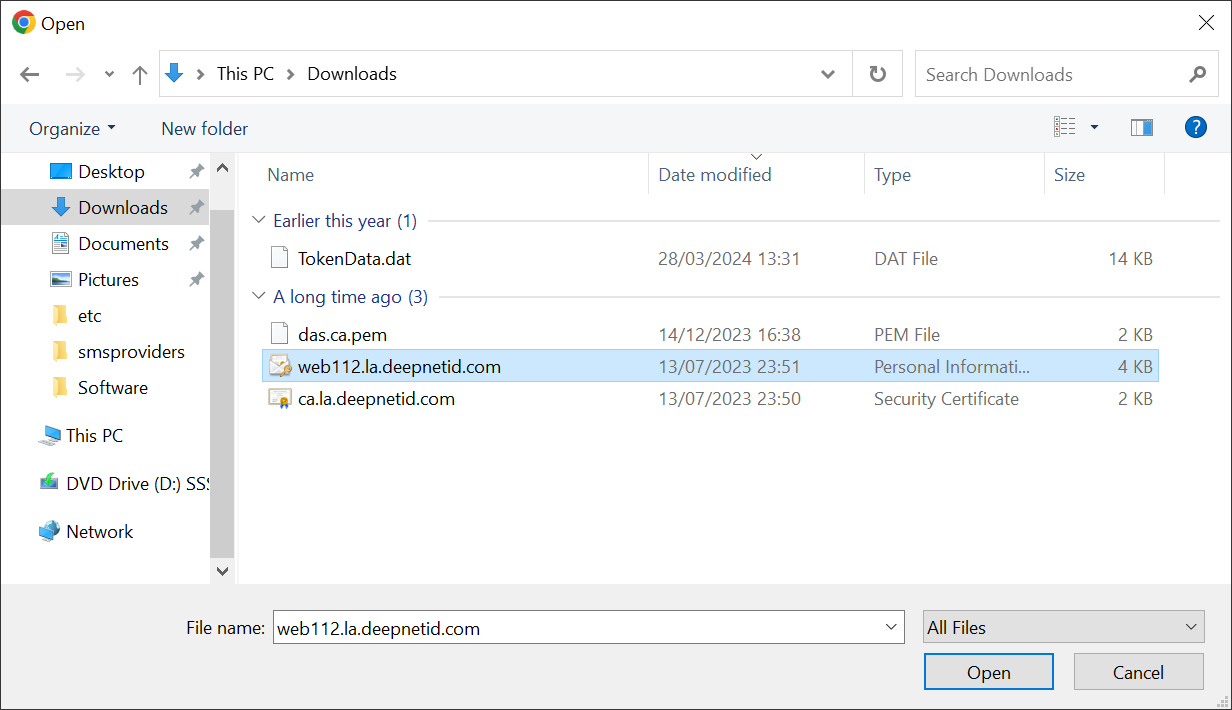
If you already have the PFX file of the new certificate generated from a 3rd-party tool, then please follow the guide below.
Navigate to "SSO | SSO Servers", click the context menu of "Single Sign-On Server"
Select "Replace Certificate" from the context menu


The "Replace Console Certificate" window will pop up:

There are 2 options in this window
- Select File
- Select Server Certificate
If you already have the certificate imported into the "server certificate" repository, then click Click the "Select Server Certificate" buttonoption
| Expand |
|---|
...
Select the correct certificate from the Server Certificate list and click "Save" |

Otherwise, to be used, click "SAVE" click the "Select File" option to import a new certificate:
| Expand |
|---|
select the certificate to be imported
Then, click the "Save" button |