...
| Section |
|---|
|
| Column |
|---|
It is recommended to open the SP Metadata file you obtained from the previous section CompleteFTP SAML Configuration in Notepad++ You need to make a note of the following information. EntityID Assertion Consumer Service Location Single Logout Service Location
|
| Column |
|---|
|
| Panel |
|---|
| borderColor | #9EBEE5 |
|---|
| bgColor | #f0f0f0 |
|---|
| borderWidth | 1px |
|---|
| 
|
|
|
| Section |
|---|
|
| Column |
|---|
Tick the box of the SSO Server you will be using and click Save below. |
| Column |
|---|
|
| Panel |
|---|
| borderColor | #9EBEE5 |
|---|
| bgColor | #f0f0f0 |
|---|
| borderWidth | 1px |
|---|
|
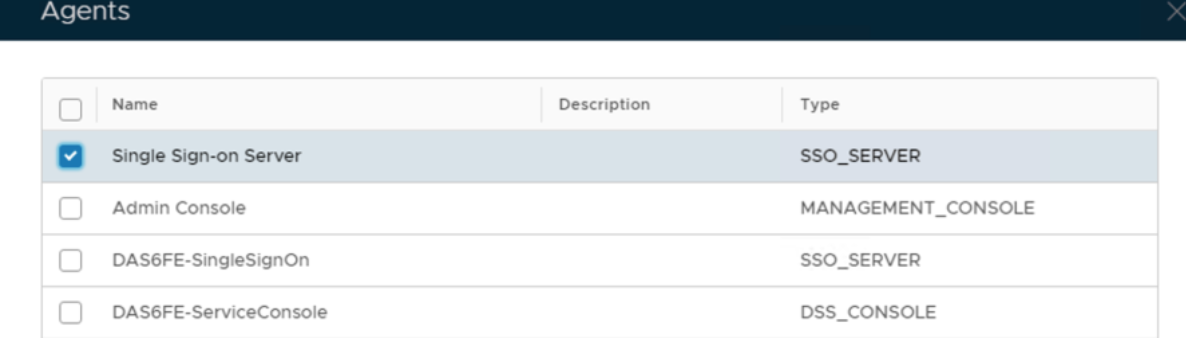 Image Removed Image Removed
|
|
Create a Service Provider Profile
...
| Section |
|---|
|
| Column |
|---|
Fill in the details as per screenshot on right and make sure you select SAML 2.0(Without Metadata) as Type. | | Column |
|---|
| | Panel |
|---|
| borderColor | #9EBEE5 |
|---|
| bgColor | #f0f0f0 |
|---|
| borderWidth | 1px |
|---|
| 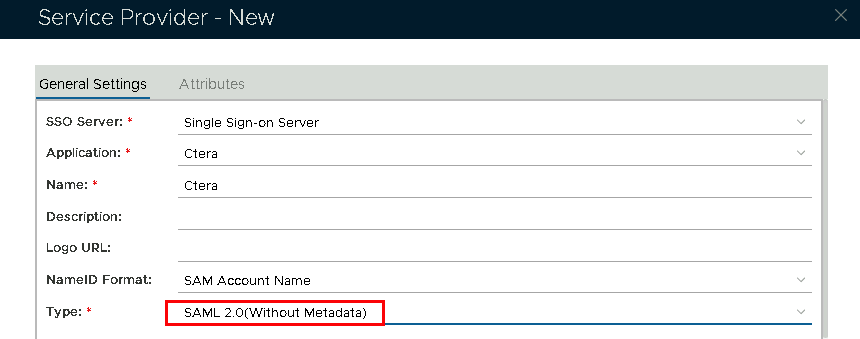 Image Removed Image Removed
|
|
| Section |
|---|
|
| Section |
|---|
| border | true
Enter the EntityID, ACS and SLO information, noted from the SP Metadata file. Make sure both Sign on SAML Assertion and Add 'InResonse To' Attribute checkboxes are checked.
Click Save. | | Column |
|---|
Now fill out Entity ID and ACS URL. | | Option | Value |
|---|
| Entity ID: | | ACS URL: | https://prefix.yourdomainname.com/ServicesPortal/saml
| Column |
|---|
|
| Panel |
|---|
| borderColor | #9EBEE5 |
|---|
| bgColor | #f0f0f0 |
|---|
| borderWidth | 1px |
|---|
|  Image Removed Image Removed
|
|
|
|---|
| Section |
|---|
|
| Column |
|---|
The completed Service Provider dialogue box will look like this: |
| Column |
|---|
|
| Panel |
|---|
| borderColor | #9EBEE5 |
|---|
| bgColor | #f0f0f0 |
|---|
| borderWidth | 1px |
|---|
|
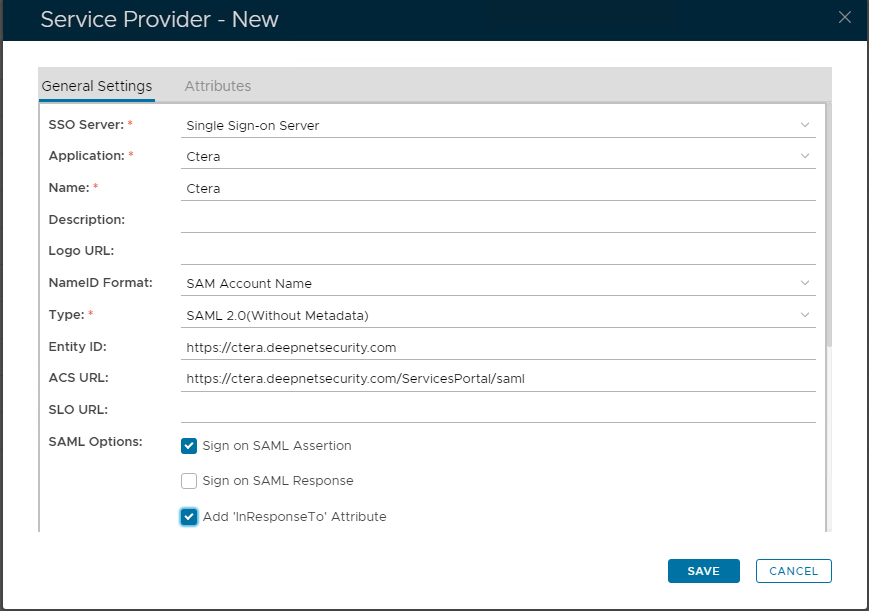 Image Removed Image Removed
|
Click Save.
 Image Added Image Added
|
|
|